
Smart lighting systems have transformed homes into dynamic environments, capable of syncing with music, reacting to motion, or creating ambient scenes across rooms. Yet many users report a frustrating issue: their animated light displays—especially those controlled via apps like Philips Hue, LIFX, or Wiz—begin to stutter, lag, or freeze precisely when someone starts streaming Netflix on a nearby device. This isn’t a coincidence. The root cause lies in the invisible tug-of-war for bandwidth and wireless stability within your home network.
While it might seem odd that a video stream could interfere with lights, both rely heavily on your Wi-Fi network. When high-bandwidth activities like 4K streaming begin, they consume significant resources, often degrading performance for lower-priority connected devices. Understanding this interaction is key to restoring smooth animations and reliable smart lighting control.
How Wi-Fi Networks Handle Multiple Devices
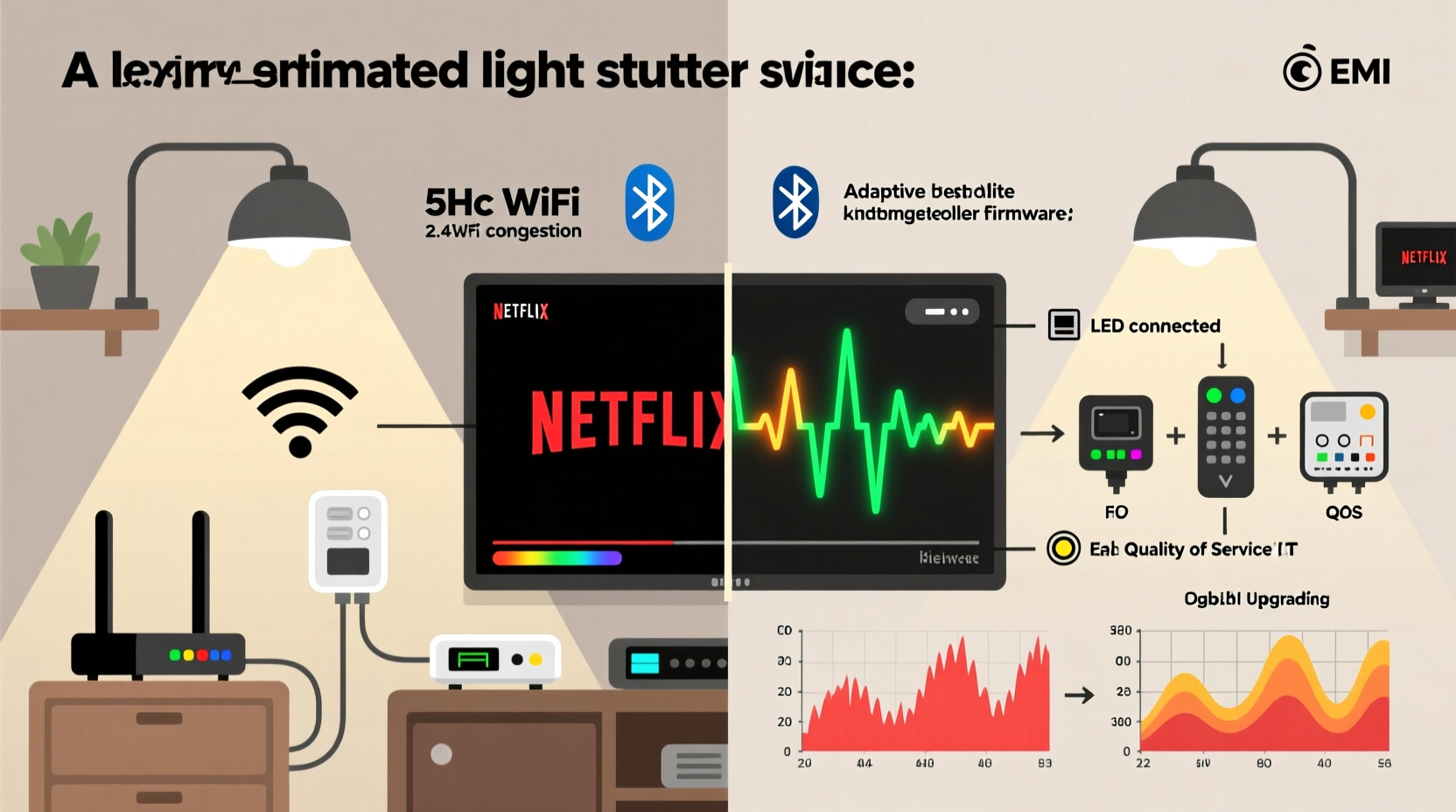
Your home Wi-Fi router acts as a central hub, managing data traffic between all connected devices—phones, laptops, TVs, tablets, smart speakers, and yes, smart bulbs. Each device communicates over radio frequencies (typically 2.4 GHz or 5 GHz), sending and receiving packets of information. The router allocates bandwidth dynamically, but it has physical limits based on its hardware, internet plan speed, and network congestion.
The 2.4 GHz band is especially prone to overcrowding. While it offers better range through walls, it supports fewer channels and slower speeds. Many smart lighting systems operate exclusively on 2.4 GHz because it provides more stable long-range connections than 5 GHz, which has shorter range and poorer wall penetration. Meanwhile, modern streaming devices like smart TVs, Apple TV, or Roku often use the faster 5 GHz band—but if they fall back to 2.4 GHz due to weak signal, both your lights and Netflix compete directly for airtime.
“Even small delays in command delivery can make synchronized light animations appear choppy. Streaming doesn’t just use bandwidth—it changes how routers prioritize traffic.” — Dr. Alan Reyes, Network Systems Engineer at NetFlow Labs
Bandwidth Competition: Streaming vs. Smart Lighting
Streaming Netflix in Full HD (1080p) requires about 5 Mbps; 4K Ultra HD jumps to 15–25 Mbps. In contrast, a single smart bulb typically uses less than 1 Kbps for status updates and color commands. On paper, there should be plenty of room. But real-world network behavior doesn’t follow simple math.
Routers manage Quality of Service (QoS) by prioritizing certain types of traffic. Video streams are usually given higher priority because interruptions cause visible buffering. Commands to smart bulbs, being low-bandwidth and non-critical, are deprioritized. During peak usage, these delayed packets result in noticeable lag—your lights receive color change instructions late or out of order, breaking the illusion of fluid animation.
Additionally, frequent data bursts from streaming create \"channel contention.\" Even if the bulb’s signal is clear, it must wait its turn to transmit, leading to jittery responses. This effect worsens with older routers lacking advanced traffic management or beamforming technology.
Wi-Fi Interference and Signal Congestion
Beyond bandwidth allocation, environmental factors contribute to instability. The 2.4 GHz spectrum is shared not only by your devices but also by neighboring networks, Bluetooth gadgets, baby monitors, and microwave ovens. When multiple signals occupy the same frequency space, interference occurs, increasing error rates and retransmissions.
Imagine trying to hold a quiet conversation in a loud restaurant. You pause, repeat yourself, raise your voice—all slowing communication. Similarly, when your smart bulb tries to send an “I’m online” heartbeat while a 4K stream floods the channel, collisions happen. Retransmitted packets arrive late, causing hiccups in time-sensitive light sequences.
Moreover, some smart lighting hubs act as mesh repeaters (e.g., Philips Hue), relaying signals between bulbs. These intermediate hops increase latency and vulnerability to disruption. If one node experiences interference during heavy streaming, the entire chain suffers.
Common Sources of 2.4 GHz Interference
- Other Wi-Fi networks (especially in apartments)
- Microwave ovens (emit broad-spectrum noise)
- Bluetooth headphones, keyboards, or speakers
- Cordless phones and baby monitors
- Dense building materials (concrete, metal framing)
Step-by-Step Guide to Diagnose and Fix the Issue
Resolving stuttering lights during Netflix streaming involves optimizing your network layout, reducing congestion, and ensuring proper device placement. Follow this sequence to identify and eliminate bottlenecks.
- Confirm Device Band Usage: Check whether your streaming device is using 2.4 GHz or 5 GHz. On most smart TVs or streaming boxes, go to Network Settings > Wireless > Signal Information. If it's on 2.4 GHz, consider moving closer to the router or adding a Wi-Fi extender to enable 5 GHz connectivity.
- Separate Networks with Dual-Band Routing: Use your router’s dual-band capability to isolate traffic. Connect all streaming devices to the 5 GHz network and reserve 2.4 GHz for IoT devices like lights, sensors, and thermostats.
- Enable QoS Settings: Access your router’s admin panel (usually via 192.168.1.1). Look for Quality of Service (QoS) settings and prioritize streaming devices *only* for download speed, not upload. Avoid deprioritizing IoT entirely—instead, set smart lights to “medium” priority to prevent complete starvation.
- Update Firmware: Ensure your router, streaming box, and lighting hub are running the latest firmware. Manufacturers often release updates improving coexistence algorithms and packet scheduling.
- Reduce Physical Obstacles: Position your router so it has a direct line of sight to both the streaming device and the primary smart bulb hub. Avoid placing it inside cabinets or behind appliances.
- Test with Ethernet: For critical devices like your main TV, use an Ethernet cable. This removes Wi-Fi load completely and frees up bandwidth for other devices.
- Monitor Channel Overlap: Use a free app like Wi-Fi Analyzer (Android) or iStumbler (Mac) to see which 2.4 GHz channels nearby networks use. Switch your router to the least crowded channel (preferably 1, 6, or 11).
Do’s and Don’ts: Managing Smart Lights and Streaming Together
| Do | Don't |
|---|---|
| Use 5 GHz for streaming devices whenever possible | Run 4K streaming and smart lights on the same congested 2.4 GHz band |
| Place your router centrally and elevated | Hide your router in a basement or metal enclosure |
| Set up a guest network for IoT devices | Connect everything to a single SSID without segmentation |
| Use wired backhaul for mesh extenders | Rely solely on wireless repeaters that double transmission load |
| Limit simultaneous 4K streams if bandwidth is tight | Assume gigabit internet eliminates local network congestion |
Mini Case Study: Solving Stuttering Lights in a Two-Floor Apartment
Mark, a homeowner in Chicago, installed a 16-bulb Philips Hue setup to sync with movie nights in his living room. Every time he started a Netflix film, the lights would flicker erratically before freezing mid-animation. He tested bulb health, replaced the Hue Bridge, and even reset the entire system—no improvement.
A network scan revealed that his Roku Ultra was connecting over 2.4 GHz despite being near the router. Further inspection showed the 5 GHz signal was disabled accidentally during a recent reset. After re-enabling 5 GHz and assigning separate SSIDs for 2.4 and 5 GHz bands, Mark forced the Roku onto the 5 GHz network. He also updated the Hue Bridge firmware and adjusted QoS settings to balance media and IoT traffic.
Result: Within minutes, the light animations ran smoothly—even during 4K playback. The fix wasn’t about more power or new gear; it was about smarter traffic routing.
Checklist: Optimize Your Network for Smooth Light Animations
- ✅ Identify which Wi-Fi band your streaming device uses
- ✅ Separate 2.4 GHz (IoT) and 5 GHz (streaming/gaming) devices
- ✅ Update firmware on router, bulbs, and hub
- ✅ Enable QoS with balanced priorities
- ✅ Minimize physical obstructions between devices and router
- ✅ Use Ethernet for stationary high-bandwidth devices
- ✅ Scan for Wi-Fi congestion and switch to the clearest channel
- ✅ Consider a mesh system with dedicated backhaul
Frequently Asked Questions
Can I run smart lights on a different network than my TV?
Yes—and you should. Most modern routers allow you to create separate SSIDs for 2.4 GHz and 5 GHz. Assign smart lights to the 2.4 GHz network and streaming devices to 5 GHz. Alternatively, use a guest network for IoT devices to isolate them completely.
Will upgrading my internet speed fix the stuttering?
Not necessarily. Internet speed affects external downloads, but internal Wi-Fi congestion happens regardless of your plan. A 1 Gbps fiber connection won’t help if your router can’t handle local device density or if interference blocks clean signal transmission.
Are Zigbee or Z-Wave lights immune to this issue?
Partially. Lights using Zigbee (like Philips Hue) or Z-Wave communicate over dedicated protocols that don’t rely directly on Wi-Fi. However, the hub itself connects to your network via Wi-Fi or Ethernet. If the hub loses connectivity or experiences high latency due to network strain, commands still get delayed. Using an Ethernet connection for the hub significantly improves reliability.
Conclusion: Take Control of Your Smart Home Experience
Stuttering animated lights during Netflix streaming aren’t a flaw in your bulbs—they’re a symptom of deeper network dynamics. By understanding how bandwidth, frequency interference, and device prioritization interact, you can transform a glitchy experience into seamless automation. The solution doesn’t require expensive upgrades but thoughtful configuration: separating bands, managing traffic, and eliminating avoidable interference.
Start with one step—check your streaming device’s Wi-Fi band today. Then gradually implement the optimizations outlined here. Once your network runs efficiently, your smart lights will respond instantly, enhancing rather than interrupting your entertainment.




 浙公网安备
33010002000092号
浙公网安备
33010002000092号 浙B2-20120091-4
Comments
No comments yet. Why don't you start the discussion?