
Nothing is more frustrating than tapping “Install” on a new app, only to see the download stall, freeze, or fail completely. Whether you're using an Android device with Google Play Store or an iPhone relying on the App Store, repeated download failures disrupt productivity, entertainment, and daily workflows. While occasional glitches are normal, persistent issues often point to deeper problems—many of which are easily solvable once identified. This guide breaks down the most common causes behind failed app downloads and delivers actionable solutions for both platforms.
Understanding the Root Causes of Failed App Downloads
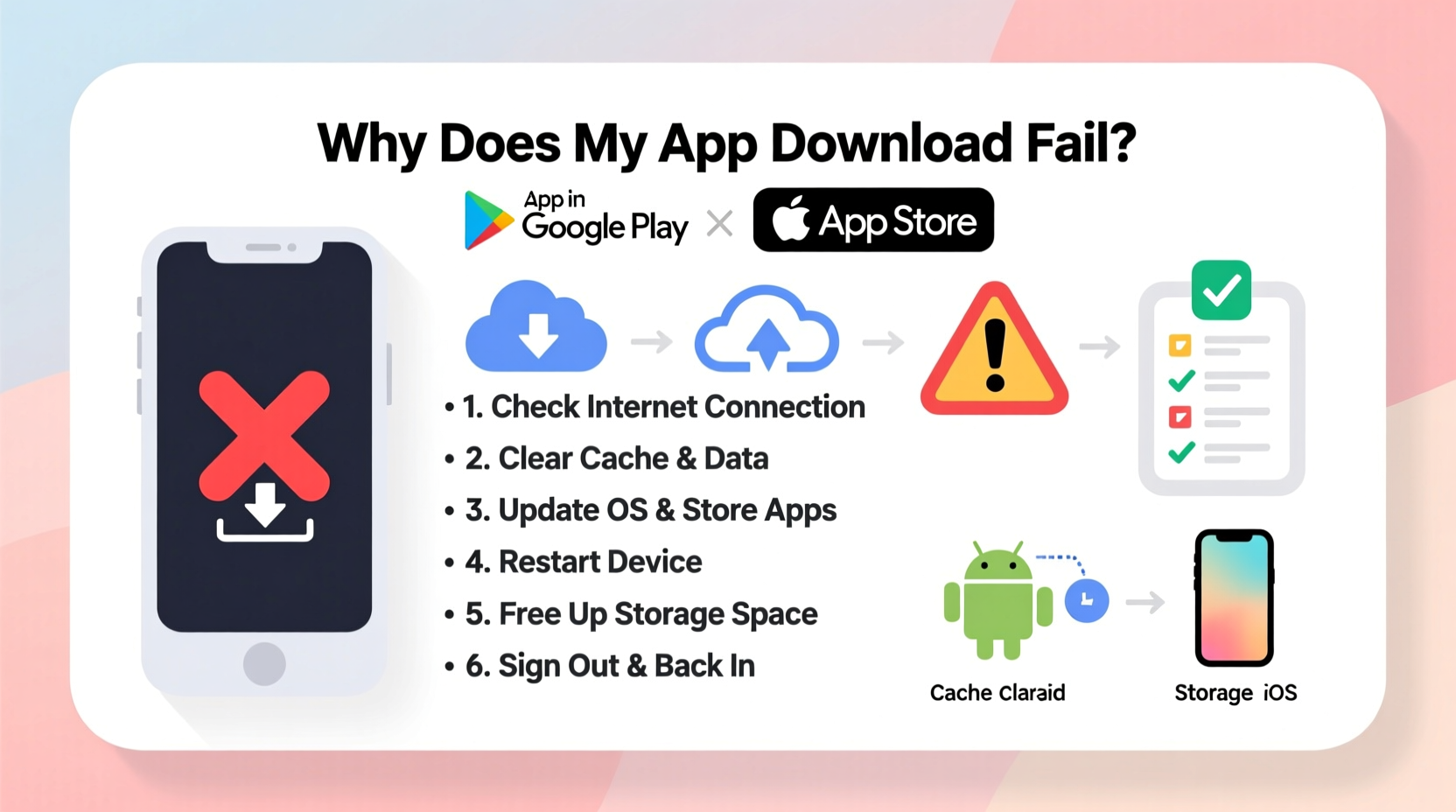
App download failures rarely stem from a single issue. Instead, they result from a combination of network instability, outdated software, storage constraints, corrupted caches, or account-related glitches. Both Google Play Store and Apple’s App Store are robust platforms, but they depend heavily on device health, connectivity, and user settings. Recognizing the underlying cause is the first step toward resolution.
On Android, the Play Store relies on Google Play Services—a background system that manages updates, authentication, and data syncing. If this service is outdated or malfunctioning, app installations can halt unexpectedly. On iOS, the App Store depends on a stable iCloud and Apple ID connection. Any mismatch in credentials or two-factor authentication delays can interrupt downloads.
Additionally, both ecosystems face similar challenges: poor Wi-Fi signals, full storage, or restrictive parental controls. Understanding these overlapping pain points allows users to apply targeted fixes rather than resorting to random troubleshooting.
Step-by-Step Fixes for Android: Resolving Play Store Errors
Android users frequently encounter error codes like “Download pending,” “Error 495,” or “App not installed.” These messages may seem cryptic, but each corresponds to a specific failure mode. Follow this structured approach to eliminate the most common culprits.
- Restart Your Device – A simple reboot clears temporary system glitches and resets network connections. It resolves many transient issues without further intervention.
- Check Internet Connection – Switch between Wi-Fi and mobile data to test stability. If using Wi-Fi, ensure the signal strength is strong and the router isn’t throttling bandwidth.
- Clear Play Store Cache and Data – Go to Settings > Apps > Google Play Store > Storage. Tap “Clear Cache,” then “Clear Data.” This removes corrupted temporary files without affecting your account.
- Update Google Play Services – Navigate to the Play Store, search for “Google Play Services,” and update it if available. An outdated version can prevent app installations.
- Remove and Re-add Google Account – Go to Settings > Accounts > Google, remove your account, then re-add it. This refreshes authentication tokens that may have expired.
- Free Up Storage Space – Apps require temporary space during installation. If internal storage is below 10%, delete unused apps or media files.
- Disable Third-Party Download Managers – Some apps intercept downloads and interfere with the Play Store. Temporarily disable or uninstall them.
If errors persist, consider checking for system updates under Settings > System > Software Update. Outdated Android versions may lack compatibility with newer app builds.
iOS Troubleshooting: Fixing App Store Download Failures
iPhone and iPad users often report apps stuck on “Waiting,” “Paused,” or “Failed” statuses. Unlike Android, iOS doesn’t expose cache management directly, but there are effective workarounds.
- Force Close and Reopen the App Store – Swipe up from the bottom (or double-click Home) to open the app switcher. Swipe away the App Store and relaunch it.
- Check Apple ID Status – Visit systemstatus.apple.com to confirm if iCloud or App Store services are down. Also, verify your Apple ID password hasn’t expired.
- Sign Out and Back Into App Store – Go to Settings > [Your Name] > Media & Purchases > Use Same Apple ID for All, then sign out. Restart the device and sign back in.
- Reset Network Settings – Navigate to Settings > General > Transfer or Reset iPhone > Reset > Reset Network Settings. This clears saved Wi-Fi passwords and APN configurations but often resolves connectivity hiccups.
- Free Internal Storage – iOS requires extra space for unpacking app bundles. Delete old messages, photos, or offload unused apps via Settings > General > iPhone Storage.
- Restart the Device – Hold the side button and either volume key until the power slider appears. Slide to power off, wait 30 seconds, then turn it back on.
- Update iOS – Outdated operating systems may block app installations due to compatibility checks. Install the latest iOS version via Settings > General > Software Update.
In rare cases, restoring the device through Finder (macOS) or iTunes (Windows) may be necessary—but only after backing up data.
“Over 70% of App Store download issues are resolved by simply restarting the device or refreshing the Apple ID session.” — Jordan Lee, Senior iOS Support Technician at TechAid Solutions
Universal Best Practices: Do’s and Don’ts Across Platforms
Certain behaviors increase the likelihood of download failures regardless of OS. The table below outlines critical do’s and don’ts to maintain smooth app installations.
| Action | Do | Don't |
|---|---|---|
| Network Usage | Use stable Wi-Fi or strong cellular data | Attempt downloads on public or metered networks with low bandwidth |
| Storage Management | Maintain at least 1–2 GB of free space | Wait until storage is full before deleting files |
| Account Health | Regularly verify Apple ID or Google account status | Ignore password expiration or two-factor prompts |
| Background Processes | Close unused apps before installing large ones | Run multiple downloads simultaneously on slow connections |
| System Maintenance | Install OS and app updates promptly | Delay security patches or ignore update notifications |
Real-World Example: Maria’s Persistent Play Store Issue
Maria, a freelance designer in Toronto, couldn’t install Adobe Express on her Samsung Galaxy S21. Each attempt showed “Download pending” indefinitely. She tried switching Wi-Fi networks and restarting her phone—no change. Frustrated, she nearly performed a factory reset.
Instead, she checked her device storage and found only 200 MB free. After deleting old video projects and clearing the cache of several social media apps, she had 3.2 GB available. She then cleared the Play Store’s data and restarted the device. The next download attempt succeeded immediately.
Maria’s case highlights how multiple minor issues—low storage, cached data, and background sync conflicts—can combine into a seemingly unsolvable problem. Addressing each layer systematically led to a quick resolution without drastic measures.
Essential Checklist: Fix App Download Failures Fast
Keep this checklist handy whenever an app fails to download:
- ✅ Restart your smartphone or tablet
- ✅ Confirm internet connection is stable and fast
- ✅ Ensure at least 1 GB of free storage is available
- ✅ Sign out and back into your Apple ID or Google account
- ✅ Clear app store cache (Android) or force-close (iOS)
- ✅ Disable any active VPNs or ad blockers temporarily
- ✅ Check for OS and app store updates
- ✅ Try downloading a different app to isolate the issue
- ✅ Reset network settings if all else fails
- ✅ Contact carrier or manufacturer support if hardware-level restrictions exist
Frequently Asked Questions
Why does my app download stop at 99%?
This usually occurs during the final installation phase when the system verifies app integrity. Causes include insufficient storage, corrupted download fragments, or permission conflicts. Free up space, clear the app store cache, and restart the device before retrying.
Can antivirus apps block legitimate downloads?
Yes. Some third-party security apps flag unknown installers or background processes as threats. Temporarily disable such apps during installation, or add the Play Store/App Store to their whitelist.
Will reinstalling the app store fix download issues?
On Android, you cannot uninstall the Play Store, but updating it via Settings or Google Play can help. On iOS, the App Store is system-critical and cannot be reinstalled. However, resetting all settings often restores its functionality.
Final Thoughts: Stay Proactive, Not Reactive
Repeated app download failures are rarely a sign of irreversible damage. More often, they reflect overlooked maintenance tasks—storage clutter, outdated accounts, or weak signals. By adopting routine checks and understanding platform-specific quirks, users regain control over their digital experience.
The key is consistency: regularly update your OS, monitor storage, and verify account health. When problems arise, use a methodical approach rather than jumping between random fixes. Most issues resolve within minutes when addressed correctly.




 浙公网安备
33010002000092号
浙公网安备
33010002000092号 浙B2-20120091-4
Comments
No comments yet. Why don't you start the discussion?