
You pay for a high-speed internet connection—500 Mbps, maybe even a gigabit—and yet when you try to download an app from the Google Play Store, Apple App Store, or even Steam, it crawls at 2 MB/s. It’s frustrating. You check your Wi-Fi signal: full bars. You run a speed test: everything looks perfect. So why is your app download so slow?
The truth is, raw internet speed is just one piece of a much larger puzzle. Many factors beyond your ISP's advertised bandwidth can throttle app downloads—some technical, some environmental, and others entirely out of your control. Understanding these underlying causes is the first step toward reclaiming fast, reliable downloads.
1. Server-Side Bottlenecks Are Often the Real Culprit
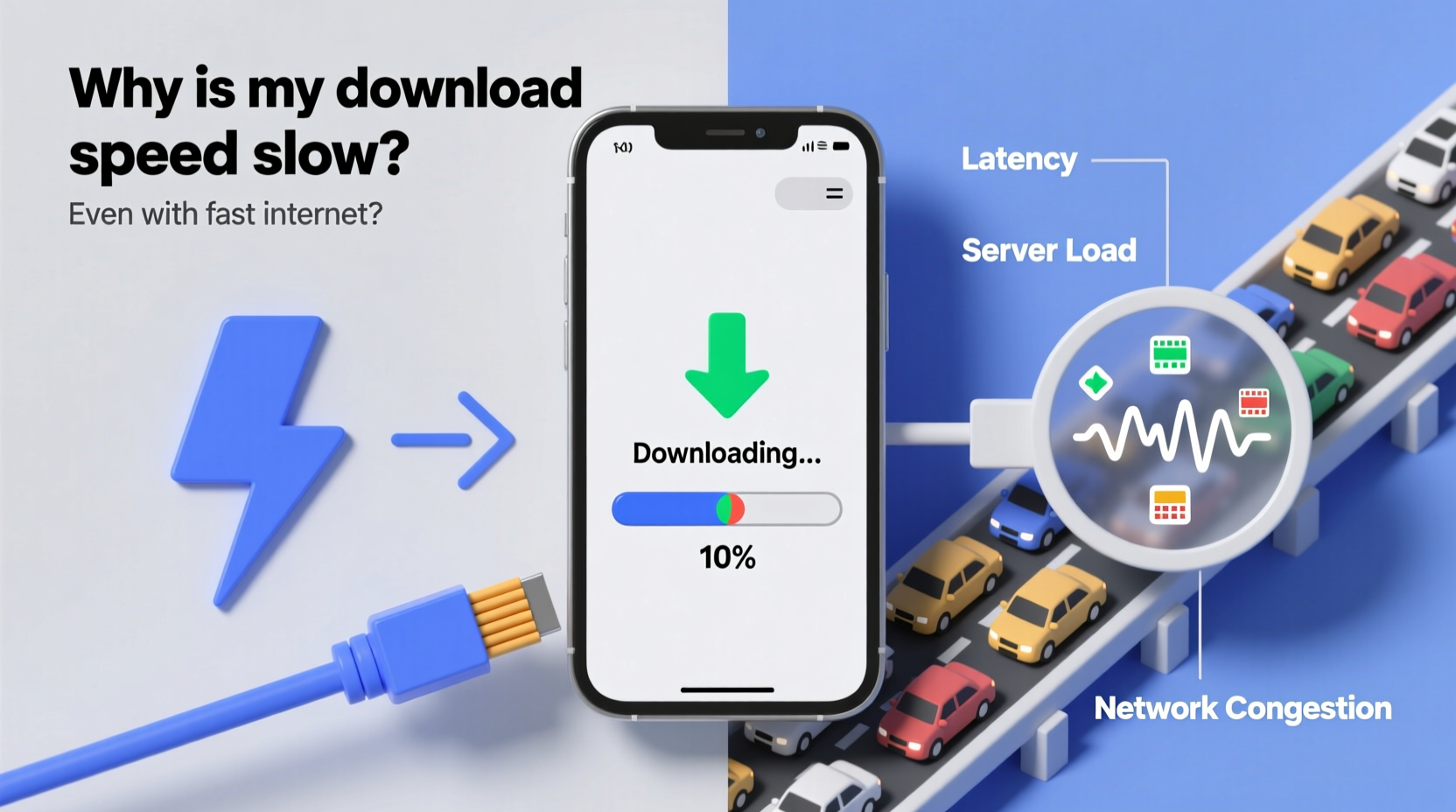
Your internet speed measures how quickly data can travel *to* your device, but only if the source is capable of sending it that fast. If the server hosting the app update or installation file is overloaded, geographically distant, or poorly optimized, your download will be limited by its weakest link—not your connection.
For example, during major software rollouts (like a new iOS version or a popular game launch), millions of users hit the same servers simultaneously. Even large tech companies like Apple or Google can experience temporary congestion. This doesn’t reflect poorly on their infrastructure—it’s simply physics meeting demand.
“Bandwidth is only as good as the slowest node in the chain. A 1 Gbps connection won’t help if the origin server maxes out at 10 Mbps per user.” — Dr. Lena Torres, Network Performance Engineer at Akamai
Additionally, some app stores use third-party content delivery networks (CDNs) that may not be optimized for your region. Your download speed might improve significantly if you're closer to a CDN edge server—but if you’re far away, latency and routing inefficiencies add up.
2. Wi-Fi Interference and Network Congestion
Even with a strong signal, your Wi-Fi performance can degrade due to interference. Modern homes are filled with devices emitting radio frequency noise: microwaves, baby monitors, Bluetooth speakers, and neighboring Wi-Fi networks all operate in the crowded 2.4 GHz band. This congestion leads to packet loss and retransmissions, slowing down actual throughput.
Switching to the 5 GHz band reduces interference and supports higher speeds, but it has shorter range and struggles with walls and floors. If your router is in another room or behind obstacles, your effective speed drops dramatically—even if the theoretical bandwidth is high.
Another common issue is network congestion within your own home. Multiple devices streaming, gaming, or updating simultaneously split available bandwidth. While your ISP provides enough total speed, shared usage means individual tasks get less than expected.
| Wi-Fi Band | Speed Potential | Range | Interference Risk |
|---|---|---|---|
| 2.4 GHz | Moderate (up to 150 Mbps) | Longer | High (many devices) |
| 5 GHz | High (up to 1 Gbps) | Shorter | Lower (fewer devices) |
| 6 GHz (Wi-Fi 6E) | Very High (multi-gigabit) | Shortest | Lowest (new standard) |
To diagnose this, temporarily disconnect other devices and retry the download. If speed improves, internal network traffic was likely the bottleneck.
3. Device Limitations That Throttle Downloads
It’s easy to overlook the role your device plays in download performance. Older smartphones, tablets, or laptops may have outdated Wi-Fi chips that cap at 802.11n standards (max ~150 Mbps real-world), regardless of your router’s capabilities. Similarly, storage write speeds matter: if your phone uses slow eMMC storage instead of UFS 3.1, the system must buffer incoming data, creating backpressure that slows the download itself.
Battery-saving modes also limit background activity. On Android and iOS, apps in the background may be restricted from using full network capacity to preserve battery life. This throttling can make downloads appear sluggish, especially if they resume after being paused.
Background processes such as cloud backups, OS updates, or syncing services consume both CPU and network resources. These invisible tasks compete for bandwidth and processing power, reducing what’s available for your intended app download.
Mini Case Study: The Office Worker’s Dilemma
Sarah, a remote worker in Chicago, upgraded her internet plan to 300 Mbps after experiencing slow app downloads on her iPad. Despite the upgrade, she still waited 10 minutes for a 1 GB productivity app to install. Frustrated, she contacted support, who suggested running a direct speed test through Safari—which showed 280 Mbps.
The issue? Her iPad was set to “Low Data Mode,” which restricts background downloads and limits server connections. Once disabled, the same app downloaded in under 90 seconds. The problem wasn’t her internet or the app store—it was a single toggle buried in settings.
4. Carrier Throttling and Network Management Policies
If you're using cellular data to download apps, your carrier may be silently limiting your speed. Most providers advertise “unlimited” data plans but implement “fair usage policies” that throttle bandwidth after a certain threshold—often between 20–50 GB per month. Once triggered, your download speeds can drop from 50 Mbps to as low as 1–3 Mbps.
Some carriers also prioritize certain types of traffic. Video streaming might be given precedence over app downloads because it impacts customer satisfaction more visibly. As a result, non-real-time tasks like app installations get deprioritized in the queue.
Even on Wi-Fi, some ISPs engage in traffic shaping. Though net neutrality laws discourage outright blocking, deep packet inspection allows ISPs to identify and subtly delay large downloads, especially during peak hours.
5. Step-by-Step Guide to Diagnose and Fix Slow App Downloads
Before assuming your ISP is at fault, follow this systematic approach to isolate the cause and apply targeted fixes.
- Verify Actual Internet Speed
Use a trusted speed test tool like Fast.com or Speedtest.net. Run it multiple times across different devices to confirm consistency. - Test Download Speed Outside the App Store
Download a large file via browser (e.g., a public ISO image). If browser downloads are fast but app store downloads remain slow, the issue lies with the app platform or device handling. - Restart Router and Device
Power cycle your modem/router and the device attempting the download. This clears temporary glitches and resets network handshakes. - Switch Wi-Fi Bands or Use Ethernet
If possible, connect via 5 GHz or use a wired connection (on computers). This eliminates wireless interference variables. - Disable Battery Saver and Background Limits
On iOS: Go to Settings > Battery > Low Power Mode (off). On Android: Settings > Apps > [App Name] > Mobile Data & Wi-Fi > Unrestricted. Also disable Data Saver in system settings. - Forget and Reconnect to Wi-Fi
This forces a fresh DHCP lease and re-authentication, resolving IP conflicts or stale DNS entries. - Check for Firmware Updates
Update your router’s firmware and ensure your device OS is current. Outdated software can introduce bugs affecting network performance. - Change DNS Servers
Try switching to Google DNS (8.8.8.8, 8.8.4.4) or Cloudflare (1.1.1.1). Poor DNS resolution can delay initial connection setup.
Common Mistakes That Make Things Worse
- Assuming speed tests tell the whole story – They measure ideal conditions, not real-world app delivery.
- Blaming the ISP without testing alternatives – The problem could be your device, router, or the app server.
- Ignoring background apps – Syncing services or cloud backups eat bandwidth silently.
- Using outdated hardware – Old routers or phones can’t leverage modern network speeds.
Frequently Asked Questions
Can antivirus software slow down app downloads?
Yes. Some security suites scan files in real time as they download, adding processing overhead. Temporarily disabling real-time protection (with caution) can reveal if this is the bottleneck. However, never leave it off permanently.
Why do app downloads start fast but then slow down?
This often happens due to adaptive throttling by the app store or server. Initial bursts use cached segments or nearby CDNs, but sustained downloads may shift to less optimal routes. It can also indicate overheating devices reducing performance to cool down.
Does clearing cache help with slow downloads?
Not directly, but a cluttered system cache can cause instability in the app store client. Clearing it (via device settings) may resolve freezes or failed downloads that indirectly affect speed perception.
Action Plan: What You Can Do Today
Don’t accept slow app downloads as inevitable. Start with this checklist to optimize your setup:
- ✅ Run a side-by-side comparison: app store vs. browser download speed
- ✅ Disable Low Data Mode or Data Saver settings
- ✅ Switch to 5 GHz Wi-Fi or use Ethernet
- ✅ Restart your router and device
- ✅ Update device OS and router firmware
- ✅ Test on another network to rule out local issues
- ✅ Monitor background apps consuming bandwidth
Final Thoughts
Slow app downloads despite fast internet are rarely about one single factor. More often, it’s a combination of server limitations, network configuration, device constraints, and invisible background processes conspiring to degrade performance. By methodically testing each layer—from your ISP to your smartphone’s settings—you can identify the true bottleneck and take corrective action.
Technology should work seamlessly. When it doesn’t, small adjustments often yield dramatic improvements. Take control of your digital experience. Apply these insights today, and you’ll spend less time waiting and more time using the apps you need.




 浙公网安备
33010002000092号
浙公网安备
33010002000092号 浙B2-20120091-4
Comments
No comments yet. Why don't you start the discussion?