
Updating an app should bring improvements—new features, better performance, or security patches. But sometimes, instead of progress, you're met with endless crashes, frozen screens, or error messages. It’s frustrating, especially when the app is essential for work, communication, or daily routines. The good news: most post-update crashes are temporary and solvable. Whether it's a compatibility glitch, corrupted data, or a poorly tested release, understanding the root causes empowers you to respond quickly—and even roll back to a stable version if necessary.
Why Apps Crash After Updates
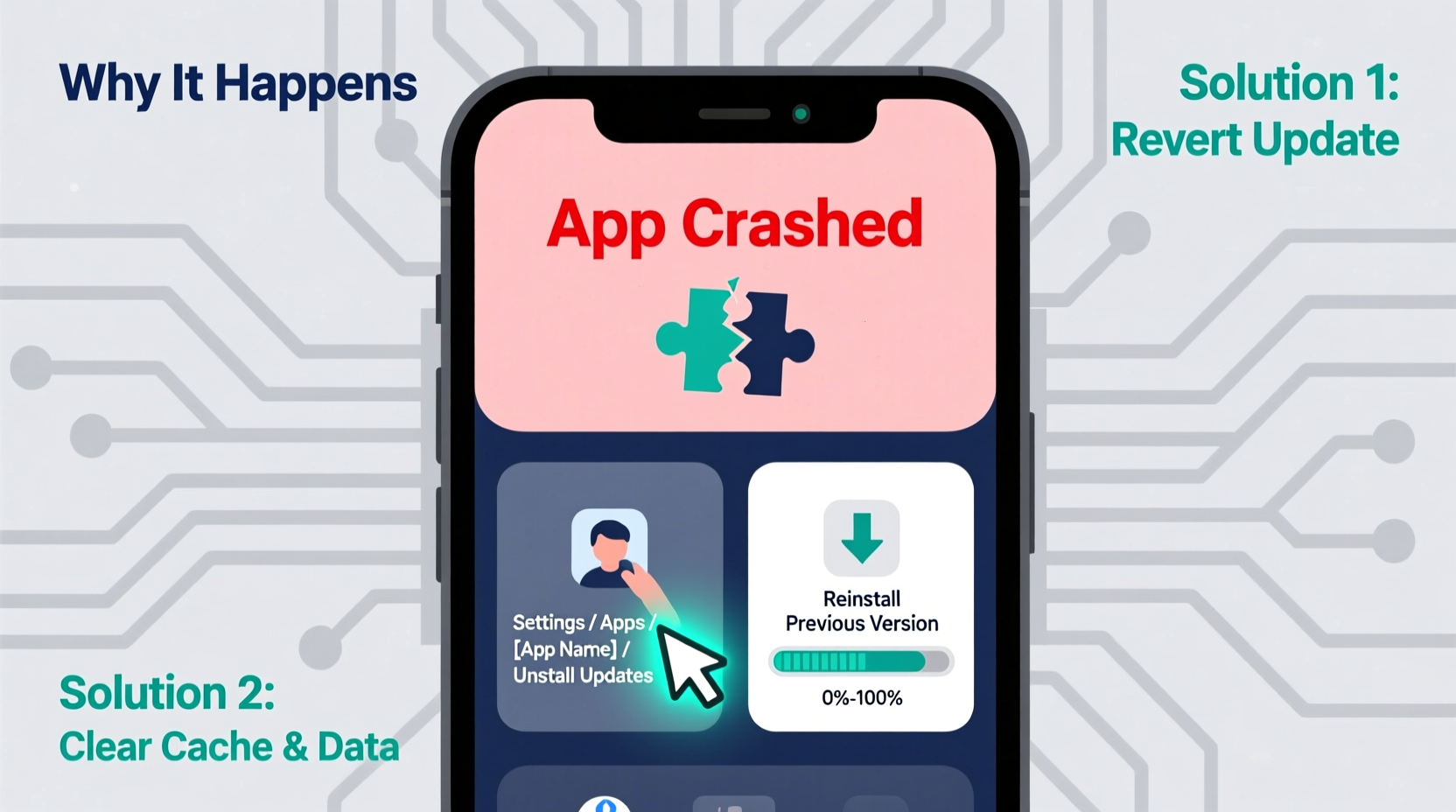
When an app crashes immediately after an update, the cause often lies in one of several predictable areas. Developers test updates extensively, but real-world device diversity makes it impossible to catch every issue before release. Here are the most common reasons:
- Incompatible device software: Your operating system may not meet the updated app’s new requirements. For example, an app might now require Android 12 or iOS 16, while your phone runs an older version.
- Bug-ridden updates: Despite testing, some updates contain uncaught bugs that trigger crashes under specific conditions—like certain screen sizes, memory loads, or background processes.
- Corrupted cache or data: During installation, temporary files can become corrupted, leading to instability even if the update itself is sound.
- Conflicts with other apps: Some apps interact at the system level. A recent update might clash with another app’s permissions or services, causing both to malfunction.
- Server-side issues: Not all problems are on your device. Sometimes, the app relies on backend servers that haven’t been scaled or updated properly, leading to timeouts and crashes.
“Even well-tested updates can fail in the wild due to unforeseen hardware combinations or regional settings.” — Rajiv Mehta, Mobile Software Engineer at a top-tier tech firm
Step-by-Step: How to Diagnose and Fix App Crashes
Before reverting an update, try troubleshooting methods that might resolve the problem without losing access to new features. Follow this logical sequence:
- Restart the app (and your device): A simple restart clears temporary glitches. Close the app completely from the app switcher, then reopen it. If that fails, reboot your phone or tablet.
- Check for additional updates: Return to your app store. Sometimes developers push hotfixes within hours of a problematic release. An “Update” button may already be available.
- Clear the app’s cache: On Android, go to Settings > Apps > [App Name] > Storage > Clear Cache. On iOS, offload the app (Settings > General > iPhone Storage > [App] > Offload App), which preserves documents while removing cached data.
- Reinstall the app: Uninstall the app completely, then reinstall it from the official store. This ensures a clean install with no corrupted files lingering.
- Check internet connection: Poor connectivity can mimic crashes, especially for apps relying on live data. Test on Wi-Fi and mobile data separately.
- Verify account status: Log out and back into your account within the app. Authentication tokens can expire or misfire after an update.
If none of these steps help, and the app continues to crash on launch or during use, it’s time to consider reverting to a previous version—or waiting for a patch.
How to Revert an App Update (Android & iOS)
Unlike desktop software, mobile platforms don’t offer a built-in “rollback” option. However, there are workarounds depending on your device and ecosystem.
On Android: Manual APK Downgrade (Advanced)
Android allows greater control over app versions through sideloading. You can download an older APK file and install it manually. Proceed with caution:
- Uninstall the current (crashing) version of the app.
- Enable “Install from Unknown Sources” in Settings > Security.
- Visit a trusted APK repository like APKMirror or APKPure. Search for the app and select a previous, stable version.
- Download the APK file and install it by tapping the notification or opening the Downloads folder.
- Disable “Unknown Sources” afterward for security.
On iOS: No Direct Rollback – But Alternatives Exist
iOS does not allow users to downgrade apps once updated. Apple enforces this for security and consistency. However, you do have options:
- Restore from backup: If you backed up your iPhone via iTunes or Finder *before* the update, you can restore the entire device to that point, preserving the old app version.
- Wait for a fix: Monitor the App Store. Developers often release emergency patches within 24–48 hours of widespread complaints.
- Contact support: Reach out to the app’s customer service. Some companies provide beta access or temporary access links to older builds for critical users.
“You can’t downgrade iOS apps directly, but you’re not powerless. A timely iCloud backup can be a lifesaver.” — Lena Tran, iOS Developer and Tech Educator
Do’s and Don’ts When Dealing with Crashing Updates
| Action | Do | Don't |
|---|---|---|
| After an update | Test core functions immediately | Ignore error messages or skip updates altogether |
| Troubleshooting | Clear cache, restart device, check for hotfixes | Immediately factory reset your phone |
| Rolling back | Use official sources or backups | Download APKs from untrusted third-party sites |
| Security | Re-enable security settings after sideloading | Keep “Unknown Sources” enabled permanently |
| Feedback | Report crashes via app store reviews or support channels | Assume you’re the only one affected |
Mini Case Study: Sarah’s Banking App Disaster
Sarah, a freelance designer, relied on her bank’s mobile app to approve payments and monitor transactions. One morning, after a routine update, the app crashed every time she tried to log in. With a client payment due that afternoon, she couldn’t afford to wait.
She first restarted her phone—no change. Then she checked the Google Play Store: no new updates available. She cleared the app’s cache, but the login screen still froze. Frustrated, she considered visiting a branch, but that would take two hours round-trip.
Instead, she searched online and found others reporting the same issue. A Reddit thread mentioned APKMirror as a solution. She uninstalled the app, downloaded version 4.2.1 (the last stable build), and reinstalled it. The app worked perfectly. She made her payment on time and later upgraded again when the developer released a fixed version 4.3.2.
Sarah’s experience highlights the importance of community feedback and preparedness. While not every user feels comfortable sideloading, knowing the option exists—and where to find reliable sources—can prevent major disruptions.
Prevention Checklist: Avoid Future Crashes
While you can’t control developer decisions, you can reduce your risk of being caught in a buggy update. Use this checklist proactively:
- ✅ Delay non-critical updates: Wait 24–48 hours before updating apps you depend on. Check reviews first.
- ✅ Maintain regular backups: Use iCloud, Google Drive, or computer-based backups before major changes.
- ✅ Monitor app permissions: After updates, review if new permissions were added unnecessarily.
- ✅ Join beta programs cautiously: Beta testers get early access but accept higher instability. Opt-in only if you’re prepared to troubleshoot.
- ✅ Keep OS updated: Running the latest OS version improves compatibility with modern apps.
- ✅ Use app-specific settings: Disable auto-updates for mission-critical apps (e.g., banking, health, work tools).
Frequently Asked Questions
Can downgrading an app void its warranty or ban my account?
No. Using an older version of an app doesn’t violate terms of service in most cases, especially if done temporarily. However, some services (like banking or streaming) may restrict functionality if they detect outdated clients for security reasons. You won’t be banned, but full access might be limited.
Is sideloading APKs safe?
It depends on the source. APKs from reputable sites like APKMirror are scanned and verified. Never download APKs from pop-up ads, forums without moderation, or unknown links. Malware disguised as popular apps is common in unofficial channels.
Why don’t app stores let me revert updates easily?
App stores prioritize security and consistency. Allowing easy rollbacks could expose users to unpatched vulnerabilities. Additionally, developers need incentive to fix bugs quickly—if users could always go back, there’d be less pressure to improve.
Conclusion: Take Control When Updates Go Wrong
An app crash after an update doesn’t have to derail your day. Most issues stem from known causes and can be resolved with methodical troubleshooting. From clearing cache to reinstalling the app, many fixes are simple and immediate. When those fail, reverting becomes a viable path—especially on Android, where sideloading opens the door to stability.
The key is staying informed. Monitor reviews before updating, maintain backups, and know where to turn when things go wrong. Technology should serve you, not frustrate you. By understanding the mechanics behind crashes and rollbacks, you reclaim control—even in the face of flawed updates.




 浙公网安备
33010002000092号
浙公网安备
33010002000092号 浙B2-20120091-4
Comments
No comments yet. Why don't you start the discussion?