
App crashes are more than just frustrating—they disrupt productivity, break user trust, and can even lead to data loss. Whether it’s a social media platform freezing mid-scroll, a banking app shutting down during a transaction, or a game closing unexpectedly, recurring crashes signal deeper issues. The good news? Most app crashes aren’t random glitches. They stem from identifiable causes, many of which you can diagnose and resolve without technical expertise.
Understanding the root cause is key. While some problems require developer intervention, others are fixable on your end with simple troubleshooting steps. This guide breaks down the most common reasons apps crash and delivers practical, tested solutions that work across Android and iOS devices.
Common Causes of App Crashes
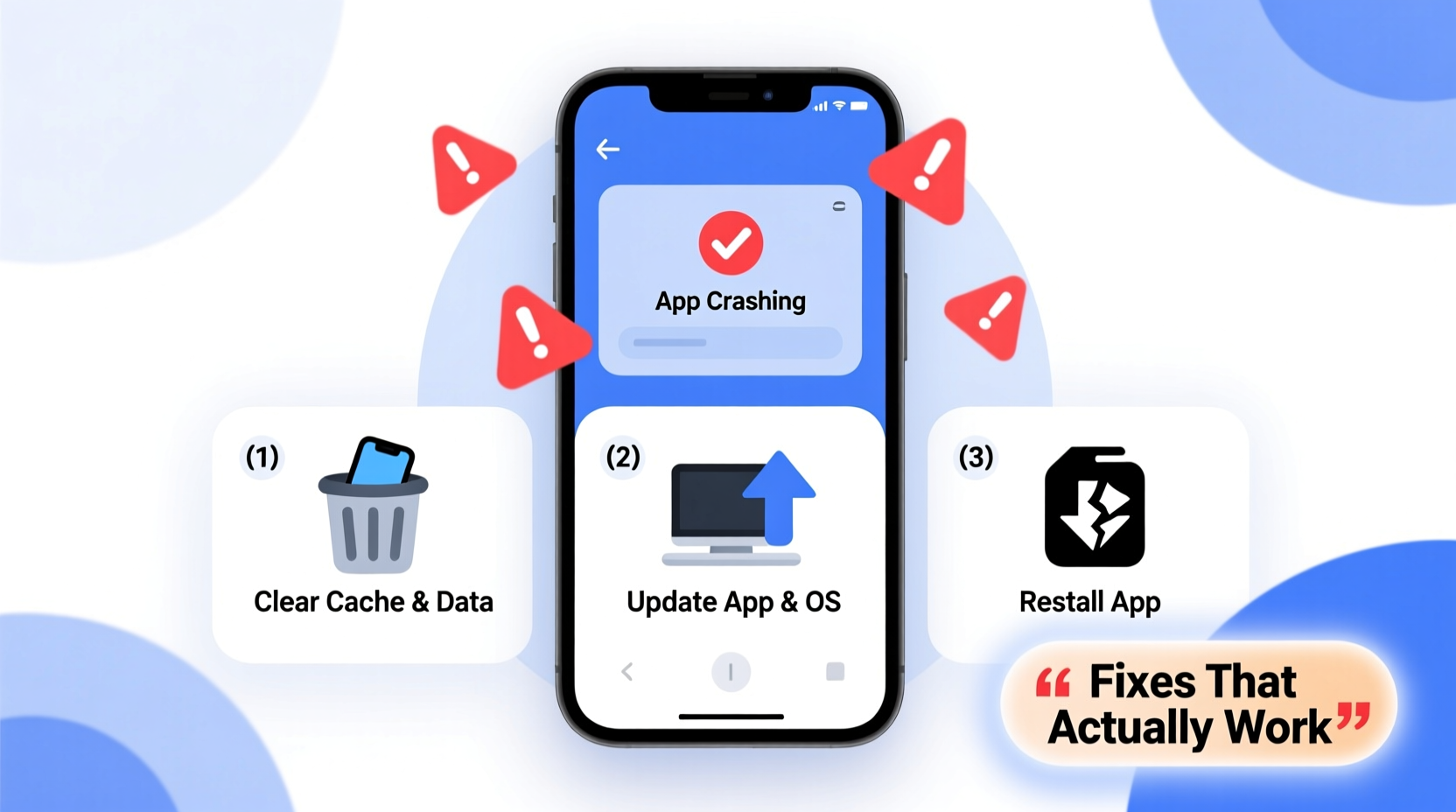
Before jumping into fixes, it helps to understand what might be going wrong behind the scenes. Apps crash for a variety of reasons, ranging from software bugs to hardware limitations. Here are the top culprits:
- Insufficient device memory (RAM): When too many apps run simultaneously, available memory drops, forcing background apps to close abruptly.
- Bug-ridden app updates: Developers sometimes release updates with untested code, introducing new bugs that trigger crashes.
- Incompatible operating system version: Older OS versions may lack support for newer app features, leading to instability.
- Corrupted app data or cache: Temporary files can become damaged over time, interfering with normal app function.
- Poor internet connectivity: Some apps rely heavily on real-time data; spotty connections can cause timeouts and forced closures.
- Overheating or low battery optimization: Devices may throttle performance or kill apps to preserve battery or reduce heat.
- Hardware incompatibility: High-end apps designed for flagship phones may struggle on older or budget models.
“Over 60% of mobile app crashes are due to memory leaks or improper resource handling—issues that often go unnoticed until users report them.” — Rajiv Mehta, Mobile Software Architect at DevTrace Labs
Step-by-Step Troubleshooting Guide
Follow this logical sequence to identify and eliminate the source of the crash. Start with basic checks before moving to advanced methods.
- Restart the app: Close it completely from the recent apps menu and reopen. This clears temporary errors.
- Reboot your device: A full restart resets memory allocation and clears stuck processes.
- Check for app updates: Go to the App Store (iOS) or Google Play Store (Android) and ensure the app is up to date.
- Update your operating system: Install any pending OS updates—these often include stability patches.
- Free up storage space: Delete unused apps, photos, or downloads. Aim for at least 1–2 GB of free space.
- Toggle airplane mode: Turn it on for 30 seconds, then off. This resets network settings temporarily.
- Clear app cache (Android): Settings > Apps > [App Name] > Storage > Clear Cache.
- Reinstall the app: Uninstall, restart the device, then reinstall from the official store.
Do’s and Don’ts When Dealing with Crashing Apps
| Do’s | Don’ts |
|---|---|
| Keep your device and apps updated regularly. | Ignore repeated crash notifications—they’re warning signs. |
| Monitor battery usage and close resource-heavy apps. | Download apps from third-party sources outside official stores. |
| Report crashes to developers via app reviews or support emails. | Assume the problem is entirely your fault—sometimes it’s the app. |
| Use lightweight alternatives if your device struggles with heavy apps. | Force-install older APKs (Android) unless absolutely necessary and trusted. |
| Back up important app data when possible (e.g., cloud sync). | Keep using a crashing app for critical tasks like banking or messaging. |
Real-World Example: Fixing a Banking App Crash
Sarah, a small business owner, relied on her bank’s mobile app to deposit checks and monitor transactions. One Monday morning, the app began crashing every time she tried to upload a check. She attempted multiple reopens, but each ended in a freeze followed by closure.
Following the troubleshooting steps above, Sarah first restarted her phone. No change. She checked for updates—both the app and her iPhone software were current. Next, she deleted the app and reinstalled it. Upon relaunch, the app opened smoothly and allowed her to complete the deposit.
The root cause? A corrupted local session file that wasn’t cleared by routine use. Reinstallation wiped the faulty data, restoring normal operation. Sarah now schedules monthly app cleanups for all critical tools, preventing recurrence.
When the Problem Isn’t on Your End
Sometimes, no amount of user-side troubleshooting will fix the issue because the flaw lies within the app itself. Signs this is the case include:
- The app crashes consistently across different devices.
- Recent negative reviews in the app store mention identical issues.
- The crash occurs at the same point every time (e.g., upon login or after pressing a specific button).
- Customer support confirms an ongoing server-side outage.
In such cases, your best move is to report the issue. Open the app store listing, scroll to reviews, and leave a detailed comment: mention your device model, OS version, when the crash happens, and any error messages. Developers monitor feedback closely, especially when multiple users report the same bug.
You can also contact support directly through the app’s website or help section. Include screenshots or screen recordings if possible—even though you can’t capture the crash itself, showing the last stable screen adds context.
Advanced Fixes for Persistent Issues
If standard methods fail, consider these deeper interventions—especially useful for power users or those managing business-critical apps.
Check Background App Limits
Some devices aggressively manage background apps to save battery. On Android, go to Settings > Battery > Background restriction and ensure your app isn’t being throttled. On iOS, disable Low Power Mode temporarily to test performance.
Disable Battery Optimization (Android)
Navigate to Settings > Apps > [App Name] > Battery > Battery Optimization. Select “Don’t optimize” to allow unrestricted operation.
Test in Safe Mode (Android)
Boot your phone in Safe Mode to disable third-party apps. If the problematic app works here, another installed app is likely conflicting with it. Uninstall recently added apps one by one to isolate the culprit.
Reset App Preferences (iOS)
Go to Settings > General > Transfer or Reset iPhone > Reset > Reset Home Screen Layout (optional) or Reset All Settings. This won’t erase data but will restore default configurations that may have been altered.
Check Server Status
Use sites like Downdetector.com to see if others are reporting outages for the service. Many app crashes during peak hours stem from overloaded servers, not local issues.
Prevent Future Crashes: Long-Term Maintenance Tips
Prevention is better than repair. Incorporate these habits to minimize future disruptions:
- Update weekly: Set a reminder to check for app and system updates every Sunday.
- Limit background apps: Swipe away unused apps daily to free up RAM.
- Monitor storage: Use built-in tools (e.g., iPhone's \"iPhone Storage\" or Android's \"Device Care\") to track space usage.
- Avoid extreme temperatures: Heat accelerates hardware degradation and triggers thermal throttling.
- Use Wi-Fi for large downloads: Cellular networks can drop mid-update, corrupting app files.
“User behavior accounts for nearly 30% of preventable app crashes—things like ignoring updates, running too many apps, or using outdated devices.” — Lena Torres, UX Reliability Analyst at AppWatch Group
Frequently Asked Questions
Why does only one app crash while others work fine?
This usually points to an issue specific to that app—either a bug in its code, corrupted local data, or incompatibility with your device or OS version. It’s rarely a system-wide problem if other apps run smoothly.
Will clearing app data delete my account or information?
It depends. If your data is stored in the cloud (e.g., Gmail, Instagram), logging back in will restore your content. However, locally saved drafts, offline files, or unsynced progress may be lost. Always ensure your app uses cloud backup before clearing data.
Can a virus cause apps to crash?
True malware is rare on iOS and tightly controlled on Android via Google Play Protect. However, malicious apps from unofficial sources can interfere with system processes. Stick to official app stores and review permissions carefully.
Final Checklist: What to Do When an App Crashes
- Close and reopen the app.
- Restart your device.
- Check for app and OS updates.
- Ensure sufficient storage space (at least 1 GB free).
- Clear app cache (Android) or offload/reinstall (iOS).
- Test on a different Wi-Fi or cellular network.
- Reinstall the app completely.
- Report the issue to the developer with details.
- Check if others are experiencing the same problem online.
- Consider device age—if your phone is over 3–4 years old, it may struggle with modern apps.
Conclusion
App crashes don’t have to be a daily annoyance. With a methodical approach, most issues can be resolved quickly using simple, accessible tools. The key is to act promptly, rule out common causes step by step, and know when to escalate the problem to developers. By maintaining your device and staying proactive about updates and storage, you’ll significantly reduce the likelihood of future crashes.




 浙公网安备
33010002000092号
浙公网安备
33010002000092号 浙B2-20120091-4
Comments
No comments yet. Why don't you start the discussion?