
If you've ever glanced at your phone expecting to read a new message or alert, only to find the notification already gone, you're not imagining things. This increasingly common issue — where app notifications vanish seconds after appearing — can be frustrating, especially when they contain time-sensitive information like messages, delivery updates, or calendar reminders. The problem isn't random; it's usually rooted in system settings, app configurations, or device-specific behaviors. Understanding why this happens and how to fix it ensures you stay informed without missing critical alerts.
The disappearance of notifications is often tied to operating system features designed to declutter your screen or conserve battery. However, when these functions are too aggressive, they undermine their own purpose. Whether you're using an Android device or an iPhone, there are specific settings that control how long notifications remain visible, which apps are allowed to display persistent alerts, and whether background processes are restricted. Addressing these factors systematically can restore reliable notification behavior across all your essential apps.
Why Notifications Disappear Too Quickly
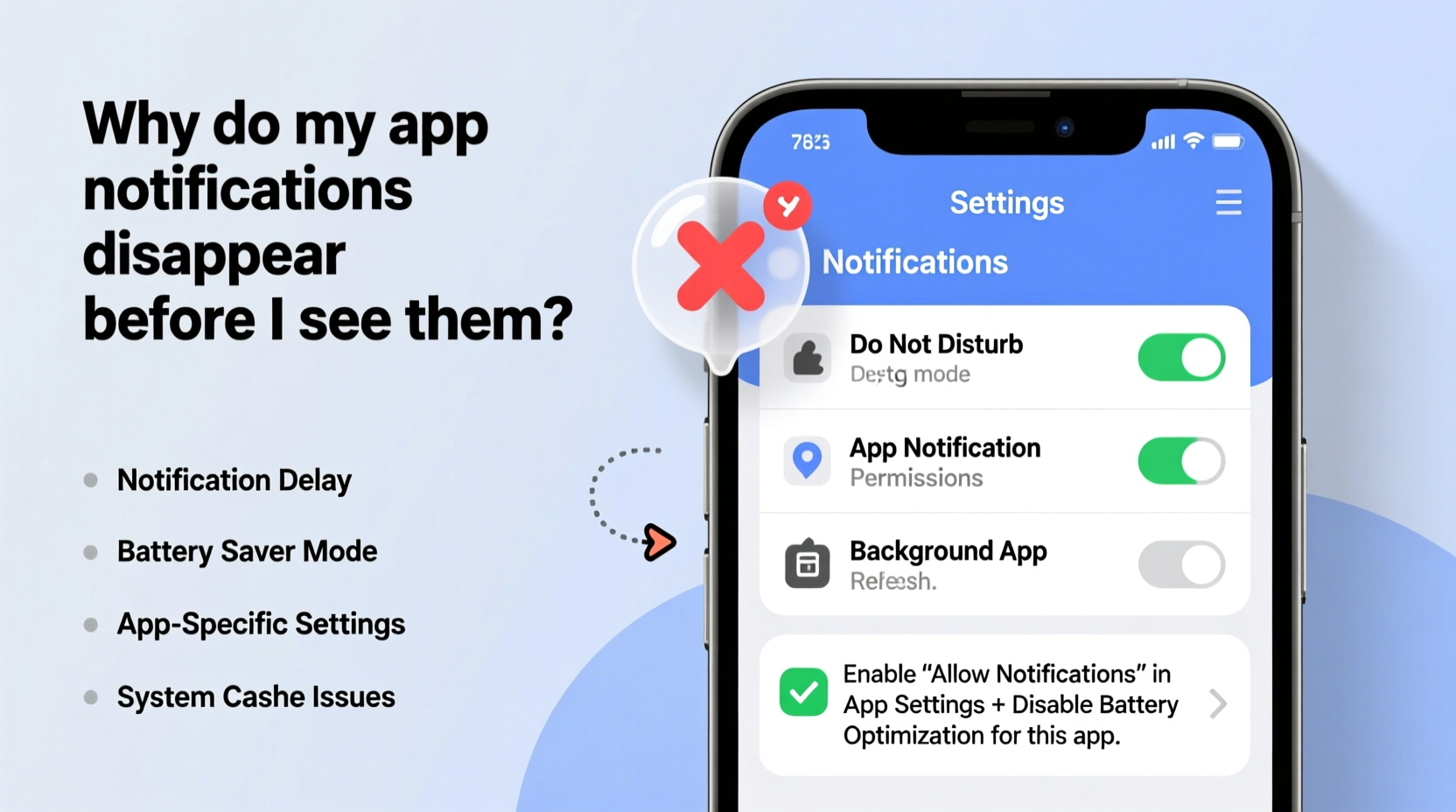
Notifications that vanish before you can read them are typically caused by one or more underlying system-level settings. These mechanisms were introduced to improve user experience by reducing visual clutter, but they don’t always align with individual usage patterns.
- Notification timeout settings: Some Android devices allow users (or manufacturers) to set a maximum display duration for notifications. After this time, the notification auto-dismisses.
- Battery optimization features: Aggressive power-saving modes may restrict background activity, causing apps to fail to maintain persistent notifications or refresh alerts properly.
- Do Not Disturb or Focus modes: On both iOS and Android, these modes can suppress or auto-clear notifications based on schedule, priority, or app category.
- App-specific notification behavior: Certain apps are configured by default to show transient alerts that disappear unless interacted with immediately.
- System software bugs: Outdated OS versions or buggy updates may cause erratic notification handling, including premature dismissal.
These causes vary depending on platform, device model, and installed apps. Identifying which factor applies to your situation is the first step toward resolving the issue permanently.
How to Fix Vanishing Notifications on Android
Android offers granular control over notification behavior, but default settings or manufacturer customizations (such as Samsung One UI, Xiaomi MIUI, or OnePlus OxygenOS) can interfere with expected functionality. Follow this step-by-step guide to ensure your notifications stay visible until you’re ready to act on them.
- Open Settings > Apps & notifications > Notifications. This central hub controls global and per-app notification behavior.
- Navigate to “Notification categories” and select the app in question (e.g., WhatsApp, Gmail).
- Select the notification channel used by the app (e.g., “Messages,” “Promos”) and tap “Pop-up notification” or “Alert behavior.”
- Set alert style to “Pop-up” or “Peek” instead of “Floating” or “Minimal.” This forces the notification to remain visible longer.
- Disable Auto-dismiss: Look for options labeled “Auto-cancel” or “Clear automatically” and turn them off.
- Ensure Priority Interruptions are enabled: Go to Sound & vibration > Do Not Disturb > Allowed notifications and confirm the app is permitted during active hours.
- Check Battery Optimization: Under Settings > Battery > Battery optimization, find the app and set it to “Don’t optimize.” This prevents the system from killing background processes needed for timely alerts.
Some OEMs add additional layers. For example, Samsung devices include a feature called “Delete automatic notifications” under Advanced Notification settings — make sure it’s disabled. Similarly, Xiaomi phones have a “Clean up automatically” option in Lock Screen & Password settings that clears notifications after a set time.
Android Manufacturer-Specific Fixes
| Manufacturer | Setting to Check | Path |
|---|---|---|
| Samsung | Delete automatic notifications | Settings > Notifications > Advanced Settings |
| Xiaomi (MIUI) | Auto-clean notifications | Lock Screen & Password > Notification & Control Center > Auto-Clean |
| OnePlus | Auto-dismiss lock screen notifications | Settings > Apps & Notifications > Notifications > Lock Screen |
| Huawei | Smart notification cleanup | Settings > Notifications > Notification management > Cleanup rules |
“Many users aren’t aware that battery savers and notification cleaners operate silently in the background, stripping away alerts before they’re seen. Disabling these auto-clear functions restores reliability.” — David Lin, Mobile UX Analyst at TechFlow Insights
iOS Solutions: Stop iPhone Notifications from Disappearing
Apple’s iOS handles notifications through its Focus system, which replaced much of the older Do Not Disturb functionality starting with iOS 15. While powerful, Focus modes can inadvertently cause notifications to vanish or be hidden entirely.
Step-by-Step Fix for iPhone Users
- Go to Settings > Notifications.
- Select the app with disappearing alerts (e.g., Messages, Slack).
- Enable “Allow Notifications” and ensure “Show on Lock Screen” is toggled on.
- Set Alert Style to “Banner” (not “None” or “Alert”). Banners appear briefly at the top of the screen; Alerts stay until dismissed.
- Adjust Banner Time: Navigate to Settings > Accessibility > Display & Text Size > Reduce Motion > Auto-Play Message Effects > Off. While iOS doesn’t offer direct banner duration adjustment, disabling Reduce Motion can help banners behave more predictably.
- Review Active Focus Modes: Swipe down from the top-right corner to access Control Center and check if Focus (e.g., Sleep, Work, Personal) is active. Tap and hold the Focus icon to modify allowed apps.
- Edit Focus Settings: Go to Settings > Focus, select the active mode, and under “Allowed Notifications,” ensure your app is included.
Note: On newer iPhones with Dynamic Island (iPhone 14 Pro and later), alerts may appear briefly in the pill-shaped area but disappear quickly if not interacted with. This design prioritizes space efficiency but can lead to missed information. To mitigate this, use persistent alerts via the “Scheduled Summary” toggle — found in individual app notification settings — to batch non-urgent alerts and keep important ones immediate.
Real-World Example: Maria’s Missed Delivery Alert
Maria relies on real-time package tracking notifications from Amazon and FedEx. One week, she began missing deliveries because the alerts would flash on her screen and vanish before she could react. Initially assuming poor internet connection, she eventually noticed a pattern: the issue only occurred on her secondary Android phone, which she used primarily for logistics.
After investigating, she discovered that her device’s manufacturer (Xiaomi) had enabled “Auto-clean notifications” by default, removing alerts after 10 minutes. Additionally, the Amazon app was being optimized by the battery manager, preventing background sync. By adjusting both settings — disabling auto-cleanup and excluding Amazon from battery optimization — her notifications became reliable again. Within days, she received and acted on a time-sensitive pharmacy pickup alert she otherwise would have missed.
This case illustrates how multiple overlapping settings can compound into a serious usability flaw — and how targeted fixes resolve it efficiently.
Essential Checklist: Prevent Notifications from Disappearing
To ensure your notifications remain visible and actionable, follow this comprehensive checklist tailored for both platforms:
- ✅ Confirm the app has notification permissions enabled
- ✅ Set alert style to “Persistent” or “Banner” (iOS) / “Pop-up” (Android)
- ✅ Disable auto-dismiss or auto-clear notification features in system settings
- ✅ Exclude critical apps from battery optimization
- ✅ Review active Focus or Do Not Disturb modes and adjust allowed apps
- ✅ Update your OS and apps to the latest version to avoid known bugs
- ✅ Re-enable notifications after any recent factory reset or device migration
- ✅ Test notification behavior after changes using a secondary device or email self-test
Frequently Asked Questions
Why do my Android notifications disappear after 1 minute?
This is likely due to a manufacturer-added auto-clean feature that removes old notifications to reduce clutter. It’s commonly found in Xiaomi, Oppo, and Realme devices. Disable it in Lock Screen settings or Advanced Notification settings to stop automatic removal.
Can I make iPhone notifications stay on screen longer?
iOS does not allow direct adjustment of banner duration. However, switching from “Banner” to “Alert” in the app’s notification settings makes the notification persistent until manually dismissed. Note: Alerts require interaction to clear.
Will disabling battery optimization affect my phone’s performance?
Disabling battery optimization for select apps has minimal impact on overall performance. Modern smartphones manage resources intelligently, so exempting a few key apps (like messaging or navigation tools) ensures reliability without significantly reducing battery life.
Final Steps for Long-Term Notification Reliability
Fixing vanishing notifications isn’t just about adjusting a single toggle — it requires understanding how your device balances usability, privacy, and power efficiency. Once you’ve applied the correct settings, periodically audit them, especially after OS updates or when installing new apps. Software changes can reset preferences or introduce new automation rules that affect alert visibility.
For maximum reliability, designate two to three mission-critical apps (e.g., messaging, calendar, health monitors) and apply the strictest notification allowances: persistent alerts, exclusion from battery saving, and inclusion in all relevant Focus modes. Treat these apps as exceptions to general power-saving practices.
Additionally, consider enabling notification history (available on most Android devices under Privacy settings). This feature logs all recent alerts, allowing you to review missed notifications even if they were auto-cleared from the shade.
“The best notification system is one you don’t have to second-guess. When alerts disappear unpredictably, trust erodes. Consistent configuration rebuilds that trust.” — Lena Patel, Human-Computer Interaction Researcher, Stanford University
Take Control of Your Alerts Today
Your smartphone should keep you informed, not hide information behind opaque settings. Taking 10–15 minutes to audit your notification setup can prevent hours of confusion, missed appointments, and frustration. Start with one app that matters most to you — whether it’s your work chat, family group messages, or medical reminders — and apply the fixes outlined here. Then expand to others. You’ll quickly notice a difference in how reliably your device supports your daily life.




 浙公网安备
33010002000092号
浙公网安备
33010002000092号 浙B2-20120091-4
Comments
No comments yet. Why don't you start the discussion?