
A black background can appear unexpectedly on desktops, websites, mobile apps, or during video calls, disrupting both functionality and aesthetics. While it may seem like a minor visual glitch, the underlying cause can range from simple user settings to deeper system conflicts. Understanding why this happens—and how to resolve it—is essential for maintaining a smooth digital experience. Whether you're troubleshooting a dark wallpaper, a blank web layout, or a suddenly black screen in design software, the root cause often lies in one of several predictable areas: display settings, software bugs, CSS errors, hardware limitations, or power-saving features.
Common Causes of a Black Background
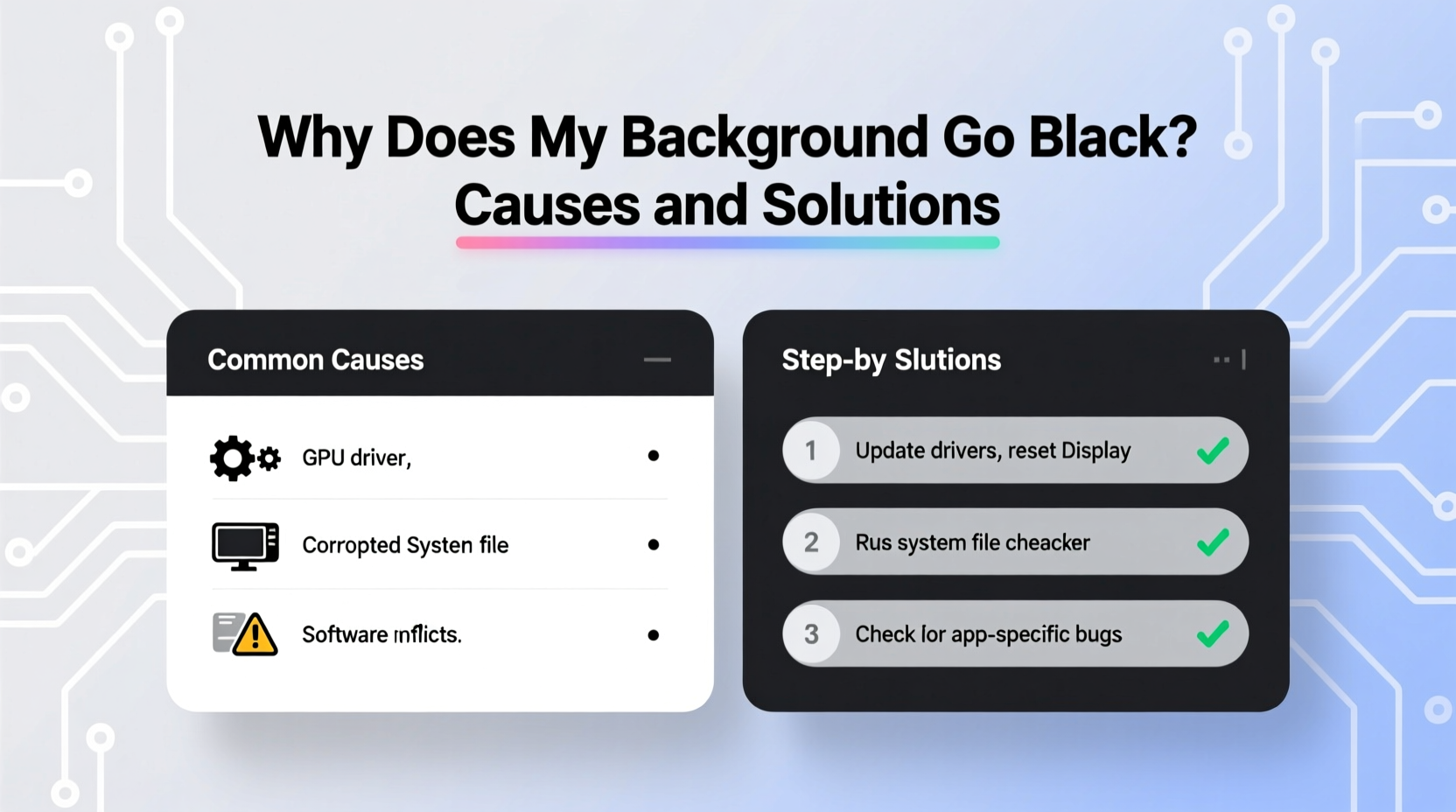
A black background isn’t always a malfunction—it can be intentional, but when it appears without warning, it typically stems from one of these sources:
- Operating system themes or dark mode settings: Many modern OS interfaces default to dark themes, which can make backgrounds appear black even if not explicitly set.
- Graphics driver issues: Outdated, corrupted, or incompatible drivers may fail to render visuals correctly, resulting in black screens or panels.
- CSS or HTML coding errors: In web development, missing background declarations or incorrect syntax can default elements to black, especially if parent containers have dark styles.
- Application-specific bugs: Software like video editors, browsers, or presentation tools may temporarily display black backgrounds due to rendering glitches.
- Hardware acceleration problems: When enabled, GPU-based rendering can sometimes conflict with certain applications, leading to blacked-out interfaces.
- Power-saving or screen protection modes: Laptops and monitors may dim or turn black after inactivity, mimicking a background issue.
Diagnosing the Issue by Environment
The context in which the black background appears determines the diagnostic path. Below is a breakdown by common environments:
| Environment | Possible Cause | Quick Fix |
|---|---|---|
| Windows/Mac Desktop | Dark theme enabled | Switch to light mode in system preferences |
| Web Browser | CSS override or missing background property | Inspect element; verify background-color in dev tools |
| Mobile App | App-specific dark mode setting | Check app appearance settings |
| Video Conferencing | Virtual background failure or camera error | Restart camera, reapply background effect |
| Design Software (e.g., Photoshop) | Layer visibility or document color mode | Check layer opacity and canvas settings |
Real Example: Website Launch Gone Dark
A small business owner launched a new website featuring vibrant product images against a white backdrop. Shortly after going live, customers reported that the entire site appeared with a black background on mobile devices. Upon investigation, the developer discovered that a CSS rule intended for a dark-themed section had inadvertently applied globally due to a missing class qualifier. The line .dark-theme { background: #000; } was mistakenly used as body { background: #000; } in one stylesheet version. Correcting the selector restored the intended design instantly.
“Many ‘black background’ issues in web projects trace back to cascading style inheritance or unscoped CSS rules.” — Lena Torres, Front-End Architect at WebFlow Labs
Step-by-Step Solutions
Follow this structured approach to identify and resolve black background issues efficiently:
- Isolate the scope: Determine whether the issue affects one application, browser, device, or all environments.
- Check system-wide appearance settings: On Windows, go to Settings > Personalization > Colors. On macOS, visit System Settings > Appearance. Ensure light mode is selected if desired.
- Test in safe mode or incognito: Boot your computer in safe mode or open the browser in incognito/private mode to rule out third-party extensions or custom themes.
- Update graphics drivers: Visit your GPU manufacturer’s website (NVIDIA, AMD, Intel) and install the latest driver version compatible with your system.
- Inspect web elements (for developers): Use browser developer tools (F12) to examine the computed styles of affected elements. Look for unexpected
background-color: #000;orbackground: black;declarations. - Disable hardware acceleration: In browsers or apps like Chrome, Discord, or Zoom, navigate to settings and toggle off hardware acceleration. Restart the application.
- Clear cache and reset layouts: For apps and websites, clearing cached data can restore default UI states and eliminate corrupted display rules.
Troubleshooting Checklist
- ✅ Confirm device is not in dark mode
- ✅ Verify monitor brightness and power status
- ✅ Check for recent software updates or changes
- ✅ Test on another device or browser
- ✅ Disable browser extensions one by one
- ✅ Update or reinstall graphics drivers
- ✅ Inspect CSS for unintended black backgrounds
- ✅ Restart the device or application
Preventing Future Black Background Issues
Proactive habits reduce the likelihood of encountering this issue repeatedly. Developers should use CSS preprocessors or modular styling frameworks to avoid global style leaks. Regular users benefit from periodic system maintenance and awareness of appearance settings across devices.
When designing websites or dashboards, always define explicit background colors instead of relying on defaults. For example:
body {
    background-color: #ffffff; /* Explicit white */
    color: #333;
}
Relying on browser defaults can lead to inconsistent rendering, especially when users have forced dark modes enabled via extensions or OS-level toggles.
Expert Insight on System-Level Conflicts
“Black screens in professional applications are often misdiagnosed. More than 60% of cases I’ve seen were due to GPU memory overload or driver rollback after an update.” — Dr. Rajiv Mehta, Senior Systems Engineer at TechVision Inc.
This highlights the importance of monitoring system resources and keeping firmware updated—not just software.
Frequently Asked Questions
Why does my website show a black background on some phones?
This usually occurs when a phone’s operating system enforces a dark mode, and your site lacks proper CSS media queries to adapt. Use @media (prefers-color-scheme: dark) to control dark mode behavior intentionally rather than letting the browser guess.
Can a virus cause black backgrounds?
While rare, malware that alters system files or display drivers can result in abnormal screen behavior, including persistent black backgrounds. Run a full system scan using trusted antivirus software if standard fixes don’t work and the issue persists across reboots.
Why does my PowerPoint slide have a black background after exporting?
If your presentation uses animations or transitions dependent on specific display hardware, exported videos may default to black where visuals fail to render. Export in full HD mode with “Use Full Precision” enabled under advanced options to minimize loss.
Conclusion: Take Control of Your Display Experience
A black background doesn’t have to mean hours of frustration. By systematically evaluating the environment, checking settings, and applying targeted fixes, most issues can be resolved quickly. Whether you're a casual user annoyed by a sudden dark desktop or a developer debugging a layout flaw, understanding the common triggers empowers faster resolution. Don’t assume it’s a lost cause—most black background problems are superficial and highly fixable.




 浙公网安备
33010002000092号
浙公网安备
33010002000092号 浙B2-20120091-4
Comments
No comments yet. Why don't you start the discussion?