
Bluetooth technology has become an essential part of modern life—connecting headphones, speakers, keyboards, fitness trackers, and smart home devices without the clutter of wires. Yet, despite its convenience, few experiences are as frustrating as a Bluetooth device that cuts out unexpectedly. Whether you're in the middle of a call, listening to music, or controlling smart lights, sudden disconnections disrupt productivity and enjoyment. The root causes vary widely, from interference and outdated firmware to physical distance and hardware limitations. Understanding these factors is the first step toward building a more stable wireless environment.
Understanding the Science Behind Bluetooth Instability
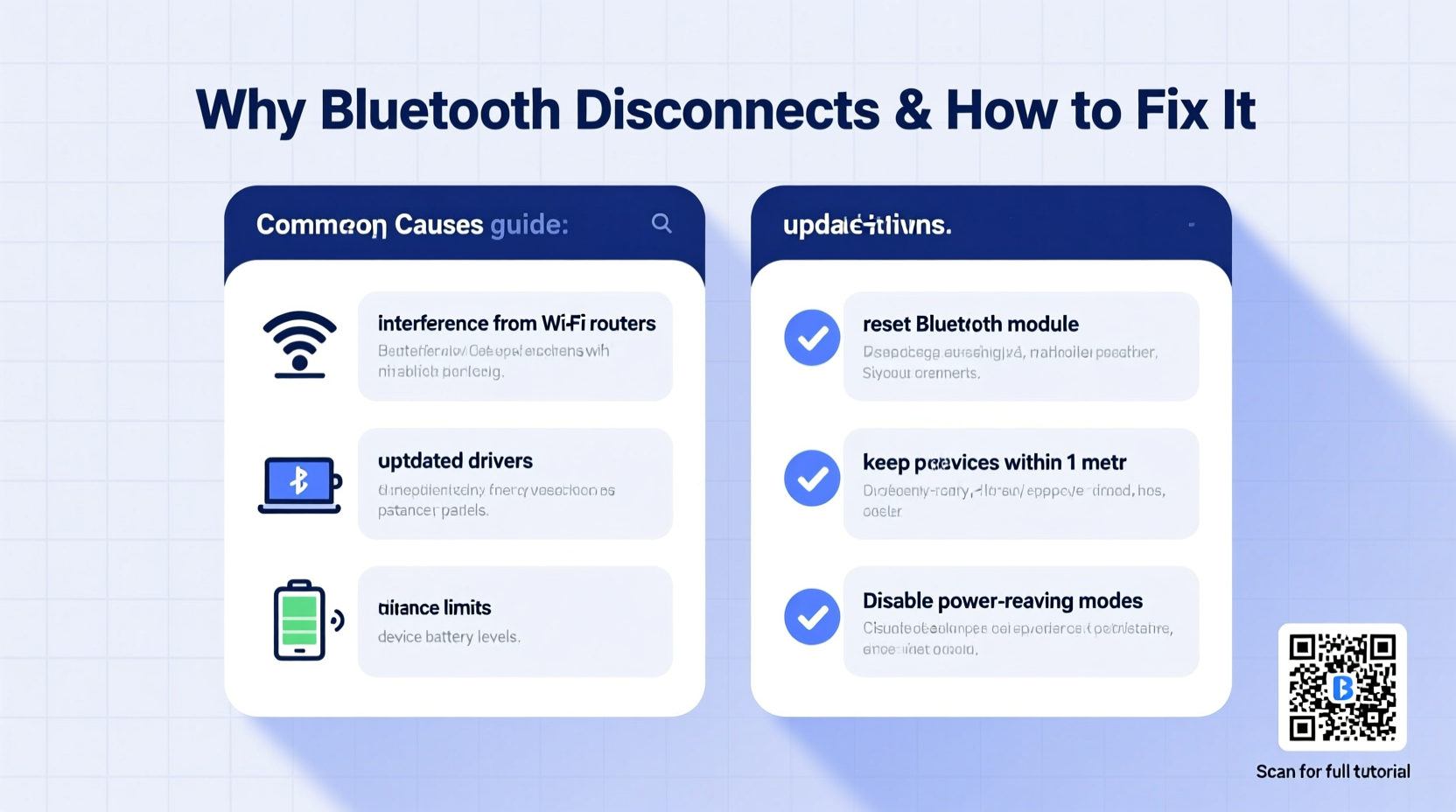
Bluetooth operates on the 2.4 GHz frequency band, which it shares with Wi-Fi routers, microwaves, cordless phones, and other wireless technologies. This shared spectrum creates a crowded environment where signals can interfere with one another. When multiple devices transmit data simultaneously, collisions occur, leading to packet loss and temporary disconnections. Additionally, Bluetooth uses adaptive frequency hopping (AFH), a technique designed to avoid interference by switching between channels. However, in high-noise environments, even AFH may not prevent disruptions.
Another critical factor is Bluetooth version compatibility. Devices using older standards like Bluetooth 4.0 may struggle to maintain stable connections with newer peripherals supporting Bluetooth 5.0 or higher. These newer versions offer improved range, faster data transfer, and better power efficiency—but backward compatibility doesn't guarantee optimal performance. Mismatched capabilities often result in dropped signals, especially when transferring large audio files or streaming high-bitrate content.
“Bluetooth stability isn’t just about pairing—it’s about signal integrity, environmental conditions, and protocol alignment.” — Dr. Lin Zhao, Wireless Communications Researcher at MIT
Common Causes of Random Bluetooth Disconnections
- Signal Interference: Other electronics operating on the 2.4 GHz band can drown out Bluetooth signals.
- Physical Obstructions: Walls, furniture, metal objects, and even human bodies absorb or reflect radio waves. <
- Distance Beyond Range: Most Class 2 Bluetooth devices have a reliable range of only 10 meters (33 feet).
- Battery Levels: Low battery on either the transmitting or receiving device can weaken signal strength.
- Firmware Bugs: Outdated or buggy firmware may cause unexpected behavior during connection handshakes.
- Multipoint Connection Limits: Some devices attempt to stay connected to multiple sources, overloading their processing capacity.
- Operating System Glitches: Background processes or OS-level bugs can reset Bluetooth stacks without warning.
Step-by-Step Guide to Stabilizing Your Bluetooth Pairing
Fixing unstable Bluetooth requires both immediate troubleshooting and long-term optimization. Follow this structured approach to diagnose and resolve recurring issues:
- Restart Both Devices: Power cycle the source (phone, laptop) and the peripheral (headphones, speaker). A simple reboot clears temporary glitches in the Bluetooth stack.
- Forget and Re-Pair the Device: Go to Bluetooth settings, select the problematic device, and choose “Forget.” Then re-initiate pairing from scratch to establish a clean connection.
- Update Firmware and Software: Check for updates on both devices. Manufacturers frequently release patches that improve connectivity and fix known bugs.
- Reduce Wireless Congestion: Turn off unused Wi-Fi networks, move away from microwave ovens, and consider switching your router to the 5 GHz band if dual-band capable.
- Disable Battery-Saving Modes: On smartphones and laptops, aggressive power management can throttle Bluetooth radios. Disable any mode labeled “Ultra Power Saving” or similar.
- Clear Paired Device Lists: If your phone or computer has dozens of saved Bluetooth devices, remove old or unused ones to reduce background scanning load.
- Test with Another Device: Connect the peripheral to a different phone or tablet. If the issue persists, the problem likely lies with the peripheral itself.
- Reset Network Settings: As a last resort, reset network configurations on your primary device. This erases all saved Wi-Fi, Bluetooth, and cellular settings but often resolves deep-seated communication errors.
Do’s and Don’ts for Maintaining Stable Bluetooth Connections
| Do’s | Don’ts |
|---|---|
| Keep devices updated with the latest firmware | Ignore firmware update notifications |
| Minimize physical barriers between devices | Place Bluetooth speakers inside cabinets or behind thick walls |
| Use Bluetooth 5.0+ devices when possible | Expect flawless performance from decade-old Bluetooth headsets |
| Limit the number of active paired devices | Leave 10+ devices connected simultaneously |
| Charge devices before extended use | Run both devices on less than 20% battery |
Real-World Example: Fixing Office Headset Dropouts
A marketing executive in Toronto reported frequent disconnections with her wireless headset during Zoom meetings. She used a Bluetooth 4.2 headset paired to a Windows 10 laptop located across her desk. Despite full battery and proximity under 6 feet, calls would cut out every 10–15 minutes. Initial attempts—restarting devices and re-pairing—provided only temporary relief.
Upon inspection, it was discovered that her Wi-Fi router operated exclusively on 2.4 GHz and sat directly beneath the laptop. The constant data traffic created significant interference. By upgrading to a dual-band router and switching her laptop to 5 GHz Wi-Fi, the Bluetooth dropout rate dropped to zero. Additionally, she disabled her phone’s hotspot function—which had been running in the background—and removed seven unused Bluetooth devices from her laptop’s memory. These changes stabilized the connection permanently.
This case illustrates how seemingly unrelated systems (Wi-Fi and Bluetooth) can compete for bandwidth, and how minor adjustments yield dramatic improvements.
Expert Tips to Optimize Long-Term Bluetooth Performance
Stability isn’t achieved through one-time fixes alone. Sustained reliability comes from consistent habits and smart configuration choices.
- Use Centralized Device Management: On smartphones, apps like “Bluetooth Auto Connect” can automatically reconnect devices after dropouts, reducing manual intervention.
- Prioritize Low Latency Modes: Some premium headphones support aptX LL (Low Latency) or AAC codecs that reduce audio delay and improve synchronization.
- Monitor Signal Strength: Tools like NFConnect (iOS) or Bluetooth Scanner (Android) display real-time RSSI (Received Signal Strength Indicator) values. A reading above -70 dBm indicates a strong link.
- Invest in USB Bluetooth Adapters: Older computers with weak internal antennas benefit from external USB 5.0+ dongles that offer superior range and interference resistance.
Checklist: How to Prevent Future Bluetooth Disconnections
- ✅ Restart both devices weekly to clear cache and refresh connections
- ✅ Update firmware on all Bluetooth-enabled gadgets quarterly
- ✅ Remove inactive or obsolete paired devices monthly
- ✅ Position devices within direct line-of-sight when possible
- ✅ Switch Wi-Fi to 5 GHz to reduce 2.4 GHz congestion
- ✅ Avoid placing metal objects between connected devices
- ✅ Monitor battery levels and charge before prolonged use
- ✅ Use high-quality cables for charging—poor power delivery affects transmission stability
Frequently Asked Questions
Why does my Bluetooth disconnect when I lock my phone?
Many smartphones automatically suspend Bluetooth services to conserve battery when the screen locks. To prevent this, go to battery settings and disable app hibernation or background restrictions for Bluetooth-related services. On Android, find this under “Battery Optimization”; on iOS, ensure “Background App Refresh” is enabled for relevant apps.
Can too many Bluetooth devices slow down my network?
While Bluetooth doesn’t impact internet speed directly, a high density of active Bluetooth devices in a small area increases electromagnetic noise on the 2.4 GHz band. This can degrade Wi-Fi performance and cause intermittent disconnections across wireless systems. Limit active pairings to only what’s necessary.
Does turning Bluetooth off and on really help?
Yes. Toggling Bluetooth resets the radio module and clears temporary software conflicts. It’s equivalent to restarting a misbehaving app. For persistent issues, combine this action with forgetting and re-pairing the device for best results.
Conclusion: Take Control of Your Wireless Experience
Random Bluetooth disconnections are rarely due to a single flaw—they stem from a combination of environmental, technical, and behavioral factors. While no solution offers 100% immunity from interference, applying systematic fixes significantly enhances reliability. From managing wireless congestion to updating firmware and optimizing placement, each adjustment contributes to a smoother, more dependable experience. The goal isn’t perfection but predictability: knowing your devices will perform when needed.




 浙公网安备
33010002000092号
浙公网安备
33010002000092号 浙B2-20120091-4
Comments
No comments yet. Why don't you start the discussion?