
Bluetooth technology has become an essential part of daily life, connecting headphones, speakers, smartwatches, and even cars without the clutter of wires. But nothing is more frustrating than a sudden disconnection in the middle of a call, music session, or workout. You're not imagining things—your Bluetooth devices *are* dropping out more than they should. The culprits? Often, it's either wireless interference or outdated firmware. Understanding these root causes can save you time, stress, and prevent premature device replacement.
This article breaks down the technical and environmental factors behind unstable Bluetooth connections, offering real-world solutions backed by engineering principles and user experience data. Whether you’re using premium earbuds or a budget speaker, the same rules apply: stability comes from compatibility, environment, and maintenance.
Understanding Bluetooth Signal Behavior
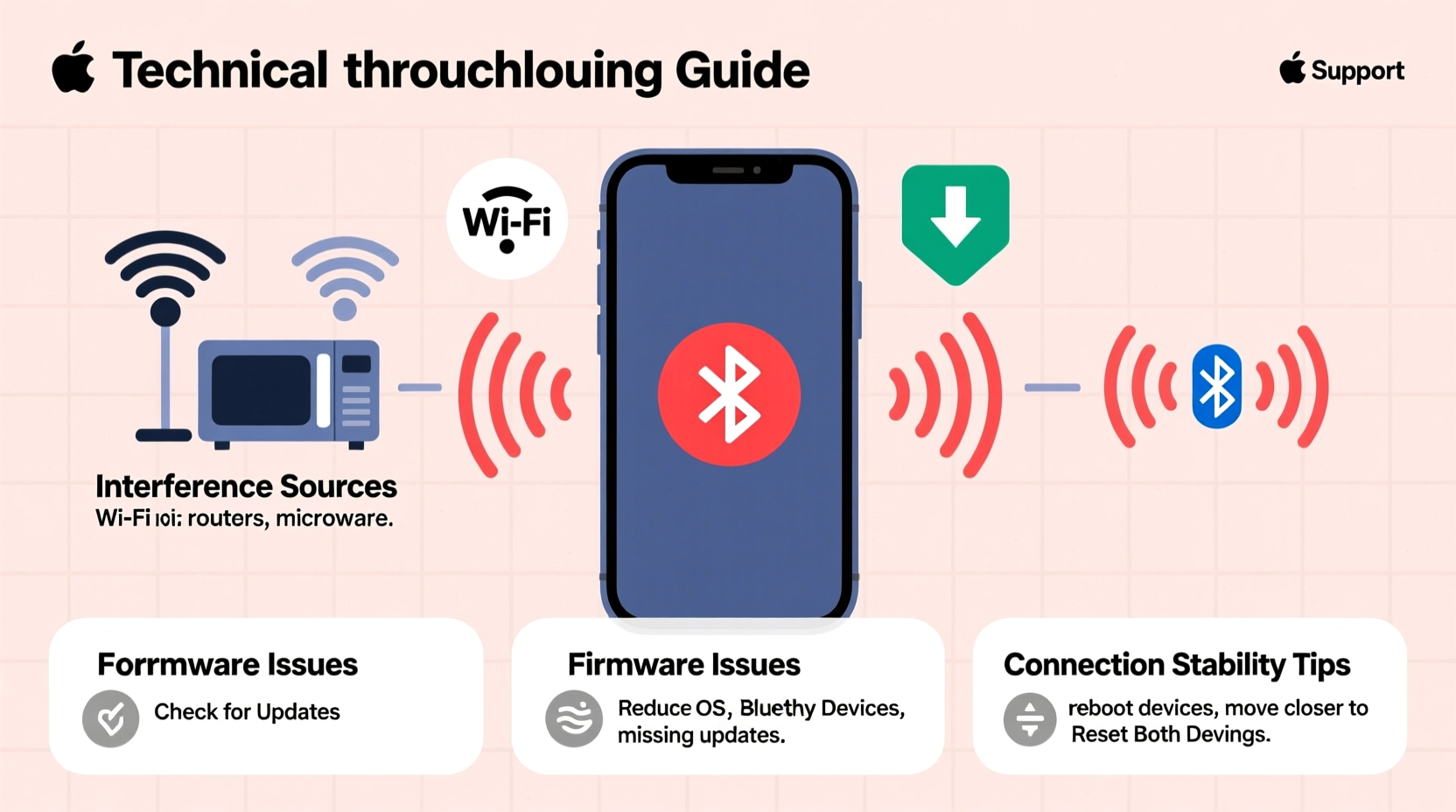
Bluetooth operates in the 2.4 GHz frequency band—the same range used by Wi-Fi routers, microwaves, cordless phones, and many IoT devices. This shared spectrum means congestion is inevitable in modern homes and offices. When multiple signals compete, Bluetooth packets can be delayed, corrupted, or lost entirely, leading to audio dropouts or complete disconnections.
The Bluetooth protocol uses adaptive frequency hopping (AFH), which allows devices to skip crowded channels. However, older versions like Bluetooth 4.0 and earlier have limited channel agility compared to newer standards such as Bluetooth 5.0 and 5.3. AFH helps, but it’s not foolproof—especially when nearby devices transmit continuously, like a microwave oven or a poorly shielded USB 3.0 port.
Signal strength also diminishes with distance and physical obstructions. Walls, metal furniture, and even human bodies absorb radio waves. A Bluetooth connection rated for 30 feet in open air may struggle beyond 10 feet indoors. If your device frequently disconnects when you move across the room, physics—not malfunction—is likely the issue.
Common Sources of Wireless Interference
Interference doesn’t always come from obvious sources. While microwaves and Wi-Fi networks are well-known disruptors, lesser-known offenders include LED lighting, baby monitors, and USB 3.0 peripherals. These devices emit electromagnetic noise that overlaps with the 2.4 GHz band.
A 2021 study by the IEEE found that certain brands of USB 3.0 hubs generated enough radio frequency interference (RFI) to degrade Bluetooth throughput by up to 75%. The problem worsens when high-speed data transfers occur simultaneously with audio streaming.
Wi-Fi routers operating on the 2.4 GHz band can also dominate the spectrum. If your router uses channels 1–11 heavily, especially in dense urban areas with overlapping networks, Bluetooth struggles to find clear lanes. Dual-band routers (supporting both 2.4 GHz and 5 GHz) help reduce this load if you connect compatible devices to the less-crowded 5 GHz band.
“Bluetooth coexistence with Wi-Fi and other RF systems is one of the biggest challenges in personal area networking today.” — Dr. Linda Chen, Senior RF Engineer at Nordic Semiconductor
How to Identify Interference in Your Environment
Detecting interference requires observation and testing:
- Notice if disconnections happen only during specific activities (e.g., cooking, downloading large files).
- Test your Bluetooth device in another location, like a park or a different floor of your home.
- Temporarily turn off other wireless devices one by one to isolate the culprit.
- Use apps like Netscan (Android) or WiFi Analyzer to visualize channel congestion.
Firmware: The Hidden Factor in Bluetooth Stability
Many users overlook firmware because it’s invisible. Yet, it governs how your device communicates, manages power, handles errors, and maintains connections. Outdated firmware may lack fixes for known bugs, support for newer Bluetooth profiles, or optimizations for interference resistance.
For example, early batches of popular wireless earbuds often shipped with firmware that failed to maintain stable multipoint connections. Users reported frequent drops when switching between phone and laptop. Manufacturers later released updates that improved connection handoff logic and reconnection speed—proving that software matters as much as hardware.
Worse still, some devices never receive updates. Budget brands or discontinued models may be abandoned after launch, leaving them vulnerable to instability as surrounding tech evolves. Even flagship products sometimes limit update windows to two or three years.
Why Firmware Updates Matter
Firmware patches can address:
- Memory leaks causing crashes after prolonged use
- Poorly optimized antenna usage
- Inefficient power management leading to signal drops
- Compatibility issues with new smartphones or OS versions
Apple, Samsung, and Sony regularly push firmware updates to their audio products via companion apps. Third-party brands may require manual downloads through desktop software or rely on over-the-air (OTA) updates triggered by charging and pairing.
Step-by-Step Guide to Diagnose and Fix Random Disconnections
Follow this structured approach to determine whether interference or firmware is responsible—and how to resolve it.
- Reproduce the Issue: Use your device under normal conditions. Note when and where disconnections occur.
- Change Locations: Move to a different room or outside. If the problem disappears, interference or range is likely the cause.
- Reduce Nearby Devices: Turn off Wi-Fi, unplug USB 3.0 devices, and stop microwave use temporarily.
- Check for Firmware Updates: Open the manufacturer’s app (e.g., Galaxy Wearable, Sony Headphones Connect) and look for available updates.
- Forget and Re-Pair the Device: On your phone or computer, remove the Bluetooth device and pair it again. This clears corrupted pairing data.
- Test with Another Source: Connect the device to a different phone, tablet, or laptop. If it works reliably, the original source may have driver or OS issues.
- Reset the Bluetooth Device: Most devices support a factory reset via button combinations (e.g., holding power + volume buttons for 10 seconds).
- Update Host Device OS: Ensure your smartphone or computer is running the latest OS version, which includes Bluetooth stack improvements.
If disconnections persist after all steps, consider replacing the device—especially if it’s more than three years old and no longer supported.
Do’s and Don’ts: Managing Bluetooth Performance
| Action | Recommendation | Reason |
|---|---|---|
| Place router away from Bluetooth devices | Do | Reduces 2.4 GHz band competition |
| Use Bluetooth and Wi-Fi simultaneously on 2.4 GHz | Don’t | Increases packet collision risk |
| Install firmware updates promptly | Do | Fixes bugs and improves stability |
| Assume all dropouts mean hardware failure | Don’t | Most issues are environmental or software-based |
| Keep devices charged during updates | Do | Prevents bricking during OTA flashes |
| Ignore manufacturer notifications | Don’t | You might miss critical patches |
Real-World Example: Solving Office Headset Drops
Mark, a remote worker in Chicago, experienced frequent disconnections with his wireless headset during Zoom meetings. The audio would cut out for 5–10 seconds every 20 minutes, particularly around noon.
After testing, he discovered the pattern coincided with his office microwave use during lunch prep in the adjacent kitchen. Using a Wi-Fi analyzer app, he saw channel saturation spiking at 12:00 PM daily. He moved his desk farther from the kitchen wall and switched his laptop’s Wi-Fi to 5 GHz. The disconnections stopped immediately.
Later, he checked the headset’s app and found a pending firmware update labeled “Improved RF Coexistence.” After installing it, the device maintained a stronger signal even when the microwave was in use. Mark’s case illustrates how both environmental and software factors can combine—and how both must be addressed.
When to Suspect Hardware vs. Software
Not all problems are fixable through settings or updates. Physical damage, worn antennas, or failing batteries can mimic software issues. Here’s how to tell the difference:
- Pattern Consistency: If disconnections happen at the same time or place every day, it’s likely interference.
- Age of Device: Devices older than 3–4 years may lack modern Bluetooth features and reliable support.
- Multidevice Failure: If multiple Bluetooth devices fail with the same host, the issue may lie with the phone or computer’s radio module.
- No Response to Reset: If resetting, updating, and relocating don’t help, hardware degradation is probable.
Battery health also affects Bluetooth performance. As lithium-ion cells degrade, voltage fluctuations can interrupt low-power circuits. Some devices reduce transmission power to conserve energy, weakening the signal. If your earbuds disconnect faster when battery falls below 20%, aging cells could be contributing.
FAQ: Common Questions About Bluetooth Disconnections
Can walls really block Bluetooth signals?
Yes. Drywall attenuates signal slightly, but concrete, brick, metal studs, and mirrors significantly weaken or block 2.4 GHz waves. For best results, keep source and receiver in the same open space.
Does Bluetooth version affect connection stability?
Absolutely. Bluetooth 5.0+ offers four times the range, twice the speed, and better interference resistance compared to 4.x. It also supports LE Audio and improved coexistence algorithms, reducing dropout likelihood.
Why does my Bluetooth work fine one day and fail the next?
Sudden changes often point to environmental shifts—new router settings, added devices, construction materials, or even seasonal humidity affecting conductivity. Alternatively, a pending firmware update may have failed silently, disrupting functionality.
Proactive Checklist for Long-Term Bluetooth Reliability
To avoid future issues, follow this monthly checklist:
- ✅ Run firmware checks on all connected devices
- ✅ Review Wi-Fi channel usage and adjust if needed
- ✅ Clean Bluetooth device contacts and charging pins
- ✅ Test audio quality and connection latency
- ✅ Re-pair stubborn devices to refresh the link
- ✅ Monitor battery health and replace aging units
- ✅ Update smartphone and computer OS regularly
Conclusion: Take Control of Your Wireless Experience
Random Bluetooth disconnections aren’t just annoying—they disrupt productivity, compromise safety during calls, and diminish the value of your devices. But most issues stem from diagnosable causes: interference in the 2.4 GHz band or neglected firmware. By understanding the ecosystem your devices operate in, you gain control over reliability.
Start with simple fixes—relocation, re-pairing, and updates. Then dig deeper into your wireless environment. Treat firmware like security software: install patches before problems arise. Over time, these habits will reduce frustration and extend the lifespan of your gear.




 浙公网安备
33010002000092号
浙公网安备
33010002000092号 浙B2-20120091-4
Comments
No comments yet. Why don't you start the discussion?