
If you've ever been on a call only to hear your own voice bouncing back at you through your Bluetooth headset, you know how distracting—and embarrassing—it can be. Echo doesn't just degrade audio quality; it disrupts conversations, strains focus, and reflects poorly in professional settings. While Bluetooth technology has advanced significantly, audio issues like echo remain surprisingly common. The good news? Most echo problems stem from identifiable causes and are fixable with the right approach.
Echo occurs when your voice, after being transmitted through the headset’s microphone, is picked up again by the speaker and re-sent back into the call. This feedback loop creates that hollow, repeating sound. But unlike traditional landline echo, Bluetooth echo often involves a mix of hardware limitations, software conflicts, environmental factors, and connection instability. Understanding the root cause is key to eliminating it for good.
Common Causes of Bluetooth Headset Echo
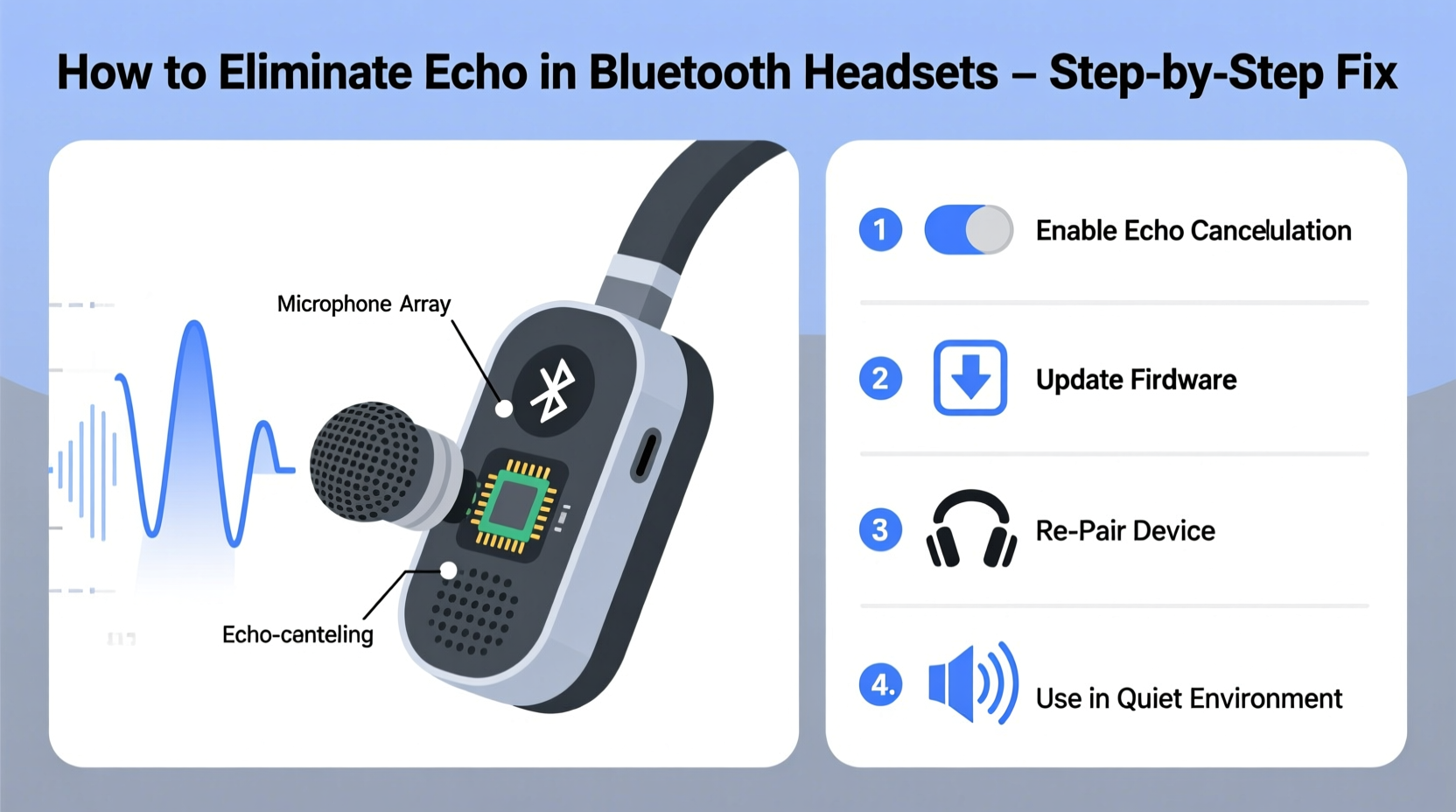
Before jumping into fixes, it's essential to pinpoint what might be triggering the echo. Unlike wired headsets, where echo is typically linked to cabling or impedance mismatches, Bluetooth introduces wireless variables that complicate audio routing.
- Poor microphone and speaker isolation: Many compact Bluetooth headsets place the microphone too close to the earpiece, allowing sound leakage.
- Low-quality codecs or bandwidth constraints: If your device uses an outdated or inefficient audio codec, compression artifacts can create delays that manifest as echo.
- Background noise interference: Noisy environments force the mic to work harder, sometimes capturing and rebroadcasting ambient sounds—including your voice from the speaker.
- Software bugs or driver issues: Outdated firmware on the headset or audio drivers on your phone or computer can mismanage audio input/output channels.
- Dual audio output: Some devices simultaneously play audio through both the headset and internal speakers, creating a feedback loop if mics are active on both ends.
- Call platform bugs: Apps like Zoom, Teams, or WhatsApp may not optimize Bluetooth audio properly, especially on older OS versions.
“Echo in Bluetooth headsets is rarely due to a single flaw. It’s usually a chain reaction—starting with hardware design but amplified by environment and software.” — Dr. Lena Torres, Audio Systems Engineer at CommWave Labs
Step-by-Step Guide to Eliminate Bluetooth Echo
Resolving echo isn’t always instant, but following a structured troubleshooting process increases your chances of a permanent fix. Work through these steps methodically.
- Disconnect and reconnect the headset: Sometimes, a simple re-pairing resets corrupted audio profiles. Turn off Bluetooth, wait 10 seconds, then reconnect.
- Test on another device: Pair your headset with a different smartphone, tablet, or laptop. If the echo disappears, the issue lies with your original device’s software or settings.
- Check for firmware updates: Visit the manufacturer’s website or app (e.g., Sony Headphones Connect, Jabra Sound+). Firmware updates often include audio stability improvements.
- Disable background apps using the microphone: On smartphones, apps running in the background (like voice assistants or recording tools) can hijack the mic and interfere with call audio.
- Adjust microphone sensitivity: In your device’s sound settings, reduce mic gain or enable “noise suppression” if available. Lower sensitivity reduces the chance of picking up speaker output.
- Switch audio codecs (if supported): Advanced users can use developer options on Android to force higher-quality codecs like aptX or LDAC, which reduce latency and improve clarity.
- Restart the calling app: Close and reopen the app entirely. Cached data can corrupt audio routing.
- Reset the headset to factory settings: Refer to the user manual. A reset clears pairing history and restores default audio parameters.
Environmental and Usage Factors That Worsen Echo
Your surroundings play a bigger role than most realize. Even a technically flawless headset can develop echo under the wrong conditions.
Hard surfaces like glass, tile, or concrete reflect sound waves, increasing the likelihood that your voice will bounce back into the microphone. Similarly, windy outdoor environments or loud offices can overwhelm the headset’s noise-canceling capabilities.
Wearing the headset improperly also contributes. If the earbud isn’t seated snugly, sound leaks out and gets re-captured. Over-the-ear models with loose padding suffer the same issue.
Additionally, using your headset while watching videos or listening to music in the background can create audio conflicts. The system may route multiple streams through the same channel, leading to phase cancellation or feedback.
Do’s and Don’ts for Echo-Free Calls
| Do’s | Don’ts |
|---|---|
| Use your headset in quiet, carpeted rooms with soft furnishings | Make calls in echo-prone spaces like bathrooms or hallways |
| Ensure a secure fit—replace worn ear tips or cushions | Wear the headset loosely or with one earbud out |
| Enable noise suppression features in calling apps | Run multiple microphone-accessing apps simultaneously |
| Keep firmware and OS updated | Ignore update notifications for months |
| Use dedicated calling apps optimized for Bluetooth | Rely on third-party VoIP apps with poor audio management |
Real-World Example: Fixing Echo in a Remote Worker’s Setup
Mark, a project manager based in Chicago, began experiencing persistent echo during client Zoom calls using his mid-range Bluetooth earbuds. His home office had hardwood floors and large windows—ideal for natural light but acoustically reflective.
Initially, he assumed the headset was defective. He tried cleaning the mic ports and resetting the device, but the echo remained. Frustrated, he switched to his laptop’s built-in mic, which solved the problem—but compromised mobility.
After researching, Mark realized his environment was amplifying the issue. He placed a thick fabric blanket over his desk partition and moved his chair away from the window. He also downloaded the manufacturer’s companion app and discovered a pending firmware update. After installing it and enabling “Voice Focus” mode, the echo vanished.
The fix wasn’t one change but three: environmental adjustment, firmware update, and proper feature configuration. Since then, his call quality has improved dramatically, and clients no longer complain about audio distractions.
Prevention Checklist: Keep Echo Away for Good
Once you’ve resolved the echo, prevent it from returning with consistent maintenance and smart usage habits.
- ✅ Update headset firmware every 2–3 months
- ✅ Clean microphone mesh gently with a dry toothbrush weekly
- ✅ Avoid using the headset near fans, AC units, or open windows
- ✅ Disable “Always-on” voice assistants like Google Assistant or Siri during calls
- ✅ Use high-quality calling platforms with Bluetooth optimization (e.g., Microsoft Teams, Webex)
- ✅ Store the headset in its case when not in use to protect mic and speaker ports
- ✅ Test audio before important calls using voice memos or quick self-dial tests
Frequently Asked Questions
Can a low battery cause echo in Bluetooth headsets?
Not directly. However, a weak battery can reduce processing power, leading to unstable Bluetooth signals or degraded noise-canceling performance. This instability may indirectly contribute to audio artifacts that resemble echo. Always ensure your headset is sufficiently charged before long calls.
Does using two Bluetooth devices at once increase echo risk?
Yes. Connecting your phone to both a headset and a smartwatch—or using dual earbuds with split connections—can overload the Bluetooth stack. This causes packet loss, latency, and audio routing errors, all of which may result in echo or robotic voice effects. Stick to one primary audio device per call.
Why does echo happen only on some calls but not others?
This inconsistency often points to software-specific issues. For example, WhatsApp may handle Bluetooth audio differently than FaceTime or Slack. It could also depend on the other caller’s setup—if they’re using external speakers or a poor mic, their end can introduce feedback that loops back to you. Test across platforms to isolate the variable.
When to Consider Replacing Your Headset
Despite best efforts, some headsets simply aren’t designed for clear two-way communication. Budget models often prioritize music playback over call clarity, skimping on microphone placement, echo cancellation chips, or noise isolation.
If you’ve exhausted all troubleshooting steps—updated firmware, tested on multiple devices, optimized your environment—and still experience echo, it may be time to upgrade. Look for headsets with:
- Dedicated echo cancellation technology (e.g., Qualcomm cVc, AI-based noise suppression)
- Multipoint microphone arrays for beamforming
- Support for modern codecs like aptX Voice or AAC-LC
- Positive reviews specifically mentioning call quality
Brands like Jabra, Bose, and Sennheiser consistently score high in voice clarity benchmarks. Investing in a model designed for professionals pays off in fewer dropped words, less fatigue, and zero echo.
Final Thoughts: Clear Audio Is Within Reach
Echo in Bluetooth headsets is frustrating but rarely unsolvable. By understanding the interplay between hardware, software, and environment, you gain control over your audio experience. Start with simple fixes—re-pairing, updating firmware, adjusting settings—then move to deeper diagnostics if needed.
Most importantly, don’t accept poor call quality as inevitable. With today’s technology, crystal-clear communication should be the standard, not the exception. Whether you're closing deals, attending virtual classes, or catching up with family, your headset should enhance—not hinder—your voice.




 浙公网安备
33010002000092号
浙公网安备
33010002000092号 浙B2-20120091-4
Comments
No comments yet. Why don't you start the discussion?