
There’s nothing more frustrating than settling into your car, ready for a smooth drive with your favorite playlist, only for the Bluetooth connection to drop—again. You’re not alone. Millions of drivers face intermittent Bluetooth disconnections between their smartphones and car audio systems. While it may seem like a minor annoyance, repeated interruptions can disrupt navigation, calls, and music playback, turning a relaxing commute into a tech headache.
The root causes vary widely: outdated firmware, signal interference, software bugs, or even something as simple as a forgotten pairing reset. The good news? Most issues are fixable without visiting a dealership or replacing hardware. With the right approach, you can diagnose and resolve the problem in under 30 minutes—and prevent it from recurring.
Understanding Common Causes of Bluetooth Disconnection
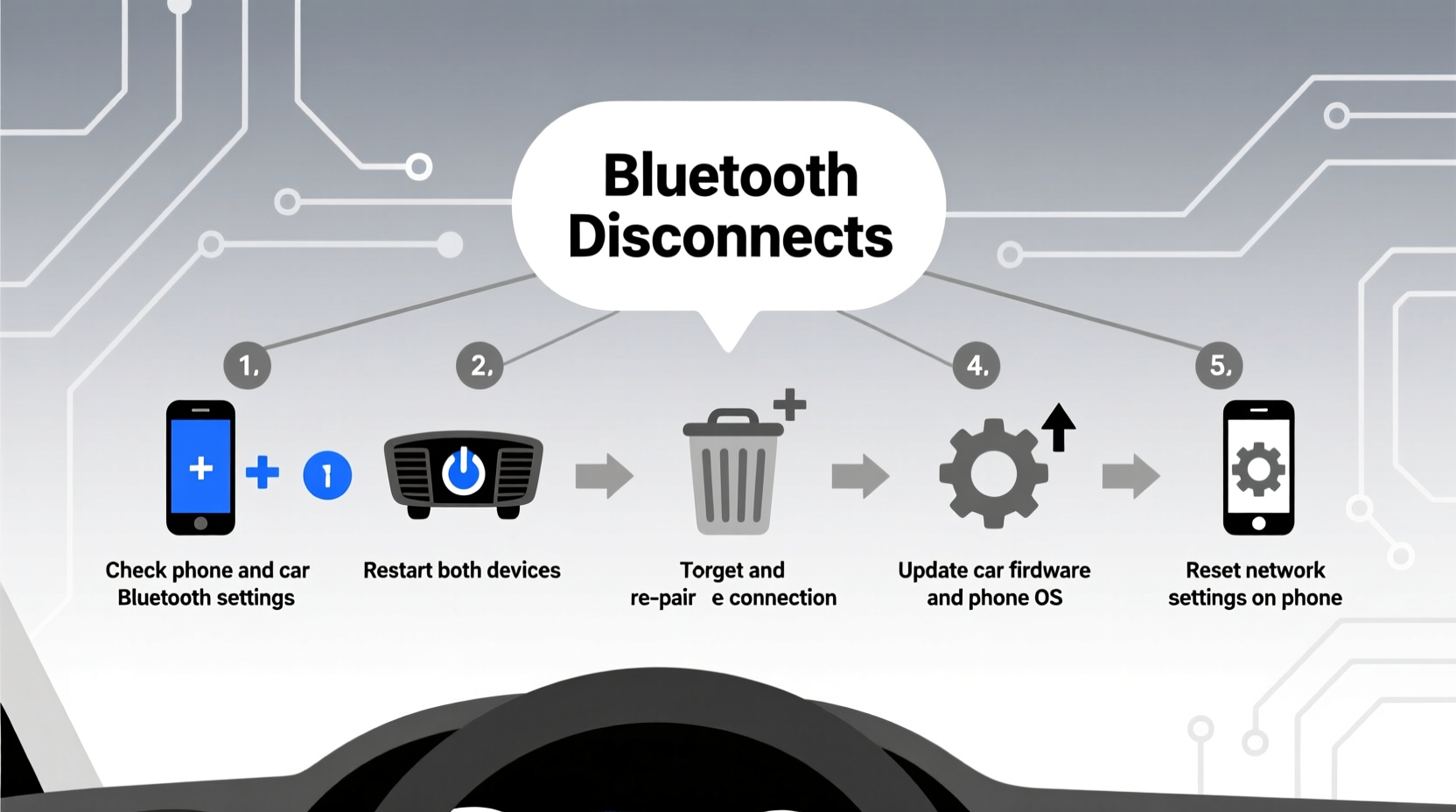
Bluetooth technology has evolved significantly, but it remains susceptible to environmental and technical factors. Car environments present unique challenges: metal enclosures that reflect signals, multiple electronic systems emitting electromagnetic noise, and temperature fluctuations affecting internal components.
Here are the most frequent culprits behind unstable Bluetooth connections in vehicles:
- Outdated firmware – Both your phone and car infotainment system rely on firmware updates to maintain compatibility.
- Signal interference – Nearby Wi-Fi networks, USB chargers, or aftermarket electronics can disrupt the 2.4 GHz frequency band used by Bluetooth.
- Overloaded memory – Many car systems store multiple paired devices. Too many can degrade performance.
- Software glitches – Temporary bugs in either device can cause unexpected drops.
- Physical obstructions – Placing your phone in a back pocket or under a seat weakens signal strength.
- Battery-saving modes – Aggressive power management on phones may throttle background processes, including Bluetooth.
“Bluetooth stability in cars isn’t just about the protocol—it’s about ecosystem harmony. A single outdated component can break the chain.” — Dr. Alan Reeves, Wireless Communications Engineer at MIT Media Lab
Step-by-Step Troubleshooting Guide
Before assuming hardware failure, follow this systematic process to identify and resolve the issue. Most problems can be fixed using these verified methods.
- Restart both devices
Turn off your phone and car engine. Wait 60 seconds, then restart both. This clears temporary glitches in memory and resets wireless modules. - Forget and re-pair the device
On your phone, go to Settings > Bluetooth > [Your Car] > “Forget This Device.” In your car, delete the phone from the paired devices list. Then pair again from scratch. - Check for software updates
Ensure your smartphone’s OS is current. For the car, consult the manufacturer’s website or use an onboard update feature if available (e.g., Tesla, Ford SYNC, BMW iDrive). - Test with another phone
Pair a different smartphone to your car. If it stays connected, the issue lies with your original device. If not, the fault may be with the car’s system. - Disable battery optimization for Bluetooth
On Android: Go to Settings > Apps > [Bluetooth Settings] > Battery > Unrestricted. On iPhone: Ensure Background App Refresh is enabled for Music and Phone apps. - Reset network settings (phone)
This wipes saved Wi-Fi, Bluetooth, and cellular configurations. On iPhone: Settings > General > Transfer or Reset iPhone > Reset > Reset Network Settings. On Android: Settings > System > Reset > Network Settings. - Inspect for interference sources
Remove third-party USB chargers, dash cams, or signal boosters temporarily. Test the connection again.
Do’s and Don’ts: Maintaining Stable Bluetooth Performance
Prevention is often more effective than repair. Use this table to avoid common pitfalls and reinforce reliable connectivity habits.
| Do | Don’t |
|---|---|
| Keep your phone within 3 feet of the car’s Bluetooth module (usually near the center console) | Store your phone in a metal-lined pocket or under thick materials like leather seats |
| Update your car’s infotainment system annually, especially after major phone OS updates | Ignore pending system updates—delayed patches often include critical Bluetooth fixes |
| Use high-quality USB cables if charging while connected via Bluetooth | Daisy-chain multiple low-cost USB hubs or chargers near the audio unit |
| Limit paired devices to 2–3 active phones to reduce memory load | Leave 5+ devices paired indefinitely, especially inactive ones |
| Enable “Always Connected” mode if supported by your car (e.g., some Toyota and Hyundai models) | Assume Bluetooth should work flawlessly out-of-the-box without configuration |
Real-World Example: Resolving Intermittent Drops in a 2019 Honda Civic
A driver in Portland reported that her iPhone 13 would connect to her 2019 Honda Civic LX but disconnect every 5–7 minutes, especially when navigating uphill. She had already tried restarting both devices and toggling Bluetooth on and off—without success.
Upon inspection, it was discovered that she used a magnetic phone mount attached to a vent clip. The magnet interfered with the phone’s internal sensors and weakened signal transmission. Additionally, her car’s firmware had not been updated since 2020, missing two critical Bluetooth stack patches.
The solution involved three steps:
- Replacing the magnetic mount with a non-magnetic adhesive cradle.
- Updating the car’s audio system via a USB drive using a firmware patch downloaded from Honda’s official support portal.
- Disabling Low Power Mode on her iPhone during drives.
After these changes, the connection remained stable across multiple trips, including long commutes and rural routes with limited cell service. This case highlights how a combination of physical setup and outdated software can jointly degrade performance—even when each factor seems minor on its own.
Quick Checklist: Fix Bluetooth Disconnections in Under 15 Minutes
When you're short on time, run through this essential checklist to restore connectivity fast:
- ✅ Restart your phone and car ignition
- ✅ Move your phone closer to the dashboard
- ✅ Forget the car from your phone’s Bluetooth list
- ✅ Delete your phone from the car’s paired devices
- ✅ Re-pair both devices from scratch
- ✅ Disable battery saver or power-saving modes
- ✅ Remove nearby USB chargers or electronic accessories
- ✅ Test with a secondary phone if possible
Frequently Asked Questions
Can a weak car battery affect Bluetooth performance?
Yes. A low-voltage electrical system can cause instability in the infotainment unit, leading to dropped connections. If your car struggles to start or headlights dim noticeably, have the battery and alternator tested. Even if the engine runs, inconsistent voltage may disrupt digital subsystems.
Why does Bluetooth work fine outside the car but fail inside?
This usually points to internal interference. Modern cars contain dozens of electronic control units (ECUs), many operating near the 2.4 GHz band. Poorly shielded aftermarket devices—like cheap inverters or dash cams—are common offenders. Try disabling non-essential electronics one by one to isolate the source.
Will resetting my car’s infotainment system erase navigation data?
It depends on the model. Factory systems with built-in GPS maps (e.g., Subaru Starlink, Mercedes COMAND) typically retain map data after a soft reset. However, a full factory reset may require redownloading maps. Always check your owner’s manual before proceeding. Systems relying on smartphone mirroring (Android Auto, Apple CarPlay) are unaffected since navigation data lives on your phone.
Long-Term Prevention and Maintenance Tips
To avoid recurring issues, treat your car’s Bluetooth system like any other piece of technology—regular maintenance matters. Here’s how to keep it running smoothly:
- Schedule quarterly checkups: Every three months, review paired devices and remove unused ones.
- Monitor update notifications: Automakers increasingly deliver over-the-air (OTA) updates. Enable automatic downloads where possible.
- Use certified accessories: Choose MFi-certified cables (for iPhone) and USB-C PD-compliant chargers to minimize electromagnetic noise.
- Minimize multitasking: Running Bluetooth audio, live navigation, and phone calls simultaneously increases processing load. Close unused apps on your phone.
- Keep firmware logs: Note down your car’s current software version and update history. This helps technicians diagnose issues faster.
“The average driver overlooks firmware until something breaks. But proactive updating is the single best way to ensure seamless wireless integration.” — Lena Park, Senior Automotive Software Analyst at Consumer Reports
Conclusion: Take Control of Your Driving Experience
Bluetooth disconnections don’t have to be a daily annoyance. With a methodical approach, most issues can be diagnosed and resolved quickly—often without professional help. The key is understanding that Bluetooth stability depends on both devices working in harmony, not just one side of the connection.
By applying the troubleshooting steps, avoiding common mistakes, and maintaining your system proactively, you’ll enjoy uninterrupted music, clearer calls, and smoother navigation. Don’t accept glitchy tech as normal. Small adjustments today can transform your driving experience tomorrow.




 浙公网安备
33010002000092号
浙公网安备
33010002000092号 浙B2-20120091-4
Comments
No comments yet. Why don't you start the discussion?