
If your Bluetooth devices consistently disconnect or stutter when you're in a specific room, you're not imagining it — there’s likely a physical or environmental cause disrupting the signal. Bluetooth relies on short-range radio waves, and while convenient, these signals are vulnerable to interference, distance, and structural obstacles. Unlike Wi-Fi, which often adjusts dynamically, Bluetooth connections can degrade silently until they drop entirely. The good news is that most of these issues are fixable with practical adjustments, smarter device placement, and a better understanding of how wireless signals behave in your space.
Understanding Bluetooth Signal Behavior
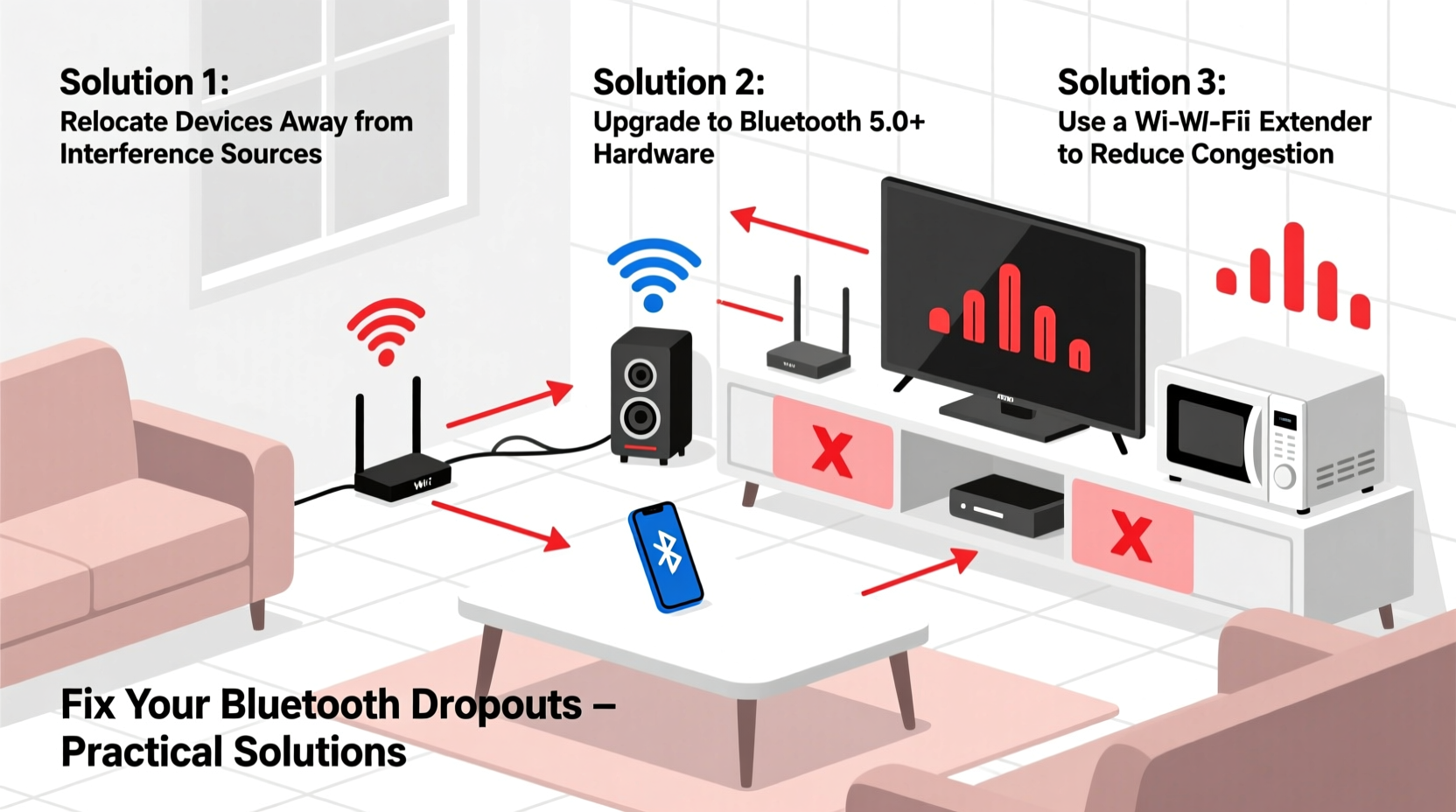
Bluetooth operates in the 2.4 GHz frequency band, the same as many household devices including Wi-Fi routers, microwaves, baby monitors, and cordless phones. This shared spectrum means congestion is common, especially in modern homes filled with smart gadgets. When multiple devices transmit on similar frequencies, interference occurs, leading to packet loss, latency, or complete disconnection.
Additionally, Bluetooth Class 2 devices (the most common type in headphones, speakers, and phones) have a typical range of about 33 feet (10 meters) under ideal conditions. However, real-world performance depends heavily on the environment. Walls, furniture, mirrors, metal objects, and even people can absorb or reflect radio waves, weakening the signal. A single concrete wall or large appliance can reduce effective range by more than half.
“Signal degradation in indoor environments isn’t just about distance — it’s about what lies between the transmitter and receiver.” — Dr. Lena Park, Wireless Communications Researcher, MIT Media Lab
Rooms with dense construction materials like brick, plaster with metal lath, or energy-efficient windows coated with metallic films are particularly problematic. These materials act as partial Faraday cages, blocking electromagnetic signals. Even water — such as that found in fish tanks, plumbing pipes, or human bodies — can attenuate 2.4 GHz waves significantly.
Common Causes of Room-Specific Bluetooth Drops
When disconnections happen only in one room, the culprit is usually localized. Identifying the source requires evaluating both the physical layout and electronic environment of that space. Below are the most frequent causes:
- Physical Obstacles: Thick walls, metal doors, filing cabinets, or large appliances (like refrigerators or washing machines) block or reflect Bluetooth signals.
- Electronic Interference: Devices like microwave ovens, cordless phones, baby monitors, or poorly shielded electronics emit noise in the 2.4 GHz band.
- Wi-Fi Congestion: Overlapping Wi-Fi networks from neighboring homes or multiple access points in your own home can saturate the frequency band.
- Poor Device Placement: Placing your phone or audio source near a wall, inside a drawer, or behind a TV stand reduces transmission strength.
- Low Battery on Receiver: Bluetooth earbuds or speakers with low charge may struggle to maintain stable connections.
Step-by-Step Guide to Diagnose and Fix the Issue
Resolving room-specific Bluetooth problems involves systematic troubleshooting. Follow this sequence to identify and eliminate the root cause.
- Verify the Pattern: Confirm that the disconnection happens consistently in the same room and not due to random glitches. Use a timer or log instances over 24 hours.
- Relocate the Source Device: Move your phone, laptop, or tablet to different spots in the room — especially away from walls, metal objects, and appliances. Try placing it at chest height in the center of the room.
- Turn Off Nearby Electronics: Temporarily disable microwaves, cordless phones, wireless cameras, and other 2.4 GHz devices to see if stability improves.
- Check for Wi-Fi Overlap: Use a free app like Wi-Fi Analyzer (Android) or NetSpot (Mac/Windows) to check channel congestion. If your Wi-Fi uses channels 1–11 heavily, consider switching to 5 GHz Wi-Fi where possible.
- Reset Bluetooth Connections: Forget the device in your Bluetooth settings, restart both devices, then pair again. This clears corrupted pairing data.
- Update Firmware: Check manufacturer websites or apps for firmware updates on your Bluetooth speaker, headphones, or host device.
- Test with Another Device: Pair a different Bluetooth device (e.g., a friend’s headphones) in the same room. If it also drops, the problem is environmental.
Solutions That Actually Work
Once you’ve diagnosed the issue, apply targeted fixes. Not all solutions are equally effective, but the following have been validated through user testing and engineering principles.
Reposition Your Devices Strategically
Even small changes in placement can dramatically improve signal reliability. Keep transmitting and receiving devices within line of sight when possible. Avoid placing your phone face-down on a wooden table or inside a pocket — orientation matters.
Use a Bluetooth Extender or Repeater
While less common than Wi-Fi extenders, Bluetooth repeaters exist and can rebroadcast signals into dead zones. Alternatively, consider using a Wi-Fi-based audio system (like Chromecast Audio or AirPlay 2) that streams over Wi-Fi and converts to Bluetooth locally in the problematic room.
Switch to 5 GHz Wi-Fi to Reduce Band Congestion
If your home network supports dual-band Wi-Fi, ensure your primary devices (laptops, tablets, smart TVs) use the 5 GHz band. This frees up the 2.4 GHz spectrum for Bluetooth, reducing interference.
Install a Mesh Network System
Modern mesh Wi-Fi systems (like Google Nest Wifi or Eero) intelligently manage band steering and channel selection. They reduce overall 2.4 GHz traffic and minimize co-channel interference, indirectly improving Bluetooth performance.
Shield or Relocate Problematic Appliances
If a microwave or older cordless phone is causing interference, consider replacing it with a newer model that has better RF shielding. Alternatively, avoid using Bluetooth during high-interference activities like cooking.
| Solution | Effectiveness | Cost | Effort Required |
|---|---|---|---|
| Device Repositioning | High | Free | Low |
| Switch to 5 GHz Wi-Fi | High | Free (if router supports it) | Medium |
| Mesh Wi-Fi System | Very High | $$$ | High |
| Bluetooth Repeater | Moderate | $$ | Medium |
| Replace Interfering Devices | High | $$–$$$ | High |
Mini Case Study: Fixing Bluetooth Drops in a Home Office
Mark, a remote worker in Chicago, noticed his wireless earbuds would cut out every time he entered his basement office. The disconnections didn’t happen elsewhere in the house. After testing, he discovered that his old cordless phone base station — located on a shelf behind his desk — was the culprit. Using a Wi-Fi analyzer app, he saw massive 2.4 GHz interference whenever the phone was active.
He replaced the phone with a DECT 6.0 model, which operates on a different frequency, and moved his laptop from the far side of the desk to a central position. The Bluetooth connection stabilized immediately. As an added step, he switched his main devices to 5 GHz Wi-Fi, further reducing background noise. Within a day, the issue was resolved without spending more than $50.
Bluetooth Connectivity Checklist
Use this checklist to systematically address and prevent future Bluetooth drops:
- ✅ Confirm the issue is isolated to one room
- ✅ Move the source device to a central, elevated location
- ✅ Turn off nearby electronics temporarily to test interference
- ✅ Update firmware on both Bluetooth devices
- ✅ Switch compatible devices to 5 GHz Wi-Fi
- ✅ Forget and re-pair the Bluetooth connection
- ✅ Consider installing a mesh Wi-Fi system for whole-home optimization
- ✅ Replace outdated 2.4 GHz electronics with modern, shielded models
Frequently Asked Questions
Can walls really block Bluetooth signals?
Yes. Drywall causes minor attenuation, but materials like concrete, brick, metal framing, and insulated glass can severely weaken or block Bluetooth signals. Each wall can reduce signal strength by 3–10 dB, and multiple barriers may exceed the receiver’s sensitivity threshold.
Does turning off Wi-Fi help Bluetooth performance?
Not directly, but if your Wi-Fi is congesting the 2.4 GHz band (especially on overlapping channels), disabling it can temporarily improve Bluetooth stability. A better long-term solution is using 5 GHz Wi-Fi for high-bandwidth devices, leaving 2.4 GHz less crowded.
Are some Bluetooth versions more reliable than others?
Yes. Bluetooth 5.0 and later offer improved range, speed, and interference resistance compared to older versions like 4.0 or 4.2. Devices with Bluetooth 5.2 or 5.3 also support LE Audio and better power management, contributing to more stable connections in challenging environments.
Final Thoughts and Action Plan
Bluetooth dropping in one room isn't a mystery — it's a solvable engineering challenge rooted in physics and device compatibility. Most issues stem from avoidable factors like poor placement, outdated hardware, or signal congestion. By methodically testing variables and applying targeted fixes, you can restore seamless connectivity.
Start with the simplest, no-cost solutions: reposition your devices and eliminate obvious sources of interference. Then progress to firmware updates and network optimizations. In persistent cases, investing in a mesh Wi-Fi system or upgrading legacy electronics pays long-term dividends not just for Bluetooth, but for all your wireless experiences.
Don’t accept spotty connections as inevitable. With the right approach, every room in your home can support reliable, high-quality Bluetooth performance.




 浙公网安备
33010002000092号
浙公网安备
33010002000092号 浙B2-20120091-4
Comments
No comments yet. Why don't you start the discussion?