
Bluetooth speakers offer unmatched convenience and portability, but nothing disrupts the experience like sudden audio dropouts. Whether you're hosting a backyard party, working from home, or winding down with music, intermittent disconnections can be frustrating. The good news is that most causes of Bluetooth speaker cutouts are diagnosable and fixable—often without replacing the device. Understanding the root causes, from signal interference to outdated firmware, empowers you to restore seamless playback for good.
Understanding Bluetooth Signal Behavior
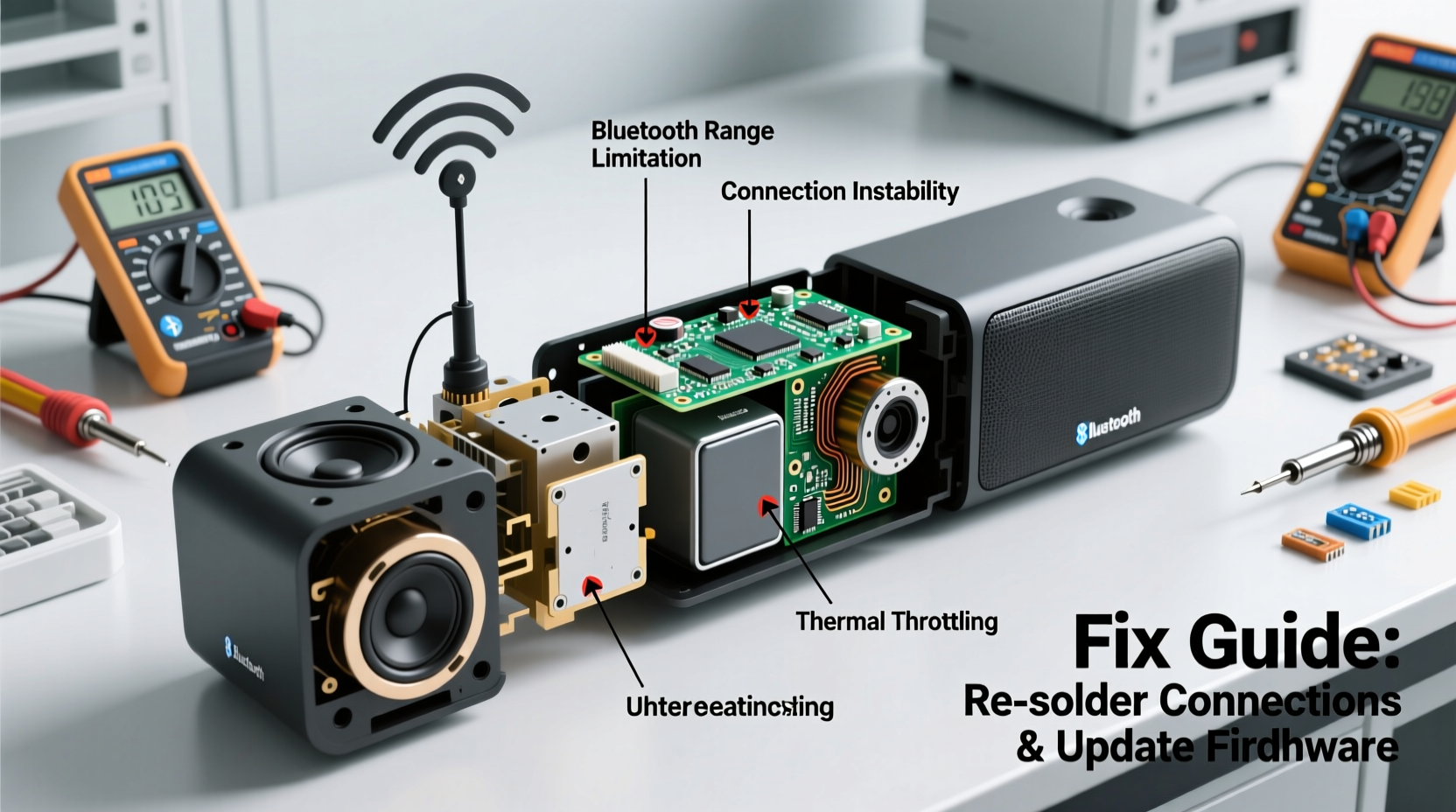
Bluetooth operates on the 2.4 GHz frequency band, the same as Wi-Fi routers, microwaves, cordless phones, and many smart home devices. This shared spectrum means congestion is common, especially in urban homes or offices. When multiple devices transmit on overlapping frequencies, interference occurs, leading to packet loss and audio stuttering. Unlike wired connections, Bluetooth relies on line-of-sight transmission and has limited range—typically 30 feet (10 meters) in ideal conditions. Physical obstructions like walls, furniture, or even human bodies absorb or reflect the signal, weakening connectivity.
Additionally, Bluetooth uses adaptive frequency hopping to avoid interference by switching between 79 different channels. However, in highly saturated environments, this mechanism can struggle, resulting in brief lapses or complete disconnections. The version of Bluetooth also matters: older versions like 4.0 have lower bandwidth and stability compared to Bluetooth 5.0 and later, which offer improved range, speed, and resilience to interference.
Common Causes of Bluetooth Speaker Cutouts
Before applying fixes, it's essential to identify what’s causing the interruption. Most issues fall into one of these categories:
- Signal Interference: Other wireless devices operating on the 2.4 GHz band can drown out Bluetooth signals.
- Distance and Obstacles: Moving too far from the speaker or placing it behind thick walls reduces signal strength.
- Low Battery: A weak battery can cause the speaker to throttle power to the Bluetooth module, leading to instability.
- Outdated Firmware: Manufacturers release updates to fix bugs and improve connection reliability.
- Device Pairing Limits: Some speakers remember multiple devices but only maintain stable links with one active connection.
- Source Device Issues: The problem may not be the speaker at all—your phone, tablet, or laptop could have Bluetooth driver issues.
“Over 60% of reported Bluetooth audio issues stem from environmental interference or suboptimal placement rather than hardware failure.” — Dr. Alan Reyes, Wireless Communication Engineer
Step-by-Step Guide to Fix Bluetooth Cutouts Permanently
Follow this structured approach to diagnose and resolve the issue systematically. Many users see immediate improvement after just one or two steps.
- Reboot Both Devices
Turn off your speaker and source device (phone, laptop, etc.), wait 30 seconds, then power them back on. This clears temporary glitches in the Bluetooth stack. - Forget and Re-Pair the Device
On your source device, go to Bluetooth settings, find your speaker, and select “Forget This Device.” Then, power on the speaker in pairing mode and reconnect. This resets the pairing profile and often resolves corrupted connection data. - Update Firmware
Check the manufacturer’s website or app (e.g., Bose Connect, JBL Portable, Sony Music Center) for available firmware updates. Updated firmware frequently includes stability patches and improved signal handling. - Reduce Wireless Congestion
Turn off nearby devices using the 2.4 GHz band when possible. If your router supports dual-band Wi-Fi, switch your phone to the 5 GHz network while keeping the speaker connected via Bluetooth. - Optimize Placement
Place the speaker away from metal objects, appliances, and other electronics. Avoid corners or enclosed spaces. Central locations with minimal obstructions yield stronger signals. - Test with Another Source Device
Pair the speaker with a different phone or tablet. If the issue persists, the problem lies with the speaker. If it works fine, the original device may need a software update or Bluetooth reset. - Reset the Speaker to Factory Settings
Most speakers have a reset procedure (usually holding power + volume down for 10+ seconds). Consult your manual. This clears all paired devices and settings, giving you a clean slate.
Do’s and Don’ts: Bluetooth Best Practices
| Do’s | Don’ts |
|---|---|
| Maintain a full charge on your speaker during use | Let the battery drain below 20% during extended playback |
| Keep the speaker within 30 feet and in open space | Place it inside cabinets or behind large objects |
| Use Bluetooth 5.0+ devices for better stability | Rely on older Bluetooth 3.0 or 4.0 sources if avoidable |
| Update firmware quarterly or as notified | Ignore firmware update prompts assuming they’re unnecessary |
| Minimize competing wireless traffic during critical use | Run microwave ovens or baby monitors near the speaker |
Real-World Example: Fixing a Persistent Outdoor Speaker Issue
Mark, a homeowner in Seattle, experienced frequent cutouts with his JBL Charge 5 during backyard gatherings. Despite being only 15 feet from his phone, the audio would drop every few minutes. He tried rebooting and re-pairing with no success. After reading about interference, he noticed his neighbor’s security camera and his own Wi-Fi extender were both operating nearby. Using a Wi-Fi scanner app, he discovered both devices were broadcasting heavily on channel 6 of the 2.4 GHz band—overlapping with his speaker’s frequency range.
He changed his Wi-Fi extender’s channel to 11 (less congested) and moved the speaker away from the metal patio railing. He also updated the speaker’s firmware via the JBL app. After these changes, the cutouts stopped completely. Mark now enjoys uninterrupted music, even with multiple guests connected to his network.
Advanced Fixes for Persistent Problems
If basic troubleshooting fails, consider these deeper solutions:
- Upgrade Your Source Device’s Bluetooth Adapter: If using a laptop, plug in a USB Bluetooth 5.0+ dongle. These often outperform built-in modules, especially on older machines.
- Use a Bluetooth Extender or Repeater: Devices like the Avantree Leaf can rebroadcast the signal, effectively doubling range and reducing dropouts in large spaces.
- Switch Audio Codecs (if supported): On Android, enable developer options and select LDAC or aptX HD for higher-quality, more stable streaming—if your speaker supports it.
- Limit Background App Refresh: Apps constantly syncing in the background can interrupt Bluetooth processes. Disable auto-refresh for non-essential apps in your phone settings.
“Many people overlook how much background processes affect Bluetooth stability. A single misbehaving app can degrade audio performance across all connected devices.” — Lena Park, Mobile Systems Analyst
Frequently Asked Questions
Why does my Bluetooth speaker cut out when I move my phone?
This typically happens due to signal obstruction or exceeding the effective range. Walls, furniture, or even your body can block the 2.4 GHz signal. Try staying within 20–30 feet and maintaining a clear path between devices.
Can a low battery cause Bluetooth disconnections?
Yes. When a speaker’s battery drops below 10–15%, it may reduce power to non-essential components, including the Bluetooth radio, to conserve energy. Always use the speaker on a full or adequately charged battery for best results.
Will resetting my speaker erase all settings?
Yes, a factory reset removes all paired devices, custom EQ settings, and sometimes saved presets. You’ll need to re-pair your devices and reconfigure preferences afterward. It’s a necessary step for resolving deep-seated connection issues.
Final Checklist: Permanent Fix Roadmap
To ensure long-term stability, follow this checklist periodically—especially before important events:
- ✅ Re-pair the speaker with your main device monthly
- ✅ Check for firmware updates every 3 months
- ✅ Audit your wireless environment for new sources of interference
- ✅ Clean speaker ports and charging contacts to prevent power issues
- ✅ Test speaker with alternate devices annually to isolate hardware problems
- ✅ Store the speaker fully charged when not in use for extended periods
Conclusion: Enjoy Seamless Audio Without Interruption
Bluetooth speaker cutouts are rarely random—they’re symptoms of identifiable technical or environmental factors. By understanding how Bluetooth works, minimizing interference, updating firmware, and optimizing placement, you can eliminate dropouts for good. The fixes aren’t complicated, but they require attention to detail and consistency. Don’t accept poor performance as inevitable. With the right approach, your speaker can deliver reliable, high-quality sound wherever you need it.




 浙公网安备
33010002000092号
浙公网安备
33010002000092号 浙B2-20120091-4
Comments
No comments yet. Why don't you start the discussion?