
Bluetooth speakers have become essential for hands-free calling, whether in home offices, cars, or conference rooms. But nothing disrupts productivity and communication like a speaker that cuts out mid-conversation. The issue isn’t always due to hardware failure—often, it’s the result of signal interference, outdated firmware, or incorrect device pairing. Understanding the root cause is the first step toward a reliable fix. This guide breaks down the most common reasons Bluetooth speakers disconnect during calls and provides actionable solutions you can apply immediately.
Understanding Why Bluetooth Speakers Disconnect During Calls
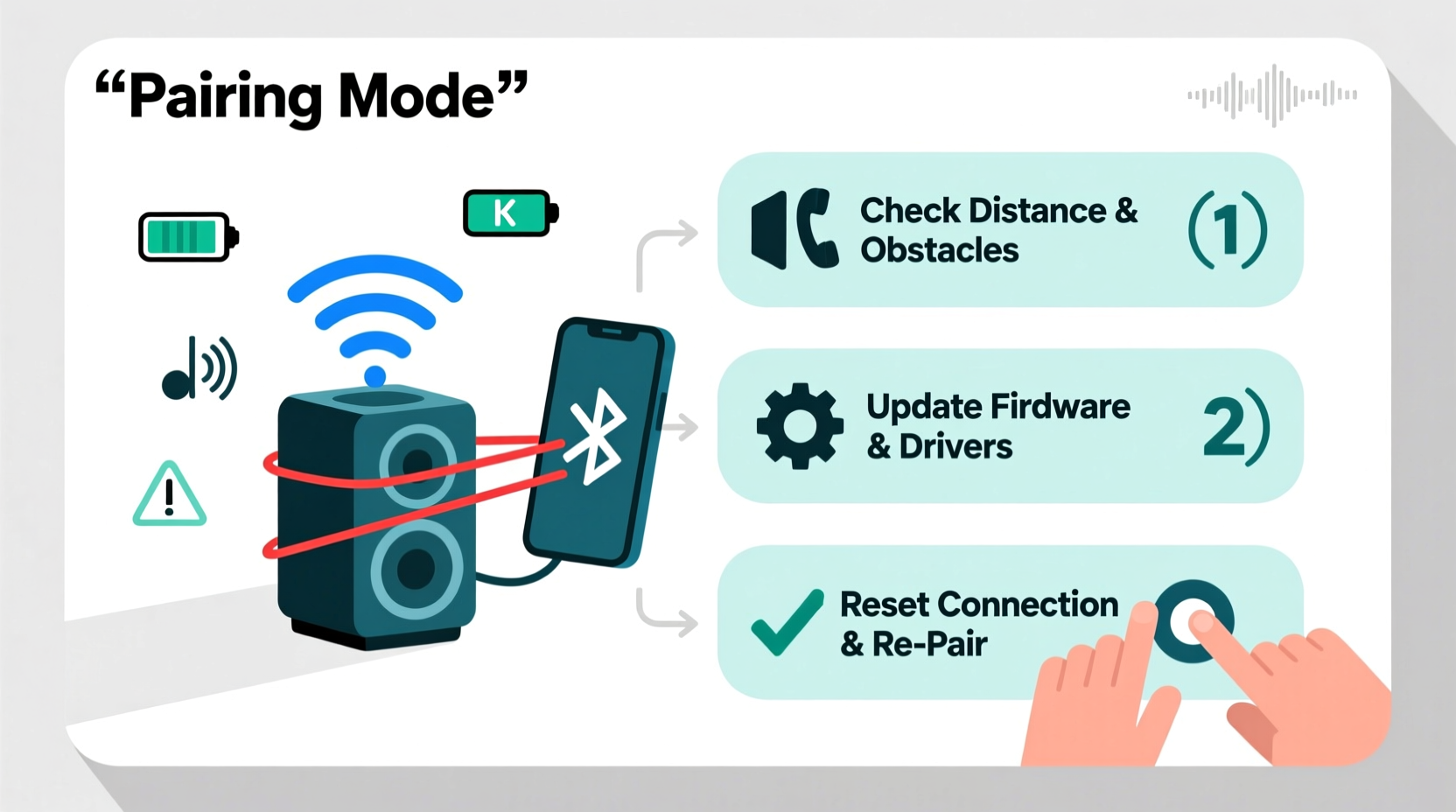
Unlike music streaming, voice calls through Bluetooth use different transmission protocols. Most Bluetooth speakers rely on two primary profiles: A2DP (Advanced Audio Distribution Profile) for high-quality stereo audio like music, and HFP (Hands-Free Profile) or HSP (Headset Profile) for voice calls. These call-focused profiles prioritize microphone input and two-way communication but operate at lower bandwidth, which can lead to instability if not properly supported by the device or environment.
When a speaker cuts out during a call, it’s typically because:
- The Bluetooth connection is unstable due to distance or obstacles.
- The paired device switches between audio profiles inefficiently.
- There’s electromagnetic interference from nearby electronics.
- The speaker’s firmware lacks optimizations for call handling.
- Battery levels are too low to maintain stable signal processing.
These issues are often mistaken for hardware defects, but in many cases, they can be resolved with simple adjustments and maintenance.
Step-by-Step Troubleshooting Guide
If your Bluetooth speaker keeps cutting out during calls, follow this structured approach to diagnose and resolve the problem efficiently.
- Restart Both Devices
Power cycle your smartphone and speaker. Turn them off completely, wait 15 seconds, then power them back on. This clears temporary glitches in the Bluetooth stack. - Delete and Re-Pair the Connection
Go to your phone’s Bluetooth settings, forget the speaker, then re-pair it from scratch. This resets the connection profile and forces the system to re-establish optimal parameters. - Test with Another Device
Pair the speaker with a different phone or tablet. If the cutting out persists, the issue likely lies with the speaker. If it works fine, the original device may have software or compatibility problems. - Check for Firmware Updates
Visit the manufacturer’s website or app (e.g., JBL Connect, Bose Connect, Sony Music Center) to see if a firmware update is available. Many brands release updates specifically to improve call stability and Bluetooth reliability. - Reduce Interference Sources
Move away from Wi-Fi routers, microwaves, cordless phones, and USB 3.0 devices. These emit signals in the 2.4 GHz band, which overlaps with Bluetooth and can cause dropouts. - Limit Background Apps
Some apps run background processes that interfere with Bluetooth services. Close unnecessary apps, especially those using location or audio services. - Disable Bluetooth Auto-Switching Features
On iPhones, features like “Automatic Switching” under Bluetooth settings can cause the audio to jump between AirPods and other devices. Disable this if you’re using a third-party speaker.
Common Causes and Their Fixes
| Issue | Likely Cause | Solution |
|---|---|---|
| Speaker cuts out when moving slightly | Weak signal due to distance or physical barriers | Keep speaker within 3 feet; remove walls or metal objects between devices |
| Dropped audio every few seconds | Wi-Fi or microwave interference | Move away from 2.4 GHz sources; switch router to 5 GHz band |
| Audio stutters only during calls, not music | HFP/HSP profile instability | Update firmware; avoid using speaker for calls if not designed for it |
| Speaker disconnects when battery is low | Power-saving mode kicks in | Charge speaker fully before important calls |
| Intermittent cutouts after long use | Overheating or memory overload | Let speaker cool down; restart periodically |
Device Compatibility Matters
Not all Bluetooth speakers are built for clear, stable voice calls. Some models prioritize music playback and lack advanced noise cancellation or echo suppression. For example, a compact party speaker might support A2DP well but implement HFP poorly, leading to choppy or delayed audio during calls.
Always check the product specifications before relying on a speaker for professional or frequent calls. Look for features like:
- Full-duplex calling support
- Integrated noise reduction
- Microphone array technology
- Bluetooth 5.0 or higher (offers better range and stability)
“Many users assume their speaker should handle calls as well as music, but profile support varies widely—even among premium brands.” — David Lin, Wireless Audio Engineer at Sonos
Real-World Example: Fixing a Home Office Setup
Consider Sarah, a freelance consultant who uses a popular portable Bluetooth speaker for Zoom meetings. She noticed frequent audio dropouts whenever her microwave ran or her laptop connected to Wi-Fi. Initially, she blamed the speaker and considered returning it.
After testing, she discovered the issue wasn’t the speaker itself, but interference from her kitchen appliances and crowded wireless environment. She moved her workspace farther from the kitchen, switched her router to the 5 GHz band, and updated the speaker’s firmware via the companion app. The call stability improved dramatically, with no further interruptions.
This case highlights how environmental factors and overlooked updates can mimic hardware failure. A methodical approach saved Sarah time and money—and preserved a perfectly functional device.
Preventive Maintenance Checklist
To keep your Bluetooth speaker performing reliably during calls, follow this monthly maintenance checklist:
- ✅ Re-pair the speaker with your main device
- ✅ Check for firmware updates
- ✅ Clean speaker grille and ports with a dry brush
- ✅ Test microphone and speaker clarity with a short call
- ✅ Confirm battery holds charge without sudden drops
- ✅ Evaluate placement for optimal signal strength
Regular upkeep prevents minor issues from escalating into persistent problems. Think of it like servicing a car—small interventions extend lifespan and performance.
Frequently Asked Questions
Can Wi-Fi really affect my Bluetooth speaker?
Yes. Both Wi-Fi and Bluetooth operate in the 2.4 GHz frequency band. When multiple devices transmit simultaneously, signal congestion occurs, causing packet loss and audio cutouts. Using a 5 GHz Wi-Fi network reduces interference and frees up the 2.4 GHz band for Bluetooth devices.
Why does my speaker work fine for music but not for calls?
Music uses the A2DP profile, which supports high-quality stereo streaming. Voice calls use HFP or HSP, which are lower-bandwidth, mono-profiles designed for two-way communication. If the speaker has poor HFP implementation or lacks a dedicated call-processing chip, audio quality and stability suffer during calls.
Is it worth using a Bluetooth speaker for professional calls?
It depends on the model. Speakers marketed for conferencing (e.g., Jabra Speak, Bose Smart Speaker 500) include advanced echo cancellation, beamforming microphones, and robust HFP support. General-purpose speakers may lack these features. For critical calls, invest in a speaker designed explicitly for voice communication.
Expert Tips for Long-Term Stability
For users who depend on Bluetooth speakers daily, a few advanced practices can make a significant difference:
- Use a dedicated Bluetooth adapter: If your computer has weak built-in Bluetooth, consider a USB Bluetooth 5.0+ dongle for stronger, more stable connections.
- Avoid daisy-chaining devices: Don’t connect multiple Bluetooth speakers to one phone during a call. This overloads the connection and increases latency.
- Monitor battery health: Lithium-ion batteries degrade over time. A speaker that once lasted 10 hours may now struggle after 3–4, affecting power delivery to the Bluetooth module.
- Limit simultaneous connections: Some speakers allow dual pairing, but maintaining two active links can strain resources and cause dropouts during calls.
Also, consider your usage context. A speaker that performs flawlessly in a quiet bedroom might falter in a busy office with multiple wireless signals. Adjust expectations based on environment and device capability.
Conclusion: Take Control of Your Audio Experience
Bluetooth speaker cutouts during calls are frustrating but rarely inevitable. With the right knowledge, most issues can be diagnosed and fixed without replacing equipment. From eliminating interference to updating firmware and optimizing placement, small changes yield big improvements in call clarity and reliability.
Don’t accept poor performance as normal. Apply the steps outlined here, maintain your devices proactively, and choose hardware suited to your needs. Whether you're hosting virtual meetings or catching up with family, seamless audio should be the standard—not the exception.




 浙公网安备
33010002000092号
浙公网安备
33010002000092号 浙B2-20120091-4
Comments
No comments yet. Why don't you start the discussion?