
Bluetooth speakers offer convenience, portability, and high-quality audio without wires—but nothing is more frustrating than sudden audio dropouts. You're enjoying music in the backyard, during a workout, or at a party, and suddenly the sound stutters or stops altogether. The issue isn’t always with the speaker itself. More often than not, it’s caused by wireless interference, signal range limitations, or device compatibility problems. Understanding the root causes and applying targeted solutions can restore seamless playback. This guide dives into the science behind Bluetooth instability, identifies common culprits, and provides practical, tested fixes to keep your speaker performing reliably.
Understanding Bluetooth Signal Behavior
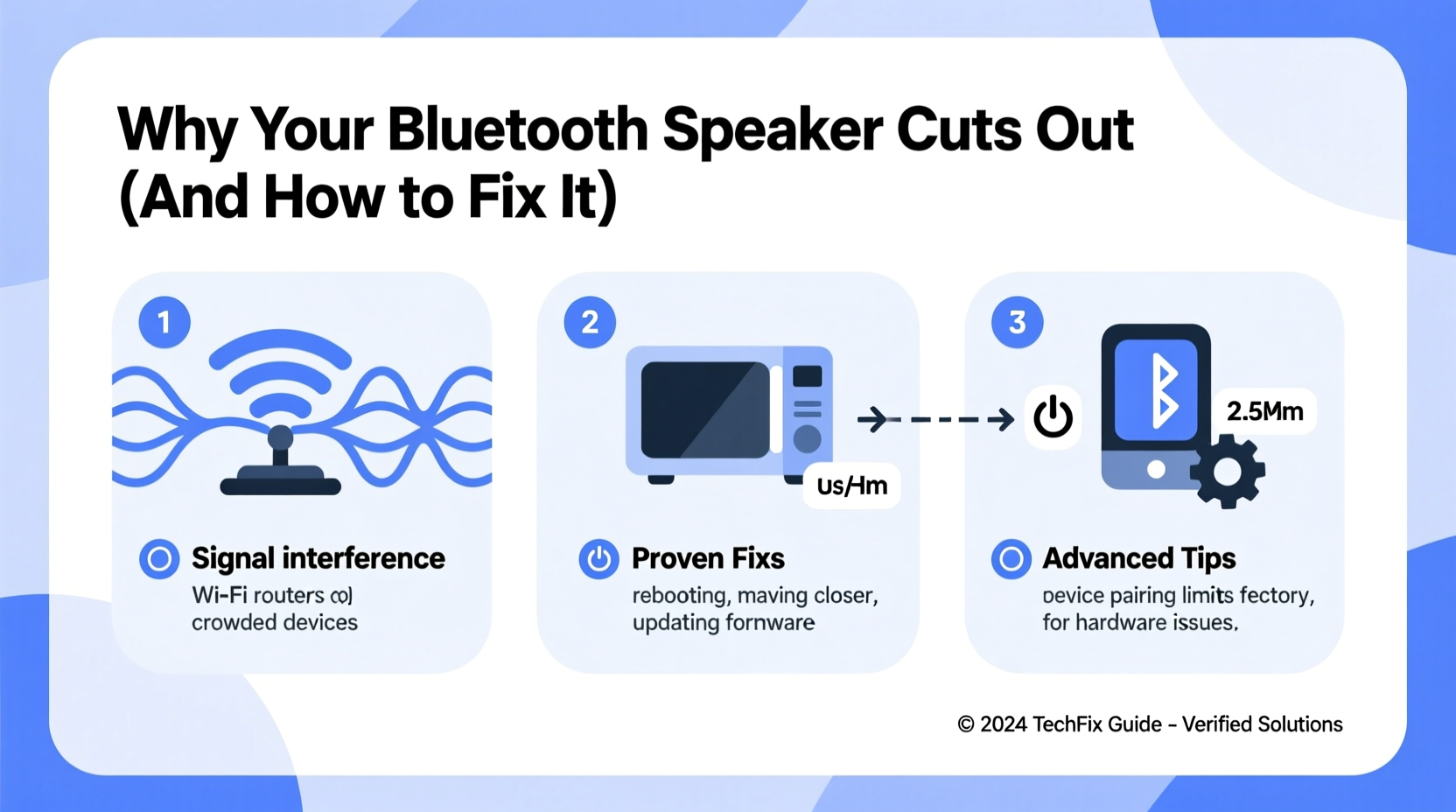
Bluetooth operates on the 2.4 GHz frequency band—the same as Wi-Fi routers, microwaves, cordless phones, and many smart home devices. While convenient, this shared spectrum creates potential for congestion. Bluetooth uses adaptive frequency hopping (AFH), which helps avoid interference by switching between 79 different channels up to 1,600 times per second. However, when too many devices occupy the same space, even AFH struggles to maintain a clean connection.
The Bluetooth version also plays a critical role. Older versions like Bluetooth 3.0 or 4.0 have lower bandwidth and weaker signal resilience compared to Bluetooth 5.0 and above. Newer standards support longer range, higher data throughput, and better coexistence with other wireless signals. If your speaker or source device uses an outdated chip, it may struggle in modern wireless environments.
“Bluetooth isn’t just about pairing—it’s about maintaining a stable link. Interference, distance, and hardware age all degrade that link.” — Dr. Lena Patel, Wireless Communications Engineer
Common Causes of Bluetooth Speaker Dropouts
Random cutting out rarely stems from a single factor. Instead, it's usually a combination of environmental, technical, and usage-related issues. Identifying these helps narrow down effective solutions.
- Wireless interference: Routers, baby monitors, and microwave ovens emit signals in the 2.4 GHz band, disrupting Bluetooth transmission.
- Physical obstructions: Walls, furniture, and even human bodies absorb or reflect radio waves, weakening the signal.
- Distance beyond effective range: Most Bluetooth speakers have a rated range of 30 feet (10 meters), but real-world performance is often less due to obstacles.
- Low battery: Power fluctuations in either the speaker or the connected device can destabilize the connection.
- Outdated firmware: Manufacturers release updates to improve stability, fix bugs, and enhance compatibility.
- Multiple connected devices: Some phones auto-switch between earbuds, watches, and speakers, causing momentary disconnections.
Proven Fixes That Work
Before replacing equipment, try these field-tested solutions. Many users report immediate improvements after applying even one or two of these steps.
1. Reduce Wireless Interference
Begin by auditing your environment. Identify active 2.4 GHz devices near your speaker setup. Move the speaker away from Wi-Fi routers, cordless phone bases, and kitchen appliances. If possible, switch your router to use the 5 GHz band for primary devices, freeing up the 2.4 GHz band for Bluetooth.
Another option: temporarily disable nearby smart devices (like smart lights or plugs) to test if dropouts stop. If they do, re-enable them one by one to isolate the offender.
2. Optimize Placement and Line of Sight
Position your speaker and source device (phone, tablet, laptop) within direct line of sight. Avoid placing the speaker inside cabinets, behind TVs, or under metal objects. Even small obstructions can significantly reduce signal strength.
If you must place the speaker across a room, minimize barriers. Elevate it off the floor—sound and signal travel better from higher positions. Keep it at least three feet away from large metal surfaces, mirrors, or water-filled fish tanks, which reflect or absorb radio waves.
3. Update Firmware and Software
Check the manufacturer’s website or app for firmware updates. Companies like JBL, Bose, and Sony regularly release patches that improve Bluetooth stability. For example, a 2023 update for the JBL Flip 6 addressed intermittent disconnects caused by specific Android OS versions.
Likewise, ensure your smartphone or tablet has the latest operating system updates. Outdated Bluetooth drivers are a frequent cause of compatibility glitches.
4. Reset Bluetooth Connections
Over time, paired devices accumulate corrupted connection logs. To reset:
- Turn off Bluetooth on your source device.
- Power down the speaker completely.
- Wait 30 seconds.
- Turn on the speaker and enter pairing mode.
- Re-enable Bluetooth and pair again as if it were new.
This clears old handshake data and forces a fresh connection protocol.
5. Use a Bluetooth Transmitter or Adapter
If your source device has weak Bluetooth (common in older laptops), consider using a USB Bluetooth 5.0+ adapter. These typically outperform built-in chips and provide stronger signal output. Connect the adapter to your device, then pair the speaker to it instead.
Do’s and Don’ts: Quick Reference Table
| Do | Don't |
|---|---|
| Keep speaker and device within 15 feet with minimal obstructions | Place speaker behind thick walls or metal objects |
| Update firmware quarterly | Ignore software update notifications |
| Use speaker in open-air environments when possible | Operate near microwaves or Wi-Fi routers |
| Charge both devices fully during extended use | Run speaker on below 20% battery |
| Restart devices weekly | Assume hardware failure without troubleshooting |
Step-by-Step Troubleshooting Timeline
Follow this structured approach to diagnose and resolve dropouts efficiently:
- Day 1 – Observe and Isolate: Note when and where dropouts occur. Are they consistent in certain rooms? During specific activities? Rule out low battery or volume maxing.
- Day 2 – Environmental Audit: Turn off non-essential 2.4 GHz devices. Test speaker in a different location, ideally outdoors or in an open room.
- Day 3 – Re-pair Devices: Forget the speaker on your phone, restart both, and pair again. Check for any “paired but not connected” alerts.
- Day 4 – Update Everything: Install OS updates on your phone and check for speaker firmware via the manufacturer’s app.
- Day 5 – Hardware Test: Pair the speaker with a different device (e.g., a friend’s phone). If dropouts persist, the issue is likely the speaker. If not, the original device is the culprit.
- Day 6 – Upgrade Connection (Optional): Try a USB Bluetooth adapter or move your router’s load to 5 GHz.
- Day 7 – Evaluate: If problems continue, contact support or consider replacement—especially if the speaker is over three years old.
Real-World Example: Fixing Backyard Party Dropouts
Mark, a homeowner in Austin, struggled with his JBL Charge 5 cutting out every few minutes during outdoor gatherings. The speaker was placed on a patio table 25 feet from his phone inside the house. Walls, a refrigerator, and a Wi-Fi router stood between them.
He followed the troubleshooting steps: first moving the speaker closer, then turning off his microwave and switching his router to 5 GHz. He also updated the JBL Portable app and performed a factory reset on the speaker. After re-pairing, he kept his phone within 15 feet during events. The result? No dropouts during his next barbecue—even with 20 people nearby using their phones.
His solution wasn’t expensive or technical—just methodical. By isolating variables, he found that router interference and distance were the main issues.
Frequently Asked Questions
Can Wi-Fi really interfere with Bluetooth speakers?
Yes. Both operate on the 2.4 GHz band. When your Wi-Fi network is congested—especially with multiple devices streaming—Bluetooth signals can get crowded out. Using dual-band routers and reserving 5 GHz for high-bandwidth tasks reduces this conflict.
Why does my speaker cut out when I play bass-heavy music?
Bass requires more data transmission. If the Bluetooth connection is already strained (by distance or interference), high-bitrate audio can overwhelm the channel, causing stuttering. Lowering audio quality in your music app settings or using a wired connection for such tracks can help.
Is there a way to extend Bluetooth range without losing quality?
True range extension is limited by physics, but you can improve reliability. Use Bluetooth 5.0+ devices, minimize obstructions, and consider a repeater or mesh node if you’re deep into smart home systems. Alternatively, stream via Wi-Fi using apps like Spotify Connect instead of relying on Bluetooth.
Final Checklist: Eliminate Dropouts for Good
- ✅ Confirm both speaker and source device are charged above 50%
- ✅ Remove physical barriers between devices
- ✅ Disable nearby 2.4 GHz electronics during testing
- ✅ Update firmware and operating systems
- ✅ Perform a clean Bluetooth re-pair
- ✅ Test with a different source device
- ✅ Consider a USB Bluetooth adapter for weak transmitters
- ✅ Limit simultaneous Bluetooth connections on your phone
“The best fix isn’t always new gear—it’s smarter setup.” — Carlos Mendez, Audio Technician & Home Theater Specialist
Conclusion: Take Control of Your Listening Experience
Random Bluetooth speaker cutouts aren’t inevitable. They’re symptoms of preventable interference, suboptimal placement, or outdated technology. By understanding how Bluetooth works and systematically addressing each potential flaw, you can achieve stable, uninterrupted audio. Start with simple changes—repositioning, updating software, and reducing wireless clutter. Most issues resolve without spending a dime. For persistent problems, invest in better hardware wisely, focusing on Bluetooth 5.0+ compatibility and strong transmitter design. Your ideal listening experience is closer than you think.




 浙公网安备
33010002000092号
浙公网安备
33010002000092号 浙B2-20120091-4
Comments
No comments yet. Why don't you start the discussion?