
Bluetooth speakers offer convenience, portability, and high-quality audio without the hassle of wires. But when your music stops mid-song or your podcast cuts out during a key moment, it’s more than just annoying—it undermines the entire experience. Random disconnections are one of the most common complaints among Bluetooth speaker users. The good news is that most causes are fixable with the right approach.
This guide breaks down the technical and environmental reasons behind unstable Bluetooth connections, offers actionable solutions, and provides a clear path to restoring seamless playback. Whether you're using a budget-friendly model or a premium portable speaker, understanding the root causes can help you eliminate dropouts for good.
Understanding Bluetooth Signal Behavior
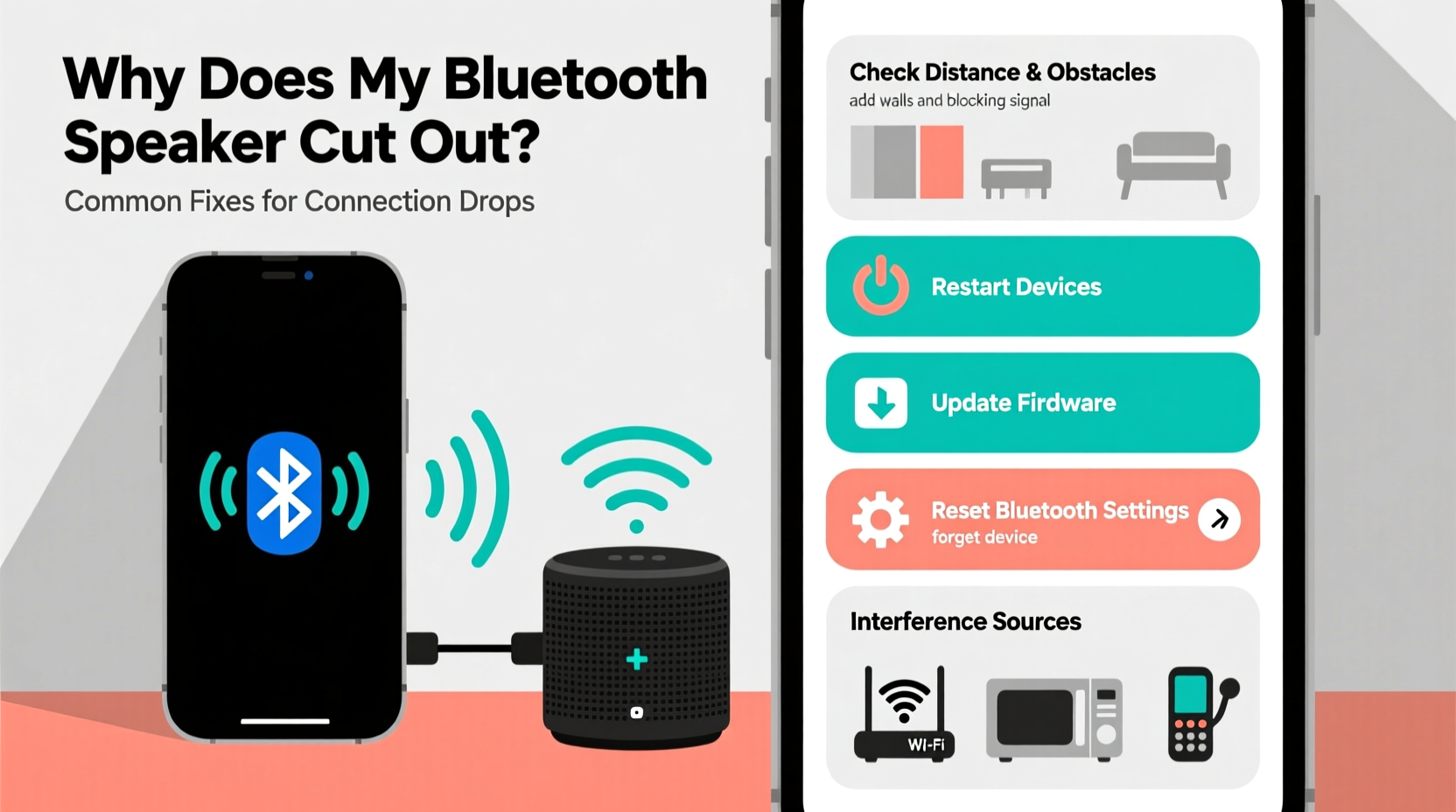
Bluetooth relies on short-range radio waves in the 2.4 GHz frequency band—the same range used by Wi-Fi routers, microwaves, cordless phones, and many smart home devices. This shared spectrum means interference is inevitable in modern households. Unlike wired audio, Bluetooth transmits data wirelessly between two paired devices: your source (phone, tablet, laptop) and the speaker.
The connection uses adaptive frequency-hopping spread spectrum technology, which rapidly switches channels to avoid interference. However, if signal disruption exceeds what the protocol can compensate for, audio will stutter, lag, or disconnect entirely. Distance, physical obstructions, device compatibility, and software glitches all influence stability.
Bluetooth versions also play a role. Older standards like Bluetooth 3.0 have shorter ranges and lower bandwidth compared to Bluetooth 5.0 and 5.3, which support longer distances (up to 30 meters/100 feet under ideal conditions), faster data transfer, and better resistance to interference. If your speaker or source device uses outdated hardware, connection issues may be unavoidable without an upgrade.
Common Causes of Bluetooth Speaker Dropouts
Random disconnections rarely stem from a single factor. More often, they result from a combination of environmental, hardware, and software issues. Identifying the primary culprit requires a methodical approach.
- Signal Interference: Other wireless devices operating on the 2.4 GHz band—especially Wi-Fi networks, baby monitors, and microwave ovens—can disrupt Bluetooth signals.
- Physical Obstacles: Walls, furniture, metal objects, and even human bodies absorb or reflect radio waves, weakening the signal.
- Low Battery: A weak battery in either the speaker or the source device can cause power-saving features to throttle connectivity.
- Poor Pairing History: Accumulated pairing data or corrupted Bluetooth caches on smartphones can lead to unstable links.
- Firmware Bugs: Outdated firmware on the speaker may contain unresolved bugs affecting connection stability.
- Source Device Overload: Running multiple apps or background processes can delay audio transmission.
- Distance Limits: Exceeding the effective range—even slightly—can degrade performance.
Interference from Wi-Fi Networks
One of the most overlooked sources of Bluetooth instability is nearby Wi-Fi. While Bluetooth uses frequency hopping, dense Wi-Fi environments (like apartment buildings) increase channel overlap. If your router broadcasts on 2.4 GHz and is located near your speaker setup, interference becomes likely.
“Bluetooth and Wi-Fi coexistence has improved over time, but in crowded RF environments, conflicts still occur—especially when both operate on overlapping channels.” — Dr. Alan Reyes, Wireless Communications Engineer
Troubleshooting Steps to Fix Connection Drops
Solving random disconnections isn’t about guesswork—it’s about isolating variables. Follow this step-by-step process to identify and resolve the issue.
- Reboot Both Devices: Turn off your speaker and source device completely, wait 30 seconds, then power them back on. This clears temporary memory glitches.
- Forget and Re-Pair: On your phone or tablet, go to Bluetooth settings, find your speaker, tap “Forget,” then re-pair it as if new.
- Check Battery Levels: Ensure both devices are charged above 30%. Low power can trigger unstable behavior.
- Minimize Distance and Obstacles: Place the speaker within 3–6 meters (10–20 feet) of the source with no walls or large objects in between.
- Disable Other Wireless Devices: Temporarily turn off nearby gadgets using 2.4 GHz, such as Wi-Fi extenders or cordless phones, to test for interference.
- Test with Another Source Device: Connect the speaker to a different phone or tablet. If the problem persists, the issue lies with the speaker. If not, the original device may be at fault.
- Update Firmware: Check the manufacturer’s website or app for firmware updates. Many brands release patches specifically for connectivity improvements.
- Switch Wi-Fi Band: If your router supports dual-band (2.4 GHz and 5 GHz), connect your phone to the 5 GHz network to reduce congestion on the 2.4 GHz band.
Mini Case Study: Office Environment Interference
Jamie, a remote worker in Brooklyn, noticed her JBL Flip 6 cutting out every few minutes while playing ambient music during calls. She tested multiple phones and confirmed the speaker worked fine at her friend’s house. Back home, she discovered her Wi-Fi router was mounted directly behind the speaker shelf. Moving the speaker 2 meters away and switching her laptop to the 5 GHz Wi-Fi band eliminated all dropouts. The case highlights how localized interference can mimic hardware failure.
Do’s and Don’ts When Managing Bluetooth Stability
| Do | Don't |
|---|---|
| Keep devices updated with latest firmware and OS patches | Ignore repeated disconnection warnings—they indicate deeper issues |
| Use Bluetooth 5.0+ devices for better range and reliability | Place speakers inside cabinets or behind metal objects |
| Limit the number of active Bluetooth connections per device | Run Bluetooth-intensive apps (e.g., GPS, fitness trackers) simultaneously with audio |
| Store paired devices together to maintain strong signal history | Assume the speaker is defective after one failed test—test across environments first |
| Reset network settings on your phone if pairing fails repeatedly | Use third-party chargers that may not provide stable power delivery |
When Hardware Might Be the Problem
While most dropouts stem from environment or software, hardware defects do happen. Signs of potential hardware failure include:
- Disconnections occur even when devices are side-by-side
- No other Bluetooth device works reliably with the speaker
- Speaker frequently enters pairing mode unexpectedly
- Audio crackles persist even after cleaning cache and resetting
- Firmware update attempts fail repeatedly
If you’ve ruled out interference, distance, and software issues, contact the manufacturer. Some brands offer diagnostic tools via companion apps (e.g., Bose Connect, Sony Music Center) that report signal strength and error logs. These can help determine whether repair or replacement is necessary.
Expert Insight: Design Limitations Matter
“Many compact Bluetooth speakers sacrifice antenna size for aesthetics. Smaller antennas mean weaker signal reception, especially in challenging RF environments. It’s not always a flaw—it’s a trade-off.” — Lena Park, Senior Acoustic Designer at SoundLabs Engineering
Preventive Maintenance Checklist
To keep your Bluetooth speaker running smoothly and minimize future disruptions, follow this monthly maintenance checklist:
- ✅ Clear Bluetooth cache on your primary device
- ✅ Fully charge and discharge the speaker once per month (to recalibrate battery)
- ✅ Verify firmware is up to date
- ✅ Test connection with secondary device to confirm speaker health
- ✅ Audit nearby electronics for new sources of interference
- ✅ Clean speaker grille gently with dry microfiber cloth to prevent dust buildup affecting components
Frequently Asked Questions
Why does my Bluetooth speaker cut out when I move around the room?
Movement changes the line of sight and proximity between your phone and speaker. Walls, furniture, and even your body can block or reflect the 2.4 GHz signal. Try keeping your phone in a consistent location (e.g., on a table) rather than in your pocket while walking.
Can a phone case cause Bluetooth disconnection?
Yes. Cases with metal elements, magnetic closures (common in wallet-style cases), or thick shielding materials can interfere with Bluetooth antennas. Test playback with the case removed to rule this out.
Does restarting my router help with Bluetooth stability?
Indirectly, yes. If your router operates heavily on the 2.4 GHz band, rebooting it can reduce congestion and free up cleaner channels for Bluetooth to use. For best results, configure your router to prioritize 5 GHz for devices that support it.
Conclusion: Take Control of Your Listening Experience
Random Bluetooth disconnections don’t have to be a fact of life. With a clear understanding of signal dynamics, a systematic troubleshooting approach, and regular maintenance, you can enjoy uninterrupted audio from your portable speaker. Most issues are resolvable without spending money on new gear. Start with the basics—re-pairing, reducing interference, updating firmware—and work through each layer until stability returns.
Remember: consistent performance comes from attention to detail. Small adjustments in placement, device management, and usage habits make a big difference over time. If you've resolved your speaker’s dropouts or have a tip that worked for you, share your experience below. Together, we can build a clearer picture of what keeps wireless audio reliable in real-world conditions.




 浙公网安备
33010002000092号
浙公网安备
33010002000092号 浙B2-20120091-4
Comments
No comments yet. Why don't you start the discussion?