
If your Bluetooth speaker cuts out exactly after 10 minutes of playback, you're not alone—and it’s not just a random glitch. This behavior is common across many brands, from JBL and Bose to Anker and Sony. While frustrating, the root causes are usually predictable and often fixable without technical expertise. The disconnection isn’t always due to hardware failure; more often, it's tied to power-saving settings, device compatibility issues, or signal interference. Understanding the underlying reasons allows you to take targeted steps to resolve the issue permanently.
This article breaks down the most frequent causes of 10-minute disconnections, offers practical troubleshooting methods, and provides long-term solutions so you can enjoy uninterrupted audio whether you're at home, in the office, or outdoors.
Why 10 Minutes? The Auto-Off Feature Explained
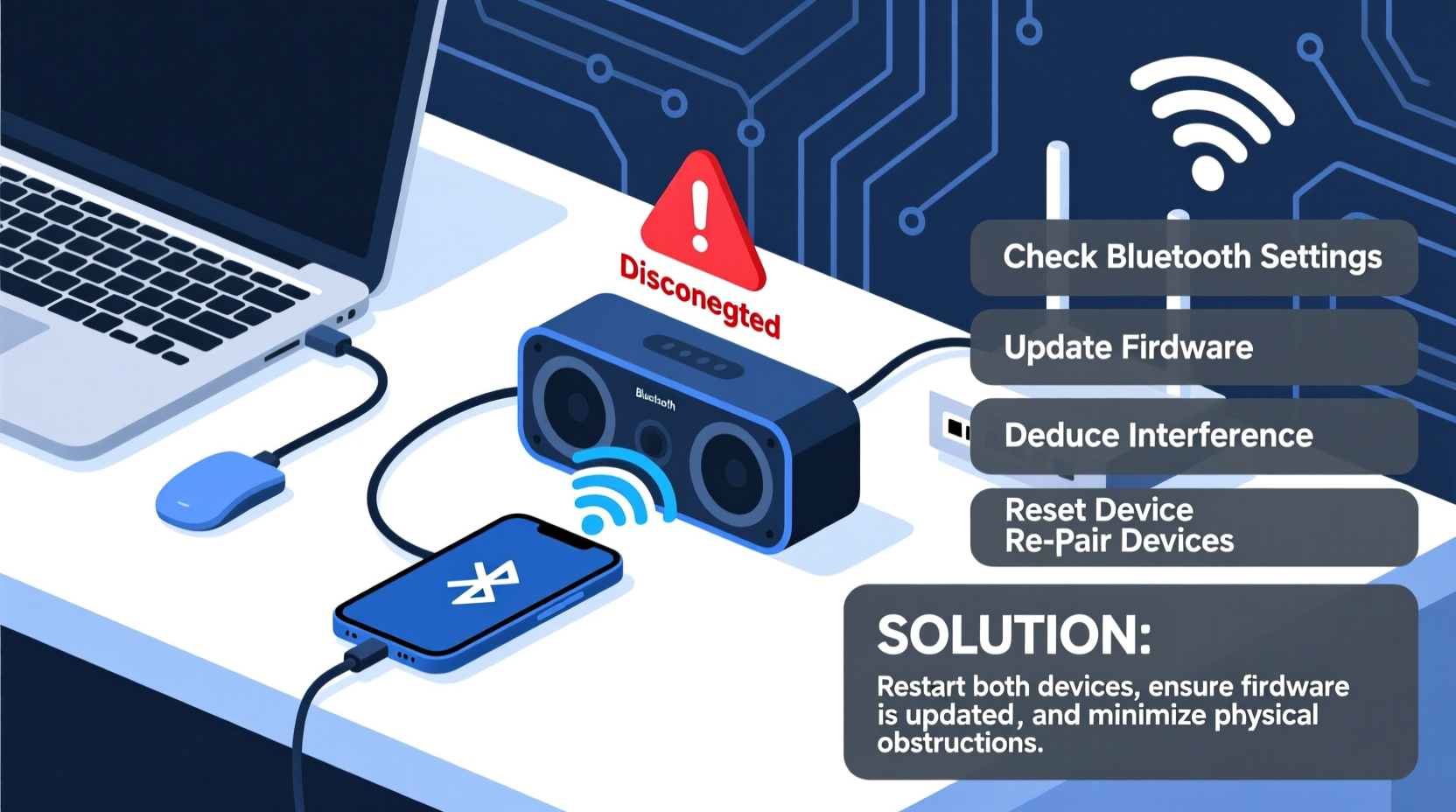
A recurring pattern—disconnecting precisely after 10 minutes—is rarely coincidental. Many Bluetooth speakers come with built-in auto-shutdown or sleep timers designed to preserve battery life when no active audio is detected. However, some models trigger this timer even during playback if they misinterpret the signal or detect low activity levels.
Manufacturers implement these features to extend battery longevity, especially in portable devices. For example, budget-friendly models may have aggressive power management that assumes inactivity after a short idle period—even if music is still playing. In other cases, firmware bugs cause the timer to activate incorrectly.
“Many users report consistent 10-minute timeouts on entry-level Bluetooth speakers. It's typically a firmware-level power-saving routine gone overboard.” — David Lin, Audio Hardware Engineer
Common Causes of 10-Minute Disconnections
Before attempting fixes, identify which factor applies to your setup. The following are the most prevalent culprits behind timed disconnections:
- Power-saving mode: Default setting that shuts down Bluetooth after inactivity.
- Firmware limitations: Outdated or buggy firmware misreads connection status.
- Device pairing conflicts: Multiple paired devices causing connection drops.
- Signal interference: Wi-Fi routers, microwaves, or physical obstructions disrupting Bluetooth signals.
- Battery degradation: Low-capacity batteries triggering early shutdowns.
- Source device settings: Phones or laptops disconnecting due to their own Bluetooth policies.
How Power-Saving Modes Trigger Disconnections
Some speakers use motion or audio detection to determine “activity.” If the volume is low or the audio has quiet segments (e.g., ambient tracks, podcasts), the speaker may interpret this as silence and initiate shutdown. This is particularly common in outdoor environments where wind or background noise masks the audio stream.
For instance, a user listening to a meditation playlist with soft background tones might experience dropouts because the speaker’s sensors fail to register continuous input.
Step-by-Step Guide to Fix the 10-Minute Disconnect
Follow this structured approach to diagnose and eliminate the disconnection issue:
- Restart both devices: Turn off your speaker and source device (phone/tablet/laptop), then power them back on.
- Delete old pairings: On your phone, go to Bluetooth settings and \"Forget\" the speaker. Do the same on the speaker if it stores multiple device memories.
- Re-pair from scratch: Put the speaker in pairing mode and reconnect it to your device.
- Increase playback volume: Set volume above 50% on both the app and speaker to ensure strong signal detection.
- Test with another device: Connect the speaker to a different phone or tablet to isolate whether the issue lies with your original device.
- Update firmware: Visit the manufacturer’s website or app (e.g., JBL Portable, Bose Connect) to check for updates.
- Disable auto-standby: Refer to the manual for instructions on turning off sleep mode—some require holding buttons for 10 seconds.
- Check for physical obstructions: Keep the speaker within 30 feet and free of walls, metal objects, or other wireless emitters.
Do’s and Don’ts: Managing Bluetooth Stability
| Do’s | Don’ts |
|---|---|
| Keep your speaker charged above 30% | Run the speaker until completely drained regularly |
| Use firmware update tools provided by the brand | Ignore software update notifications |
| Store the speaker in a dry, room-temperature environment | Leave it in hot cars or humid bathrooms |
| Limit simultaneous connections to one primary device | Pair with multiple phones without unpairing others |
| Perform a factory reset every few months if issues persist | Assume hardware failure without checking settings first |
Real Example: Solving a Persistent JBL Flip 6 Timeout
Mark, a remote worker using his JBL Flip 6 during Zoom calls, noticed the speaker would cut out exactly 10 minutes into meetings. He assumed it was a defect and considered returning it. After researching, he discovered that JBL speakers have an undocumented feature: if no audio peaks are detected for several minutes, the speaker enters standby—even mid-call.
His solution? He increased the system volume on his laptop and used a virtual audio booster app to maintain a consistent output level. He also updated the firmware through the JBL Portable app, which included improved power management logic. Since then, his speaker has remained connected for hours without interruption.
This case illustrates how seemingly faulty behavior can stem from misunderstood design choices rather than actual defects.
Advanced Fixes: When Basic Steps Aren’t Enough
If standard troubleshooting fails, consider deeper interventions:
Perform a Factory Reset
Resetting restores default settings and clears corrupted pairing data. The method varies by model:
- JBL: Press and hold Volume + and Play/Pause for 5–10 seconds.
- Bose: Hold Power and Bluetooth buttons simultaneously until lights flash.
- Anker Soundcore: Hold Power button for 10+ seconds until voice prompt says “Factory reset.”
- Sony: Turn off, then press and hold Power + Volume Up until indicator blinks.
After resetting, re-pair the speaker as if it were new.
Use a Bluetooth Transmitter or Dongle
If your source device (like an older laptop) has weak Bluetooth transmission, signal instability can cause dropouts. A USB Bluetooth 5.0+ dongle can provide a stronger, more stable connection. Plug it into your computer and pair the speaker through the new adapter instead of built-in Bluetooth.
Switch Audio Codecs (Advanced)
On Android devices, developers can access Bluetooth codec settings. Using higher-quality codecs like aptX or LDAC may improve stability. To enable:
- Go to Settings > About Phone.
- Tap “Build Number” seven times to unlock Developer Options.
- Navigate to Developer Options > Bluetooth Audio Codec.
- Select aptX or LDAC if supported by your speaker.
Note: This only works if both your phone and speaker support the selected codec.
Troubleshooting Checklist
Use this checklist to systematically eliminate possible causes:
- ✅ Speaker fully charged?
- ✅ Source device Bluetooth updated?
- ✅ Old pairings deleted before reconnection?
- ✅ Firmware up to date?
- ✅ Auto-standby/sleep mode disabled?
- ✅ No major obstacles between devices?
- ✅ Interference from Wi-Fi or microwaves minimized?
- ✅ Tested with another device?
- ✅ Factory reset performed if needed?
- ✅ Volume levels consistently above 50%?
FAQ: Common Questions About Bluetooth Speaker Disconnections
Can a low battery cause automatic disconnection after 10 minutes?
Yes. Some speakers enter protective shutdown mode when battery levels fall below 10–15%. Even if the speaker appears to have charge, degraded batteries may report inaccurate levels. Charge the speaker fully and observe if the issue persists.
Does Bluetooth range affect disconnection timing?
Indirectly. While range doesn’t set a timer, weak signal strength can cause intermittent drops that mimic timed disconnections. If the speaker struggles to maintain a stable link, the system may terminate the connection after failed re-synchronization attempts—often around the 10-minute mark due to retry limits.
Is there a way to permanently disable the 10-minute timeout?
It depends on the model. High-end speakers often allow disabling auto-off via companion apps. For others, workarounds include playing continuous low-volume white noise or using third-party apps that simulate constant audio output. However, these consume more power and aren’t ideal for long-term use.
Conclusion: Take Control of Your Listening Experience
The 10-minute Bluetooth speaker disconnect is a widespread but solvable issue. More often than not, it stems from power-saving logic, outdated firmware, or pairing inconsistencies—not hardware flaws. By methodically testing connections, updating software, and adjusting settings, you can restore reliable performance.
Don’t accept interruptions as normal. With the right knowledge, most Bluetooth issues are preventable. Apply the steps outlined here, share what works for your model, and reclaim seamless audio wherever you go.




 浙公网安备
33010002000092号
浙公网安备
33010002000092号 浙B2-20120091-4
Comments
No comments yet. Why don't you start the discussion?