
Bluetooth speakers offer convenience, portability, and high-quality audio for homes, parties, and outdoor adventures. But nothing disrupts the experience more than sudden disconnections—mid-song, mid-call, or just when you need background music most. While frustrating, random dropouts are often solvable with basic troubleshooting. Most issues stem from signal interference, device pairing glitches, outdated firmware, or power management settings. The good news? A few simple reset steps can restore stability and get your speaker working reliably again.
Understanding Common Causes of Random Disconnections
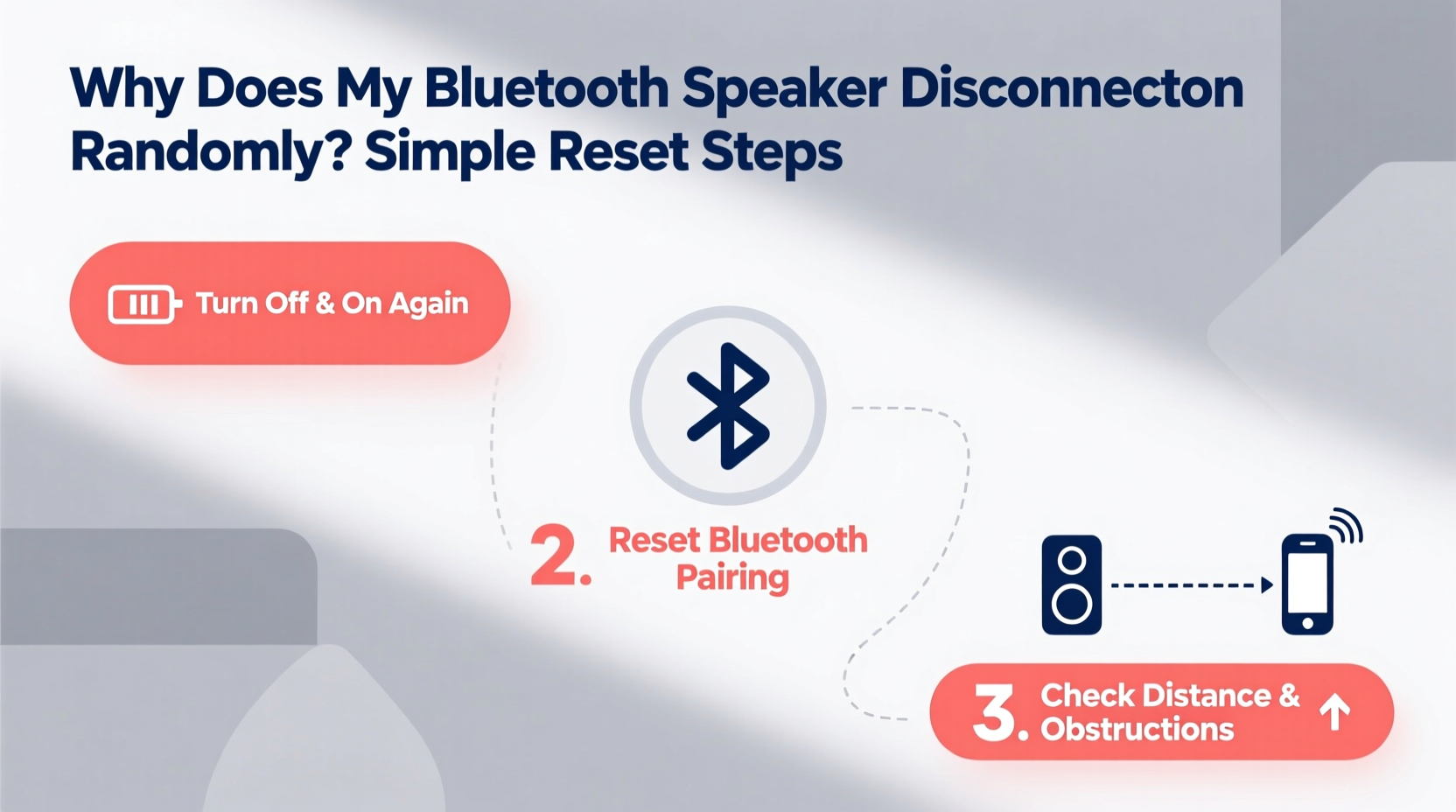
Before diving into fixes, it's essential to identify what’s causing the instability. Bluetooth technology operates on the 2.4 GHz frequency band, which is shared by many household devices like Wi-Fi routers, microwaves, and cordless phones. This congestion can lead to interference and intermittent connections.
Other common culprits include:
- Poor signal strength: Distance or physical obstructions (walls, furniture) weaken the Bluetooth signal.
- Pairing conflicts: Speakers that remember multiple devices may switch unexpectedly or fail to maintain a stable link.
- Low battery: Some speakers reduce transmission power or disconnect entirely when battery levels drop below a threshold.
- Firmware bugs: Outdated software in the speaker can cause compatibility issues with newer smartphones or tablets.
- Auto-off features: Power-saving modes may shut down the speaker after inactivity, even if audio is paused briefly.
- Device-specific issues: Sometimes the problem lies not with the speaker but with the connected phone, tablet, or laptop.
“Over 70% of Bluetooth audio issues are due to environmental interference or outdated pairing data. A clean reset resolves most cases.” — David Lin, Audio Connectivity Engineer at SoundWave Labs
Step-by-Step Reset Guide to Fix Disconnections
A full reset clears old pairing data, refreshes the internal processor, and forces the speaker to reconnect as if it were new. Follow these universal steps—most apply across brands like JBL, Ultimate Ears, Bose, Sony, and Anker.
- Power off the speaker completely. Press and hold the power button until it shuts down. Do not leave it in standby mode.
- Disconnect all paired devices. On your phone or tablet, go to Settings > Bluetooth and \"Forget\" the speaker.
- Initiate a factory reset. The method varies slightly by brand:
- JBL: Hold Volume + and Play/Pause for 5 seconds until you hear a tone.
- Ultimate Ears (UE): Press Power and Volume Down simultaneously for 5–10 seconds.
- Sony: Press and hold Power and Volume Down until the indicator blinks red and blue.
- Bose: Hold Power and Bluetooth buttons together for 10 seconds.
- Wait 30 seconds. Allow the internal capacitors to discharge and the system to fully reset.
- Turn the speaker back on. It should enter pairing mode automatically (indicated by blinking lights).
- Re-pair your device. Open Bluetooth settings on your phone, locate the speaker, and connect.
- Test playback. Play audio for at least 5 minutes while moving the speaker around to check for stability.
When to Perform a Reset
Resets aren’t just for emergencies. Consider doing one monthly if you use multiple devices, or whenever you notice any of these signs:
- Delayed response to play/pause commands
- Audio cutting out during streaming
- Speaker failing to appear in Bluetooth list
- Distorted sound after connection
Do’s and Don’ts for Stable Bluetooth Connections
| Do’s | Don’ts |
|---|---|
| Keep devices within line of sight and under 30 feet apart | Place speaker behind thick walls or large appliances |
| Update speaker firmware via manufacturer app (if available) | Ignore firmware update notifications |
| Charge the speaker fully before extended use | Use while charging unless specified as safe by the manufacturer |
| Limit active Bluetooth devices nearby | Run multiple high-power wireless devices in the same area |
| Store pairing information securely | Leave speaker in pairing mode unattended |
Real-World Example: Fixing a Weekend Camping Speaker Issue
Mark brought his JBL Charge 5 camping with friends. The speaker worked fine initially but started dropping connection every 10–15 minutes, especially when someone walked between it and their phone. They tried switching phones, restarting the phone, and moving closer—but the problem persisted.
On the second day, Mark remembered reading about resets. He powered off the speaker, held Volume Up and Play for 8 seconds until it beeped, then reconnected. After the reset, the speaker maintained a stable link throughout the rest of the trip—even when placed inside a tent with moderate signal obstruction.
The fix wasn’t complicated, but it addressed an overloaded memory cache and cleared corrupted pairing data that had accumulated over months of use with different devices.
Advanced Troubleshooting When Resets Don’t Work
If the speaker still disconnects after a proper reset, consider deeper causes:
Check for Firmware Updates
Manufacturers regularly release firmware patches to improve Bluetooth stability. For example, Sony once issued an update that reduced dropout rates by 60% for its SRS-XB series. Visit the official website or use the brand’s mobile app to verify your model’s current version.
Test with Multiple Devices
Connect the speaker to a different phone, tablet, or laptop. If the disconnection continues across all devices, the issue is likely with the speaker. If only one device has problems, focus troubleshooting there—clear Bluetooth cache in Android or reset network settings on iOS.
Minimize Wireless Interference
In dense environments (apartments, offices), Wi-Fi networks can overcrowd the 2.4 GHz band. Try switching your router to 5 GHz (if supported) or changing the Wi-Fi channel. You can also move the speaker away from cordless phones, baby monitors, or USB 3.0 devices, which emit electromagnetic noise.
Disable Battery Optimization for Bluetooth
Some smartphones aggressively manage Bluetooth to save power. On Android, go to Settings > Apps > [Your Music App] > Battery > Unrestricted. On iPhone, ensure Background App Refresh is enabled for your audio app.
“Modern Bluetooth uses adaptive frequency hopping, but older speakers may lack this feature. Upgrading hardware might be necessary in persistent interference zones.” — Dr. Lena Torres, Wireless Communications Researcher, MIT Media Lab
Quick Checklist: Fix Bluetooth Speaker Dropouts
Follow this concise checklist whenever your speaker disconnects unexpectedly:
- ✅ Turn off the speaker and wait 30 seconds
- ✅ Forget the device in your phone’s Bluetooth settings
- ✅ Perform a factory reset using brand-specific button combo
- ✅ Re-pair the speaker as a new device
- ✅ Test with a short audio clip at medium volume
- ✅ Update firmware via app or manufacturer site
- ✅ Move the speaker closer and remove physical obstructions
- ✅ Check for wireless interference sources nearby
Frequently Asked Questions
Why does my Bluetooth speaker keep disconnecting when I answer a call?
This usually happens because your phone switches the audio output from the speaker to the handset. Some phones don’t automatically return audio to the speaker after the call. To fix this, manually reselect the speaker in your phone’s audio output menu post-call. Alternatively, disable “Automatically switch audio” in your Bluetooth settings.
Can a low battery cause Bluetooth disconnections?
Yes. Many speakers reduce transmission power or disconnect entirely when battery drops below 10%. Even if the speaker appears on, weak power can destabilize the Bluetooth module. Always charge your speaker fully before relying on it for long sessions.
How often should I reset my Bluetooth speaker?
You don’t need to reset regularly under normal conditions. However, doing a reset every 2–3 months can prevent pairing clutter and maintain optimal performance, especially if multiple users connect to it frequently.
Conclusion: Restore Stability with Simple Actions
Random Bluetooth disconnections are more common than manufacturers admit, but they’re rarely permanent hardware failures. In most cases, the solution lies in a straightforward reset that clears corrupted data and restores a clean connection. By understanding the underlying causes—interference, outdated pairings, power issues—you gain control over your listening environment.
Start with the reset steps outlined here, apply the best practices, and test thoroughly. If problems persist, investigate firmware or environmental factors. With minimal effort, you can enjoy uninterrupted audio and get the most out of your portable speaker.




 浙公网安备
33010002000092号
浙公网安备
33010002000092号 浙B2-20120091-4
Comments
No comments yet. Why don't you start the discussion?