
It’s a familiar frustration: you click into a password field, expecting your browser to fill in the correct credentials, only to be met with an outdated or incorrect password. You’re locked out, forced to reset or manually search through saved logins. This isn’t just inconvenient—it can compromise security if you resort to weak, reused passwords out of frustration. The root causes are often misunderstood, buried beneath layers of browser behavior, syncing quirks, and user habits. Understanding why this happens is the first step toward regaining control over your digital access.
How Browser Password Managers Work
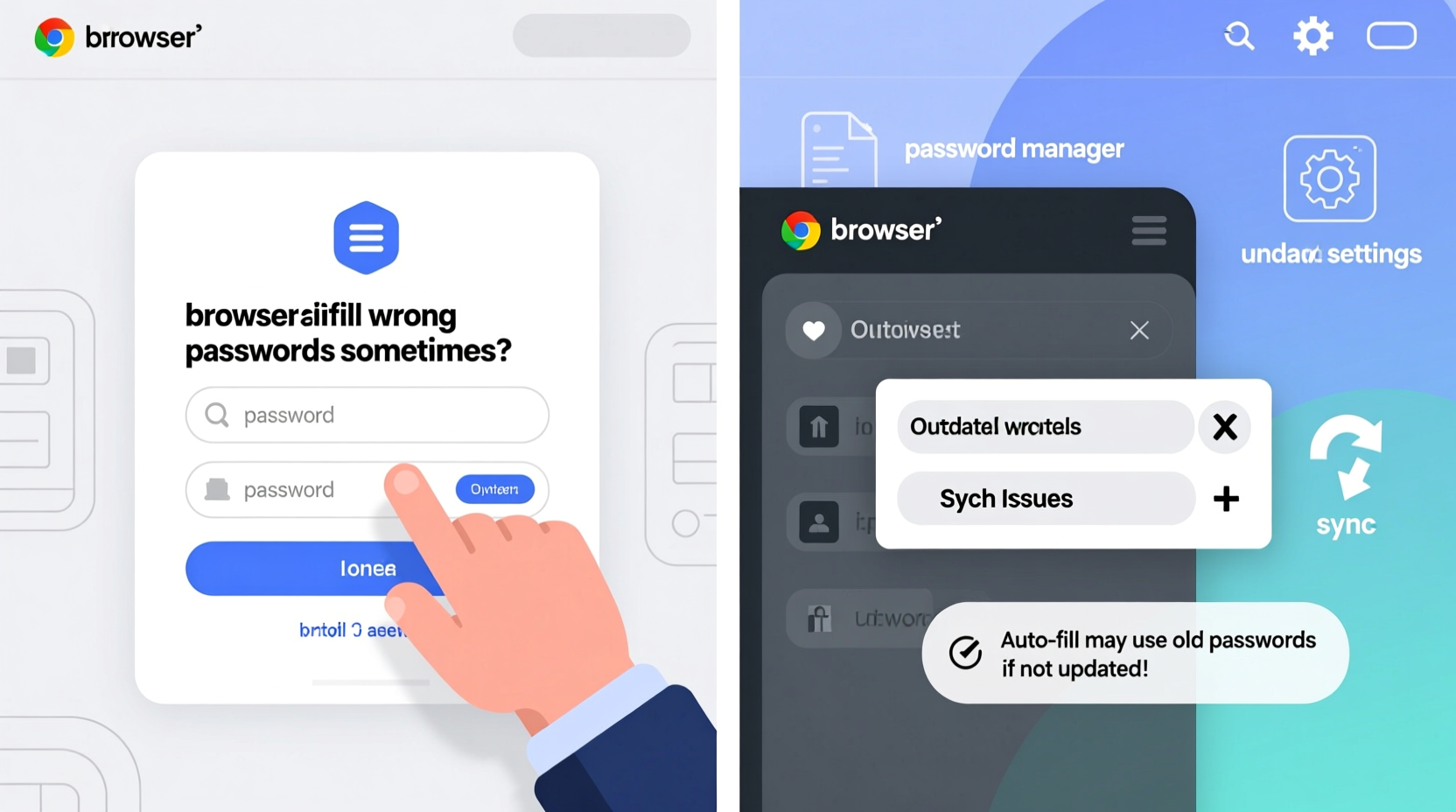
Modern browsers like Chrome, Firefox, Safari, and Edge come equipped with built-in password managers. These tools automatically detect login forms, prompt to save credentials, and later autofill them when you revisit a site. The process relies on heuristics—algorithms that analyze form structure, field names, URLs, and page content to determine which saved password to use.
The system works well in ideal conditions: one account per site, consistent domain structure, and clear form labeling. But real-world websites vary widely in design and implementation. Some use non-standard form fields, dynamic JavaScript-generated inputs, or multiple login sections on the same page. When these inconsistencies arise, the browser may misidentify the correct credentials or default to the first match it finds—even if it’s not the right one.
Browsers typically store passwords using a combination of origin (domain), username, and sometimes additional metadata like form action URLs. However, if two entries share similar domains—like login.company.com and app.company.com—the browser might confuse them, especially if both were saved under the same username.
Common Causes of Incorrect Autofill
Several factors contribute to inaccurate autofill behavior. Recognizing these can help you troubleshoot effectively.
Multiple Saved Logins for the Same Site
If you’ve logged in multiple times with different credentials—perhaps testing an account, switching emails, or creating temporary profiles—the browser stores each entry. When you return, it may autofill the most recently used or alphabetically first password, not necessarily the active one.
Domain Confusion
Browsers treat subdomains as separate entities, but they often share login systems. For example, saving a password on admin.site.com doesn’t guarantee it will appear on site.com/login. Worse, if both are saved, the browser might apply the admin password to the main login page by mistake.
Form Structure Changes
Websites update their login forms frequently. A redesign might change field IDs, names, or even the order of inputs. If the browser no longer recognizes the form pattern it originally saved, it may fail to match correctly—or worse, map the password to the wrong field.
Synchronization Across Devices
Cloud-synced passwords are convenient, but sync conflicts can corrupt or duplicate entries. If you’ve edited a password on one device but the change didn’t propagate properly, another device might autofill stale data. Sync delays or partial updates exacerbate this issue.
User Error During Save Prompts
Ever clicked “Update” when prompted to save a password after changing it? That should work—but if you accidentally accepted a save prompt with an old password (e.g., after a failed login attempt), the browser now treats that as current. Browsers don’t validate password correctness; they trust user input.
“We’ve seen cases where users unknowingly overwrite secure passwords with incorrect ones because the browser asked to save after a failed login.” — Dr. Lena Torres, Cybersecurity Researcher at NetGuard Labs
Step-by-Step Guide to Fix and Prevent Wrong Autofill
Resolving this issue requires cleaning up stored data and adjusting how you interact with password prompts. Follow this sequence to regain accuracy.
- Access Your Browser’s Password Manager
In Chrome: Settings → Autofill → Passwords
In Firefox: Options → Privacy & Security → Logins and Passwords
In Safari: Preferences → Passwords (requires authentication)
In Edge: Settings → Profiles → Passwords - Search for Problematic Sites
Use the search bar to find all entries related to the affected domain. Look for duplicates, old emails, or test accounts. - Delete Incorrect or Outdated Entries
Remove any saved passwords that are no longer valid. Don’t just edit them—deleting ensures no residual metadata interferes. - Re-login and Re-save Correctly
Visit the site, enter your current credentials manually, and when the browser prompts to save, confirm only after a successful login. - Test Autofill Immediately
Log out and try logging back in. Verify the correct password is filled. Repeat if necessary. - Disable Autofill Temporarily for Troubled Sites
Some browsers allow you to disable autofill for specific sites. Use this option if a site consistently triggers wrong fills. - Enable Two-Factor Authentication (2FA)
Even if autofill fails, 2FA adds a layer of protection against unauthorized access due to mistaken logins.
Tips and Best Practices for Reliable Autofill
Maintaining accurate autofill isn’t just about fixing errors—it’s about building sustainable habits.
- Avoid saving passwords after failed attempts. If you enter a wrong password, decline any save prompts immediately.
- Use a dedicated password manager. Tools like Bitwarden, 1Password, or Dashlane offer smarter matching logic and cross-browser consistency compared to built-in managers.
- Standardize your login emails. Using variations like “you+work@example.com” or “you+personal@example.com” helps differentiate accounts clearly.
- Clear cached passwords periodically. Every few months, audit and clean up obsolete entries to prevent clutter-induced errors.
- Check form fidelity on mobile vs. desktop. Responsive designs may alter form structure on smaller screens, confusing autofill detection.
Case Study: Sarah’s Email Login Mix-Up
Sarah, a freelance designer, used both her personal and client-facing Gmail accounts daily. She noticed Chrome kept autofilling her personal password on her business inbox at mail.google.com/a/clientbrand.com. Despite re-saving the correct password multiple times, the error persisted.
Upon checking her saved passwords, she found three entries for Google services: one for her personal Gmail, one for an old client domain, and one labeled generically as “Google Account.” The browser was defaulting to the first-matched entry based on URL similarity.
She deleted all Google-related entries, logged into her business account first, allowed Chrome to save it fresh, then repeated the process for her personal account. She also enabled 2FA on both. Afterward, autofill worked accurately across devices. The fix took less than ten minutes but eliminated weeks of login friction.
Comparison: Built-in Browser Managers vs. Third-Party Tools
| Feature | Built-in Browser Managers | Third-Party Password Managers |
|---|---|---|
| Autofill Accuracy | Moderate – relies on basic heuristics | High – uses advanced form recognition and AI matching |
| Cross-Browser Support | Poor – limited to one ecosystem | Excellent – works across Chrome, Firefox, Safari, etc. |
| Password Health Monitoring | Limited – basic breach alerts | Comprehensive – reuse detection, strength scoring, rotation reminders |
| Sync Reliability | Good within ecosystem, prone to conflicts | High – end-to-end encrypted, conflict-resilient sync |
| User Control Over Entries | Basic editing and deletion | Full customization: tags, folders, notes, aliases |
This comparison shows that while browser managers are convenient, they lack the precision and robustness needed for complex digital lives. Users managing multiple accounts benefit significantly from upgrading to specialized tools.
Frequently Asked Questions
Can my browser learn to autofill the right password over time?
No. Browsers don’t “learn” in the machine learning sense. They match based on static rules like domain, form structure, and field names. Without manual cleanup or improved input, the same mistakes will repeat.
Why does autofill work on one device but not another?
This usually indicates a sync issue. One device may have updated passwords while others retained older versions. Check sync status, force a sync refresh, and verify all devices show the same saved entries.
Is it safe to let my browser manage passwords?
For average users with simple needs, yes—provided you use a strong device passcode and enable sync encryption. However, for high-risk accounts (banking, email, work systems), a dedicated password manager with zero-knowledge architecture offers superior protection.
Conclusion: Take Control of Your Digital Access
Incorrect password autofill isn’t a flaw in technology—it’s a symptom of how we interact with it. Browsers do their best with imperfect signals, but without intentional management, confusion is inevitable. By auditing saved credentials, understanding how matching works, and adopting better tools when needed, you can eliminate guesswork from your logins.
Start today: open your password manager, search for your most-used sites, and clean up duplicates. Re-save your primary accounts with care. Consider migrating to a third-party solution if you juggle multiple roles, clients, or identities online. Small changes now prevent hours of frustration later—and keep your accounts more secure in the process.




 浙公网安备
33010002000092号
浙公网安备
33010002000092号 浙B2-20120091-4
Comments
No comments yet. Why don't you start the discussion?