
If your browser suddenly begins launching new tabs without your input—especially ones filled with ads, promotions, or suspicious websites—you're likely dealing with unwanted browser extensions. These sneaky programs can infiltrate your system through deceptive downloads, bundled software, or misleading permissions, turning a smooth browsing experience into a frustrating loop of pop-ups and redirects. The good news is that this issue is both diagnosable and fixable. Understanding the root cause, recognizing the signs, and knowing how to respond can restore control over your browser and protect your digital safety.
How Unwanted Extensions Hijack Your Browser
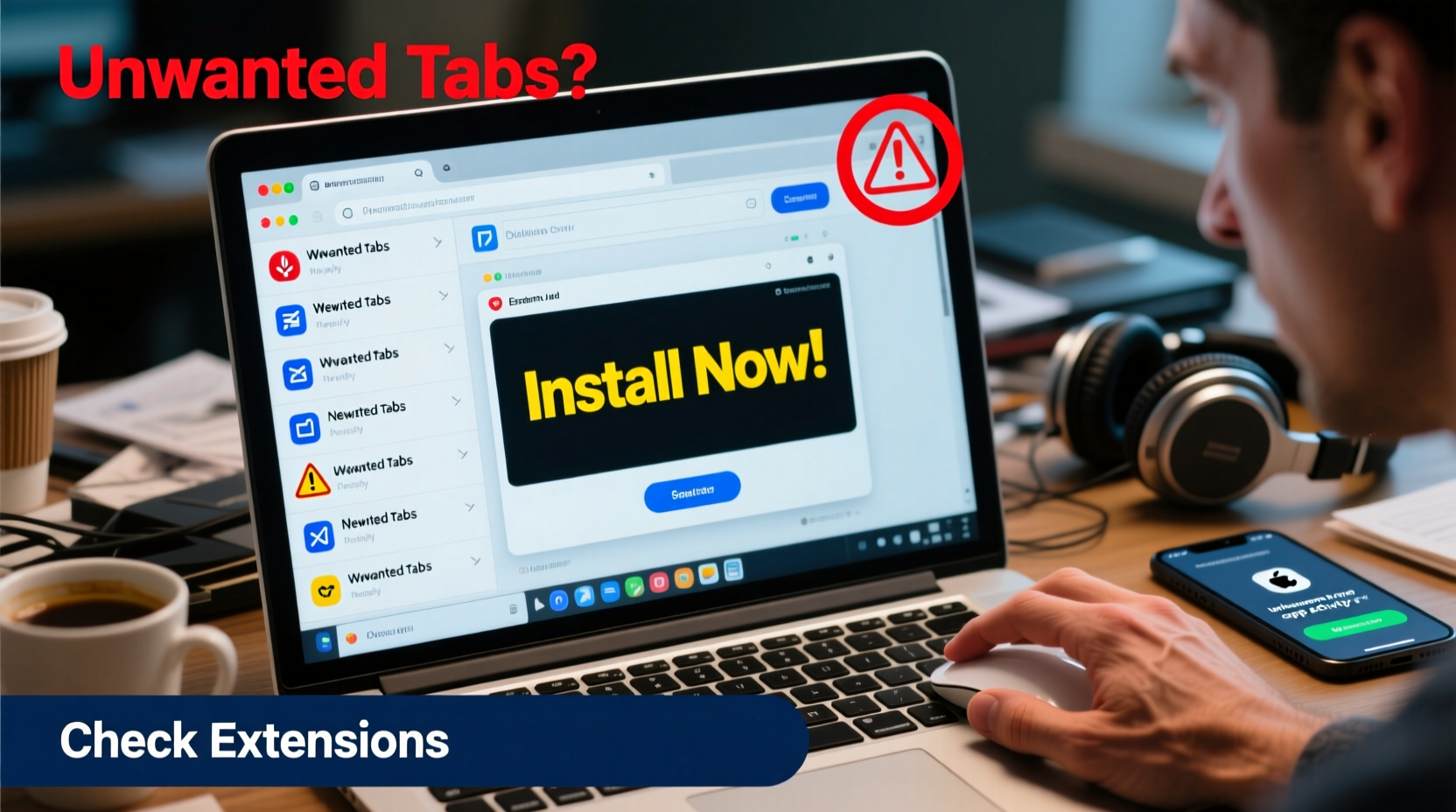
Browser extensions are small software modules designed to enhance functionality—think ad blockers, password managers, or grammar checkers. But not all extensions come from trustworthy sources. Some are developed with malicious intent or repurposed by cybercriminals to serve ads, collect data, or redirect traffic. When you install a seemingly harmless extension from an unofficial source, it may include hidden scripts that trigger automatic tab openings, inject ads into web pages, or modify your search results.
These extensions often gain permission during installation, sometimes buried in lengthy terms or obscured by default-checked boxes. Once active, they operate in the background, monitoring your activity and executing commands such as opening new tabs when certain keywords are detected or at random intervals. Because they integrate directly into your browser, they can bypass traditional popup blockers and appear legitimate to the untrained eye.
“Malicious extensions exploit user trust and browser permissions to deliver intrusive ads and harvest browsing behavior.” — Dr. Lena Patel, Cybersecurity Researcher at OpenWeb Institute
Common Signs of a Compromised Browser
Not every unexpected tab is caused by malware, but certain patterns strongly suggest the presence of unwanted extensions:
- New tabs open automatically – Especially when launching the browser or clicking on links.
- Redirected searches – You type a query, but end up on a different search engine or promotional site.
- Unfamiliar toolbars or icons – New buttons appear next to your address bar with no clear origin.
- Slower browser performance – Excessive background processes drain resources.
- Homepage changes – Your default homepage has been replaced without consent.
- Ads within search results – Even on trusted sites like Google, sponsored links dominate the page unnaturally.
Step-by-Step Guide to Removing Suspicious Extensions
Removing the offending extension requires careful inspection of your installed add-ons. Follow these steps for Chrome, Edge, Firefox, or similar Chromium-based browsers:
- Open your browser settings – Click the three-dot menu (⋮) in the top-right corner and select “Settings.”
- Navigate to Extensions – In Chrome or Edge, go to “Extensions” > “Manage extensions.” In Firefox, choose “Add-ons and Themes” from the menu.
- Review all installed extensions – Look for any you don’t recognize, especially those with vague names like “Tab Helper,” “Search Assistant,” or “Quick Finder.”
- Check permissions – Click on each extension to see what access it has. Be wary of extensions requesting “Read and change all your data on websites you visit” or “Run in incognito mode.”
- Remove suspicious entries – Click “Remove” or the trash icon next to any questionable extension.
- Clear browsing data – Go to Settings > Privacy and Security > Clear Browsing Data. Select “All time” and check “Cookies and other site data” and “Cached images and files.”
- Restart your browser – Close and reopen to ensure changes take effect.
After removal, monitor your browser for several sessions. If the problem persists, the extension may have modified your shortcuts or installed companion software.
Hidden Threats: Shortcut Modifications and Bundled Software
Sometimes, even after removing an extension, new tabs continue to appear. This can happen because some malicious programs alter your browser’s desktop shortcut. They append a URL or script to the target path, causing the browser to launch with unwanted pages every time.
To check this:
- Right-click your browser’s desktop shortcut.
- Select “Properties.”
- In the “Target” field, look for anything appended after the main executable path (e.g.,
.exe https://suspicious-site.com). - Delete any extra URLs or parameters.
- Click “Apply” and restart using the updated shortcut.
Additionally, many unwanted extensions arrive via software bundles. Free downloads like media players, PDF converters, or game mods often include optional add-ons during installation. These are frequently pre-checked, leading users to unknowingly install browser hijackers.
| Bundled Installer Tactic | What It Does | How to Avoid |
|---|---|---|
| Pre-checked boxes | Auto-selects third-party software | Always choose “Custom” or “Advanced” install |
| Vague naming | Hides real purpose (e.g., “Browse Faster Tool”) | Research components before accepting |
| Fast installation wizards | Encourages skipping steps | Install slowly and read each screen |
| Separate download buttons | Misleads users into downloading adware instead of intended software | Use official websites only |
Real Example: Sarah’s Browser Was Hijacked After Installing a Video Converter
Sarah downloaded a free video converter to resize clips for social media. The installer seemed normal, but during setup, she clicked “Next” repeatedly without reviewing options. Within days, her Chrome browser began opening random shopping tabs whenever she searched online.
She first tried clearing cookies and restarting, but the issue continued. Then, while checking her extensions, she found one called “WebBoost” that she didn’t remember installing. It had permission to “read and change data on all websites.” After removing it and cleaning her browser shortcut—which had been altered to load an affiliate link—her tabs stopped appearing. She later discovered the video converter was hosted on a third-party site known for bundling adware.
Sarah now downloads software only from official developer sites and always selects custom installations. Her browser has remained stable since.
Best Practices to Prevent Future Infections
Prevention is more effective than remediation. Adopting proactive habits significantly reduces the risk of unwanted extensions compromising your browser.
Essential Prevention Checklist
- ✅ Install browser extensions only from official stores.
- ✅ Read user reviews and check the number of active users before installing.
- ✅ Avoid “free” software from third-party download sites.
- ✅ Always choose “Custom” or “Advanced” installation options.
- ✅ Uncheck any pre-selected add-ons during software setup.
- ✅ Regularly audit your installed extensions (monthly recommended).
- ✅ Keep your browser and operating system updated.
- ✅ Use a reputable antivirus program with real-time web protection.
FAQ: Common Questions About Unwanted Tabs and Extensions
Can a virus cause my browser to open new tabs?
Yes. While many cases are due to browser extensions, some malware can manipulate your browser or operating system to open tabs. This includes trojans, adware, or potentially unwanted programs (PUPs). Running a full system scan with updated antivirus software helps detect deeper infections.
I removed the extension, but the tabs still open. What should I do?
If the issue persists, check your browser shortcut for injected URLs, reset your browser settings to default, and scan your system with anti-malware tools like Malwarebytes. Some extensions install companion executables that survive removal. A full scan can uncover these hidden files.
Are all unknown extensions dangerous?
Not necessarily. Some legitimate tools may be unfamiliar, especially if you’ve used them briefly. However, any extension with broad permissions, poor reviews, or unclear functionality should be investigated. When in doubt, disable it temporarily and observe browser behavior.
Expert Insight: The Rise of Extension-Based Ad Fraud
According to recent reports from cybersecurity firms, browser extension abuse has become a major vector for ad fraud and data harvesting. In 2023, Google removed over 600 extensions from the Chrome Web Store for violating policies on deceptive behavior and unauthorized data collection.
“The line between utility and exploitation is thin in the extension ecosystem. Users must treat every add-on as a potential security risk until verified.” — Mark Tran, Senior Analyst at Digital Defense Lab
Some extensions masquerade as productivity tools but secretly inject affiliate links or track keystrokes. Others use cloaking techniques to show benign behavior during review but activate malicious functions after approval. This evolving threat landscape underscores the need for ongoing vigilance.
Conclusion: Take Control of Your Browsing Experience
Your browser should work for you—not against you. Unwanted tabs are more than just annoying; they’re symptoms of compromised control and potential privacy risks. By understanding how malicious extensions operate, recognizing early warning signs, and applying disciplined prevention strategies, you can maintain a clean, secure browsing environment.
The fix starts with awareness. Audit your current extensions, scrutinize future downloads, and never underestimate the power of a simple shortcut check. Small actions today can prevent persistent problems tomorrow.




 浙公网安备
33010002000092号
浙公网安备
33010002000092号 浙B2-20120091-4
Comments
No comments yet. Why don't you start the discussion?