
If you've ever been in the middle of researching a recipe, checking email, or reading the news and suddenly—without clicking anything—a new tab bursts open with an ad for weight loss pills, fake antivirus warnings, or sketchy tech support scams, you're not imagining things. This is a widespread issue affecting millions of users across Chrome, Firefox, Edge, and even Safari. The root cause? More often than not, it's malware or potentially unwanted programs (PUPs) silently running in the background of your system.
The frustration isn't just about annoyance—it's about security. Random tabs can expose your device to phishing attempts, data theft, and performance degradation. But before you panic or assume your machine is beyond saving, understand this: most cases are fixable with the right approach. The key lies in identifying whether the behavior stems from actual malware, browser extensions gone rogue, or deceptive advertising scripts—and then taking targeted action.
How Malware Triggers Unwanted Browser Tabs
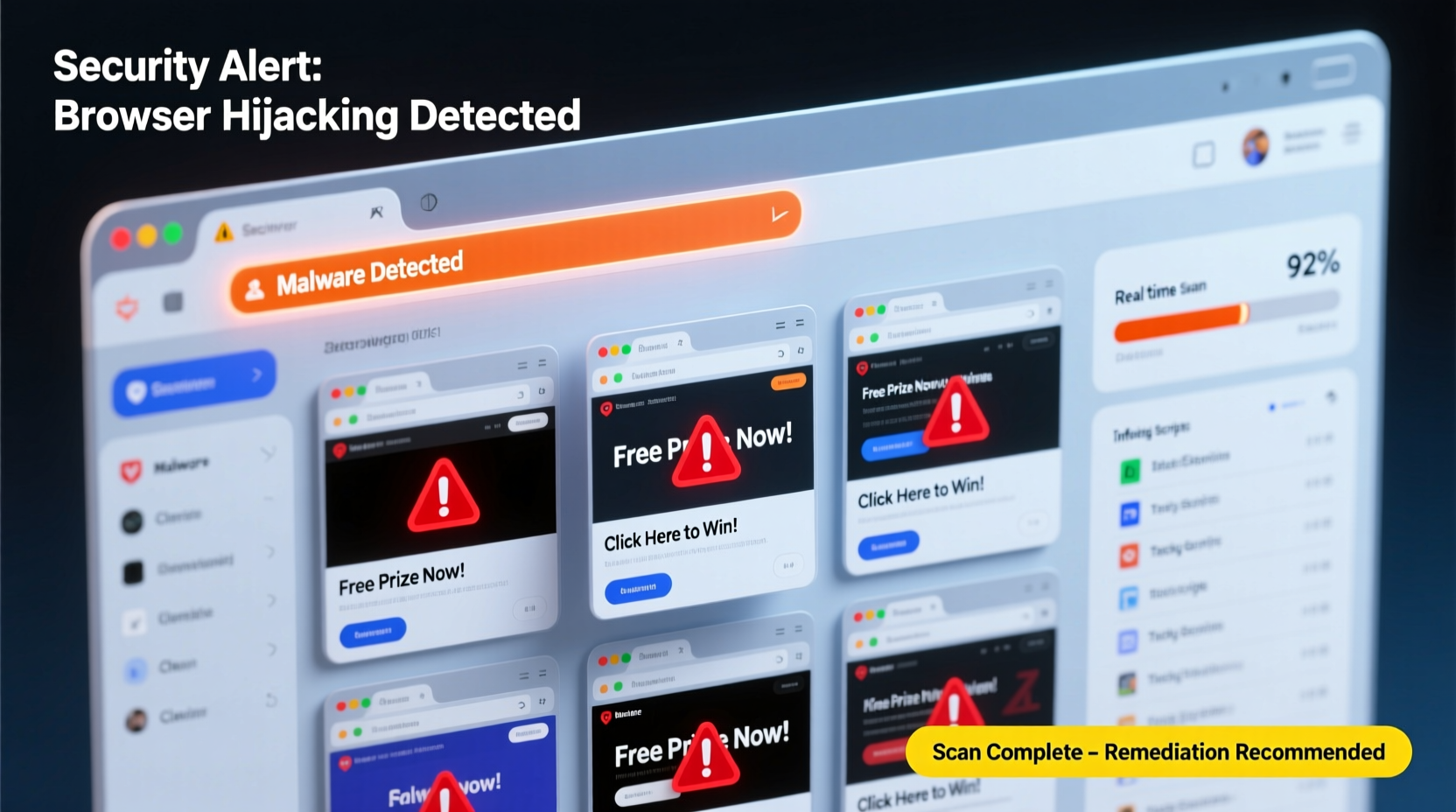
Malware that forces browsers to open random tabs typically operates through one of several mechanisms. These include browser hijackers, adware, malicious extensions, or deeper system-level infections. Once installed—often without the user’s knowledge—these programs manipulate browser settings, inject code into web pages, or run background processes that trigger automatic tab launches.
Browser hijackers, for instance, may alter your default search engine or homepage and use redirects to push traffic to monetized websites. Adware, on the other hand, generates revenue by bombarding you with pop-ups and sponsored content. Some variants are designed to mimic legitimate software updates (“Your Flash Player is out of date!”), tricking users into installing more harmful payloads.
These threats commonly enter systems through:
- Free software bundles downloaded from unofficial sites
- Clicking on misleading ads or pop-up alerts
- Visiting compromised or pirated content websites
- Opening infected email attachments
Once inside, they embed themselves deeply—sometimes surviving standard uninstall attempts or antivirus scans if not fully detected.
Signs Your Browser Is Compromised
Random tabs are a red flag, but they rarely appear alone. Watch for these accompanying symptoms:
- New tabs open automatically when launching or using the browser—even when idle.
- Redirects to unfamiliar websites, especially ones promoting tech support scams, adult content, or counterfeit products.
- Unrecognized extensions or toolbars appear in your browser settings.
- Homepage or default search engine changes without your permission.
- Sluggish browser performance or increased CPU usage when browsing simple pages.
- Ads appear even on trusted websites like Google or banking portals.
If multiple signs align, it’s highly likely your system has been infected. The good news is that early detection increases the chances of a clean recovery without data loss.
“Many users dismiss random tabs as ‘glitches,’ but they’re often the first visible sign of a deeper compromise. Ignoring them can lead to identity theft or financial fraud.” — David Lin, Senior Threat Analyst at CyberShield Labs
Step-by-Step Guide to Clean Your System
Resolving this issue requires both browser-level and system-wide actions. Follow this timeline to eliminate the threat comprehensively.
- Close the browser and disconnect from Wi-Fi (optional but recommended). This prevents the malware from phoning home or downloading additional components during cleanup.
- Boot into Safe Mode with Networking (Windows): Hold Shift while clicking Restart > Troubleshoot > Advanced Options > Startup Settings > Enable Safe Mode. This limits background programs and makes removal safer.
- Run a full scan with Windows Security. Open “Virus & threat protection” and initiate a “Full scan.” Let it complete and remove any flagged items.
- Install and run Malwarebytes. Download from the official site (malwarebytes.com), install, update definitions, and perform a thorough scan. Quarantine all detected threats.
- Check browser extensions. In Chrome: Settings > Extensions. Remove anything unfamiliar or suspicious (e.g., “PDF Converter,” “Coupon Popper,” “Search Assistant”). Repeat for Firefox, Edge, etc.
- Reset browser settings. In Chrome: Settings > Reset settings > Restore to original defaults. This clears corrupted preferences and disables harmful flags.
- Review startup programs. Press Ctrl+Shift+Esc to open Task Manager > Startup tab. Disable entries from unknown publishers, especially those referencing “browser,” “helper,” or “update.”
- Scan with HitmanPro (optional). A second-opinion scanner that detects stealthy PUPs missed by other tools. It offers a free 30-day trial.
- Reboot normally and test. Reconnect to the internet and browse for 10–15 minutes. If no random tabs appear, the threat is likely neutralized.
For Mac users, the process is similar: use built-in XProtect, install Malwarebytes for Mac, and manually audit Safari or Chrome extensions. Note that macOS is not immune—adware like “Genieo” and “NewTab” have affected thousands of Macs.
Do’s and Don’ts: Managing Browser Security
| Do’s | Don’ts |
|---|---|
| Keep your OS and browser updated | Ignore software update notifications |
| Use an ad blocker like uBlock Origin | Click “OK” or “Allow” on suspicious browser notifications |
| Review installed extensions monthly | Download browser add-ons from third-party stores |
| Run quarterly malware scans | Assume antivirus = complete protection |
| Use a standard user account (not admin) for daily browsing | Install “free” software without reading permissions |
Adopting these habits significantly reduces reinfection risk. For example, disabling intrusive browser notifications—those that say “example.com wants to send you notifications”—is critical. Many malicious sites exploit this feature to deliver spam directly to your desktop.
Real Example: How One User Fixed Persistent Tab Pop-Ups
Mark, a freelance writer from Portland, noticed his Chrome browser was opening three to five random tabs every time he launched it. They led to sites claiming his computer was infected and urging him to call a toll-free number. He tried closing extensions and resetting Chrome, but the tabs returned after reboot.
After reading online forums, he downloaded Malwarebytes and ran a scan. It detected two items: “AdWare/InstallCore” and “Trojan.Downloader.” Both were quarantined. He then used Chrome’s reset feature and uninstalled a program called “WebHelper Tool” from Windows Apps & Features—a utility he didn’t remember installing.
Upon restarting, the random tabs stopped. He later realized he had installed a PDF converter from a third-party download site weeks earlier, which bundled the malware. Since then, Mark only downloads software from official sources and runs monthly scans.
Preventive Checklist: Stay Protected Long-Term
Eliminating current threats is only half the battle. Sustained protection requires ongoing vigilance. Use this checklist monthly:
- ✅ Update your operating system and all applications
- ✅ Review browser extensions and remove unused ones
- ✅ Run a quick scan with Malwarebytes or another anti-malware tool
- ✅ Clear browser cache and cookies (especially after visiting unfamiliar sites)
- ✅ Check DNS settings for unauthorized changes (rare but possible with advanced malware)
- ✅ Audit startup programs and disable unnecessary entries
- ✅ Ensure your firewall is active and your router firmware is up to date
Consider enabling Chrome’s “Enhanced Protection” mode under Privacy and Security settings. While it shares some data with Google, it provides real-time warnings about dangerous sites and downloads, blocking many threats before they reach your system.
Frequently Asked Questions
Can a virus really make my browser open tabs by itself?
Yes. Malware known as browser hijackers or adware can execute scripts that simulate clicks or redirect your browser to specific URLs, causing new tabs to open automatically. These programs often run in the background and reactivate after each reboot unless fully removed.
Is this happening because I clicked an ad?
Possibly. Malvertising—malicious advertising—is a common vector. Even reputable websites can host ad networks that unknowingly distribute infected banners. Clicking such an ad can trigger a chain reaction leading to unwanted software installation, especially if your system lacks real-time protection.
Do iPhones get this kind of malware?
iOS is more secure due to sandboxing, but it’s not invulnerable. While true malware is rare, aggressive ad scripts and phishing sites can still open tabs in Safari. Enable “Prevent Cross-Site Tracking” and use content blockers. Never sideload apps from outside the App Store.
Conclusion: Take Control of Your Browsing Experience
Random browser tabs aren’t just a nuisance—they’re a symptom of compromised digital hygiene. Whether caused by careless downloads, deceptive ads, or hidden malware, the solution lies in proactive defense and informed habits. You don’t need to be a tech expert to protect yourself, but you do need consistency.
Start today: scan your system, clean your browser, and commit to safer practices. The internet should empower you, not exploit you. By understanding the risks and acting decisively, you reclaim control—one secure tab at a time.




 浙公网安备
33010002000092号
浙公网安备
33010002000092号 浙B2-20120091-4
Comments
No comments yet. Why don't you start the discussion?