
Bluetooth connectivity in modern vehicles offers seamless hands-free calling, music streaming, and navigation—when it works. But nothing is more frustrating than a connection that drops mid-call or interrupts your favorite playlist. If you’ve found yourself asking, “Why does my car Bluetooth keep disconnecting?” you're not alone. Millions of drivers face this issue every year, often due to overlooked settings, outdated firmware, or interference from other devices.
The good news is that most Bluetooth disconnection problems are fixable without visiting a dealership or mechanic. With a few systematic checks and adjustments, you can restore stable connectivity and reclaim the convenience your car was designed to provide.
Understanding How Car Bluetooth Works
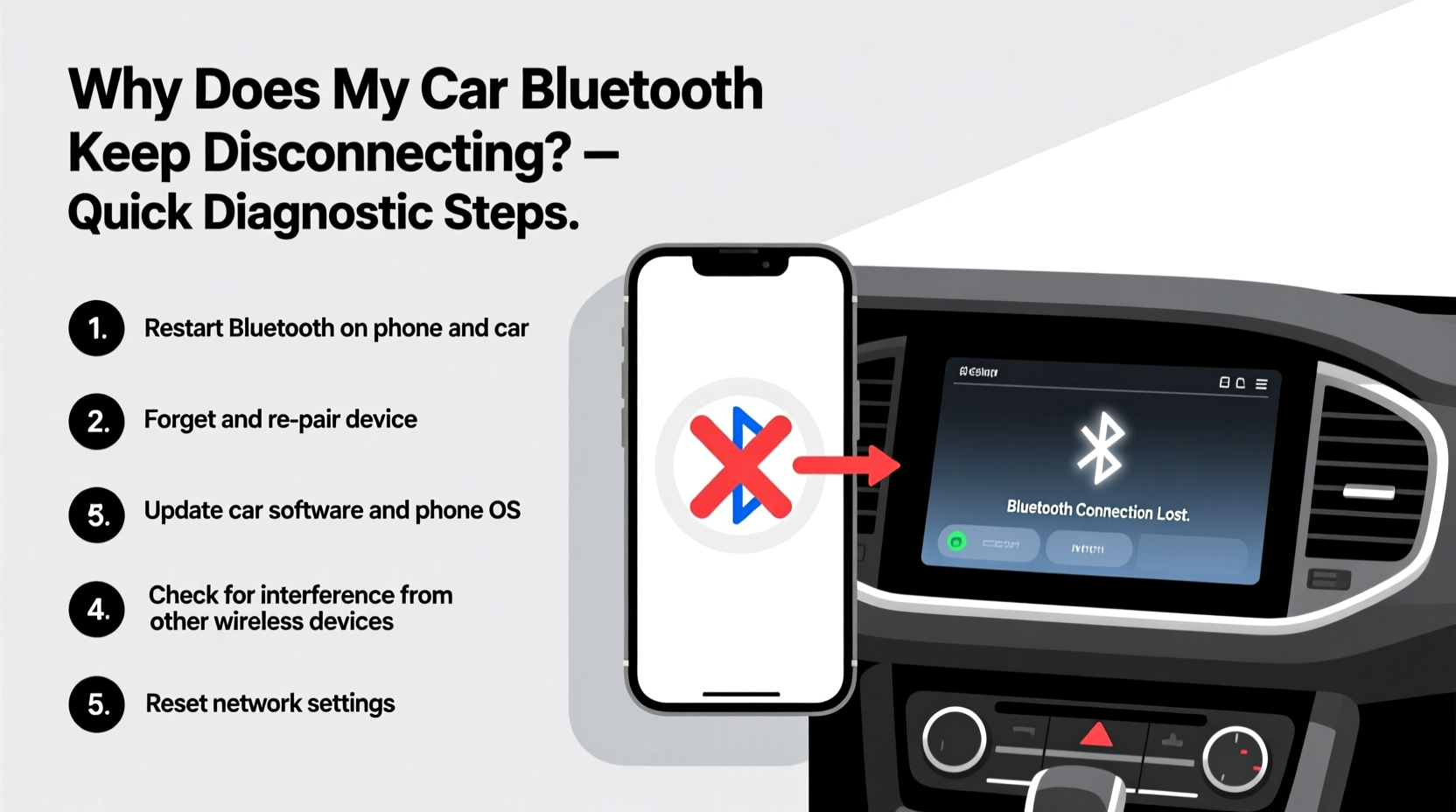
Car Bluetooth systems use short-range wireless technology to pair with smartphones and other devices. Unlike Wi-Fi, Bluetooth operates on the 2.4 GHz frequency band and relies on proximity and signal clarity. Once paired, your phone connects automatically when within range—provided no obstacles interfere.
However, stability depends on multiple factors: device compatibility, software versions, signal strength, and environmental interference. A single weak link in this chain can cause intermittent drops. For example, an older smartphone may struggle to maintain a consistent handshake with a newer infotainment system. Similarly, background apps consuming bandwidth can disrupt the audio stream.
“Bluetooth reliability in cars isn’t just about hardware—it’s a balance between device management, software updates, and environmental conditions.” — David Lin, Automotive Connectivity Engineer at Bosch Mobility Solutions
Step-by-Step Diagnostic Guide
When your car Bluetooth disconnects repeatedly, follow this structured troubleshooting process. Each step isolates potential causes, starting from the simplest fixes to more advanced solutions.
- Restart Both Devices
Power cycling your phone and car infotainment system clears temporary glitches. Turn off your phone, restart the vehicle (or hold the radio power button for 10 seconds), then reconnect. - Forget and Re-Pair the Device
Go to your phone’s Bluetooth settings, select your car, and choose “Forget This Device.” Then, re-initiate pairing from the car’s screen. This resets the connection profile and often resolves corrupted data. - Check for Software Updates
Ensure both your smartphone and car system are running the latest software. Outdated firmware is one of the top reasons for unstable Bluetooth performance. Check your car manufacturer’s app or website for available updates. - Limit Connected Devices
If your car supports multiple paired phones, disconnect unused ones. Some systems struggle to manage concurrent connections, leading to priority conflicts and dropouts. - Disable Battery-Saving Modes
On Android and iOS, battery optimization features may throttle background processes like Bluetooth. Disable battery saver mode or whitelist your car’s Bluetooth profile in settings.
Common Causes and Their Fixes
Not all disconnections stem from user error. Some issues originate in hardware limitations or environmental factors. Below is a breakdown of frequent culprits and how to address them.
| Cause | Symptoms | Solution |
|---|---|---|
| Outdated Phone OS | Drops during calls, delayed responses | Update phone to latest OS version |
| Infotainment System Glitch | Bluetooth disappears from menu, won’t reconnect | Reset head unit or update firmware via dealer/USB |
| Signal Interference | Connection fails near elevators, parking garages, or dense traffic | Move phone closer to dashboard; avoid metal cases |
| Low Phone Battery | Disconnects when battery drops below 15% | Keep phone charged above 20%; disable power-saving modes |
| Faulty USB Hub or Charger | Drops only when charging; static noise in audio | Use OEM charger; avoid cheap third-party cables |
Metal Phone Cases and Signal Blocking
A lesser-known factor is the type of phone case you use. Metal-reinforced cases, magnetic mounts, or wallets with RFID shielding can block Bluetooth signals. Even a thick leather case may dampen transmission if placed in a rear pocket.
To test this, remove the case and place the phone on the dashboard during a drive. If the connection stabilizes, consider switching to a slim, non-metallic case or using a dedicated cradle.
Real-World Example: Sarah’s Commute Fix
Sarah, a project manager in Chicago, relied on her car’s Bluetooth to take client calls during her 45-minute commute. Over two weeks, her iPhone would randomly disconnect every 10–15 minutes, forcing her to redial repeatedly. Frustrated, she nearly stopped using the feature altogether.
She followed the diagnostic steps: restarted both devices, updated her iOS, and removed her magnetic car mount. The real culprit turned out to be a combination of an outdated infotainment system and a third-party wireless charger drawing electrical noise. After updating her Honda’s software through the manufacturer’s portal and switching to a wired connection, her Bluetooth remained stable for over three months.
Her experience highlights how multiple small issues can compound into a major usability problem—and how targeted fixes restore functionality.
Do’s and Don’ts of Car Bluetooth Maintenance
Preventing future disconnections starts with smart habits. Use this checklist to optimize performance and extend the life of your wireless connection.
| Do’s | Don’ts |
|---|---|
| Keep both phone and car software up to date | Ignore firmware update notifications |
| Place your phone within 2 feet of the dashboard | Store your phone in a back pocket or glove compartment |
| Use original or MFi-certified charging cables | Charge with low-quality USB adapters that cause interference |
| Re-pair devices every 3–6 months as a maintenance reset | Assume the problem is permanent and stop troubleshooting |
| Limit background apps while connected | Run GPS, streaming, and downloads simultaneously |
Frequently Asked Questions
Why does my Bluetooth disconnect when I start driving?
This often happens because location services or navigation apps trigger high data usage, overwhelming the Bluetooth stack. It can also occur if your phone switches from Wi-Fi to cellular network during startup. To prevent this, disable auto-sync for maps and cloud services before driving, or allow a 30-second buffer after ignition before initiating calls.
Can a weak car battery affect Bluetooth performance?
Yes. A failing alternator or low-voltage condition can destabilize the infotainment system. If Bluetooth cuts out along with flickering lights or slow window operation, have your battery and charging system tested. Voltage drops below 11.8V can cause electronic modules to reset unexpectedly.
Is it better to connect via USB instead of Bluetooth?
In many cases, yes. USB connections (especially Apple CarPlay or Android Auto) offer faster data transfer, more stable links, and reduced latency. They also charge your phone, preventing low-battery disconnections. If your car supports wired projection, use it as your primary method and reserve Bluetooth for secondary devices like smartwatches.
Expert Tips for Long-Term Stability
While immediate fixes solve current issues, long-term reliability requires proactive care. Here are strategies used by automotive technicians and daily commuters alike.
- Schedule Quarterly Connection Resets: Unpair all devices once every few months and re-pair them. This clears accumulated cache and prevents profile bloat.
- Monitor Background Activity: On iPhones, check Settings > Privacy > Analytics & Improvements > Analytics Data for logs mentioning “bluetoothd” crashes. On Android, use Developer Options to monitor Bluetooth packet loss.
- Use a Dedicated Bluetooth Scanner App: Tools like “Bluetooth Scanner” (Android) or “nRF Connect” (iOS) let you see signal strength (RSSI). Values above -70 dBm indicate strong reception; anything below -85 dBm suggests poor placement or interference.
- Check for Recalls or Technical Service Bulletins (TSBs): Manufacturers sometimes release patches for known Bluetooth flaws. Enter your VIN at nhtsa.gov/recalls to check for open issues.
“Many customers think their phone is the problem, but in over 60% of cases, the root cause lies in outdated vehicle software or improper device management.” — Carlos Mendez, Senior Technician at a Toyota Service Center
Conclusion: Take Control of Your Connection
Bluetooth disconnections don’t have to be a daily annoyance. By understanding the underlying causes—from software mismatches to physical obstructions—you gain the power to diagnose and resolve issues quickly. Most problems can be fixed in under 20 minutes with simple resets, updates, and mindful device placement.
Start by following the diagnostic steps outlined here. Test each solution methodically, and document what works. Over time, you’ll build a personalized routine that keeps your car’s Bluetooth running smoothly. And if all else fails, consult your dealership—they may have access to proprietary diagnostics or pending updates not yet released to the public.




 浙公网安备
33010002000092号
浙公网安备
33010002000092号 浙B2-20120091-4
Comments
No comments yet. Why don't you start the discussion?