
Online gaming is more competitive than ever, and even a fraction of a second delay can mean the difference between victory and defeat. If you’ve noticed your character stuttering, freezing, or responding sluggishly during online matches, you're not alone. The root cause could be either your internet connection or your device hardware—but knowing which one is responsible is critical for fixing the issue. Understanding the distinction between network-related latency and local performance bottlenecks allows you to take targeted action instead of blindly upgrading gear or blaming your ISP.
Lag manifests in many forms: rubberbanding (your character snaps back to a previous position), input delay, choppy movement, or sudden disconnections. While these symptoms may seem similar, their origins differ significantly. This guide breaks down the technical realities behind lag, equips you with diagnostic tools, and provides actionable steps to improve your gameplay experience—whether the problem lies in your router, your PC, or somewhere in between.
Understanding the Two Types of Lag
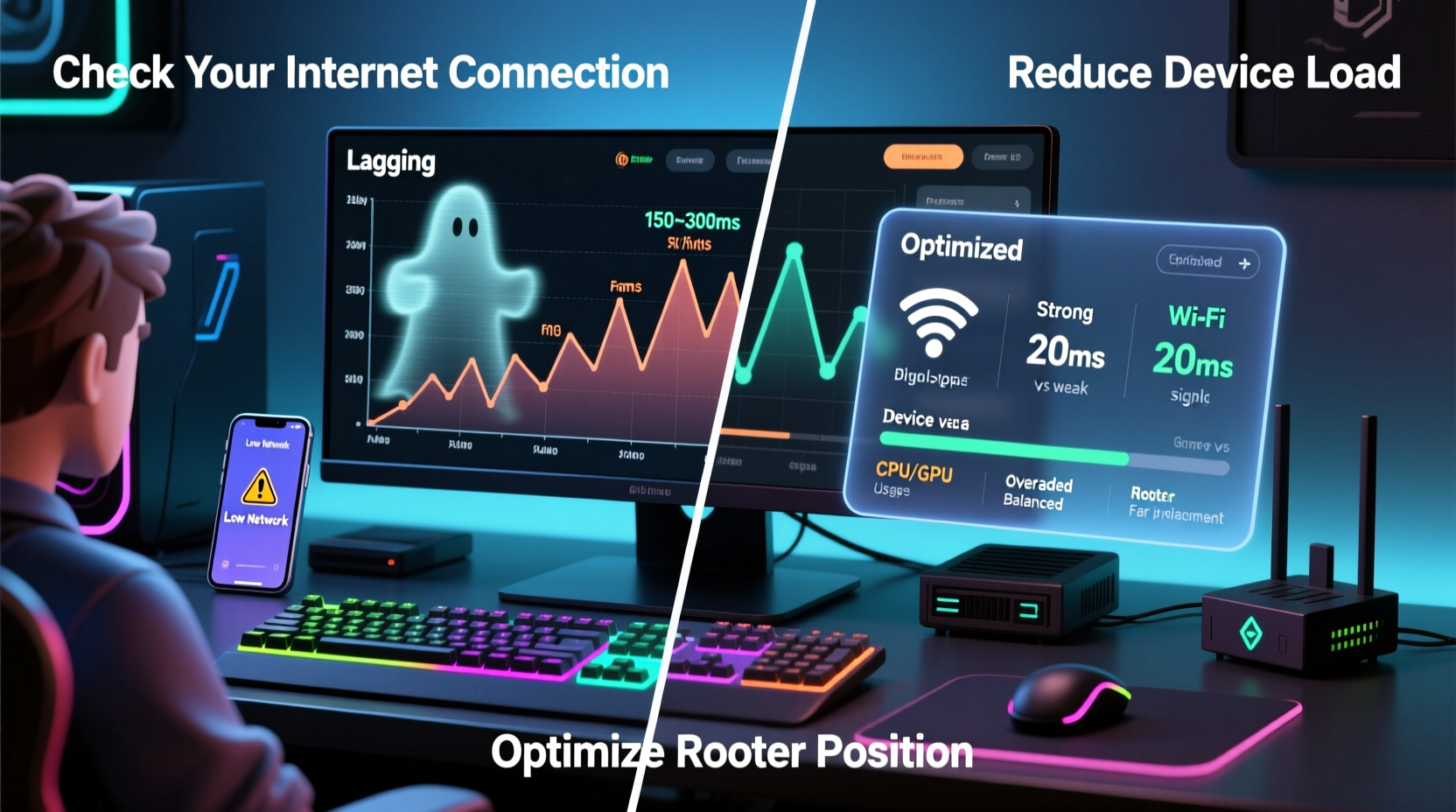
Lag in online games typically falls into two categories: network lag and device performance lag. Each has distinct causes and solutions.
- Network Lag (Internet Issues): Caused by high ping, packet loss, or unstable connections between your device and the game server. Symptoms include delayed actions, teleporting characters, and frequent disconnects.
- Device Performance Lag (Hardware/Software Issues): Occurs when your computer or console struggles to render frames quickly enough. This results in low frame rates (FPS), stutters, or freezing—even if your internet is perfect.
The confusion arises because both types can produce similar on-screen effects. For example, a sudden freeze might feel like a dropped connection, but it could just as easily stem from your GPU overheating. That’s why diagnosis must come before any fix.
How to Diagnose Internet-Related Lag
Your internet connection plays a crucial role in real-time multiplayer games. To determine if your lag stems from network problems, follow this diagnostic workflow:
- Check Your Ping and Packet Loss: Use built-in game stats (like in CS:GO or Valorant) or third-party tools like pingplotter or WinMTR. A ping above 100ms begins to impact responsiveness; above 150ms is problematic for fast-paced games. Any packet loss over 1% indicates instability.
- Test During Off-Peak Hours: Run speed tests at different times using speedtest.net. If your ping drops significantly late at night, your ISP may be oversubscribed during peak hours.
- Use Ethernet Instead of Wi-Fi: Wireless signals are prone to interference from walls, appliances, and other networks. Switching to a wired connection often resolves intermittent lag spikes.
- Monitor Background Traffic: Smart TVs, phones, cloud backups, or downloads can consume bandwidth unnoticed. Use your router’s QoS (Quality of Service) settings to prioritize gaming traffic.
“Many players assume their internet is fine because their download speed is high, but upload speed and latency matter far more in gaming.” — Jordan Lee, Network Engineer & Competitive Gamer
Common Internet Issues and Their Fixes
| Issue | Symptoms | Solution |
|---|---|---|
| High Latency (Ping) | Delayed responses, slow character movement | Switch to closer server, use wired connection, close background apps |
| Packet Loss | Rubberbanding, sudden disconnects | Restart router, update firmware, contact ISP |
| Wi-Fi Interference | Spotty connection, fluctuating ping | Use 5GHz band, reduce distance from router, add Wi-Fi extender |
| Bandwidth Saturation | Lag spikes during streaming/downloading | Enable QoS, schedule large downloads after gaming |
Identifying Device-Induced Lag
If your internet checks out but your character still stutters, the bottleneck is likely on your end. Modern games demand substantial CPU, GPU, RAM, and storage resources. When any component is overwhelmed, performance suffers.
Begin by monitoring system performance while playing. On Windows, press Ctrl+Shift+Esc to open Task Manager and observe CPU, GPU, memory, and disk usage. Consistently high utilization (above 90%) on any resource suggests a hardware limitation.
Key Indicators of Device Lag
- Framerate drops when multiple enemies appear or during explosions
- Game stutters even in single-player mode
- Fan noise increases dramatically during gameplay
- Other applications slow down when the game is running
Steps to Optimize Device Performance
- Update Drivers: Outdated GPU drivers can severely limit performance. Use NVIDIA GeForce Experience, AMD Adrenalin, or Intel Driver Support Assistant to keep them current.
- Close Background Applications: Web browsers, Discord overlays, and recording software consume valuable resources. Disable unnecessary startup programs via Task Manager > Startup tab.
- Ensure Proper Cooling: Overheating leads to thermal throttling. Clean dust from fans and vents, ensure adequate airflow, and consider repasting the CPU/GPU if temperatures exceed 85°C under load.
- Upgrade Hardware Strategically: Adding more RAM helps if usage exceeds capacity. An SSD drastically reduces loading hitches. A newer GPU or CPU may be necessary for sustained high FPS.
- Adjust Power Settings: On laptops and desktops, set power plan to “High Performance” to prevent CPU throttling.
Mini Case Study: Resolving Lag for a Competitive Apex Legends Player
Mark, a ranked Apex Legends player, experienced consistent lag during matches—his character would freeze mid-fight, costing him crucial kills. He assumed his internet was faulty and nearly upgraded his plan. Instead, he followed a structured diagnostic process.
First, he ran a ping test to the EA server. His average was 42ms with zero packet loss—excellent. Next, he connected via Ethernet and disabled all background apps. No improvement. Then, he opened Task Manager during a match and noticed his GPU usage spiked to 99%, while temperature reached 87°C.
He cleaned his laptop’s cooling system, reapplied thermal paste, and lowered in-game settings from “Ultra” to “High.” Framerate stabilized from 45 FPS to a consistent 90 FPS. The lag vanished. The issue wasn’t his internet—it was thermal throttling crippling his GPU performance.
This case highlights the importance of methodical troubleshooting. Without checking internal system metrics, Mark might have spent money unnecessarily on internet upgrades.
Step-by-Step Guide to Fix Character Lag
Follow this sequence to systematically identify and resolve lag issues:
- Step 1: Isolate the Environment
Close all non-essential apps. Disconnect other devices from your network temporarily. - Step 2: Test with Wired Connection
Connect your device directly to the router via Ethernet cable. - Step 3: Measure Network Metrics
Run a ping and packet loss test to the game server. Use tools likeping -t [server]in Command Prompt. - Step 4: Monitor System Performance
While playing, track CPU, GPU, RAM, and disk usage. Note any resource hitting 90%+. - Step 5: Adjust In-Game Settings
Lower resolution, texture quality, and effects. Observe if smoothness improves. - Step 6: Check Temperatures
Use HWMonitor or MSI Afterburner to verify components aren’t overheating. - Step 7: Apply Targeted Fixes
Based on findings: upgrade hardware, switch to wired internet, optimize settings, or contact ISP.
Checklist: Quick Actions to Reduce Lag
- ✅ Switch from Wi-Fi to Ethernet
- ✅ Restart your router and modem
- ✅ Close background apps (Discord, Chrome, etc.)
- ✅ Update graphics drivers
- ✅ Lower in-game graphical settings
- ✅ Clean dust from PC/console vents
- ✅ Choose game servers closest to your region
- ✅ Enable Game Mode in Windows Settings
- ✅ Disable fullscreen optimizations for the game executable
- ✅ Run a full virus scan (malware can consume resources)
FAQ: Common Questions About Gaming Lag
Does download speed affect online gaming?
Not as much as you might think. While very low download speeds can hinder loading assets, most online games require less than 5 Mbps. More important are ping (latency), upload speed, and connection stability. High download speed with poor latency still results in laggy gameplay.
Can a bad power supply cause lag?
Indirectly, yes. An underpowered or failing PSU may not deliver stable voltage to your GPU or CPU, causing crashes, throttling, or unexpected shutdowns during intense gameplay. While it won’t create network lag, it can mimic performance lag through inconsistent power delivery.
Why does my character lag only in certain games?
Different games stress different systems. A CPU-heavy title like Civilization VI will expose processor limitations, while a fast-paced shooter like Call of Duty stresses GPU and network. If lag appears only in specific games, it’s likely due to that game’s optimization or higher hardware demands.
Conclusion: Take Control of Your Gaming Experience
Lag doesn’t have to be an unavoidable part of online gaming. By understanding whether the issue originates from your internet or your device, you gain the power to address it effectively. Don’t accept poor performance as inevitable—diagnose, optimize, and upgrade with purpose. Whether it’s switching to a wired connection, cleaning your hardware, or adjusting settings, small changes can yield dramatic improvements in responsiveness and enjoyment.




 浙公网安备
33010002000092号
浙公网安备
33010002000092号 浙B2-20120091-4
Comments
No comments yet. Why don't you start the discussion?