
Every holiday season, thousands of homeowners face the same frustrating moment: lights flicker erratically, sequences stutter mid-display, or entire sections go dark while others pulse perfectly. The culprit is rarely faulty bulbs—it’s a desynchronized controller. Unlike simple on/off switches, modern Christmas light controllers (especially those powering RGB LEDs, musical displays, or Wi-Fi-enabled strands) rely on precise timing signals, stable power delivery, and consistent communication protocols. When that synchronization breaks, your display doesn’t just dim—it loses its rhythm, coherence, and charm. This isn’t a sign of failure; it’s a signal that environmental, electrical, or firmware conditions have shifted beyond the controller’s tolerance. Understanding *why* sync fails—and how to restore it reliably—is essential for anyone who invests time, creativity, and budget into a professional-grade holiday lighting setup.
Why Synchronization Fails: The 5 Most Common Causes
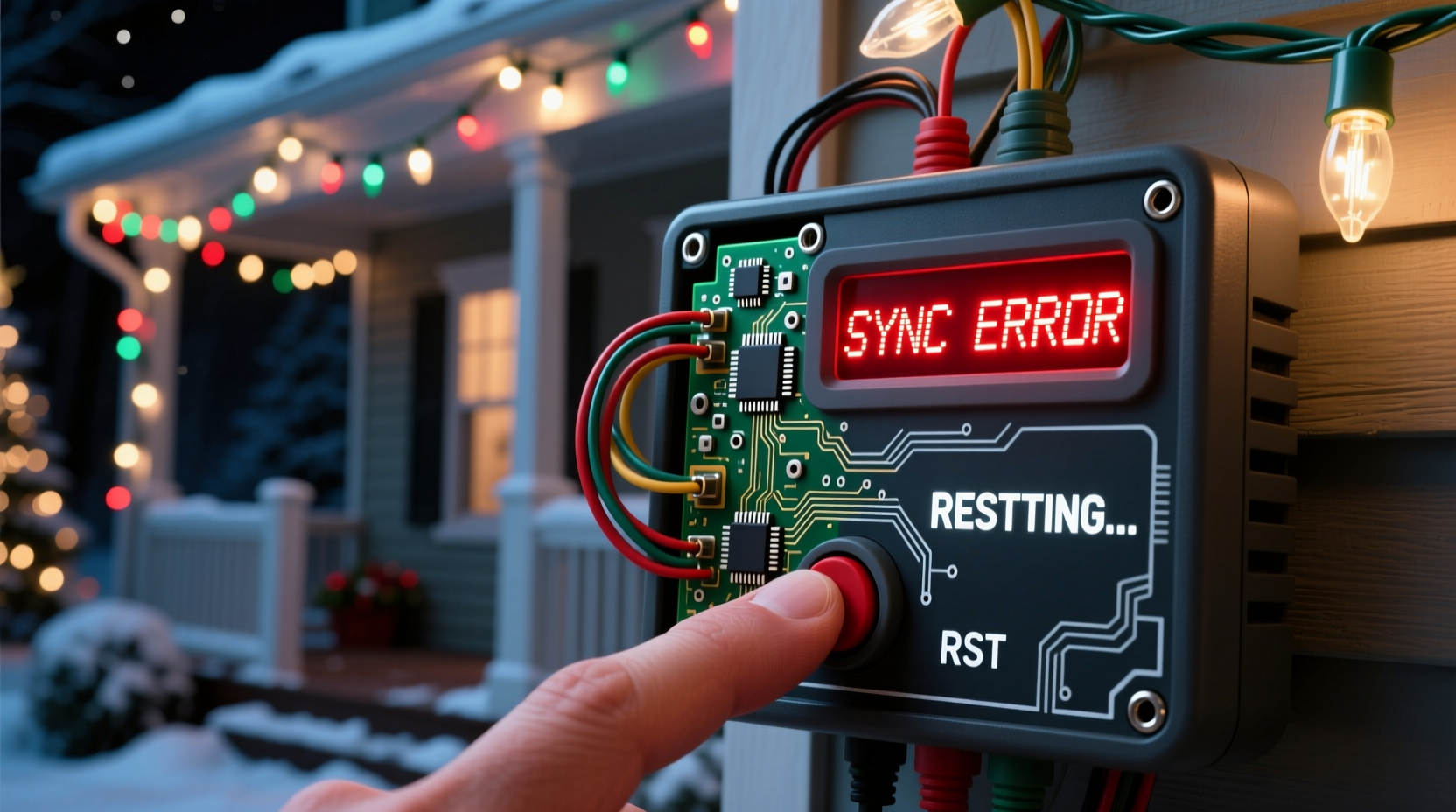
Sync loss isn’t random. It’s almost always traceable to one or more of these interrelated factors—each with distinct symptoms and diagnostic clues.
1. Power Supply Instability
Controllers require clean, consistent voltage. Voltage sags (common when compressors, furnaces, or power tools cycle on), surges (from lightning or grid switching), or undersized extension cords cause micro-interruptions in the controller’s internal clock or signal generator. Even brief dips below 105V can reset timing buffers or corrupt sequence memory. Older transformers and low-gauge extension cords (e.g., 16 AWG over 50 feet) exacerbate this—especially when multiple controllers share one circuit.
2. Radio Frequency (RF) Interference
Many controllers—including popular models from Light-O-Rama, Holiday Coro, and LOR-compatible brands—use 433 MHz or 315 MHz RF signals to communicate with receivers or auxiliary modules. These frequencies overlap with garage door openers, wireless security sensors, baby monitors, and even malfunctioning LED drivers. Interference doesn’t always cause total failure—it often introduces timing drift, where each subsequent command arrives milliseconds late, accumulating until the display visibly stutters or freezes.
3. Firmware or Software Mismatch
Controllers running outdated firmware may misinterpret updated sequence files generated by newer versions of software like xLights or Vixen 3. Conversely, controllers flashed with beta firmware can develop timing inconsistencies under load. One user reported sync loss only during complex “firework” effects—diagnosed later as a known bug in firmware v4.2.7 that affected PWM duty cycle precision during rapid frame transitions.
4. Physical Connection Degradation
Wet connectors, corroded terminals, or cracked ribbon cables between the controller and receiver board disrupt data packet integrity. RS-485 bus systems (used in many commercial controllers) are especially sensitive: a single unterminated wire or loose termination resistor can reflect signals, causing duplicate or dropped commands. Symptoms include intermittent channel dropout—not across all lights, but only on specific zones or strings.
5. Thermal Throttling and Component Stress
Controllers mounted in enclosed eaves, behind vinyl siding, or near heat-generating transformers can exceed safe operating temperatures (typically 140°F/60°C). As internal oscillators warm up, their frequency drifts—directly impacting timing accuracy. This explains why sync issues often appear after 2–3 hours of continuous operation, worsen on sunny days, and resolve overnight when components cool.
How to Diagnose Sync Loss Like a Pro
Effective troubleshooting starts with observation—not assumptions. Use this checklist to isolate the root cause before reaching for reset procedures.
Diagnostic Checklist
- ✅ Check timing consistency: Does sync loss occur at the same point in every sequence? (Suggests corrupted file or firmware issue)
- ✅ Monitor environmental triggers: Does it happen only when the HVAC kicks on, during rain, or after sunset? (Points to power or moisture issues)
- ✅ Test zone-by-zone: Disconnect all but one output channel. If sync holds, reconnect channels one at a time to identify problematic wiring or load.
- ✅ Verify grounding: Use a multimeter to confirm continuity between controller ground terminal and a known earth ground (e.g., cold water pipe). Poor grounding amplifies RF noise and voltage instability.
- ✅ Review logs: If using xLights or similar software, enable debug logging. Look for repeated “CRC error,” “timeout,” or “frame drop” entries in the console during playback.
Resetting Your Controller: A Step-by-Step Protocol
A reset isn’t a single action—it’s a sequence designed to eliminate layered variables. Follow these steps *in order*. Skipping steps or rushing the process often leads to temporary fixes and recurring issues.
- Power down completely: Unplug the controller from both AC power and any USB/data connection to your computer. Wait 90 seconds.
- Clear physical obstructions: Inspect all connectors (power input, data ports, output terminals) for corrosion, bent pins, or moisture residue. Clean with 91% isopropyl alcohol and a lint-free cloth if needed.
- Isolate the system: Disconnect all light strings and auxiliary devices except one known-good string on Channel 1. Remove any repeaters, splitters, or amplifiers.
- Perform a hard reset: Locate the reset button (usually recessed). Press and hold for 12 seconds using a paperclip. You’ll hear a double-beep or see LED flash patterns indicating factory initialization.
- Re-flash firmware (if applicable): Connect via USB to your computer. Use the manufacturer’s official utility (e.g., Light-O-Rama Hardware Utility or Falcon Player updater) to reinstall the latest stable firmware—not just “update,” but full reflash.
- Reconfigure incrementally: Reconnect one output zone at a time. Test sync for 15 minutes before adding the next. Document which zone triggers instability.
- Validate power quality: Plug a Kill-A-Watt meter between outlet and controller. Monitor voltage and current draw during playback. Sustained voltage below 110V or fluctuation >3V indicates a circuit issue requiring an electrician or dedicated line.
Controller-Specific Reset Procedures & Best Practices
Not all controllers respond the same way. Below is a comparison of common platforms and their unique requirements.
| Controller Type | Hard Reset Method | Firmware Update Tool | Critical Notes |
|---|---|---|---|
| Light-O-Rama (LOR) 16-Channel | Hold reset button 10 sec until green LED blinks rapidly | LOR Hardware Utility (Windows/macOS) | Must use LOR-specific COM port driver; avoid generic CH340 drivers |
| Falcon F16v3 | Press and hold “SETUP” + “ENTER” for 8 sec until screen shows “Factory Reset” | FPP Web UI → “System” → “Firmware Update” | Requires SD card formatted as FAT32; update file must be named “firmware.bin” |
| Santar Lighting Smart Hub | Unplug → Hold power button 15 sec → Plug in while holding → Release after blue pulse | iOS/Android app → Settings → “Update Firmware” | Wi-Fi must remain connected throughout 8+ minute process; interruption bricks unit |
| VoltageGuard Pro-24 | No physical reset: Must enter “Service Mode” via 3x power cycle + 5-sec hold on channel 1 button | Web interface (192.168.1.10) → “Maintenance” tab | Reset clears all custom voltage thresholds—reconfigure after reboot |
Real-World Case Study: The Suburban Rooftop Display That Wouldn’t Stay in Time
In December 2023, Mark R., a homeowner in suburban Ohio, installed a 32-channel LOR controller driving 1,200 RGB pixels across his roofline and porch. For three nights, the display ran flawlessly. On night four, the left gable lights began lagging by 0.8 seconds per cycle—growing progressively worse until they played the previous sequence while the right side advanced. He tried standard resets, replaced fuses, and reloaded sequences. Nothing worked.
His breakthrough came when he noticed the lag coincided precisely with his neighbor’s new heat pump cycling on. Using a Kill-A-Watt, he confirmed voltage dropped from 121V to 108V for 2.3 seconds each cycle. His controller shared a 15-amp circuit with two outdoor GFCI outlets—one feeding the heat pump’s condenser unit. The solution wasn’t resetting the controller—it was installing a dedicated 20-amp circuit with a line conditioner (Tripp Lite LC1200) between the panel and controller. After rewiring, sync held for 47 consecutive nights—even during sub-zero wind chills.
This case underscores a critical truth: sync loss is rarely about the controller itself. It’s about the ecosystem surrounding it—power, environment, and integration.
“Most ‘sync issues’ we troubleshoot aren’t failures—they’re symptoms of design oversights. A controller is only as stable as the voltage feeding it, the air cooling it, and the signals reaching it.” — David Lin, Senior Applications Engineer, Light-O-Rama Engineering Team
Prevention Strategies That Actually Work
Once you’ve restored sync, prevent recurrence with these field-tested practices:
- Use dedicated circuits: Run a separate 20-amp circuit from your main panel directly to your controller location. Label it clearly and avoid sharing with appliances or outlets.
- Install surge + noise suppression: Place a whole-house surge protector (e.g., Siemens FS140) at your main panel, plus an inline EMI/RFI filter (e.g., Corcom 2000 series) on the controller’s power input.
- Terminate RS-485 buses properly: Every RS-485 chain requires exactly two 120-ohm termination resistors—one at the first and one at the last device. Never install more than two.
- Update firmware quarterly: Manufacturers release timing-critical patches for seasonal loads. Set calendar reminders to check firmware status in your controller’s web UI or utility software.
- Log ambient conditions: Keep a simple spreadsheet noting sync events alongside temperature, humidity, and local weather alerts. Patterns emerge quickly—e.g., “All sync loss occurred when relative humidity exceeded 85%.”
FAQ
Can I reset my controller remotely via Wi-Fi or app?
Yes—but with caveats. Most smart hubs (like Santar or Twinkly Pro) support remote reset, yet doing so while the controller is actively playing a sequence risks incomplete state clearing. Always pause playback, wait 10 seconds, then initiate reset. Never reset during firmware updates.
Why does my controller resync fine after a reset but drift again within hours?
This points strongly to thermal or power-related causes. If timing accuracy degrades predictably over time (e.g., worsening every 30 minutes), measure case temperature with an infrared thermometer. If it exceeds 130°F (54°C), add passive heatsinks or relocate to a shaded, ventilated area. If drift correlates with household appliance cycles, address the power source—not the controller.
Will resetting erase my custom light sequences?
No—sequences reside on your computer or SD card, not the controller’s volatile memory. However, a factory reset *will* erase saved network settings (Wi-Fi SSID/password), channel mappings, and custom voltage thresholds. Back up configuration files before resetting, especially if using advanced features like pixel mapping or audio triggers.
Conclusion
Your Christmas light display is more than decoration—it’s craftsmanship, engineering, and seasonal storytelling made visible. When sync fails, it’s not a glitch to endure or ignore. It’s feedback—a precise indicator that something in your system’s foundation needs attention. Whether it’s stabilizing voltage, eliminating RF noise, updating firmware, or simply giving your controller room to breathe thermally, each fix strengthens the reliability of your entire display. Don’t settle for “good enough” flickering. Apply the diagnostics, follow the reset protocol methodically, and implement at least two prevention strategies before next season begins. The difference between a display that merely works and one that performs flawlessly—night after night, year after year—isn’t magic. It’s disciplined maintenance, informed decisions, and respect for the technology behind the twinkle.




 浙公网安备
33010002000092号
浙公网安备
33010002000092号 浙B2-20120091-4
Comments
No comments yet. Why don't you start the discussion?