
Chromebooks are designed for simplicity, speed, and reliability—especially for everyday tasks like browsing, email, and schoolwork. But when your device suddenly freezes, it disrupts everything. You might be stuck staring at a frozen screen, unable to save your work or even restart the system normally. The good news? Most Chromebook freezes have straightforward causes and even simpler solutions. You don’t need advanced technical knowledge to fix them. With a few practical steps, you can restore smooth performance and prevent future hiccups.
Freezing typically occurs when the system runs out of memory, gets overloaded with processes, or encounters software conflicts. Unlike traditional laptops, Chromebooks run Chrome OS, which is lightweight but still vulnerable to user habits and environmental factors. Understanding what triggers these slowdowns—and how to address them—is key to keeping your device responsive.
Common Causes of Chromebook Freezing
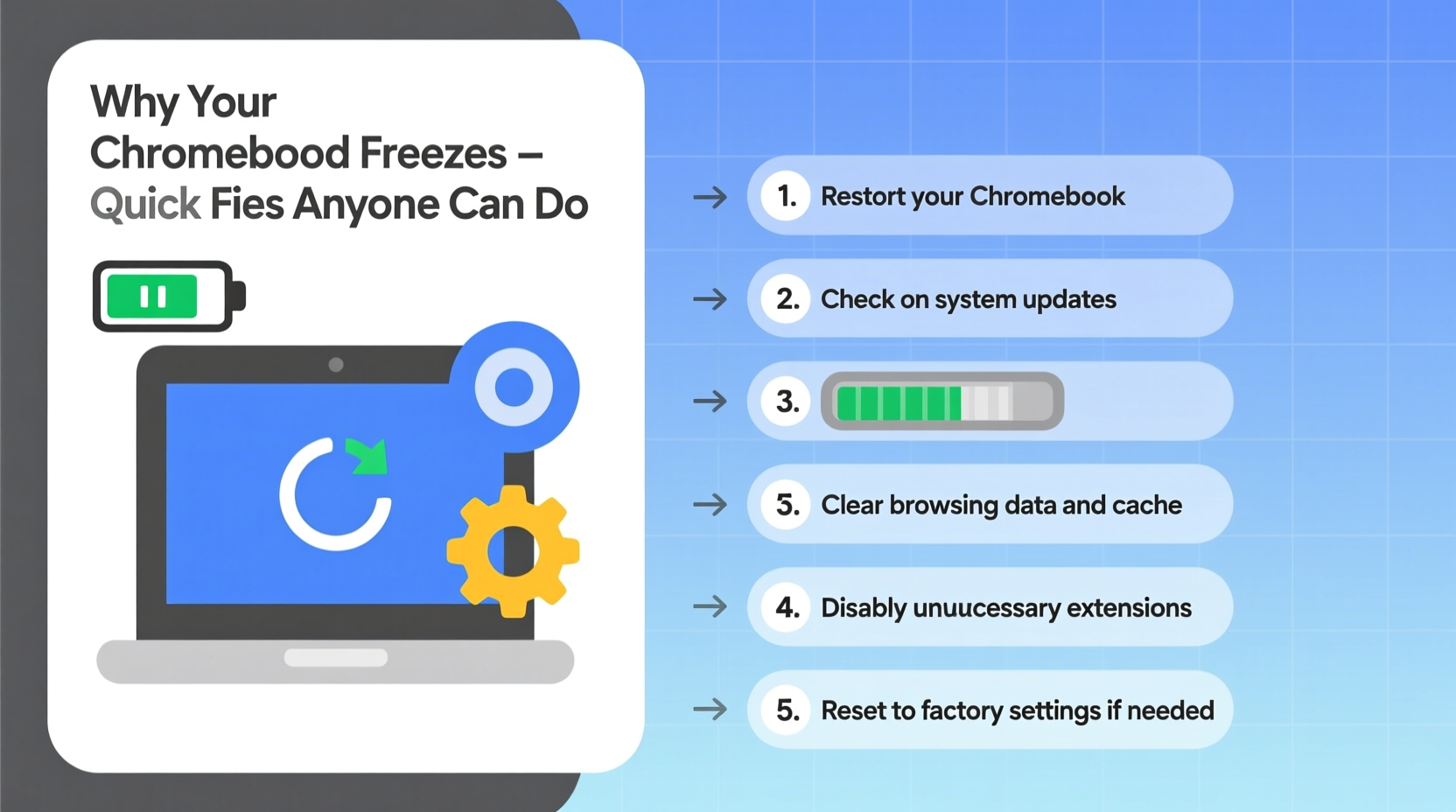
Before jumping into fixes, it’s important to understand what might be causing the freeze in the first place. Identifying the root cause helps ensure that your solution is effective and long-lasting.
- Too many browser tabs open: Each tab consumes memory. Having 20+ tabs open—even on a Chromebook—can overwhelm available RAM.
- Outdated Chrome OS: Running an older version may expose bugs or compatibility issues that affect stability.
- Corrupted user profile or cache: Temporary files and corrupted settings can interfere with normal operation.
- Hardware limitations: Entry-level Chromebooks often come with just 4GB of RAM and limited storage, making them prone to lag under heavy use.
- Problematic extensions or apps: Some third-party extensions run background processes that drain resources without warning.
- Storage nearly full: When internal storage drops below 10%, system performance degrades significantly.
- Overheating: Poor ventilation or extended usage can cause thermal throttling, leading to unresponsiveness.
Immediate Fixes When Your Chromebook Freezes
If your screen is currently frozen, try these real-time recovery methods before resorting to forced shutdowns.
- Wait 30–60 seconds: Sometimes the system is processing a large task. Give it time before taking further action.
- Press Search + Esc (or Play/Pause): This opens the Task Manager. Look for any process using excessive CPU or memory and end it.
- Use the keyboard shortcut Ctrl + Alt + Shift + Refresh: This forces a hard reboot. It won’t harm your device and often resolves temporary hangs.
- Hold the Power button for 10 seconds: If nothing responds, this will force-shut down the Chromebook. Wait 10 seconds, then power it back on.
After restarting, check if the issue persists. If it does, move on to deeper troubleshooting.
Step-by-Step Guide to Prevent Future Freezes
Prevention is always better than repair. Follow this structured approach to maintain optimal Chromebook performance over time.
Step 1: Update Chrome OS
Google releases regular updates that patch bugs and improve efficiency. To check:
- Click the system tray (bottom-right corner).
- Select the gear icon to open Settings.
- Go to About Chrome OS > Check for updates.
- If an update is available, install it immediately and restart when prompted.
Step 2: Clear Browsing Data and Cache
Accumulated cache can slow things down. Do a clean sweep monthly:
- Open Chrome and press
Ctrl + Shift + Delete. - Select “All time” as the time range.
- Check boxes for Cookies, Cached images and files, and Browsing history.
- Click “Clear data.”
Step 3: Manage Extensions and Apps
Disable or remove anything you no longer use:
- In Chrome, go to chrome://extensions.
- Toggle off extensions not in regular use.
- Delete those you don’t recognize or trust.
- Uninstall unused Android or Linux apps via Settings > Apps.
Step 4: Restart Regularly
Unlike desktop computers, Chromebooks benefit greatly from daily reboots. A simple restart clears RAM, stops rogue processes, and applies pending updates.
Step 5: Monitor Storage Usage
Low storage cripples performance. Check your space:
- Open Settings > Storage management.
- Delete large downloads, old screenshots, or duplicate files.
- Move photos and documents to Google Drive to free up local space.
Do’s and Don’ts: Best Practices Table
| Do | Don’t |
|---|---|
| Restart your Chromebook at least once a week | Leave dozens of tabs open overnight |
| Keep Chrome OS updated | Ignore update notifications for weeks |
| Use incognito mode for heavy web apps | Install too many browser extensions |
| Store files in Google Drive instead of locally | Let storage drop below 1 GB free |
| Close unused Android/Linux apps | Run resource-heavy apps on 4GB RAM devices |
Mini Case Study: How a Student Fixed Her Constantly Freezing Chromebook
Sophia, a high school sophomore, relied on her Chromebook for online classes and homework. Over two weeks, she noticed increasing lag—her screen would freeze during Zoom calls, and typing became delayed. Initially, she assumed the device was failing. After reading about common fixes, she decided to investigate.
She opened Task Manager and found one extension—“Tab Snoozer”—was using 78% of her CPU despite being idle. She removed it. Then, she cleared her browsing data and discovered over 1.2 GB of cached files had built up. After a restart, her Chromebook responded instantly. She now closes tabs nightly and checks for updates every Monday morning. Her device hasn’t frozen since.
This case illustrates how small, overlooked elements—like a single misbehaving extension—can severely impact performance.
Expert Insight: What Tech Specialists Recommend
“Most Chromebook freezes aren’t hardware failures—they’re symptoms of digital clutter. Users forget that even simple systems need maintenance. A monthly cleanup routine prevents 90% of freezing issues.” — David Lin, IT Support Specialist at EduTech Solutions
Lin emphasizes that education is half the battle. Many users treat Chromebooks as “set and forget” devices, unaware that browser habits directly affect system health.
Troubleshooting Checklist
Use this checklist whenever your Chromebook starts acting sluggish or freezing frequently:
- ✅ Restart the device
- ✅ Check for and install OS updates
- ✅ Open Task Manager and end high-resource processes
- ✅ Clear browsing cache and cookies
- ✅ Disable or remove unnecessary extensions
- ✅ Uninstall unused Android/Linux apps
- ✅ Free up storage by moving files to Google Drive
- ✅ Perform a Powerwash (factory reset) if problems persist
When to Consider a Powerwash
If all else fails, a Powerwash—a factory reset—can resolve deep-seated software issues. It erases all local data and restores the system to default settings. While drastic, it’s safe and often revitalizes aging devices.
To Powerwash:
- Back up important files to Google Drive or external storage.
- Go to Settings > Advanced > Reset settings > Powerwash > Restart.
- Follow the setup prompts after rebooting.
Note: Your Google Account and most settings sync back automatically, but locally saved files will be lost unless backed up.
Frequently Asked Questions
Can a virus make my Chromebook freeze?
True viruses are extremely rare on Chrome OS due to its sandboxed architecture and automatic security updates. However, malicious browser extensions or phishing sites can mimic virus-like behavior, including freezing and redirects. Always download extensions from the official Chrome Web Store and review permissions carefully.
Is it bad to force-restart my Chromebook?
No. Using the Ctrl + Alt + Shift + Refresh shortcut or holding the power button is safe and designed for emergencies. Chrome OS handles abrupt shutdowns gracefully, minimizing file corruption risks. That said, use it only when necessary—regular restarts are preferable.
Why does my Chromebook freeze only during video calls?
Video conferencing apps like Google Meet or Zoom demand significant processing power, especially when running alongside other tabs. On lower-end models (e.g., 4GB RAM), this can exceed capacity. Close all non-essential tabs, disable camera background effects, and ensure a strong Wi-Fi signal to reduce strain.
Conclusion: Take Control of Your Chromebook’s Performance
A freezing Chromebook doesn’t mean it’s broken—it usually means it needs attention. By understanding the common causes and applying consistent maintenance, you can keep your device running smoothly for years. Most fixes take less than five minutes and require no special tools or skills. Whether you're a student, professional, or casual user, these strategies empower you to troubleshoot confidently and independently.




 浙公网安备
33010002000092号
浙公网安备
33010002000092号 浙B2-20120091-4
Comments
No comments yet. Why don't you start the discussion?