
Chromebooks are designed for simplicity, speed, and efficiency. But when your screen freezes mid-task—whether you're working on a school assignment, filling out a form, or streaming a video—it’s more than frustrating. It interrupts workflow, risks data loss, and makes you question the device’s reliability. The good news? Most freezing issues aren’t signs of permanent damage. In fact, they’re often caused by minor, fixable problems that don’t require technical expertise or expensive repairs.
Understanding why your Chromebook freezes is the first step toward solving it. From overloaded memory to outdated software, the causes vary—but so do the solutions. Whether you're a student, remote worker, or casual user, this guide walks through real, actionable fixes that have helped thousands regain smooth performance from their devices.
Common Causes of Chromebook Freezing
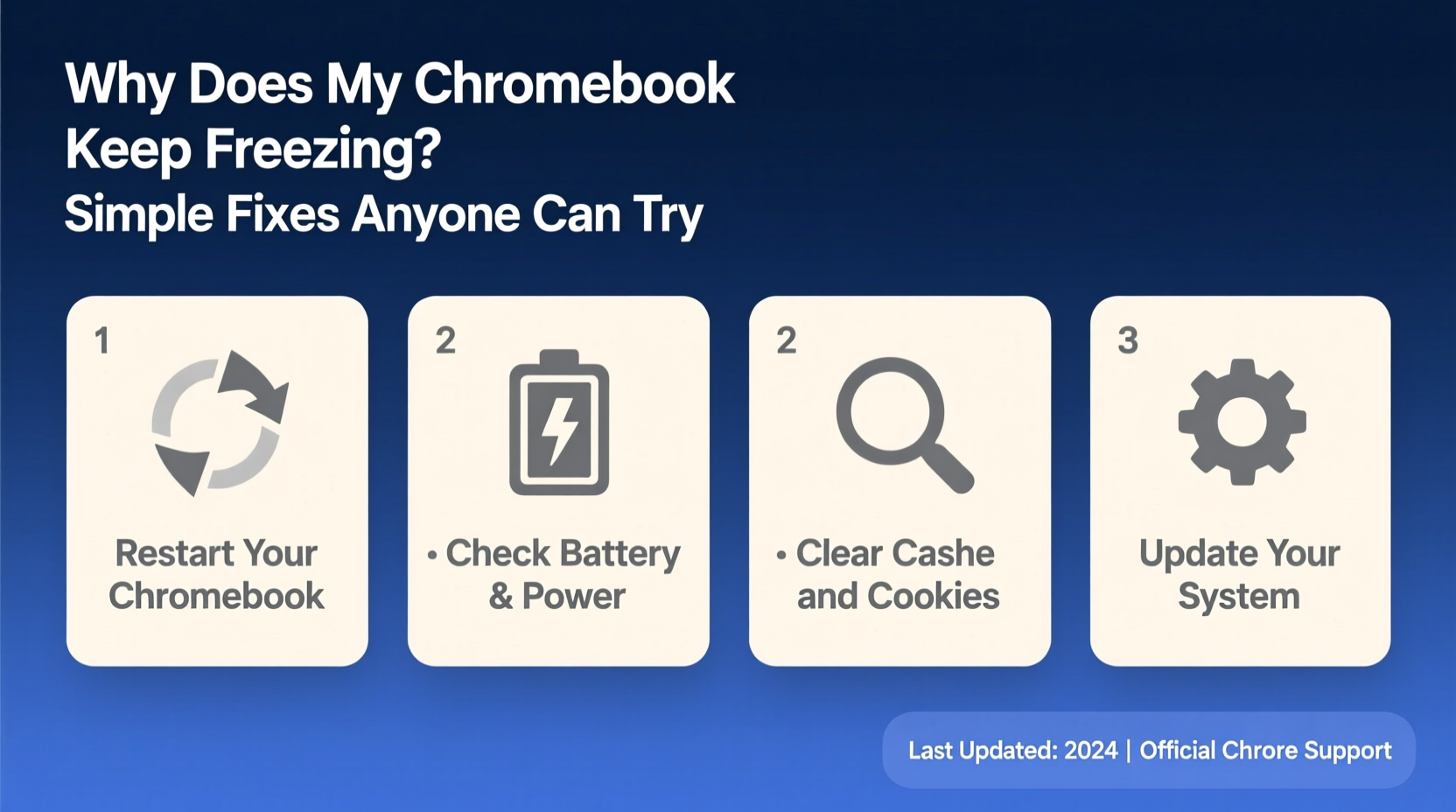
Before jumping into fixes, it helps to know what might be triggering the freeze. Chromebooks run Chrome OS, a lightweight operating system built for web-based tasks. However, even efficient systems can struggle under certain conditions. Here are the most frequent culprits:
- Too many open tabs or apps: Each tab consumes memory. Open 20+ tabs with videos or complex websites, and your Chromebook may not keep up.
- Outdated Chrome OS: Skipping updates can leave your system vulnerable to bugs and performance issues.
- Corrupted user profile: If your profile has damaged settings or cache files, it can cause recurring lag or crashes.
- Hardware limitations: Older or entry-level models have less RAM and slower processors, making them prone to freezing under heavy loads.
- Malware or problematic extensions: While rare, malicious or poorly coded browser extensions can hijack resources.
- Storage overload: Running out of space—even if only temporarily—can slow down system processes.
Unlike traditional laptops, Chromebooks rely heavily on cloud storage and real-time processing. When local resources are strained, the system often responds by freezing rather than closing applications gracefully.
Step-by-Step Fixes to Stop Freezing
The following sequence of actions starts with the quickest, safest methods and progresses to deeper resets. Try each step in order, testing your Chromebook after every fix before moving on.
- Restart your Chromebook – Sounds obvious, but it’s often overlooked. A full reboot clears temporary memory, stops runaway processes, and reloads the OS cleanly. Press and hold the power button for 10 seconds, then turn it back on.
- Close unnecessary tabs and apps – Right-click on any tab and select “Close others” or use Ctrl + W to close one at a time. Consider using a tab manager extension like “OneTab” to consolidate them later.
- Check for system updates – Go to Settings > About Chrome OS > Check for updates. Install any pending updates immediately. These often include performance patches.
- Clear browsing data – Over time, cached images, cookies, and site data accumulate. Navigate to Settings > Privacy and security > Clear browsing data. Select “All time” and check boxes for cookies, cached files, and site data.
- Disable or remove suspicious extensions – Type
chrome://extensionsin the address bar. Turn off any you don’t recognize or actively use. Remove ones with low ratings or unclear purposes. - Enable hardware acceleration (or disable it) – This setting uses your GPU to improve performance. But on some devices, it causes instability. Go to Settings > Advanced > System > Use hardware acceleration when available, toggle it off, restart, and test. If things worsen, toggle it back on.
- Reset Chromebook settings (Powerwash) – As a last resort, reset everything. Go to Settings > Advanced > Reset settings > Powerwash > Restart. This erases all local data and logs you out. Your Google Account will sync your files and settings afterward, but make sure everything important is backed up first.
Most users find relief after steps 1–5. Only a small percentage need to Powerwash, and doing so typically restores near-factory performance.
Troubleshooting Checklist
Use this checklist to quickly diagnose and resolve freezing issues. Print it or save it as a reference.
✅ Chromebook Freeze Fix Checklist
- Restarted the device completely
- Closed unused tabs and background apps
- Updated Chrome OS to the latest version
- Cleared browsing cache and cookies
- Reviewed and removed questionable extensions
- Checked available storage (aim for at least 1 GB free)
- Tested performance in Guest mode (to isolate user profile issues)
- Performed a Powerwash if all else failed
When the Problem Is User Profile Corruption
Sometimes, the issue isn’t the hardware or OS—it’s your user profile. Chromebooks store personal settings, app preferences, and cached login data locally. If this data becomes corrupted, your session may freeze repeatedly, even after reboots.
To test this, log into Guest mode. Click the profile icon in the corner, then “Browse as Guest.” Use the Chromebook normally for 10–15 minutes. If it runs smoothly, the problem lies within your main profile.
In that case, the best solution is to back up your files to Google Drive, then perform a Powerwash. After resetting, sign in again. Your documents, bookmarks, and apps will sync automatically, but the corrupted local data will be gone.
“Over half of persistent Chromebook performance issues stem from user profile bloat or corruption—not hardware failure.” — Jordan Lee, Chrome OS Support Specialist, EduTech Solutions
Comparison: What Works vs. What Doesn’t
Not all advice online is equal. Some tips are myths or outdated. The table below separates proven strategies from common misconceptions.
| Recommended Action | Effectiveness | Why It Works |
|---|---|---|
| Restarting the Chromebook weekly | High | Clears RAM and stops unresponsive processes |
| Using Guest mode to test stability | High | Isolates user-specific issues |
| Installing antivirus software | Low/Unnecessary | Chrome OS has built-in malware protection; third-party AVs often slow performance |
| Running multiple virtual desktops with heavy apps | Risky | Exceeds memory limits on most Chromebooks |
| Keeping Chrome OS updated | Very High | Patches known bugs and improves efficiency |
| Using Linux apps on low-RAM devices | Conditional | Can cause freezes if device lacks 4GB+ RAM |
This comparison highlights an important truth: Chromebooks thrive on simplicity. The more you push them beyond their intended use—like running Android games, Linux software, or dozens of tabs—the more likely they are to freeze.
Real Example: How a Student Fixed Her Frozen Chromebook
Maria, a high school junior, relied on her Chromebook for online classes and homework. One Monday morning, her device froze during a live quiz. The screen locked, the cursor stopped moving, and no key combinations worked. She had to force-shut it down by holding the power button.
After restarting, it froze again while loading Gmail. Frustrated, she brought it to her school’s tech lab. The IT assistant walked her through the troubleshooting steps:
- First, they restarted the device—temporary improvement.
- Then closed 18 open tabs, including two playing music in the background.
- They discovered Maria hadn’t updated her Chrome OS in over three months. After installing the latest update, performance improved noticeably.
- Finally, they found a forgotten extension labeled “PDF Converter Pro” that was consuming excessive CPU. Removing it eliminated the freezing entirely.
Maria now restarts her Chromebook every Sunday night and reviews her extensions monthly. She hasn’t had a freeze since.
Frequently Asked Questions
Can a virus make my Chromebook freeze?
True viruses are extremely rare on Chrome OS due to its sandboxed architecture and automatic updates. However, malicious browser extensions or phishing sites can mimic virus-like behavior, including slowing down your system or redirecting tabs. Always install extensions from the official Chrome Web Store and read reviews before adding them.
Is it safe to Powerwash my Chromebook?
Yes, Powerwash is a safe, built-in feature designed for troubleshooting. It won’t harm your hardware. Just ensure your files are saved to Google Drive or another cloud service beforehand. After resetting, sign in with your Google Account, and most of your data and settings will return automatically.
Why does my Chromebook freeze only when I open Google Meet?
Video conferencing apps like Google Meet are resource-intensive, especially with camera, microphone, and screen sharing enabled. If your Chromebook has 2GB or 4GB of RAM, running Meet alongside other apps can exceed memory capacity. Close all non-essential tabs and apps before joining a call. Also, disable HD video in Meet settings to reduce strain.
Prevent Future Freezes with Smart Habits
Once you’ve resolved the immediate issue, focus on prevention. Chromebooks last longer and perform better when used mindfully. Adopt these daily habits:
- Limited multitasking: Stick to 5–7 tabs unless you have a high-end model.
- Weekly reboots: Clears memory leaks and applies pending updates.
- Monthly extension audit: Remove tools you no longer use.
- Cloud-first storage: Keep files in Google Drive instead of local downloads.
- Avoid offline-heavy apps: Apps that work without internet often store large amounts of data locally, increasing load times.
These habits take little effort but significantly reduce the risk of future freezes. Think of them as routine maintenance—like oil changes for a car.
Conclusion: Take Control of Your Chromebook’s Performance
A freezing Chromebook doesn’t mean it’s broken. More often than not, it’s a signal that the system needs a reset, cleanup, or update. The fixes outlined here are practical, tested, and accessible to anyone—no technical background needed.
Start with the simplest solutions: restart, reduce tabs, update the OS. Work your way through the checklist. In most cases, you’ll see improvement within minutes. And if not, Powerwash remains a powerful tool to restore your device to peak condition.
Your Chromebook is built to support your productivity, not hinder it. By understanding the causes of freezing and applying these straightforward fixes, you reclaim control over your digital experience. Don’t wait for the next freeze—act now, stay proactive, and keep your device running smoothly.




 浙公网安备
33010002000092号
浙公网安备
33010002000092号 浙B2-20120091-4
Comments
No comments yet. Why don't you start the discussion?