
If your Chromebook was once snappy and responsive but now feels sluggish—freezing on startup, lagging during browsing, or taking forever to open apps—you're not alone. Many users experience a sudden drop in performance that can be frustrating, especially when relying on the device for work, school, or daily tasks. The good news is that most slowdowns aren’t permanent hardware failures. Instead, they stem from software issues, resource overload, or simple maintenance oversights. Understanding the root causes and applying targeted fixes can restore your Chromebook’s speed without requiring expensive upgrades or replacements.
Common Causes of Sudden Chromebook Slowdown
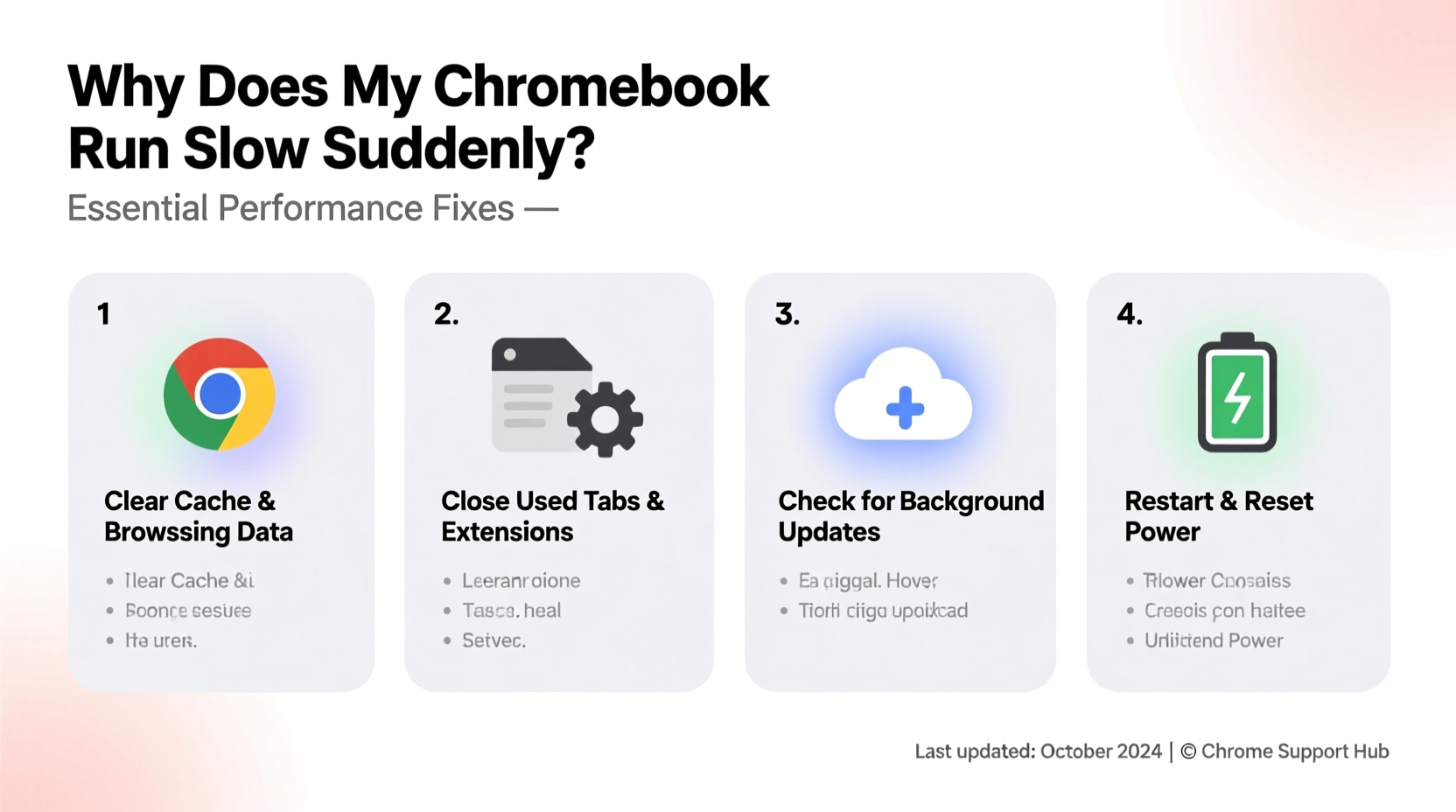
A Chromebook's lightweight operating system is designed for efficiency, but several factors can disrupt its smooth operation. Identifying what changed recently helps pinpoint the issue.
- Too many browser tabs or extensions: Each tab and extension consumes memory and CPU. Running dozens simultaneously can overwhelm even newer models.
- Outdated Chrome OS: Missing critical updates may leave your system vulnerable to bugs or inefficient processes.
- Low storage space: When internal storage drops below 10%, system performance degrades significantly due to limited swap space.
- Background apps and services: Auto-launching apps, sync processes, or Android/Linux subsystems running unnoticed can eat up resources.
- Malware or compromised extensions: While rare, malicious browser add-ons can inject scripts that slow down page loading and drain battery.
- Hardware limitations: Older models with 2GB or 4GB RAM struggle with modern web applications like Google Meet, Docs with large files, or multiple video streams.
Step-by-Step Performance Recovery Guide
Follow this structured approach to diagnose and resolve performance issues methodically. Most fixes take under 15 minutes and don’t require technical expertise.
- Restart your Chromebook – Sounds obvious, but a reboot clears temporary memory, stops frozen processes, and reloads the OS cleanly.
- Check for system updates:
- Click the system tray (bottom-right corner).
- Select the gear icon (Settings).
- Go to About ChromeOS > Check for Updates.
- Install any pending updates and restart if prompted.
- Clear browsing data:
- Open Chrome and press Ctrl + Shift + Delete.
- Select “All time” as the time range.
- Check all boxes (browsing history, cookies, cached images, etc.).
- Click “Clear data.”
- Disable or remove unused extensions:
- Type
chrome://extensionsin the address bar. - Toggle off extensions you don’t actively use.
- Delete suspicious or outdated ones by clicking “Remove.”
- Type
- Limit open tabs and use tab groups – Group related tabs together and close those not in active use. Consider installing the “OneTab” extension to consolidate them into a list.
- Manage startup apps:
- Go to Settings > Apps > Google Play Store (if enabled).
- Review which Android apps launch automatically and disable unnecessary ones.
- Free up storage space:
- Navigate to Settings > Storage management.
- Delete downloaded files, old screenshots, and offline media.
- Empty the trash in Google Drive and local downloads folder.
Advanced Fixes for Persistent Slowness
If basic troubleshooting doesn’t help, deeper optimization may be needed—especially on older devices or those used heavily over time.
Powerwash: Reset Your Chromebook Safely
When all else fails, a Powerwash (factory reset) clears corrupted settings, stuck processes, and accumulated clutter. It won’t damage your hardware and is often the fastest way to regain responsiveness.
“Powerwashing is the single most effective fix for long-term Chromebook slowdowns. It returns the system to a clean state, eliminating years of digital debris.” — Daniel Kim, Chromebook Support Specialist at EdTech Solutions
To Powerwash:
- Back up important files to Google Drive or an external USB drive.
- Sign out of all accounts except your primary Google account.
- Go to Settings > Advanced > Reset settings > Powerwash > Restart.
- Follow the prompts to confirm and reset.
Note: After Powerwash, reinstall only essential apps and extensions. Avoid restoring every setting from backup immediately—this can reintroduce the problem.
Optimize Android and Linux (Beta) Usage
If you’ve enabled Android apps or Linux development tools, these can silently consume resources. Even when idle, background daemons and sync services may run.
For Android apps:
- Uninstall games or heavy apps like TikTok, Netflix, or Zoom unless necessary.
- Disable auto-updates in the Google Play Store to prevent unexpected background downloads.
Performance Optimization Checklist
Use this checklist weekly or monthly to maintain peak performance and avoid future slowdowns.
| Action | Frequency | Status |
|---|---|---|
| Restart Chromebook | Weekly | [ ] |
| Check for Chrome OS updates | Bi-weekly | [ ] |
| Clear browsing cache and cookies | Monthly | [ ] |
| Review and remove unused extensions | Monthly | [ ] |
| Free up storage (delete downloads, screenshots) | Monthly | [ ] |
| Scan for unnecessary Android apps | Quarterly | [ ] |
| Consider Powerwash (if sluggishness persists) | As needed | [ ] |
Real-World Example: A Teacher’s Chromebook Recovery
Sarah, a middle school educator, relied on her 2020 Acer Chromebook for virtual lessons and grading. Over two semesters, she installed multiple extensions for classroom management, kept dozens of tabs open across Google Classroom, YouTube, and email, and downloaded student assignments regularly. By spring, her device took over three minutes to boot, frequently froze during video calls, and crashed when opening large Docs files.
She followed the step-by-step guide above: cleared 2.3 GB of cached data, removed 14 inactive extensions (including duplicate ad blockers and grammar checkers), uninstalled unused Android apps, and performed a Powerwash. After setup, she adopted tab grouping and scheduled monthly restarts. Her Chromebook now boots in under 20 seconds and handles multitasking smoothly—even during live streaming sessions.
Do’s and Don’ts for Chromebook Speed Maintenance
| Do | Don’t |
|---|---|
| Keep Chrome OS updated | Ignore update notifications for weeks |
| Use incognito mode for testing performance | Run more than 20 tabs at once regularly |
| Store files in Google Drive instead of Downloads | Download large files (videos, ISOs) without deleting afterward |
| Limit Android app usage to essentials | Enable Linux (Beta) just to try it out and forget about it |
| Reboot weekly to clear memory leaks | Leave your Chromebook on for days without restarting |
Frequently Asked Questions
Can too many Google Drive files slow down my Chromebook?
No—files stored in Google Drive online do not impact performance. However, files synced locally via Backup and Sync or the Files app *do* occupy internal storage. If your Chromebook shows low disk space, delete unnecessary local copies while keeping cloud versions.
Is it safe to use third-party cleaning apps?
No. Chrome OS does not require registry cleaners, junk removers, or antivirus tools from the Play Store. These apps often collect data or inject ads. Use only built-in tools or trusted extensions like “OneTab” or “The Great Suspender” (discontinued but still functional).
Will adding more RAM fix slowness?
In most cases, no—and you usually can’t upgrade Chromebook RAM anyway. Unlike Windows laptops, Chromebooks rely on efficient software design rather than raw hardware power. If your model has 4GB RAM or less and runs modern web apps heavily, consider upgrading to a newer model with 8GB RAM for better longevity.
Conclusion: Take Control of Your Chromebook’s Speed Today
Sudden slowness doesn’t mean your Chromebook is failing. More often, it’s a signal that routine maintenance has been delayed or a specific process is consuming too many resources. By understanding how Chrome OS works and applying proven fixes—from clearing cache to strategic Powerwashes—you can restore fast, reliable performance. The key is consistency: treat your Chromebook like any precision tool that benefits from regular care. Implement the checklist, monitor resource usage, and avoid common pitfalls like extension overload. With minimal effort, your device can remain responsive for years, regardless of age.




 浙公网安备
33010002000092号
浙公网安备
33010002000092号 浙B2-20120091-4
Comments
No comments yet. Why don't you start the discussion?