
If your Chromebook, once fast and responsive, has recently started lagging—freezing on simple tasks, taking forever to load websites, or struggling to switch between tabs—you're not alone. Many users experience a sudden drop in performance that can feel frustrating and inexplicable. The good news is that Chromebooks are designed for efficiency, and most slowdowns have straightforward causes and even simpler fixes. Unlike traditional laptops bogged down by bloated software, Chromebooks rely heavily on cloud-based operations and streamlined architecture. When they slow down, it's usually due to specific, addressable issues rather than hardware failure.
This guide dives into the most common reasons behind sudden Chromebook sluggishness and provides actionable, proven solutions. From background processes to storage limits and outdated settings, we’ll walk through exactly what might be dragging your device down—and how to fix it quickly.
Common Causes of Sudden Chromebook Slowdowns
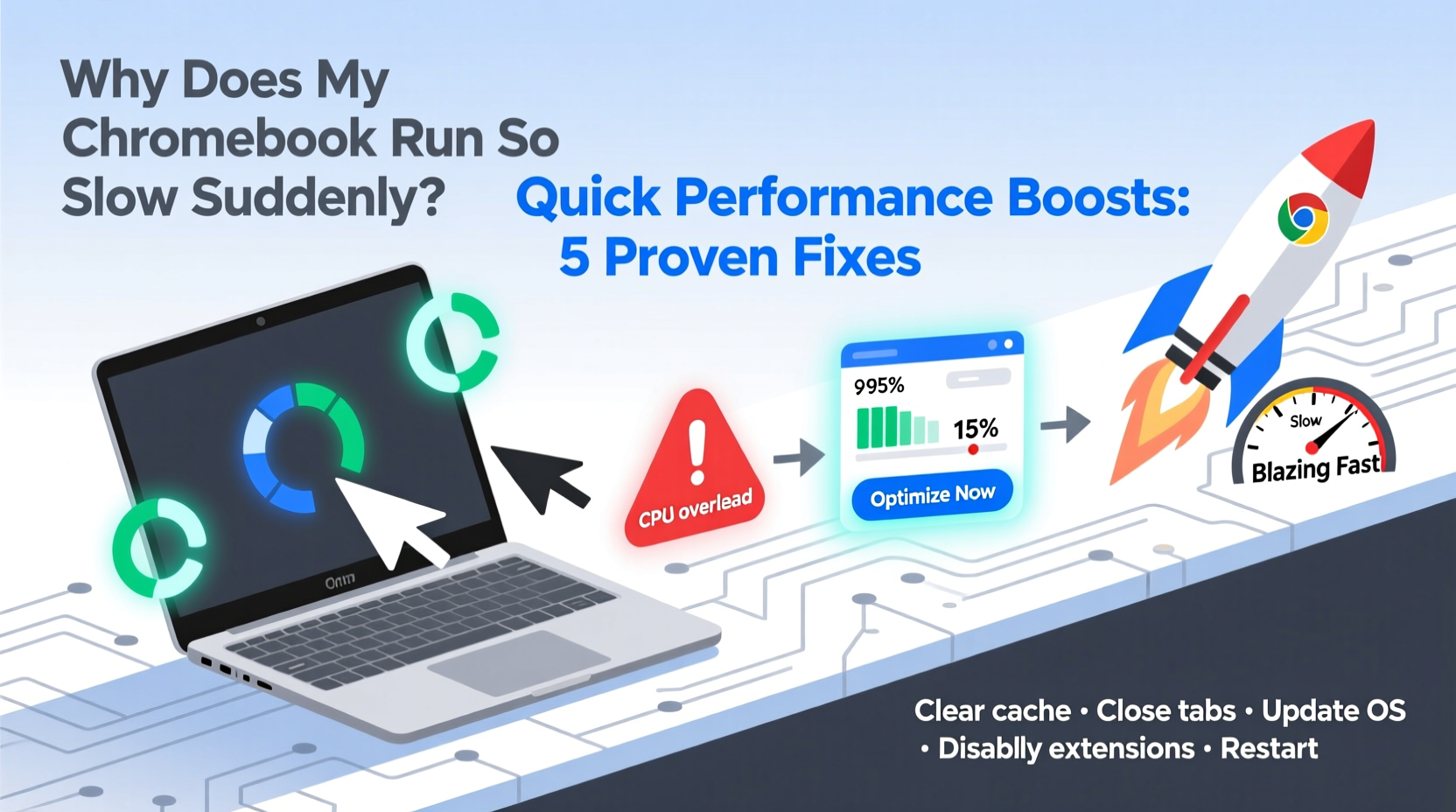
Chromebooks are built for speed, but several factors can disrupt their smooth operation. Understanding the root cause is half the battle. Here are the top culprits behind sudden performance drops:
- Too many open tabs and apps: Each tab consumes memory. Over time, especially with media-rich sites, this adds up and overwhelms limited RAM.
- Background apps and extensions: Some extensions run constantly, using CPU and network resources even when you’re not actively using them.
- Near-full storage: Chrome OS performs poorly when internal storage is above 80% capacity. Even if you use cloud storage, local cache and system files need breathing room.
- Outdated Chrome OS: Updates often include performance patches and security fixes. Delaying updates can lead to instability.
- Malware or suspicious extensions: While rare, malicious extensions can hijack browser processes, causing high CPU usage.
- Hardware limitations: Older or entry-level models may struggle with modern web demands, especially video conferencing or multitasking.
Quick Performance Boosts You Can Do Right Now
You don’t need technical expertise to revive your Chromebook. These immediate actions can yield noticeable improvements within minutes.
1. Restart Your Chromebook
The simplest fix is often the most effective. Restarting clears temporary files, resets memory usage, and stops runaway processes. It’s equivalent to giving your device a fresh start. If you’ve had your Chromebook on for days, this alone can resolve sluggishness.
2. Close Unnecessary Tabs and Apps
Each open tab uses RAM. Ten tabs might seem harmless, but if they include YouTube, Google Docs, and social media, they can collectively consume over 2GB of memory. Close tabs you aren’t actively using. Use bookmarks instead of keeping tabs open “just in case.”
3. Check Task Manager for Resource Hogs
Press Shift + Esc to open Chrome’s Task Manager. Sort by “Memory” or “CPU” to see which tabs or extensions are consuming the most resources. End processes that are using excessive memory without reason.
4. Disable or Remove Unused Extensions
Go to chrome://extensions. Disable any extensions you don’t use daily. Pay special attention to ad blockers, grammar tools, or shopping assistants—they often run in the background. Remove anything suspicious or outdated.
5. Clear Browsing Data
Over time, cached images, cookies, and site data accumulate. To clear them: go to Settings > Privacy and Security > Clear Browsing Data. Select “All time” and check boxes for cookies, cached images, and browsing history. This can free up hundreds of MB and improve responsiveness.
6. Turn Off Startup Apps
Some apps launch automatically when you sign in, slowing boot time. Go to Settings > Apps > Google Play Store (if enabled) > Manage Android preferences > Startup, or disable auto-launching web apps in Settings under “On startup.”
Step-by-Step Guide: Deep System Optimization
For persistent slowdowns, a deeper cleanup is necessary. Follow this sequence to reset and optimize your Chromebook comprehensively.
- Check Storage Usage: Click the system tray (bottom right), then the gear icon. Under “Storage management,” review how much space is used. If over 80%, proceed to clean up.
- Delete Local Files: Open the Files app and remove downloaded documents, old screenshots, offline videos, or duplicate photos. Move essential files to Google Drive.
- Manage Android and Linux Apps (if used): These can take up significant space and run background services. Uninstall any unused Android or Linux applications.
- Powerwash as a Last Resort: If performance remains poor, consider a Powerwash (factory reset). Go to Settings > Advanced > Reset settings > Powerwash > Restart. Note: This erases all local data, so back up first. After resetting, only reinstall essential apps and extensions.
- Update Chrome OS: Ensure you’re on the latest version. Go to Settings > About ChromeOS > Check for updates. Install any pending updates immediately.
Do’s and Don’ts: Best Practices for Chromebook Speed
| Do | Don't |
|---|---|
| Restart your Chromebook weekly | Leave dozens of tabs open indefinitely |
| Use Google Drive for file storage | Store large video or photo files locally |
| Keep Chrome OS updated | Ignore update notifications for weeks |
| Install only trusted, necessary extensions | Add every extension that seems useful |
| Clear browsing data monthly | Assume incognito mode cleans everything permanently |
“Performance issues on Chromebooks are rarely about hardware. Most slowdowns stem from software clutter, outdated systems, or misconfigured settings. A disciplined digital hygiene routine makes all the difference.” — David Lin, Chrome OS Systems Analyst at EduTech Labs
Real-World Example: Reviving a Lagging Classroom Chromebook
Ms. Rivera, a middle school teacher, noticed her classroom Chromebooks—once snappy during virtual lessons—had become painfully slow. Students complained about frozen Google Meet sessions and delayed responses in Google Classroom. She initially assumed the devices were too old to keep up.
Instead of replacing them, she performed a systematic check. First, she discovered that each device had over 50 tabs open across student profiles, along with multiple unapproved extensions like game enhancers and music downloaders. Storage was at 92% capacity due to cached videos and saved worksheets.
She led students through a cleanup: closing tabs, removing unnecessary extensions, clearing browsing data, and moving files to Google Drive. She also scheduled weekly restarts and disabled auto-launching apps. Within two days, response times improved dramatically. Google Meet no longer froze, and assignment loading became near-instant.
The Chromebooks didn’t need upgrades—they needed maintenance. This small intervention saved her school thousands in premature replacements.
Frequently Asked Questions
Can malware really slow down a Chromebook?
True viruses are rare on Chrome OS due to its sandboxed architecture. However, malicious browser extensions can act like malware—slowing performance, redirecting searches, or mining data. Always install extensions from the official Chrome Web Store and review permissions carefully.
Is it safe to Powerwash my Chromebook?
Yes, Powerwashing is safe and often recommended for resolving deep-seated performance issues. Since Chromebooks sync most data to your Google account, your files, settings, and apps will return after signing back in—provided you’re logged into your account and have backups enabled. Just ensure any locally stored downloads are moved to Drive first.
Why does my Chromebook slow down when charging?
This isn’t typical behavior. If your device slows while charging, it could indicate thermal throttling—a safety feature that reduces performance when the device overheats. Avoid using your Chromebook on soft surfaces like beds or couches, which block ventilation. Also, check for dust buildup around the keyboard or vents. Letting the device cool down usually resolves the issue.
Conclusion: Take Control of Your Chromebook’s Performance
A slow Chromebook doesn’t mean it’s time for a replacement. In most cases, the issue is temporary and fixable with a few strategic adjustments. Whether it’s too many tabs, outdated software, or cluttered storage, the solutions are within reach. By applying regular maintenance—clearing cache, managing extensions, restarting weekly, and monitoring storage—you can keep your Chromebook running like new for years.
Performance isn’t just about hardware—it’s about habits. Small, consistent actions prevent big problems down the line. Your Chromebook was built for simplicity and speed. Help it live up to that promise.




 浙公网安备
33010002000092号
浙公网安备
33010002000092号 浙B2-20120091-4
Comments
No comments yet. Why don't you start the discussion?