
It’s a familiar scenario: you click on the Chrome icon, and within seconds, your laptop or desktop sounds like a jet engine powering up. The sudden roar of the cooling fan isn’t just annoying—it can be concerning. While some background noise from fans is normal during heavy workloads, excessive sound specifically triggered by opening Google Chrome suggests an underlying issue worth addressing.
Chrome is one of the most widely used web browsers globally, praised for its speed, compatibility, and integration with Google services. However, it's also notorious for being resource-intensive. When Chrome demands more processing power than your system can comfortably deliver, your CPU heats up. In response, your computer ramps up the fan speed to prevent overheating. But why does this happen so consistently with Chrome? And more importantly, what can you do about it?
Why Chrome Triggers High Fan Activity
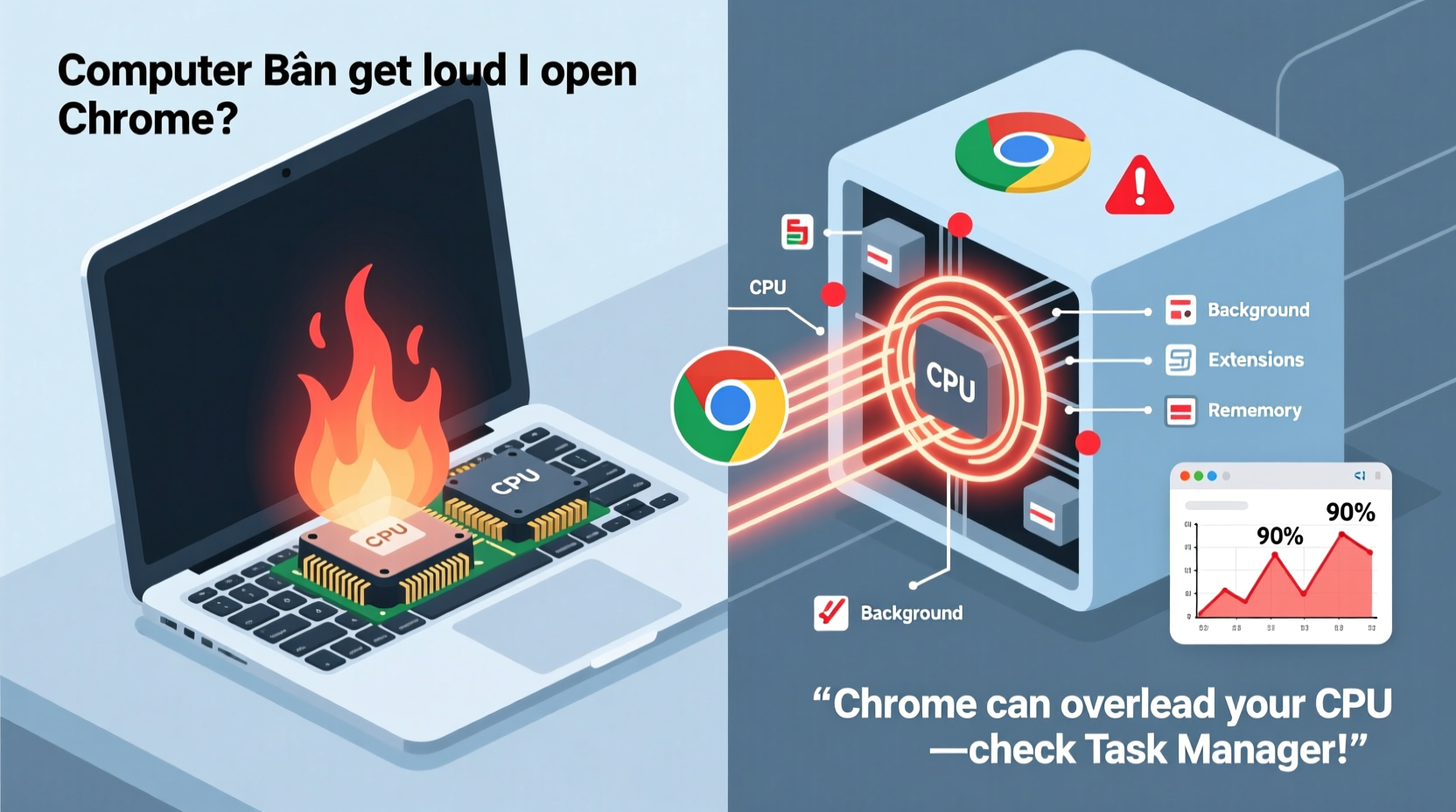
Google Chrome operates on a multi-process architecture. Unlike older browsers that ran all tabs in a single process, Chrome assigns each tab, extension, and plugin its own separate process. This design improves stability—crashing one tab doesn’t bring down the whole browser—but it comes at a cost: significantly higher memory (RAM) and CPU usage.
Every new tab or background service increases the load on your processor. If your system has limited RAM or an older CPU, even moderate browsing can push utilization into the 70–90% range. As the CPU works harder, it generates heat. Your thermal management system detects this rise in temperature and automatically increases fan speed to dissipate excess heat.
Additionally, modern websites are far more complex than they used to be. They often include high-resolution media, auto-playing videos, animated ads, and JavaScript-heavy scripts—all of which require substantial computing resources. Chrome renders these elements efficiently but aggressively, leading to spikes in CPU activity shortly after launch.
Common Culprits Behind Chrome-Induced Overheating
While Chrome’s architecture plays a role, several user-specific factors can worsen the problem. Identifying these contributors is key to reducing strain on your system.
- Too many open tabs: Each tab runs as a separate process. Ten open tabs mean ten active processes competing for CPU cycles.
- Resource-heavy extensions: Ad blockers, password managers, grammar checkers, and cryptocurrency wallets run continuously in the background.
- Auto-playing media: Videos and audio that start without user input increase both CPU and GPU load.
- Outdated software: Older versions of Chrome or missing OS updates may lack performance optimizations.
- Dusty hardware: Accumulated dust inside vents and fans reduces cooling efficiency, forcing fans to spin faster to achieve the same effect.
- Background apps: Other programs running simultaneously—especially streaming tools, cloud sync services, or antivirus scans—compound system load.
“Modern browsers like Chrome are essentially operating systems themselves—they run applications, manage memory, and handle multimedia. That level of complexity inherently demands more from hardware.” — Dr. Alan Reeves, Systems Performance Analyst at TechInsight Labs
Step-by-Step Guide to Reduce Chrome-Related Fan Noise
Follow this structured approach to diagnose and mitigate excessive fan noise caused by Chrome:
- Open Task Manager (Windows) or Activity Monitor (Mac): Press Ctrl+Shift+Esc on Windows or navigate to Applications → Utilities → Activity Monitor on Mac. Observe CPU and memory usage when Chrome is running.
- Identify high-usage tabs and extensions: In Chrome, go to
chrome://settings/performanceor press Shift + Esc to open Chrome’s built-in Task Manager. Sort by CPU or Memory to see which tabs or extensions are consuming the most resources. - Disable or remove unnecessary extensions: Navigate to
chrome://extensions. Remove any extensions you don’t actively use. Consider replacing heavy ones with lighter alternatives. - Limit background app activity: Go to
chrome://settings/privacyand disable “Continue running background apps when Chrome is closed.” Also, restrict site permissions for camera, microphone, and location unless needed. - Enable hardware acceleration (or disable if unstable): Found under
chrome://settings/system, this setting offloads graphics rendering to your GPU. If enabled and causing instability, try disabling it to reduce thermal load. - Clear cache and browsing data: Large caches can slow down performance. Clear them via
chrome://settings/clearBrowserDatausing default settings or customize as needed. - Update Chrome and your operating system: Ensure you're running the latest version of Chrome (
chrome://help) and that your OS is fully patched. - Restart your computer regularly: This clears accumulated memory leaks and resets thermal thresholds, giving your system a fresh start.
Do’s and Don’ts: Managing Chrome Performance
| Do’s | Don’ts |
|---|---|
| Use Chrome’s built-in performance monitor to track tab usage | Keep 20+ tabs open across multiple windows |
| Install only essential extensions from trusted sources | Allow every website to run scripts and show notifications |
| Set up tab suspension tools like The Great Suspender (revived) | Run Chrome alongside video editing or gaming software on low-end hardware |
| Clean internal fans annually or use compressed air to remove dust | Place laptops on soft surfaces like beds or couches that block airflow |
| Switch to a lighter browser for everyday tasks (e.g., Firefox, Edge) | Ignore persistent overheating—it could lead to long-term hardware damage |
Real-World Example: Sarah’s Overheating Laptop
Sarah, a freelance writer, noticed her aging MacBook Pro began making loud whirring noises every time she opened Chrome. She typically had 15–20 tabs open—research articles, email, social media, and music streaming sites. Her initial assumption was that the laptop was failing, so she considered buying a replacement.
Instead, she decided to investigate. Using Activity Monitor, she discovered Chrome was using over 3.2 GB of RAM and spiking the CPU to 92%. She reviewed her extensions and removed five she no longer used, including a redundant grammar checker and a crypto wallet popup. She then installed OneTab, a tool that suspends inactive tabs, reducing their memory footprint.
She also adjusted Chrome settings to block autoplaying videos and disabled background app refresh. After restarting, Chrome launched smoothly, and fan noise dropped dramatically. CPU usage stabilized around 45%, even with ten tabs open. A simple cleaning of the laptop’s vents with compressed air further improved airflow.
Sarah extended her laptop’s usable life by over two years—all without upgrading hardware.
When Hardware Limitations Are the Root Cause
Sometimes, no amount of software optimization will solve the problem—your hardware simply isn’t equipped to handle modern browsing demands. Computers manufactured before 2018, especially those with dual-core processors, less than 8GB of RAM, or integrated graphics, struggle with today’s web standards.
In such cases, consider these options:
- Upgrade RAM: Increasing from 4GB to 8GB or 16GB can dramatically improve multitasking performance.
- Replace HDD with SSD: Even if the CPU remains unchanged, an SSD reduces boot times and application loading delays, lowering overall system stress.
- Use alternative browsers: Microsoft Edge (Chromium-based) includes efficiency modes that limit background activity. Brave Browser blocks ads and trackers by default, reducing page load complexity.
- Enable battery saver or performance modes: On Windows, set power mode to “Best Performance” only when necessary; otherwise, use “Balanced” to throttle CPU usage and reduce heat output.
Preventive Maintenance Checklist
To keep Chrome from triggering loud fan noise in the future, follow this monthly maintenance checklist:
- ✅ Audit and remove unused Chrome extensions
- ✅ Clear browsing data (cache, cookies, history)
- ✅ Check for Chrome and OS updates
- ✅ Review open tabs and consolidate or close unnecessary ones
- ✅ Run a quick virus scan to rule out malware using hidden resources
- ✅ Physically inspect device vents for dust buildup
- ✅ Test fan operation: listen for grinding or inconsistent speeds
- ✅ Evaluate whether switching browsers would benefit your workflow
Frequently Asked Questions
Is it bad if my computer fan runs loudly every time I open Chrome?
Occasional fan spikes are normal, but consistent loud noise indicates your system is under sustained stress. Prolonged overheating can degrade internal components over time, particularly the CPU and battery. It’s best to address the root cause rather than ignore it.
Can malware make Chrome use more resources?
Yes. Some malicious software disguises itself as legitimate Chrome extensions or injects scripts into web pages to mine cryptocurrency or collect data. These processes run silently in the background, increasing CPU usage and heat output. Always download extensions from the official Chrome Web Store and review permissions carefully.
Will closing Chrome completely stop the fan from running?
Not immediately. Even after closing Chrome, residual heat may keep the fan spinning until temperatures drop to safe levels. However, ending the Chrome process through Task Manager stops ongoing CPU usage, allowing the system to cool down faster.
Taking Control of Your Browsing Experience
The relationship between Chrome and your computer’s fan isn’t arbitrary—it’s a direct response to how much demand you’re placing on your system. While Chrome offers unparalleled convenience and compatibility, it expects a certain level of hardware capability in return. By understanding what drives its resource consumption, you gain the power to optimize your setup without sacrificing productivity.
Whether it’s pruning extensions, managing tabs more effectively, upgrading hardware, or switching to a leaner browser for routine tasks, small changes yield significant improvements. You don’t need the latest machine to browse comfortably—you just need smarter habits and regular maintenance.




 浙公网安备
33010002000092号
浙公网安备
33010002000092号 浙B2-20120091-4
Comments
No comments yet. Why don't you start the discussion?