
Computer freezing is one of the most frustrating tech issues users face. Whether you're working on an important document, editing photos, or simply browsing the web, a sudden freeze can disrupt productivity and damage files. While occasional lag might be normal, frequent freezing signals underlying problems that need attention. Understanding the root causes—ranging from hardware limitations to software conflicts—is essential for restoring stability. This guide breaks down the most common reasons behind system freezes and provides actionable solutions to get your computer running smoothly again.
Common Causes of Computer Freezing
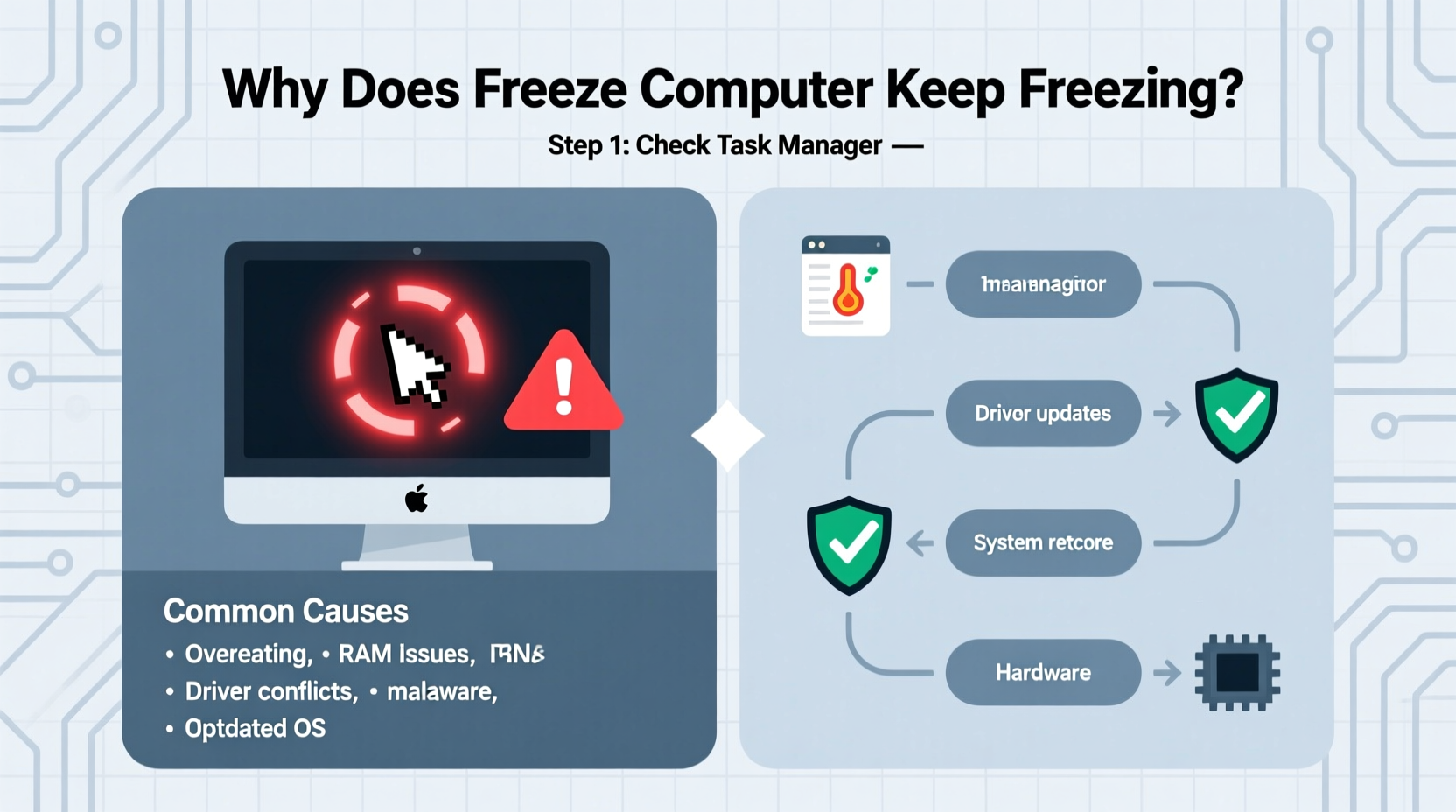
Before attempting fixes, it's crucial to identify what might be triggering the issue. Freezing rarely has a single cause; instead, it’s often the result of overlapping factors. Below are the primary culprits:
- Insufficient RAM: When your system runs out of memory, it struggles to manage open applications, leading to slowdowns and freezes.
- Overheating: Excessive heat can force the CPU or GPU to throttle performance or shut down temporarily to prevent damage.
- Failing Hard Drive: A corrupted or aging storage drive may cause read/write errors, resulting in system lockups.
- Outdated or Corrupted Drivers: Graphics, chipset, and network drivers that aren’t updated or are damaged can destabilize the OS.
- Malware Infections: Malicious software can consume system resources or interfere with critical processes.
- Software Conflicts: Incompatible programs, especially background utilities, can clash and cause unresponsiveness.
- Power Supply Issues: An unstable or underpowered PSU may fail to deliver consistent energy to components.
Step-by-Step Troubleshooting Guide
Follow this structured approach to diagnose and resolve freezing issues methodically. Start with simple checks before moving to more complex interventions.
- Check for Overheating: Use tools like HWMonitor or Core Temp to monitor CPU and GPU temperatures. Sustained temps above 85°C indicate cooling problems. Clean dust from fans and vents, and consider repasting the CPU if necessary.
- Run a Memory Test: Windows includes Windows Memory Diagnostic. Type “Windows Memory Diagnostic” in the search bar and run the tool. It will check for RAM errors on the next reboot.
- Scan for Malware: Use Windows Defender or a trusted third-party antivirus to perform a full system scan. Remove any detected threats immediately.
- Update Drivers: Visit your motherboard and GPU manufacturer websites to download the latest drivers. Avoid using third-party driver updaters, which may install incompatible versions.
- Check Disk Health: Open Command Prompt as administrator and run
chkdsk /f /r. This scans for file system errors and bad sectors. For SSDs, use manufacturer tools like Samsung Magician or Crucial Storage Executive. - Disable Startup Programs: Press Ctrl+Shift+Esc to open Task Manager, go to the Startup tab, and disable non-essential apps. This reduces boot-time load and prevents background conflicts.
- Perform a Clean Boot: Use MSConfig to disable all non-Microsoft services. If the system stops freezing, re-enable services one by one to isolate the culprit.
Do’s and Don’ts When Dealing with Freezes
| Do’s | Don’ts |
|---|---|
| Regularly update your operating system and drivers | Ignore recurring freeze warnings—early action prevents escalation |
| Keep your computer clean and well-ventilated | Overclock components without proper cooling |
| Back up data frequently | Force-shutdown repeatedly—this can corrupt the OS or files |
| Use reliable power sources and surge protectors | Install software from untrusted sources |
Real-World Example: Resolving Persistent Freezing in a Work Laptop
A freelance graphic designer using a three-year-old laptop noticed increasing freezes during Adobe Photoshop sessions. Initially assuming it was software-related, she reinstalled the application twice with no improvement. After monitoring system performance, she discovered CPU temperatures spiking to 95°C during use. Upon inspection, the cooling fan was clogged with dust, and thermal paste had degraded. She cleaned the internals, replaced the thermal paste, and upgraded her RAM from 8GB to 16GB. The freezes stopped entirely, and system responsiveness improved significantly. This case highlights how multiple factors—thermal management and memory capacity—can combine to create instability.
“Many freezing issues stem not from a single failing part but from cumulative stress on aging systems. Proactive maintenance is far more effective than reactive repairs.” — Dr. Alan Reyes, Hardware Systems Engineer
Troubleshooting Checklist
Use this checklist to systematically address potential freezing causes:
- ✅ Monitor system temperature under load
- ✅ Run a full malware scan
- ✅ Update BIOS, chipset, and graphics drivers
- ✅ Test RAM using built-in diagnostic tools
- ✅ Check hard drive/SSD health with SMART tools
- ✅ Disable unnecessary startup programs
- ✅ Perform a clean boot to isolate software conflicts
- ✅ Ensure adequate free space on the system drive (at least 15–20%)
- ✅ Verify power settings aren’t causing throttling (set to High Performance if needed)
- ✅ Consider upgrading hardware (RAM, SSD, cooling) if the system is outdated
Frequently Asked Questions
Why does my computer freeze only when I’m online?
This often points to browser-related issues, such as too many tabs, extensions consuming memory, or background downloads. It could also indicate network driver problems or malware using your connection. Try using a different browser or resetting network settings via Command Prompt (netsh winsock reset).
Can a full hard drive cause freezing?
Yes. When a drive is nearly full, the system has limited space for virtual memory (pagefile) and temporary files. This forces the OS to work inefficiently, leading to slowdowns and freezes. Aim to keep at least 15–20% of your drive free for optimal performance.
Is it safe to keep using a freezing computer?
Continued use increases the risk of data loss, file corruption, and permanent hardware damage—especially if overheating is involved. Address the issue promptly. If critical work is ongoing, back up your data immediately and limit usage until resolved.
Prevention and Long-Term Stability
Once the immediate freezing issue is resolved, focus on prevention. Schedule monthly maintenance: clean dust from vents, verify driver updates, and run disk cleanup. Use lightweight antivirus software to avoid performance drag. For older machines, consider migrating to an SSD—even with the same CPU and RAM, the speed boost can dramatically improve responsiveness and reduce freeze incidents. Additionally, avoid running too many resource-heavy applications simultaneously, especially on systems with less than 16GB of RAM.
Users should also pay attention to early warning signs: longer boot times, frequent application crashes, or unusual fan noise. These often precede full system freezes and provide a window for intervention before failure occurs.
Final Thoughts
Computer freezing is a solvable problem, not an inevitable fate. By understanding the technical causes and applying systematic troubleshooting, most users can restore stability without costly repairs. The key is consistency—regular maintenance, smart usage habits, and timely upgrades extend a computer’s lifespan and reliability. Don’t wait for total failure. Take action today to diagnose, fix, and prevent freezes before they disrupt your workflow.




 浙公网安备
33010002000092号
浙公网安备
33010002000092号 浙B2-20120091-4
Comments
No comments yet. Why don't you start the discussion?