
There’s nothing more frustrating than pressing the power button and waiting—sometimes for minutes—before your desktop finally appears. A slow-booting computer disrupts productivity, delays work, and tests patience. While some delay is normal, especially on older hardware, excessive boot times are usually a sign of underlying issues that can be fixed. The good news? Most causes of slow boot-ups are preventable or correctable with the right knowledge and tools.
Modern operating systems like Windows 10 and 11, macOS, and even Linux distributions are designed for efficiency, but over time, system clutter, background processes, outdated drivers, and hardware limitations degrade performance. Understanding what happens during startup—and what might be slowing it down—is the first step toward reclaiming those lost seconds (or minutes).
What Happens During Computer Boot-Up?
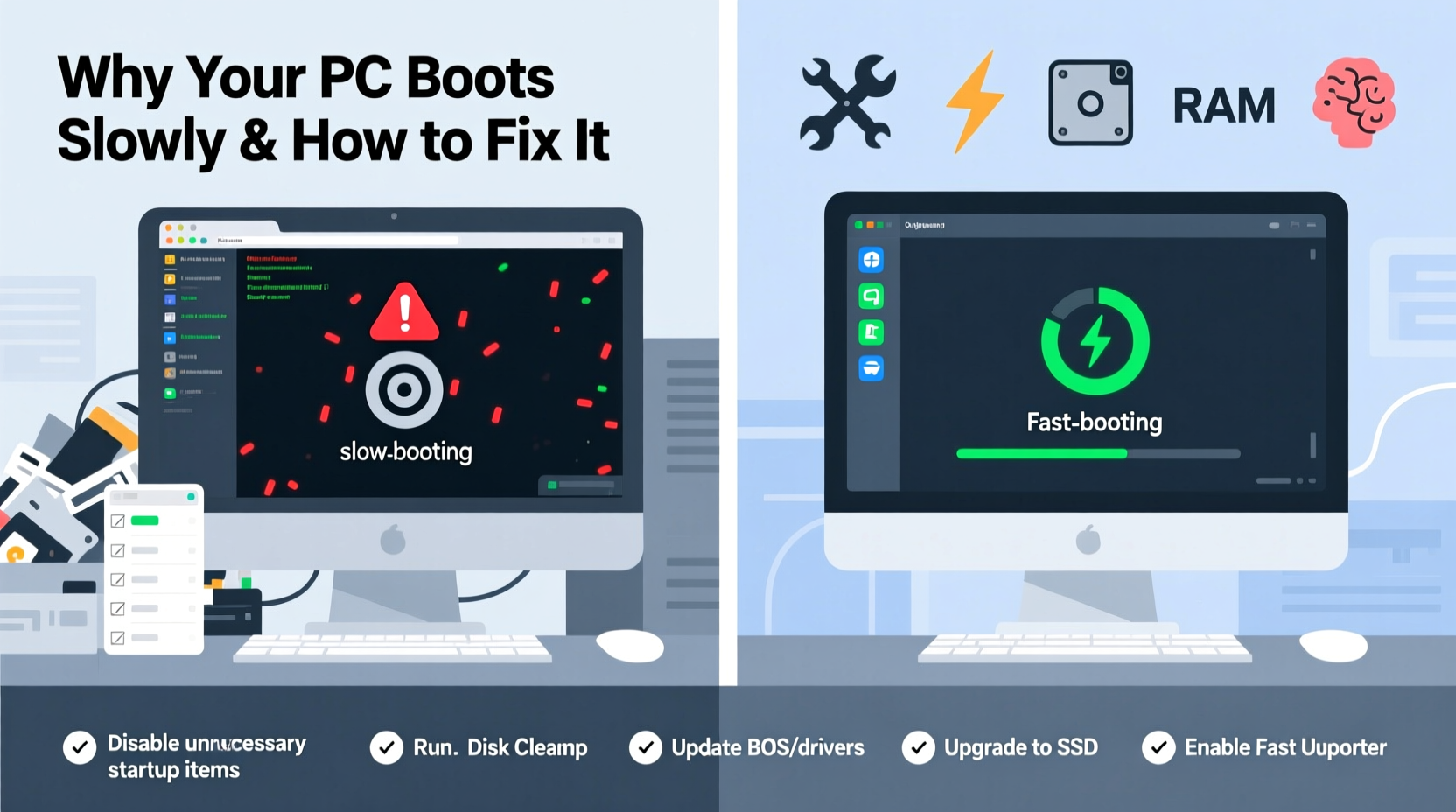
When you turn on your computer, a complex sequence of events unfolds behind the scenes. This process, known as the boot sequence, includes several key stages:
- Power-On Self-Test (POST): The BIOS or UEFI firmware checks critical hardware components like RAM, CPU, and storage devices to ensure they’re functioning properly.
- Bootloader Activation: The system locates the bootloader (e.g., GRUB for Linux, Windows Boot Manager), which then loads the operating system kernel into memory.
- Kernel Initialization: The OS kernel starts core services and drivers needed for basic functionality.
- User Session Load: Once the system is stable, user-specific settings, login screens, and startup applications launch.
Each phase must complete before the next begins. Delays in any one stage can cascade into significantly longer boot times. For example, a failing hard drive may cause the POST to hang, while too many startup programs can bog down the final phase.
Common Causes of Slow Boot Times
Several factors contribute to sluggish boot performance. Some are software-related, others stem from hardware limitations or misconfigurations. Identifying the root cause is essential for effective troubleshooting.
- Too Many Startup Programs: Applications set to launch automatically at startup compete for CPU and disk resources, delaying full system readiness.
- Fragmented or Full Hard Drive (HDD): Traditional spinning hard drives suffer performance degradation when nearly full or heavily fragmented.
- Aging Hardware: Older processors, insufficient RAM, or worn-out storage devices naturally perform slower than modern equivalents.
- Outdated or Corrupted Drivers: Faulty drivers, especially for storage or chipset components, can cause bottlenecks during initialization.
- Malware Infections: Malicious software often runs background processes that activate at boot, consuming system resources.
- Operating System Bloat: Over time, updates, temporary files, and unused software accumulate, increasing the load on the system.
- Scheduled Maintenance Tasks: Windows Update, disk cleanup, or antivirus scans sometimes trigger during boot, adding unexpected delays.
“Every unnecessary startup program adds milliseconds—or seconds—to boot time. On older systems, the cumulative effect can stretch startup duration past two minutes.” — David Lin, Senior Systems Engineer at TechFlow Solutions
Step-by-Step Guide to Speed Up Your Boot Time
Improving boot performance doesn’t require advanced technical skills. Follow this structured approach to diagnose and resolve the most common issues.
Step 1: Audit and Disable Unnecessary Startup Programs
Startup apps are among the top culprits of slow boots. Disabling non-essential ones can dramatically reduce load time.
On Windows:
- Press Ctrl + Shift + Esc to open Task Manager.
- Navigate to the “Startup” tab.
- Review each item’s “Startup impact” (High, Medium, Low).
- Right-click high-impact entries you don’t need (e.g., cloud sync tools, updaters) and select “Disable.”
On macOS:
- Click the Apple menu and go to “System Settings” (or “System Preferences”).
- Select “General” > “Login Items.”
- Toggle off apps you don’t want launching at startup.
Step 2: Upgrade to an SSD (If Still Using HDD)
If your computer uses a traditional hard disk drive (HDD), upgrading to a solid-state drive (SSD) is the single most impactful upgrade for boot speed. SSDs have no moving parts, offer faster read/write speeds, and drastically reduce data access latency.
Many users report cutting boot times from 2–3 minutes down to under 15 seconds after switching to an SSD.
Step 3: Clean Up Disk Space and Remove Bloatware
A nearly full drive slows down both boot and general performance. Free up space by removing unused programs, clearing temporary files, and deleting large media files you no longer need.
Use these tools:
- Windows: Disk Cleanup, Storage Sense, or third-party tools like CCleaner.
- macOS: Optimize Storage (in Apple Menu > About This Mac > Storage).
Step 4: Run a Malware Scan
Malware can inject itself into startup routines, silently consuming resources. Perform a full system scan using trusted antivirus software such as Windows Defender, Malwarebytes, or Bitdefender.
Step 5: Update Drivers and Operating System
Ensure your system is running the latest OS patches and drivers. Outdated firmware or storage drivers can create inefficiencies during boot.
Check for updates via:
- Windows: Settings > Update & Security > Windows Update.
- macOS: System Settings > Software Update.
Step 6: Adjust Power Settings (Windows)
Fast Startup, a Windows feature, can help—but it may not always work optimally. To enable or reset it:
- Go to Control Panel > Hardware and Sound > Power Options.
- Click “Choose what the power buttons do.”
- Select “Change settings that are currently unavailable.”
- Check “Turn on fast startup” and save changes.
Hardware vs. Software: What Matters Most?
While software tweaks can yield noticeable improvements, hardware remains the foundation of performance. Below is a comparison of typical boot times based on storage type and RAM configuration.
| Storage Type | RAM | Avg. Boot Time (Cold Start) | Recommended Action |
|---|---|---|---|
| HDD (7200 RPM) | 4 GB | 2–3 minutes | Upgrade to SSD + add RAM |
| HDD (7200 RPM) | 8 GB | 1.5–2 minutes | Upgrade to SSD |
| SSD (SATA) | 8 GB | 20–30 seconds | Optimize startup apps |
| SSD (NVMe) | 16 GB | 10–15 seconds | Maintain regularly |
This table illustrates that while RAM helps, the biggest leap comes from switching from HDD to SSD. Even a modest system with 8 GB RAM and an NVMe SSD will outperform a high-RAM machine with a mechanical drive.
Real-World Example: Reviving a Sluggish Office PC
Consider Sarah, a freelance graphic designer using a five-year-old laptop running Windows 10. Her boot time had grown from 45 seconds to over three minutes. She couldn’t start work immediately after powering up, disrupting her morning workflow.
After diagnosing the issue, she discovered:
- Her hard drive was 95% full.
- 23 startup programs were enabled, including Adobe Creative Cloud, Dropbox, Spotify, and multiple updaters.
- The system was using a 500 GB HDD.
Sarah took the following steps:
- Upgraded to a 500 GB SATA SSD ($60).
- Cleaned up old project files and uninstalled unused software.
- Disabled all non-essential startup programs.
- Updated her graphics and chipset drivers.
Result: Her boot time dropped to 18 seconds. She regained over an hour per week in saved waiting time across daily reboots.
Preventive Checklist for Long-Term Performance
To keep your computer booting quickly over time, follow this monthly maintenance checklist:
- ✅ Review and disable unnecessary startup programs.
- ✅ Delete temporary files and clear browser caches.
- ✅ Run a full malware scan.
- ✅ Check available disk space; aim to keep at least 15–20% free.
- ✅ Ensure OS and drivers are up to date.
- ✅ Restart your computer at least once a week to clear memory leaks.
- ✅ Back up critical data to avoid last-minute file hunts during slowdowns.
Frequently Asked Questions
Is it normal for a computer to take over a minute to boot?
No, it is not normal for modern systems. If your computer consistently takes more than 30–40 seconds to boot (with an HDD) or more than 15 seconds (with an SSD), there is likely an issue with startup programs, storage health, or system bloat.
Can too much RAM slow down boot time?
No—more RAM does not slow boot time. In fact, sufficient RAM allows the system to load more data into memory during startup, improving performance. However, improperly seated or faulty RAM modules can cause boot failures or prolonged POST checks.
Does disabling startup programs affect app functionality?
Disabling a program from startup only prevents it from launching automatically. You can still open the app manually when needed. For example, disabling Discord at startup won’t stop you from using it—you’ll just need to open it yourself after logging in.
Conclusion: Take Control of Your Boot Experience
A slow-booting computer isn’t something you have to live with. Whether the cause is bloated software, outdated hardware, or unnoticed malware, every factor can be addressed with deliberate action. By auditing startup programs, upgrading to an SSD, cleaning up disk space, and maintaining your system regularly, you can transform a frustrating multi-minute wait into a near-instantaneous startup.
Don’t let boot delays eat into your productive time. Implement these strategies today—start with a simple review of your startup apps, then consider a hardware upgrade if needed. Small changes now can lead to years of smoother, faster computing.




 浙公网安备
33010002000092号
浙公网安备
33010002000092号 浙B2-20120091-4
Comments
No comments yet. Why don't you start the discussion?