
If you've ever been in the middle of writing an email, filling out a form, or editing a document only to have your cursor suddenly leap to another part of the screen—erasing text or inserting characters in the wrong place—you're not alone. This frustrating issue affects countless laptop users, especially those relying on built-in touchpads. The erratic jumping doesn't just disrupt workflow; it can damage files, cause data loss, and lead to serious irritation. While it might seem like a minor glitch, uncontrolled cursor movement is often a sign of deeper hardware, software, or user behavior issues. Understanding why this happens—and knowing how to fix it—is essential for anyone who depends on their computer for productivity.
Understanding the Root Causes
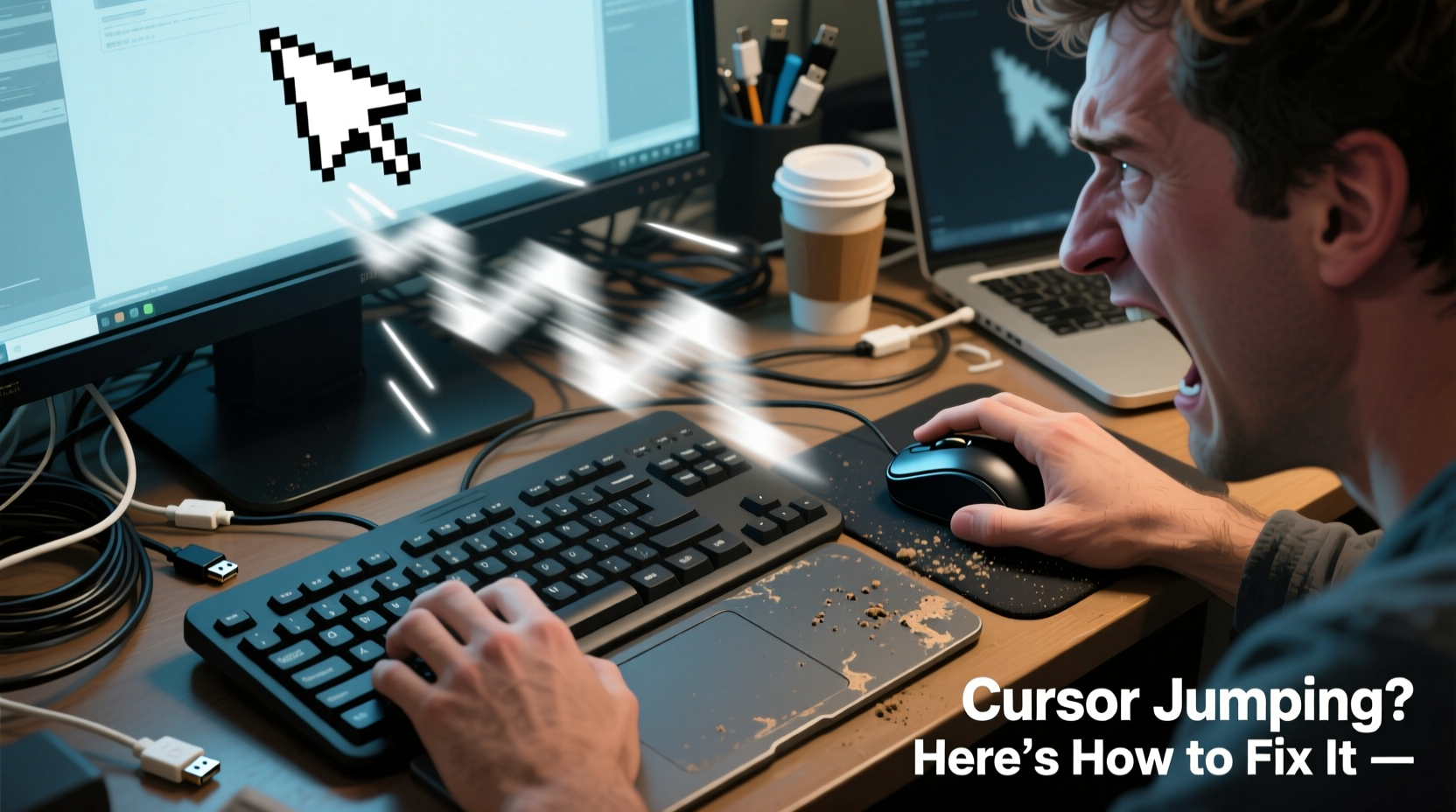
The phenomenon of a jumping cursor during typing is most commonly linked to accidental palm contact with the touchpad. On most laptops, the touchpad sits just below the keyboard, making it highly susceptible to interference from the palms or wrists of the user. Even slight brushes—especially when typing quickly—can register as input, causing the cursor to reposition unexpectedly. But palm contact isn’t the only culprit. Other factors include outdated or faulty drivers, overly sensitive touchpad settings, external mouse interference, electromagnetic noise, and even hardware defects.
Some users report that their cursor jumps even when they’re not touching the touchpad at all. In such cases, the problem may stem from driver corruption, firmware bugs, or conflicts between multiple pointing devices. For example, if you're using both a wireless mouse and a touchpad simultaneously, signal interference or miscommunication between drivers could trigger erratic behavior. Additionally, dust or moisture trapped under the touchpad surface can create phantom touches, particularly on older or heavily used machines.
Common Triggers and How They Work
To effectively resolve cursor jumping, it helps to identify which specific triggers apply to your situation. Below are the most frequent causes and how they manifest:
- Accidental palm contact: When typing, especially on compact keyboards, the base of the hand may graze the touchpad. Modern touchpads use capacitive sensing, meaning they detect any conductive object—including skin—even with minimal pressure.
- High touchpad sensitivity: Some laptops come with overly aggressive default sensitivity settings, interpreting minor touches as full gestures or taps.
- Outdated or corrupt drivers: Touchpad functionality relies on proper communication between hardware and operating system. If drivers are outdated, incompatible, or corrupted, input signals can be misinterpreted.
- Firmware bugs: Certain models of laptops, particularly from manufacturers like Dell, HP, and Lenovo, have had documented firmware issues affecting touchpad stability after OS updates.
- External device interference: Wireless mice, USB hubs, or Bluetooth devices emitting radio frequency noise near the laptop can occasionally disrupt touchpad sensors.
- Damaged or dirty hardware: Spills, debris, or physical wear can compromise the integrity of the touchpad surface or its internal circuitry.
“Over 70% of reported cursor-jumping cases we see are due to unintentional palm contact combined with poor touchpad configuration.” — David Lin, Senior Support Engineer at TechFix Solutions
Step-by-Step Guide to Fix Cursor Jumping
Resolving this issue usually requires a combination of hardware checks, software adjustments, and behavioral changes. Follow this structured approach to eliminate unwanted cursor movement:
- Enable Palm Check (Palm Rejection)
Most modern laptops support palm detection technology. To activate it:- Open Settings > Devices > Touchpad (Windows)
- Look for options labeled “Ignore accidental touch,” “Palm rejection,” or “Palm check sensitivity”
- Increase the sensitivity threshold so light touches won’t register
- Adjust Touchpad Sensitivity
Reduce responsiveness to prevent overreaction:- Navigate to Mouse Settings via Control Panel or Settings app
- Select your touchpad model (e.g., Synaptics, Elan, Precision Touchpad)
- Lower pointer speed and disable tap-to-click if not needed
- Disable Touchpad While Typing
This feature temporarily turns off the touchpad during keystrokes:- In Windows, go to Settings > Devices > Touchpad
- Turn on “Tap feedback” or “Delay disabling after typing”
- If the option isn’t available, install manufacturer-specific software (e.g., Dell Touchpad Utility, Lenovo Vantage)
- Update or Reinstall Drivers
Outdated drivers are a common source of erratic behavior:- Press Win + X, select Device Manager
- Expand “Mice and other pointing devices”
- Right-click your touchpad device and choose “Update driver”
- If updating fails, uninstall the driver and restart to reinstall automatically
- Check for Firmware Updates
Visit your laptop manufacturer’s support website:- Enter your model number
- Download and install the latest BIOS and embedded controller (EC) firmware
- Firmware updates often include touchpad stability improvements
- Test with External Mouse
Plug in a USB or wireless mouse and disable the touchpad:- If the problem stops, the issue is isolated to the touchpad
- Use the external mouse permanently or intermittently until resolved
Do’s and Don’ts: Best Practices Table
| Do’s | Don’ts |
|---|---|
| Enable “disable touchpad while typing” | Ignore repeated cursor jumps—they rarely fix themselves |
| Keep hands slightly elevated or angled away from touchpad | Use abrasive cleaners on the touchpad surface |
| Regularly update touchpad drivers and firmware | Assume the issue is purely software-related without testing hardware |
| Clean the touchpad with a dry microfiber cloth | Place magnetic phone holders or speakers near the touchpad |
| Try a keyboard shortcut to toggle touchpad on/off (e.g., Fn + F6) | Disassemble the touchpad unless qualified |
Real-World Example: A Writer’s Workflow Saved
Sophie, a freelance content writer based in Portland, began experiencing severe cursor jumping across her two-year-old HP laptop. During tight deadlines, she would lose entire paragraphs when the cursor jumped mid-sentence and deleted text. Initially assuming it was user error, she tried slowing down her typing—but the problem persisted. After researching online, she discovered the “palm rejection” setting was disabled by default. She updated her Synaptics driver through HP’s support portal and enabled “delay disabling after typing” with a 2-second threshold. Within minutes, the jumping stopped. Sophie now keeps her touchpad sensitivity low and uses a mechanical keyboard at home, reserving the laptop for mobile work. Her productivity improved dramatically once the distraction was eliminated.
When Hardware Might Be the Issue
If software fixes fail, consider hardware problems. Over time, touchpads can degrade due to liquid exposure, physical impact, or worn-out internal components. Signs of hardware failure include:
- Cursor moves without any touch
- Sticky or unresponsive areas on the pad
- Random clicking or dragging
- Visible cracks or discoloration on the surface
In such cases, professional repair may be necessary. Some users opt to replace the entire touchpad assembly—a task best left to certified technicians. Alternatively, disabling the built-in touchpad entirely and using an external mouse or USB-connected trackball provides a reliable workaround. For desktop users experiencing similar issues, check mouse sensor cleanliness and replace worn-out optical sensors.
FAQ: Common Questions About Cursor Jumping
Can a dirty touchpad cause cursor jumping?
Yes. Oils from skin, dust, or residue from cleaning products can interfere with capacitive sensors. Wipe the surface gently with a dry or slightly damp microfiber cloth. Avoid alcohol-based cleaners unless specified by the manufacturer.
Does Windows 11 make cursor jumping worse?
Not inherently, but some early builds of Windows 11 had compatibility issues with older touchpad drivers. Ensure your system is fully updated and that you’re using the latest version of your touchpad driver. Microsoft has addressed many of these bugs in recent cumulative updates.
Is there a way to completely disable the touchpad?
Absolutely. You can disable it via Device Manager, through OEM software (like Dell Touchpad or ASUS Smart Gesture), or using third-party tools such as Touchpad Blocker. Many laptops also allow toggling via keyboard shortcuts (e.g., Fn + F9).
Final Checklist: Eliminate Cursor Jumping for Good
- ✅ Enable \"disable touchpad while typing\"
- ✅ Update touchpad and chipset drivers
- ✅ Install latest BIOS/firmware from manufacturer
- ✅ Adjust palm rejection sensitivity
- ✅ Clean touchpad surface regularly
- ✅ Test with external mouse to isolate issue
- ✅ Use proper typing posture to avoid contact
- ✅ Disable touchpad if unused long-term
Conclusion: Take Control of Your Computing Experience
A jumping cursor isn’t just annoying—it undermines confidence in your equipment and slows down every digital task. The good news is that most cases are fixable with a few targeted adjustments. Whether it's tweaking a setting, updating a driver, or changing how you position your hands, small actions yield significant results. Don’t accept frustration as normal. Apply the steps outlined here, test each solution systematically, and reclaim smooth, predictable control over your cursor. Your fingers—and your focus—will thank you.




 浙公网安备
33010002000092号
浙公网安备
33010002000092号 浙B2-20120091-4
Comments
No comments yet. Why don't you start the discussion?