
A digital camera suddenly flashing “Memory Card Error” can be more than just frustrating—it can mean losing precious moments, from vacation photos to important events. This message typically appears when the camera cannot read, write to, or communicate properly with the memory card. While it may seem like a hardware failure, most cases stem from simple issues that are easy to diagnose and resolve. Understanding the root causes—from improper handling to compatibility problems—can save time, prevent data loss, and extend the life of both your camera and memory card.
Common Causes of Memory Card Errors
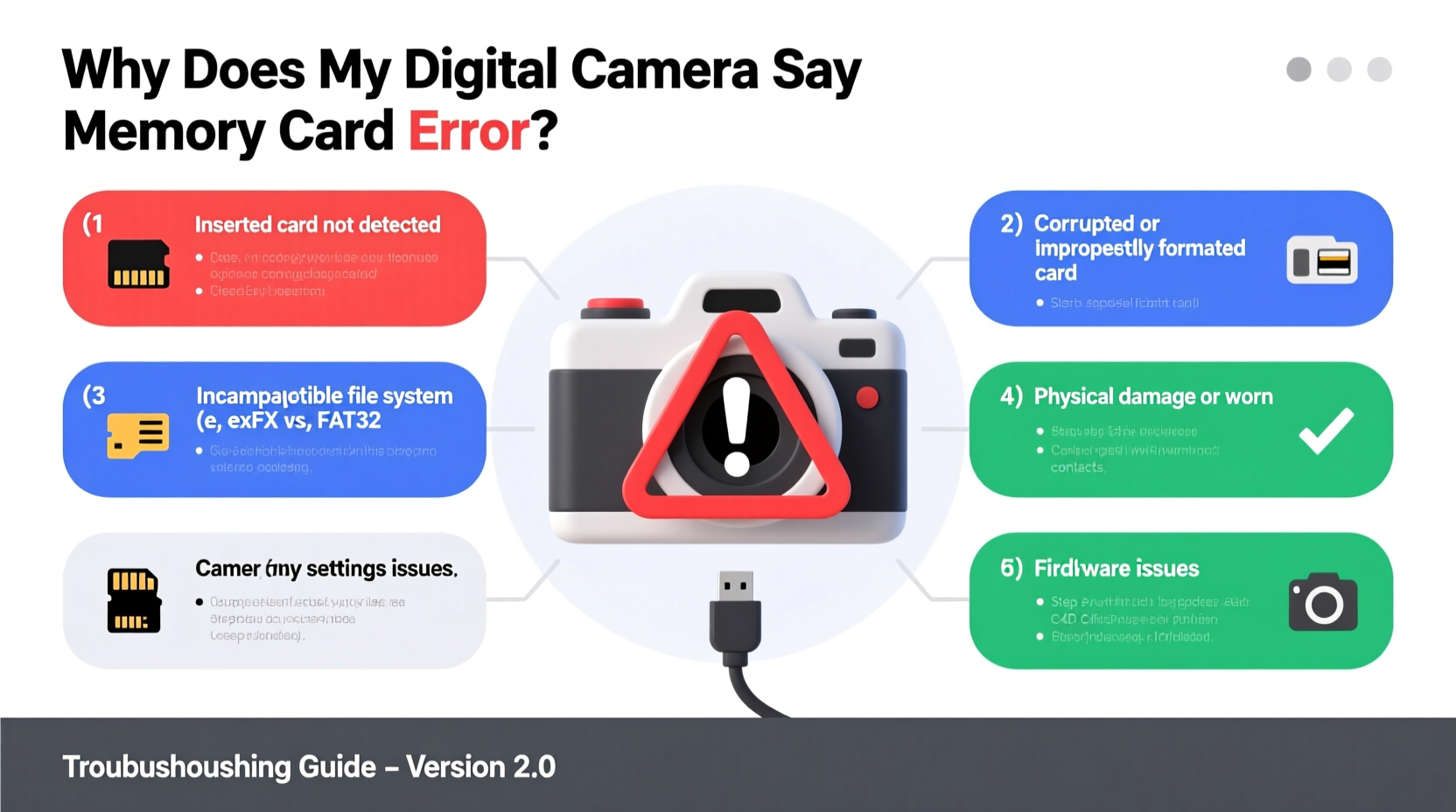
The “Memory Card Error” message is generic, but its underlying causes vary widely. Some are mechanical, others relate to software or usage habits. Identifying the source is the first step toward resolution.
- Dirty or damaged contacts: Dust, moisture, or physical wear on the metal connectors of the card or camera slot can disrupt communication.
- Corrupted file system: Sudden power loss during writing, abrupt removal, or virus exposure can corrupt the card’s directory structure.
- Incompatible card specifications: Using a card with incorrect speed class, capacity (e.g., oversized SDXC in an older SD-only camera), or formatting can trigger errors.
- Physical damage: Bent pins in the card slot, cracked circuitry on the card, or water exposure can render the card unreadable.
- Wear and failure: Memory cards have limited write cycles. Over time, especially with frequent use, they degrade and fail.
- Firmware issues: Outdated camera firmware may not support newer cards or handle edge cases correctly.
Step-by-Step Troubleshooting Guide
Follow this logical sequence to isolate and resolve the issue without unnecessary risk to your photos or equipment.
- Power cycle the camera: Turn it off, remove the battery for 30 seconds, then reinsert and restart. Sometimes, a temporary glitch triggers the error.
- Inspect the memory card and slot: Check for visible dirt, debris, or bent pins. Use compressed air (not canned) to gently clean the slot. Wipe the card’s contacts with a soft, dry cloth.
- Test with another memory card: Insert a known-working card. If the error disappears, the original card is likely the culprit.
- Try the suspect card in another device: Insert it into a different camera, card reader, or smartphone. If it fails there too, the card is compromised.
- Check formatting requirements: Ensure the card matches your camera’s supported format (FAT32 for SDHC, exFAT for SDXC). Format the card in-camera if needed.
- Update camera firmware: Visit the manufacturer’s website and install the latest firmware version, which may resolve compatibility bugs.
- Recover data (if necessary): If the card contains irreplaceable photos, use data recovery software before reformatting.
When the Camera Still Shows the Error
If all steps fail and the error persists even with multiple cards, the issue likely lies within the camera itself—possibly a faulty card reader mechanism or internal circuitry. In such cases, professional repair may be required.
Do’s and Don’ts: Memory Card Best Practices
| Do’s | Don’ts |
|---|---|
| Format your card in the camera regularly | Never remove the card while the camera is on or writing |
| Use high-quality, reputable brands (SanDisk, Sony, Lexar) | Avoid cheap, no-name memory cards with inflated specs |
| Eject safely via menu before removing | Don’t use the same card across incompatible devices without reformatting |
| Keep spare cards labeled and organized | Don’t expose cards to extreme heat, magnets, or moisture |
| Back up photos promptly after shooting | Don’t rely solely on one card for critical shoots |
“Many memory card failures are preventable. The key is treating the card as a working tool, not a permanent storage vault.” — David Lin, Professional Photographer & Imaging Technician
Real-World Example: A Wedding Photographer’s Close Call
Mark, a seasoned wedding photographer, arrived at a ceremony only to find his primary camera displaying “Memory Card Error” moments before the bride’s entrance. With no backup card immediately accessible, he quickly powered down, swapped batteries, and cleaned the card contacts with a microfiber cloth. The error persisted. He then inserted a secondary card—formatted in-camera the night before—and resumed shooting. After the event, he connected the original card to a computer using a USB reader. It wasn’t recognized. Using data recovery software, he retrieved 98% of the images, including key shots from earlier rehearsals. The card had developed file corruption due to repeated use without reformatting. Mark now formats every card after each shoot and carries three backups.
This case illustrates how preparation, quick thinking, and understanding error patterns can prevent disaster—even under pressure.
How to Recover Data from a Faulty Memory Card
Before discarding or reformatting a problematic card, attempt data recovery. Many corrupted cards still contain readable sectors.
- Stop using the card immediately: Continued writes increase the risk of overwriting lost files.
- Connect via a reliable card reader: Avoid built-in laptop slots, which may have inconsistent power delivery.
- Use trusted recovery software: Tools like Recuva (free), EaseUS Data Recovery Wizard, or Disk Drill scan for recoverable files.
- Save recovered files to a different drive: Never restore to the same card you’re recovering from.
- Assess file integrity: Open recovered images and videos to verify they play correctly.
If software fails, consider professional data recovery services—especially for high-value content. These labs use cleanroom environments and advanced tools to access physically damaged chips, though costs can range from $200 to over $1,000.
Prevention Checklist: Avoid Future Errors
Stay ahead of memory card issues with this proactive checklist:
- ✅ Format cards in-camera before first use and monthly thereafter
- ✅ Purchase UHS-I or UHS-II cards matching your camera’s speed rating
- ✅ Label cards by shoot date or project for better organization
- ✅ Carry at least two spare cards during important events
- ✅ Store unused cards in protective cases away from magnetic fields
- ✅ Update camera firmware every 6–12 months
- ✅ Avoid filling cards to full capacity; leave 10–15% free space
- ✅ Retire cards after 2–3 years of heavy use, even if they appear functional
Frequently Asked Questions
Can a memory card error be fixed without losing photos?
Yes, in many cases. If the error stems from file system corruption rather than physical damage, connecting the card to a computer and using recovery software can retrieve photos before reformatting. However, continued attempts to shoot on a failing card increase the risk of permanent data loss.
Why does my brand-new memory card show an error?
Even new cards can have manufacturing defects or compatibility issues. Verify that the card meets your camera’s specifications (e.g., SDHC vs. SDXC, maximum supported capacity). Also, some cameras require in-camera formatting before use, even for pre-formatted cards.
Is it safe to format a memory card in my computer instead of the camera?
While technically possible, it’s not recommended. Cameras expect specific allocation sizes and file system structures. Formatting in a computer may result in suboptimal performance or errors. Always format in the camera unless transferring large video files requiring exFAT optimization.
Conclusion: Take Control of Your Digital Workflow
A “Memory Card Error” doesn’t have to mean lost photos or expensive replacements. Most issues arise from preventable causes—improper handling, outdated equipment, or lack of maintenance. By understanding how memory cards function, adopting best practices, and responding calmly when errors occur, you maintain control over your photographic process. Invest in quality gear, develop disciplined habits, and always prioritize data safety over convenience. Whether you're capturing family milestones or professional assignments, reliability starts with preparation.




 浙公网安备
33010002000092号
浙公网安备
33010002000092号 浙B2-20120091-4
Comments
No comments yet. Why don't you start the discussion?