
Discord has become a central hub for gamers, remote teams, and online communities. Yet nothing disrupts collaboration or gameplay faster than sudden disconnections. If you’ve found yourself repeatedly kicked from voice channels, unable to send messages, or seeing the dreaded “You’ve been disconnected” message, you’re not alone. While Discord’s infrastructure is generally stable, connection problems often stem from local network conditions, device settings, or software conflicts. Understanding the root causes—and knowing how to resolve them—can restore seamless communication.
Understanding Discord’s Connection Model
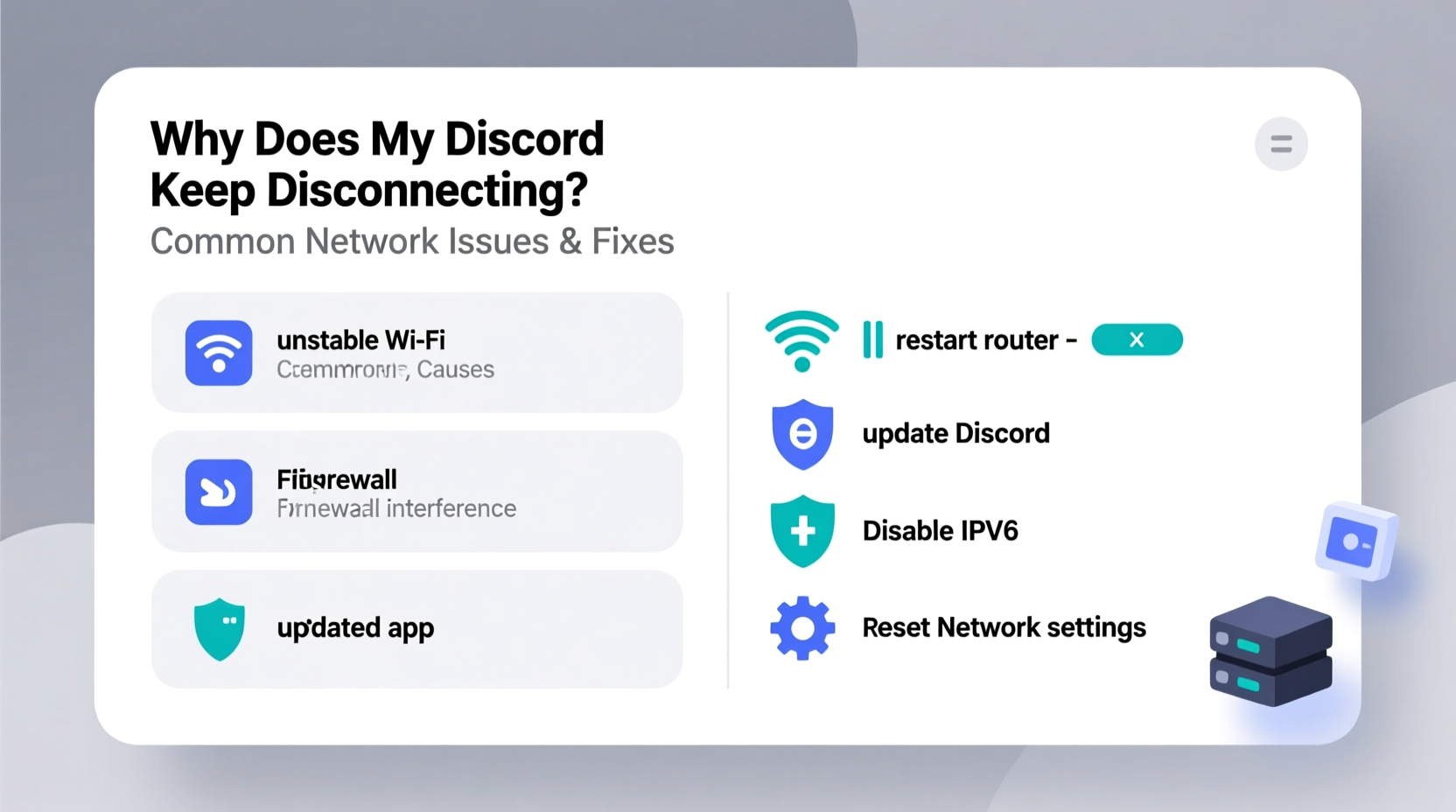
Discord uses a real-time communication system that relies on consistent data transmission between your device and its servers. Unlike traditional messaging apps that function primarily over HTTP requests, Discord maintains persistent WebSocket connections for voice, video, and instant text updates. This means any disruption in latency, bandwidth, or packet delivery can trigger disconnections.
Voice and video sessions are especially sensitive to network jitter, packet loss, and high ping. Even if your internet appears fast during browsing or streaming, inconsistent quality of service (QoS) can destabilize Discord’s low-latency requirements. Additionally, firewalls, NAT types, and background applications may interfere with UDP traffic—the protocol Discord uses for voice—to further complicate stability.
“Real-time voice platforms like Discord depend on more than just download speed. Latency consistency and network reliability are critical.” — Jordan Lee, Network Infrastructure Analyst at CloudVoice Labs
Common Causes of Discord Disconnections
Before jumping into fixes, it’s essential to identify what might be causing the instability. Below are the most frequent culprits behind unexpected drops:
- Unstable Internet Connection: Fluctuating Wi-Fi signals or ISP throttling can interrupt live sessions.
- High Packet Loss or Latency: Common on congested networks, especially during peak usage hours.
- Outdated App or OS: Older versions may have unresolved bugs affecting connectivity.
- Firewall or Antivirus Blocking: Security software sometimes restricts Discord’s access to necessary ports.
- NAT Restrictions: Strict NAT types prevent proper peer-to-peer handshakes, especially in group calls.
- Background Bandwidth Usage: Downloads, cloud backups, or streaming devices can saturate your connection.
- Router Firmware Issues: Outdated firmware may mismanage traffic prioritization or UDP handling.
ping discord.com -t in Command Prompt to monitor packet loss in real time.
Step-by-Step Troubleshooting Guide
Follow this systematic approach to diagnose and fix recurring Discord disconnections. Start with basic checks before progressing to advanced configurations.
- Restart Your Devices: Reboot your computer, router, and modem. This clears temporary glitches and resets network states.
- Switch Between Wi-Fi and Ethernet: If possible, use a wired connection. Ethernet provides lower latency and higher reliability than wireless.
- Test on Another Network: Try connecting via mobile hotspot. If Discord works without issue, the problem lies within your primary network.
- Update Discord: Ensure you're running the latest version. Outdated clients may lack recent stability patches.
- Check for System Updates: Install pending OS updates, as they often include network driver improvements.
- Disable Conflicting Software: Temporarily turn off VPNs, proxies, or aggressive antivirus tools that could interfere with connectivity.
- Flush DNS Cache: Open Command Prompt and run
ipconfig /flushdnsto clear corrupted address lookups. - Change DNS Servers: Switch to Google DNS (8.8.8.8 and 8.8.4.4) or Cloudflare (1.1.1.1) for faster, more reliable domain resolution.
Advanced Fixes for Persistent Disconnects
If basic steps fail, deeper intervention may be required. These solutions target underlying network behavior:
- Enable UPnP on Your Router: Universal Plug and Play helps Discord automatically open required ports. Check your router settings under “Port Forwarding” or “NAT.”
- Manually Forward Ports: Assign UDP ports 3478–3480, 50000–65535 to your device’s local IP. This improves NAT traversal.
- Adjust Quality of Service (QoS): Prioritize Discord traffic in your router settings. Label it as “high priority” or assign higher bandwidth weight.
- Reset Network Stack: In Command Prompt (Admin), run:
netsh winsock reset
netsh int ip reset
Then restart your PC.
Do’s and Don’ts When Fixing Discord Connectivity
| Do | Don't |
|---|---|
| Use a wired Ethernet connection when possible | Rely solely on unstable public Wi-Fi |
| Keep Discord and your OS updated | Ignore app update notifications |
| Monitor bandwidth usage during calls | Run large downloads while in voice chat |
| Whitelist Discord in firewall/antivirus | Block all unknown applications without review |
| Test with multiple devices on same network | Assume the issue is always with Discord's servers |
Real-World Case: The Home Office Setup Struggle
Mark, a freelance developer and member of a daily stand-up Discord group, began experiencing random dropouts every few minutes. His internet speed tests showed 100 Mbps down, so he assumed his connection was fine. After trying multiple reboots with no success, he tested Discord on his phone using LTE—where it worked flawlessly.
This pointed to a local network issue. He discovered his smart TV was downloading a 4K software update in the background, consuming nearly all available upstream bandwidth. Once paused, Discord stabilized immediately. Mark then configured QoS on his router to prioritize VoIP and real-time apps, preventing future disruptions. The fix wasn’t about raw speed—it was about managing bandwidth allocation intelligently.
Optimizing Discord Settings for Stability
Beyond network adjustments, tweaking Discord’s internal settings can reduce strain on your connection:
- Lower Voice Quality: Go to User Settings > Voice & Video > Audio Subsystem. Switch from “Standard” to “Legacy.” Also, reduce bitrate under “Input Mode” if hosting small groups.
- Turn Off Unnecessary Features: Disable hardware acceleration (Settings > Advanced), animated emojis, and server discovery if not needed.
- Use Push-to-Talk: Prevents constant mic transmission, reducing background data load.
- Limit Active Speakers: In large servers, enable “Automatically determine input sensitivity” to avoid false triggers.
When Server-Side Issues Are to Blame
Sometimes, the problem isn’t on your end. Discord occasionally experiences regional outages or API hiccups. Before assuming personal fault, check:
- Discord Status Page – Official updates on service health.
- Downdetector or IsItDownRightNow – Community-reported outage maps.
- Discord’s official Twitter/X account (@discord) for real-time alerts.
If others report similar issues globally or regionally, wait for an official patch. No local fix will override a server-side malfunction.
Comprehensive Fix Checklist
Use this checklist to methodically eliminate potential causes:
- ✅ Restart your computer, router, and modem
- ✅ Connect via Ethernet instead of Wi-Fi
- ✅ Update Discord to the latest version
- ✅ Run a speed test (focus on upload and ping)
- ✅ Disable VPNs, proxies, or ad blockers temporarily
- ✅ Whitelist Discord in firewall and antivirus
- ✅ Flush DNS and change to Google/Cloudflare DNS
- ✅ Enable UPnP or manually forward UDP ports
- ✅ Adjust QoS settings to prioritize Discord
- ✅ Lower audio quality and disable hardware acceleration
- ✅ Check Discord Status page for outages
- ✅ Monitor background bandwidth usage
Frequently Asked Questions
Why does Discord disconnect only during voice calls but not text?
Voice calls require continuous two-way data flow with low latency. Text messages use brief bursts of data and are less sensitive to delays. If your network has high jitter or packet loss, voice will fail first even if text remains functional.
Can a bad router cause Discord disconnections?
Yes. Routers with outdated firmware, poor UDP handling, or weak signal strength can’t maintain stable real-time connections. Older or budget routers may also lack QoS features needed to prioritize voice traffic effectively.
Does closing other apps help prevent disconnections?
Absolutely. Applications like Steam, Zoom, OneDrive, or game launchers often sync in the background, consuming upload bandwidth. Since Discord voice relies heavily on upload stability, reducing concurrent uploads can significantly improve call quality.
Conclusion: Take Control of Your Connection
Discord disconnections are frustrating but rarely unsolvable. Most issues originate not from Discord itself, but from overlooked network dynamics, misconfigured settings, or hidden bandwidth competition. By systematically testing your setup—from physical cables to software preferences—you can isolate and correct the root cause.
Don’t accept choppy calls or dropped chats as inevitable. Apply these strategies consistently, document changes, and observe improvements over time. A stable Discord experience isn’t just about convenience; it’s about maintaining presence in communities, teams, and friendships that rely on real-time connection.




 浙公网安备
33010002000092号
浙公网安备
33010002000092号 浙B2-20120091-4
Comments
No comments yet. Why don't you start the discussion?