
If you're an active Discord user—whether for gaming, streaming, remote work, or community chats—you’ve likely experienced the frustration of your microphone picking up every clack of your mechanical keyboard. These intrusive sounds can disrupt conversations, distract listeners, and make your audio quality seem unprofessional. The good news is that this issue is both common and fixable. Understanding why it happens and applying targeted solutions can dramatically improve your voice communication experience.
The root cause isn’t always a single factor. It’s often a combination of hardware sensitivity, software settings, physical proximity, and room acoustics. This guide breaks down each contributing element and provides actionable steps to eliminate keyboard noise from your Discord audio feed—without sacrificing typing comfort or mic clarity.
Why Your Microphone Picks Up Keyboard Sounds
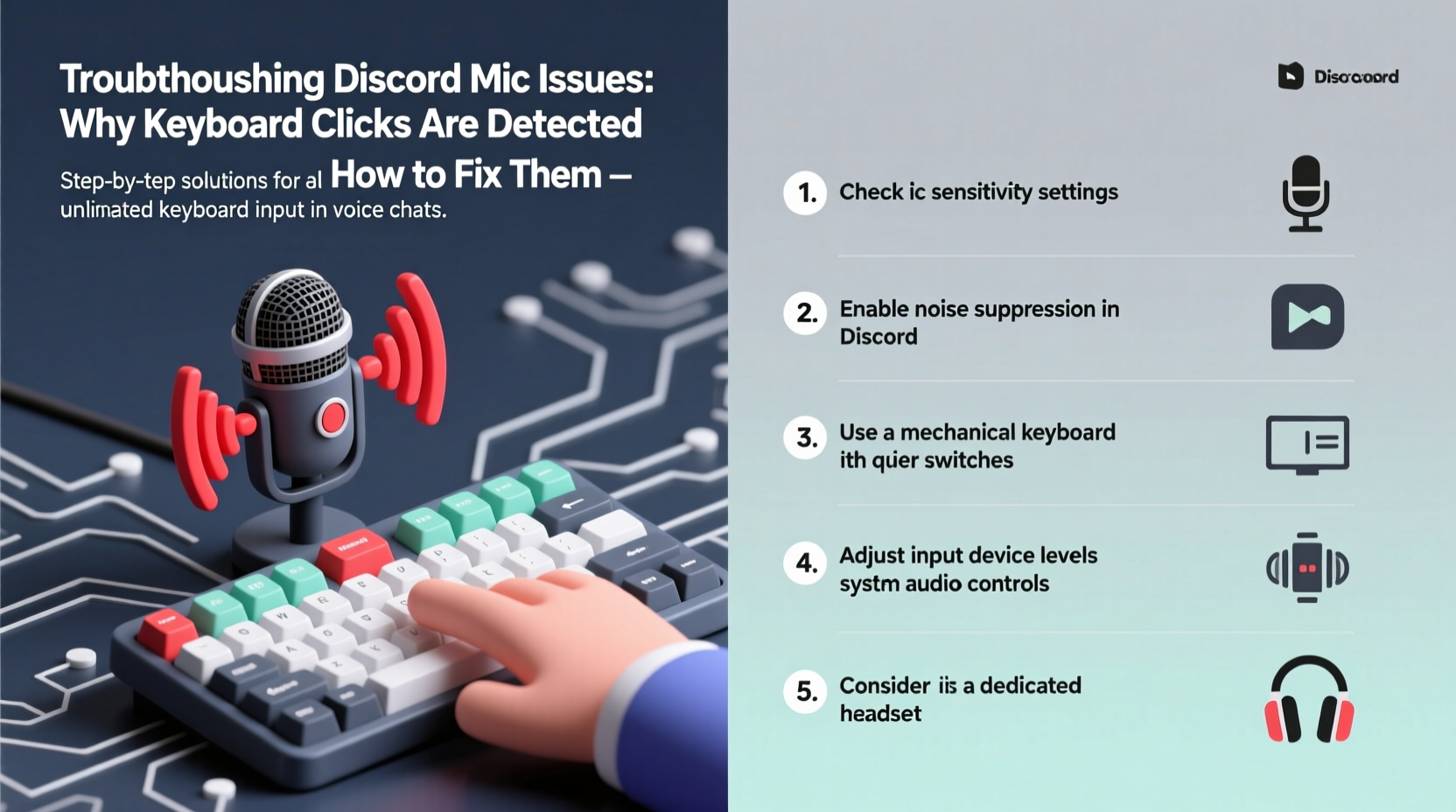
Microphones are designed to capture sound, but high-sensitivity models—especially condenser mics—don’t discriminate between your voice and background noise. Mechanical keyboards produce sharp, high-frequency clicks that travel easily through air and surfaces. When your mic is too close or overly sensitive, it treats these keystrokes as part of the audio signal.
Three main factors contribute to this problem:
- Mic Sensitivity (Gain): High gain settings amplify all nearby sounds, including keyboard noise. Even subtle key presses become audible.
- Proximity: Placing your microphone directly beside or above your keyboard increases the chance of capturing mechanical actuation sounds.
- Acoustic Environment: Hard surfaces like desks, walls, and glass reflect sound, creating echo and increasing the mic’s exposure to secondary noise sources.
Additionally, some microphones have wide polar patterns (like cardioid or omnidirectional), meaning they pick up sound from multiple directions—not just in front of you. If your mic is facing your keyboard or positioned at an angle where it \"hears\" the switches, it will record those inputs.
Step-by-Step Guide to Reduce or Eliminate Keyboard Noise
Solving this issue requires a layered approach. Follow these steps in order to systematically reduce or remove keyboard click interference.
1. Adjust Microphone Gain and Sensitivity
Lowering your microphone’s input gain reduces its ability to pick up faint background sounds. Here’s how:
- Right-click the speaker icon in your Windows taskbar and select Sound settings.
- Under Input, find your microphone and click Device properties.
- Select Additional device properties to open the classic Sound control panel.
- In the Levels tab, slide the Microphone bar down (try starting at 50–70 instead of 100).
- Click Apply and test by speaking and typing near the mic.
Aim for a balance where your voice remains clear but keyboard taps fade into the background. Over-reducing gain may force you to speak louder, which defeats the purpose.
2. Reposition Your Microphone
Physical placement has a major impact. Move your mic so it’s not directly above or adjacent to your keyboard. Ideal positioning includes:
- Boom arm extended slightly behind or below mouth level.
- Angle the mic capsule toward your mouth, not the desk surface.
- Keep at least 6–8 inches between mic and keyboard.
Even small adjustments—like turning the mic away from the board or lowering its height—can cut out reflected keystroke noise.
3. Use a Pop Filter or Windscreen
While primarily used to reduce plosives (\"p\" and \"b\" sounds), foam windscreens or mesh pop filters also act as mild acoustic barriers. They absorb high-frequency transients, which include the sharp attack of mechanical keypresses. A metal mesh pop filter placed between you and the mic adds an extra layer of sound diffusion.
4. Dampen Keyboard Noise at the Source
Modify your keyboard to produce quieter keystrokes:
- Install O-rings or silicone dampeners under keycaps.
- Use lubed switches (e.g., Gateron Silent Reds or Kailh Box Silent).
- Add a desk mat or mousepad with padding to absorb vibrations.
- Place a thin rubber pad under the keyboard to minimize desk resonance.
Some users line the inside of their keyboard case with damping foam—a mod known as “case foam” or “sound check”—which significantly reduces internal echo and key thock.
5. Enable Noise Suppression in Discord
Discord includes built-in noise suppression tools:
- Open Discord and go to User Settings > Voice & Video.
- Under Audio Subsystem, ensure you’re using “Standard” unless you need advanced routing.
- Scroll to Noise Reduction and set it to “Automatic” or “High” suppression.
- Enable Attenuate Background Noise if available.
Note: Aggressive noise reduction can sometimes affect voice clarity or add digital artifacts. Test during a call to find the optimal setting.
Advanced Software Solutions
For users who want more granular control, third-party audio processing tools offer superior noise filtering.
Krisp.ai – AI-Powered Noise Cancellation
Krisp uses machine learning to separate human voice from background noise—including keyboard clicks, mouse clicks, and ambient room sounds. It runs in the background and integrates seamlessly with Discord.
- Download Krisp from krisp.ai.
- Install and launch the app; allow microphone access.
- In Discord, set both input and output devices to “Krisp Audio”.
- Speak and type—the keyboard noise should vanish while your voice stays crisp.
Krisp offers 60 minutes of free daily use. Paid plans unlock unlimited usage and team features.
Voicemeeter (Virtual Audio Mixer)
Voicemeeter Banana or Voicemeeter Potato allows you to apply real-time effects like EQ, compression, and noise gates.
To set up a noise gate:
- Download and install Voicemeeter.
- Set your physical mic as the input (Hardware In).
- In Discord, change the input device to “Voicemeeter Output.”
- Adjust the Gate threshold so only your voice opens the gate—typing won’t trigger it.
This method requires a bit of technical setup but gives studio-level control over what gets transmitted.
“Many streamers don’t realize how much background noise affects listener fatigue. Even subtle keyboard clicks accumulate over time and make content harder to engage with.” — Jordan Lee, Audio Engineer & Streaming Consultant
Checklist: How to Stop Discord Mic from Picking Up Keyboard Clicks
- ✅ Lower microphone gain in system settings
- ✅ Reposition mic away from keyboard
- ✅ Enable noise suppression in Discord
- ✅ Add O-rings or switch to silent mechanical switches
- ✅ Use a foam pad or desk mat under the keyboard
- ✅ Install Krisp.ai for AI-powered noise removal
- ✅ Try Voicemeeter with a noise gate for advanced control
- ✅ Test changes with a voice message before going live
Real Example: Fixing Keyboard Noise for a Game Streaming Setup
Taylor, a Twitch streamer and Discord community moderator, was receiving consistent feedback that her keyboard clicks were distracting during live strategy discussions. Her setup included a Blue Yeti mic mounted on a boom arm directly above her gaming keyboard. While her voice was clear, every keystroke echoed through the chat.
She started by reducing her mic gain from 100% to 65%. That helped slightly, but didn’t eliminate the issue. Next, she repositioned the mic so it hung just below mouth level and angled upward—keeping it closer to her mouth but farther from the desk. This reduced pickup by about 50%.
She then installed O-rings on her keycaps and added a thick neoprene desk mat. Combined with enabling “High” noise suppression in Discord, the keyboard became nearly inaudible. Finally, she downloaded Krisp.ai for backup filtering during long sessions. After these changes, her viewers reported a dramatic improvement in audio comfort.
Taylor now uses a hybrid solution: physical modifications for baseline quietness and software tools for real-time cleanup. She says the effort was worth it—her audience retention during voice chats increased noticeably.
Do’s and Don’ts: Best Practices Summary
| Do | Don't |
|---|---|
| Position mic slightly below mouth level and angled toward you | Place mic directly over or beside mechanical keyboard |
| Use silent switches or dampening mods on your keyboard | Ignore resonance—typing force transmits through desks |
| Enable noise suppression in Discord or use Krisp | Rely solely on mic gain without addressing root causes |
| Test audio regularly with voice messages or recordings | Assume one fix will solve everything permanently |
| Use a foam windscreen or pop filter as a basic barrier | Over-process audio to the point of robotic voice distortion |
Frequently Asked Questions
Can I completely eliminate keyboard noise without changing hardware?
Yes, in many cases. Using a combination of lower gain, proper mic placement, and software like Krisp or Discord’s built-in noise suppression can make keyboard clicks imperceptible—even with a loud mechanical board. However, extremely aggressive typists or ultra-sensitive mics may still benefit from hardware modifications.
Does using a headset mic help avoid keyboard noise?
Generally, yes. Headset microphones are positioned close to your mouth and typically use dynamic capsules with narrower pickup patterns. This makes them less likely to capture desk-level sounds like keyboard clicks. Additionally, their fixed position minimizes accidental repositioning that could expose them to noise sources.
Will a noise gate cut out soft parts of my speech?
Poorly configured noise gates can. If the threshold is set too high, quiet syllables or softer consonants may get muted. Always calibrate the gate using natural speech patterns—say full sentences at your normal volume—and adjust until only background noise is suppressed. Tools like Voicemeeter allow fine-tuning attack and release times to prevent choppy audio.
Final Thoughts: Take Control of Your Audio Quality
Clean audio is a sign of professionalism and respect for your audience. Whether you're coordinating raids in a gaming server, hosting study groups, or leading team meetings, minimizing distractions like keyboard clicks enhances communication and keeps attention where it belongs—on your words.
The solutions outlined here range from simple tweaks to advanced configurations, so you can choose the level of intervention that fits your needs. Start with low-effort fixes like adjusting gain and repositioning your mic, then gradually incorporate software tools or hardware mods as needed.




 浙公网安备
33010002000092号
浙公网安备
33010002000092号 浙B2-20120091-4
Comments
No comments yet. Why don't you start the discussion?