
There’s nothing more frustrating than downloading a high-quality movie only to find it stutters, lags, or skips every few seconds during playback. You’ve waited through long download times, confirmed the file is complete, and yet the viewing experience feels like watching a buffering YouTube video from 2007. The issue isn’t necessarily with the movie itself — it's likely a mismatch between your system’s capabilities and the demands of the video file. Understanding the root causes of choppy playback is the first step toward fixing it permanently.
Choppy playback occurs when your device cannot decode and render video frames fast enough to maintain a consistent frame rate. This can stem from hardware limitations, software inefficiencies, incorrect settings, or even file corruption. The good news? Most of these problems are fixable without spending money on new equipment. With the right adjustments, you can transform a jittery mess into buttery-smooth playback.
Understanding Video Playback Mechanics
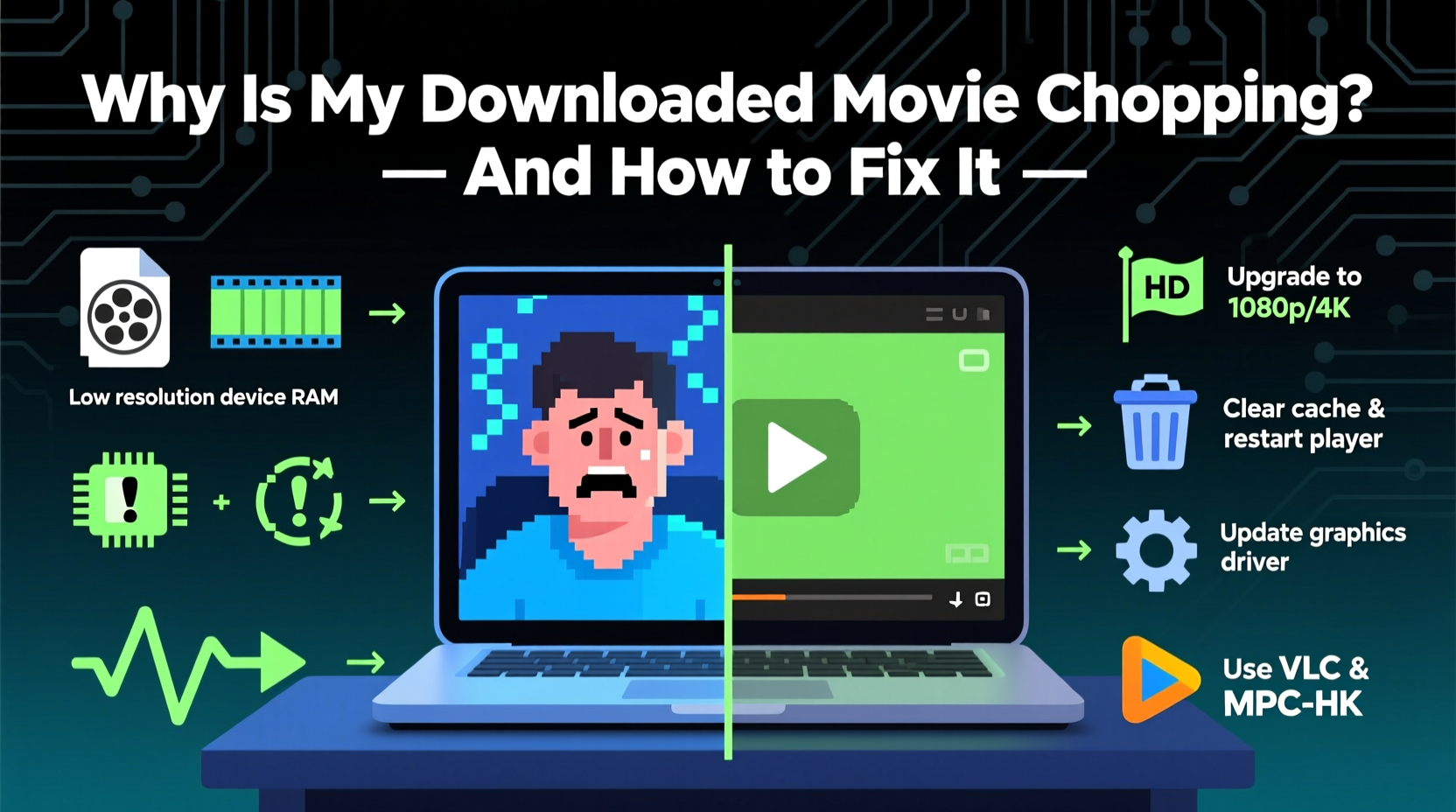
Before troubleshooting, it helps to understand how video playback works. When you press play, your media player reads the video file, decodes the compressed data using a codec (like H.264 or HEVC), and sends the decompressed frames to your screen at a specific frame rate — typically 24, 30, or 60 frames per second (fps). If any part of this chain falters, frames are dropped, resulting in choppiness.
The decoding process is resource-intensive, especially for high-resolution files such as 4K or HDR content. Modern codecs like HEVC (H.265) offer better compression but require more processing power than older ones like MPEG-2. Your CPU, GPU, RAM, storage speed, and even the media player software all contribute to whether this process runs smoothly.
A common misconception is that once a file is downloaded, playback should be flawless. But unlike streaming, where network stability affects performance, local playback depends entirely on your hardware and software configuration. A powerful gaming PC might handle 4K HEVC files effortlessly, while an older laptop or budget tablet may struggle even with 1080p content.
“Smooth playback isn’t just about file quality — it’s about system harmony. The weakest link in your playback chain will dictate performance.” — David Lin, Multimedia Systems Engineer
Common Causes of Choppy Playback
Several factors can disrupt seamless video playback. Identifying which one applies to your situation is key to applying the correct fix.
- Insufficient hardware decoding support: Many older or low-end devices lack dedicated GPU hardware to decode modern video codecs efficiently.
- CPU overload: If your processor is busy with other tasks, it may not keep up with real-time video decoding.
- Outdated or incompatible media player: Not all players support advanced codecs or leverage GPU acceleration properly.
- High-resolution or high-bitrate files: 4K, 60fps, or HDR videos demand significantly more resources than standard HD content.
- Fragmented or corrupted files: Even if a download completes, file errors can cause playback instability.
- Background processes consuming resources: Antivirus scans, updates, or browser tabs can steal CPU cycles needed for decoding.
- Slow storage drives: Playing large files from an old mechanical hard drive (HDD) can lead to read delays, especially with high-bitrate content.
Step-by-Step Guide to Smooth Playback
Follow this structured approach to diagnose and resolve choppy playback issues.
- Test with a different media player
Start by eliminating software as the culprit. Use VLC Media Player or MPC-HC (Media Player Classic - Home Cinema), both known for excellent codec support and hardware acceleration. Download and install one, then open your problematic file. - Enable hardware acceleration
In VLC: Go to Tools > Preferences > Input / Codecs, then set “Hardware-accelerated decoding” to “DirectX Video Acceleration (DXVA)” on Windows or “VideoToolbox” on macOS. Restart VLC and test playback. - Check your file specifications
Right-click the file > Properties (Windows) or Get Info (macOS). Look for resolution, codec, and bitrate. High values (e.g., 3840x2160, HEVC, 50 Mbps) indicate a demanding file. Compare this to your device’s supported formats. - Monitor system performance during playback
Open Task Manager (Ctrl+Shift+Esc) and watch CPU, GPU, and memory usage while playing the video. If CPU consistently exceeds 90%, your processor is the bottleneck. - Update graphics drivers
Visit your GPU manufacturer’s website (NVIDIA, AMD, Intel) and download the latest drivers. Updated drivers often include improved video decoding support and bug fixes. - Convert the file to a lighter format
If your device still struggles, consider converting the video to a less demanding format using HandBrake. Choose the “Fast 1080p30” preset for balanced quality and performance. - Play from faster storage
Copy the file from an external HDD or USB drive to your internal SSD. Faster read speeds reduce the chance of playback hiccups due to slow data access.
Do’s and Don’ts of Smooth Video Playback
| Do | Don’t |
|---|---|
| Use VLC or MPC-HC for reliable playback | Rely solely on default players like Windows Media Player |
| Enable hardware acceleration in your player | Ignore outdated graphics drivers |
| Close background apps during playback | Run heavy tasks (e.g., rendering, downloads) while watching |
| Store and play files from an SSD | Play 4K files directly from a slow USB 2.0 drive |
| Convert files using efficient presets in HandBrake | Re-encode videos at maximum quality unnecessarily |
Real-World Example: Fixing 4K Playback on a Budget Laptop
Sarah owns a three-year-old Lenovo laptop with an Intel Core i5 processor and integrated Intel UHD Graphics. She downloaded a 4K HEVC-encoded movie expecting a cinematic experience, but the playback was unwatchably choppy — skipping every two seconds despite full battery and no other apps running.
She first tried opening the file in VLC, which loaded but didn’t improve performance. Checking Task Manager, she noticed her CPU spiking to 98% during playback. Researching her GPU specs, she learned that her Intel UHD 620 supports HEVC decoding — but only if properly enabled.
She updated her graphics driver via the Intel Driver & Support Assistant, then reconfigured VLC to use DXVA2 for hardware decoding. After restarting the player, the same 4K file played smoothly. The difference? The GPU was now handling the decoding workload instead of overloading the CPU.
This case illustrates how a simple driver update and correct player settings can unlock hidden performance — without any hardware upgrades.
When Conversion Is the Best Solution
If hardware acceleration fails or your device lacks modern decoding support, converting the video may be your most practical option. Re-encoding adjusts the file to match your device’s capabilities, trading minimal quality loss for dramatically smoother playback.
Use HandBrake, a free and open-source tool, to convert files efficiently:
- Choose the “H.264” codec for broad compatibility.
- Select a resolution matching your screen (e.g., 1920x1080 for Full HD).
- Set frame rate to “Same as source” or cap at 30fps if original is 60fps.
- Use the “Medium” preset and adjust quality slider to RF 22–24 for good balance.
- Ensure “Hardware Encoding” is enabled if available (Intel QSV, NVIDIA NVENC).
For example, converting a 4K HEVC file (100 Mbps) to 1080p H.264 (8 Mbps) reduces file size by 80% and makes it playable on nearly any device made in the last eight years.
Troubleshooting Checklist
Use this checklist to systematically eliminate causes of choppy playback:
- ✅ Test the file on another device to rule out corruption
- ✅ Update your media player to the latest version
- ✅ Install the latest graphics drivers
- ✅ Enable hardware acceleration in your player settings
- ✅ Monitor CPU/GPU usage during playback
- ✅ Close background applications consuming resources
- ✅ Play the file from an SSD instead of HDD or USB
- ✅ Verify file integrity (check checksums if available)
- ✅ Convert the video to a lower resolution or simpler codec if needed
Frequently Asked Questions
Can a virus cause choppy video playback?
Indirectly, yes. Malware running in the background can consume CPU and memory, leaving insufficient resources for smooth video decoding. Run a full system scan with trusted antivirus software if you suspect infection.
Why does one 1080p movie play fine while another stutters?
Not all 1080p videos are equal. Differences in codec (H.264 vs HEVC), bitrate (5 Mbps vs 20 Mbps), and frame rate (24fps vs 60fps) greatly affect system demands. A high-bitrate HEVC 60fps file can be harder to play than a standard 1080p Blu-ray rip.
Does upgrading RAM help with video playback?
Only in extreme cases. Video playback is primarily limited by CPU, GPU, and storage speed. While sufficient RAM (8GB minimum) is necessary, adding more beyond what your system needs won’t improve decoding performance.
Final Thoughts: Achieving Seamless Playback Is Within Reach
Choppy playback doesn’t have to ruin your movie night. In most cases, the solution lies in optimizing your existing setup rather than buying new gear. By understanding your hardware limits, leveraging hardware decoding, choosing the right software, and knowing when to convert files, you can enjoy smooth playback across all your devices.
The key is systematic troubleshooting — don’t jump to conclusions after one failed attempt. Test players, tweak settings, monitor performance, and validate each change. Often, a single setting adjustment unlocks performance you didn’t know your device had.




 浙公网安备
33010002000092号
浙公网安备
33010002000092号 浙B2-20120091-4
Comments
No comments yet. Why don't you start the discussion?