
The Amazon Echo Dot is designed to be a seamless part of your smart home—responding to voice commands, controlling devices, playing music, and delivering updates. But when it repeatedly drops its Wi-Fi connection, the experience quickly becomes frustrating. You ask Alexa for the weather, only to hear, “I’m having trouble connecting to the internet.” This isn’t just inconvenient; it undermines the core promise of a connected device.
Wi-Fi disconnections can stem from a variety of sources: router issues, network congestion, outdated firmware, or even physical placement of the device. The good news is that most problems are fixable with targeted troubleshooting. Understanding the root causes—and applying practical solutions—can restore reliability and ensure your Echo Dot stays online where it belongs.
Common Causes of Echo Dot Wi-Fi Disconnection
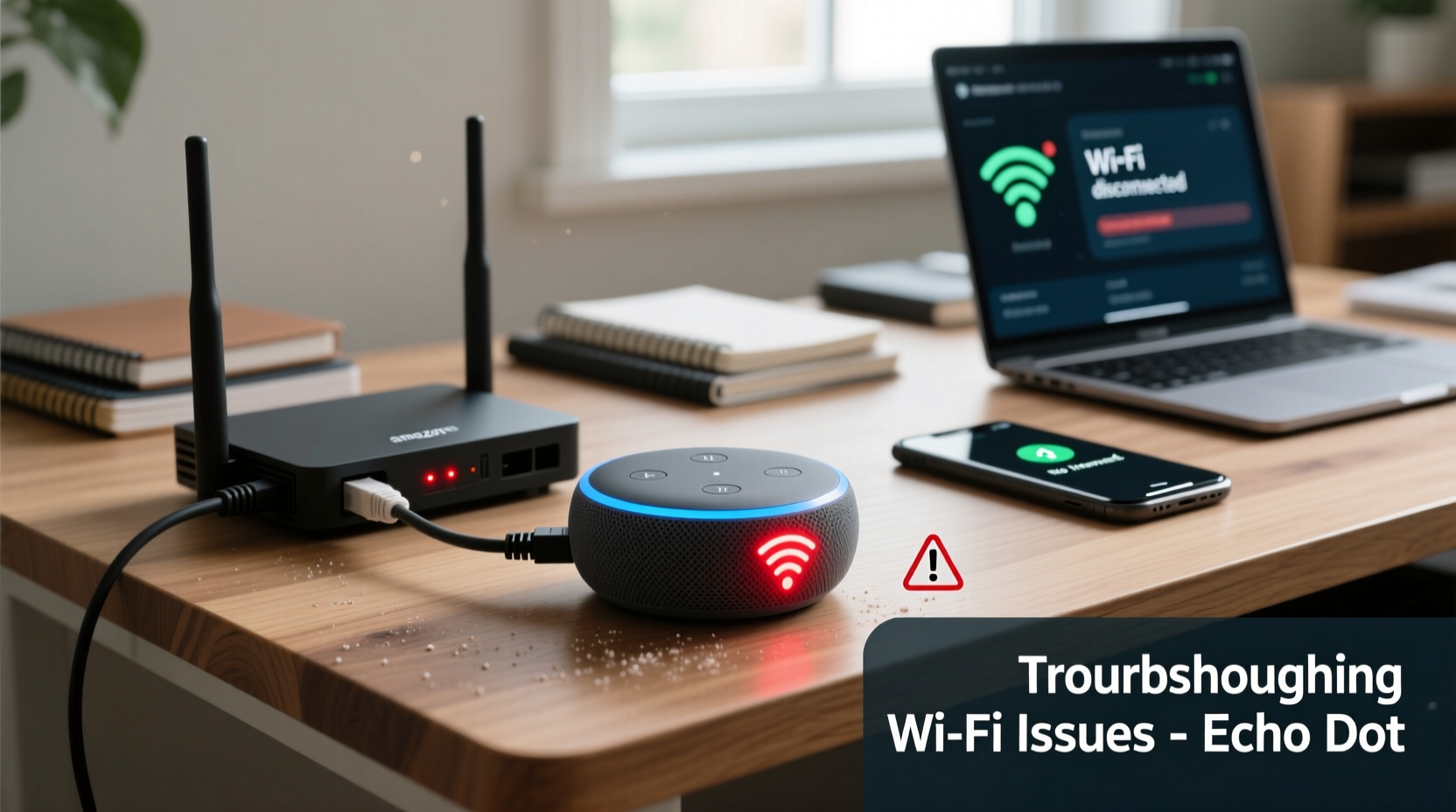
Before jumping into fixes, it’s important to recognize what might be causing the instability. Unlike full-fledged computers, the Echo Dot has limited diagnostic tools, so identifying the source requires methodical elimination.
- Weak Wi-Fi signal: If the Echo Dot is too far from the router or blocked by walls and appliances, signal strength may fluctuate.
- Router overload: Too many connected devices can overwhelm older routers, especially during peak usage times.
- Interference from other electronics: Microwaves, cordless phones, and Bluetooth devices operate on the 2.4 GHz band and can interfere with Wi-Fi.
- Firmware or software bugs: Occasionally, Amazon rolls out updates that introduce connectivity bugs.
- Network authentication issues: WPA3 security, while more secure, may not be fully compatible with all Echo models.
- IP address conflicts: If multiple devices receive the same IP from the router, communication breaks down.
Step-by-Step Troubleshooting Guide
Follow this structured approach to diagnose and resolve your Echo Dot’s Wi-Fi issues. Start with the simplest fixes and progress to more advanced solutions.
- Reboot your Echo Dot and router. Unplug both devices for 30 seconds, then plug them back in. This clears temporary glitches and resets network handshakes.
- Check Wi-Fi signal strength. In the Alexa app, go to Devices > Echo & Alexa > [Your Device] > Network. Look for the RSSI (Received Signal Strength Indicator). A value above -60 dBm is excellent; below -80 dBm indicates a weak signal.
- Move the Echo Dot closer to the router. Test performance in different rooms. If the issue disappears near the router, distance or obstacles are likely culprits.
- Forget and re-add the Wi-Fi network. In the Alexa app, select your device, tap \"Change\" next to Wi-Fi, and reconnect using your password.
- Update the Echo Dot’s firmware. Firmware updates happen automatically, but ensuring your device is up-to-date can resolve known bugs. Check under device settings in the Alexa app.
- Assign a static IP address. Prevent IP conflicts by reserving an IP for your Echo Dot in your router’s DHCP settings.
- Switch between 2.4 GHz and 5 GHz bands. While the Echo Dot only supports 2.4 GHz, ensure your phone (used for setup) isn’t defaulting to 5 GHz, which can cause confusion during configuration.
Optimizing Your Router for Echo Dot Stability
Your router plays a critical role in maintaining stable connections. Many users overlook router settings that directly impact IoT devices like the Echo Dot.
Routers often have features like “AP Isolation,” “Client Isolation,” or “Smart Connect” enabled by default. These can prevent devices from communicating properly with each other or cause frequent disconnections. Disable AP Isolation if you’re experiencing erratic behavior.
Additionally, consider adjusting your router’s channel. Most routers auto-select a Wi-Fi channel, but in dense environments (apartments, urban homes), overlapping signals can cause interference. Manually switching to less congested channels (e.g., 1, 6, or 11 on 2.4 GHz) can improve stability.
| Router Setting | Recommended Value | Why It Matters |
|---|---|---|
| Wi-Fi Band | 2.4 GHz | Echo Dot only supports 2.4 GHz networks. |
| Channel Width | 20 MHz | Narrower width reduces interference in crowded areas. |
| Security Mode | WPA2-PSK (AES) | WPA3 may cause compatibility issues with older Echo models. |
| AP Isolation | Disabled | Prevents devices from seeing the network gateway. |
| DHCP Lease Time | 24 hours or longer | Reduces frequency of IP renewal, minimizing dropouts. |
“Many smart home issues aren’t device failures—they’re network misconfigurations. A well-tuned router can eliminate 80% of Echo disconnects.” — David Lin, Network Infrastructure Specialist
Real-World Example: Fixing Chronic Dropouts in a Multi-Floor Home
Sarah, a homeowner in Seattle, noticed her Echo Dot in the basement frequently lost connection, especially during evenings. She’d ask for a timer, only to get silence. After testing several fixes, she discovered the issue wasn’t the Echo—but her aging router located on the second floor.
The basement signal was weak (-85 dBm), and her microwave caused interference every time it ran. Sarah upgraded to a mesh Wi-Fi system with nodes on each floor. She placed one node halfway down the stairs, significantly improving coverage. She also changed her router’s 2.4 GHz channel from auto to channel 1, avoiding overlap with her neighbor’s network.
After these changes, her Echo Dot remained connected 24/7. The improvement wasn’t due to replacing the device, but optimizing the environment around it.
When Hardware or Firmware Is the Culprit
Sometimes, the issue lies within the Echo Dot itself. Older models (first and second generation) have weaker Wi-Fi antennas and less memory, making them prone to disconnections under network stress.
If you own an early-generation Echo Dot, consider upgrading to a newer model. The Echo Dot (5th Gen) includes improved dual-band support (for setup convenience), better antenna design, and enhanced processing power for handling background tasks without dropping off the network.
Firmware bugs, though rare, do occur. Amazon occasionally pushes updates that introduce new issues before patching them. If your Echo Dot started disconnecting shortly after an update, check Amazon’s support forums. Other users may report similar issues, and Amazon typically releases hotfixes within days.
To force a firmware update:
- Unplug the Echo Dot for 10 seconds.
- Plug it back in and wait for the light ring to turn blue.
- Wait 15–30 minutes. The device will automatically check for updates.
You cannot manually trigger firmware updates, but keeping the device powered and connected ensures it receives patches as soon as they’re available.
Checklist: How to Keep Your Echo Dot Connected
Use this checklist to ensure your Echo Dot remains reliably online:
- ✅ Reboot router and Echo Dot monthly
- ✅ Verify strong Wi-Fi signal (RSSI > -70 dBm)
- ✅ Disable AP/Client Isolation on the router
- ✅ Use WPA2 security (avoid WPA3 if unstable)
- ✅ Assign a static IP to your Echo Dot
- ✅ Keep the device away from interfering electronics
- ✅ Update router firmware regularly
- ✅ Consider a mesh Wi-Fi system for large homes
- ✅ Replace outdated Echo Dot models if issues persist
Frequently Asked Questions
Can a VPN on my router affect my Echo Dot?
Yes. If your router routes all traffic through a VPN, it can interfere with Amazon’s servers, causing timeouts and disconnections. The Echo Dot relies on direct access to AWS-based services. Bypassing the VPN for local devices or disabling it entirely for smart home gadgets often resolves the issue.
Why does my Echo Dot disconnect only at night?
This pattern often points to network congestion. Streaming, gaming, or large downloads in the evening can saturate bandwidth. Additionally, some ISPs throttle traffic during peak hours. Try limiting heavy usage or upgrading your internet plan. Also, check if interference from household appliances (like dishwashers or HVAC systems) coincides with disconnections.
Does restarting the Alexa app help with Wi-Fi issues?
Restarting the app rarely fixes connectivity problems since the issue lies between the Echo Dot and your router. However, closing and reopening the app can refresh device status and help you see if the device is truly offline or just slow to respond.
Final Steps for Lasting Connectivity
Maintaining a stable connection for your Echo Dot doesn’t require technical expertise—just attention to detail. Start by confirming the basics: signal strength, router health, and proper placement. Then move to configuration tweaks like disabling isolation modes and setting static IPs. For persistent issues, evaluate whether hardware limitations are at play.
Smart speakers thrive in optimized environments. Just as you wouldn’t expect a car to run without fuel, don’t expect flawless voice assistant performance without a solid network foundation. Small adjustments today can prevent months of frustration tomorrow.




 浙公网安备
33010002000092号
浙公网安备
33010002000092号 浙B2-20120091-4
Comments
No comments yet. Why don't you start the discussion?