
If you've ever been jolted awake by a sudden chime or voice response from your Echo Dot in the middle of the night, you're not alone. Thousands of Amazon Echo users report their devices activating without command—especially during quiet hours. While the convenience of voice control is undeniable, unexplained activations can quickly turn an assistive device into a nighttime nuisance. The good news is that most causes are fixable with simple adjustments. Understanding why this happens and how to stop it is essential for reclaiming peace in your home.
Common Causes of Random Echo Dot Activations
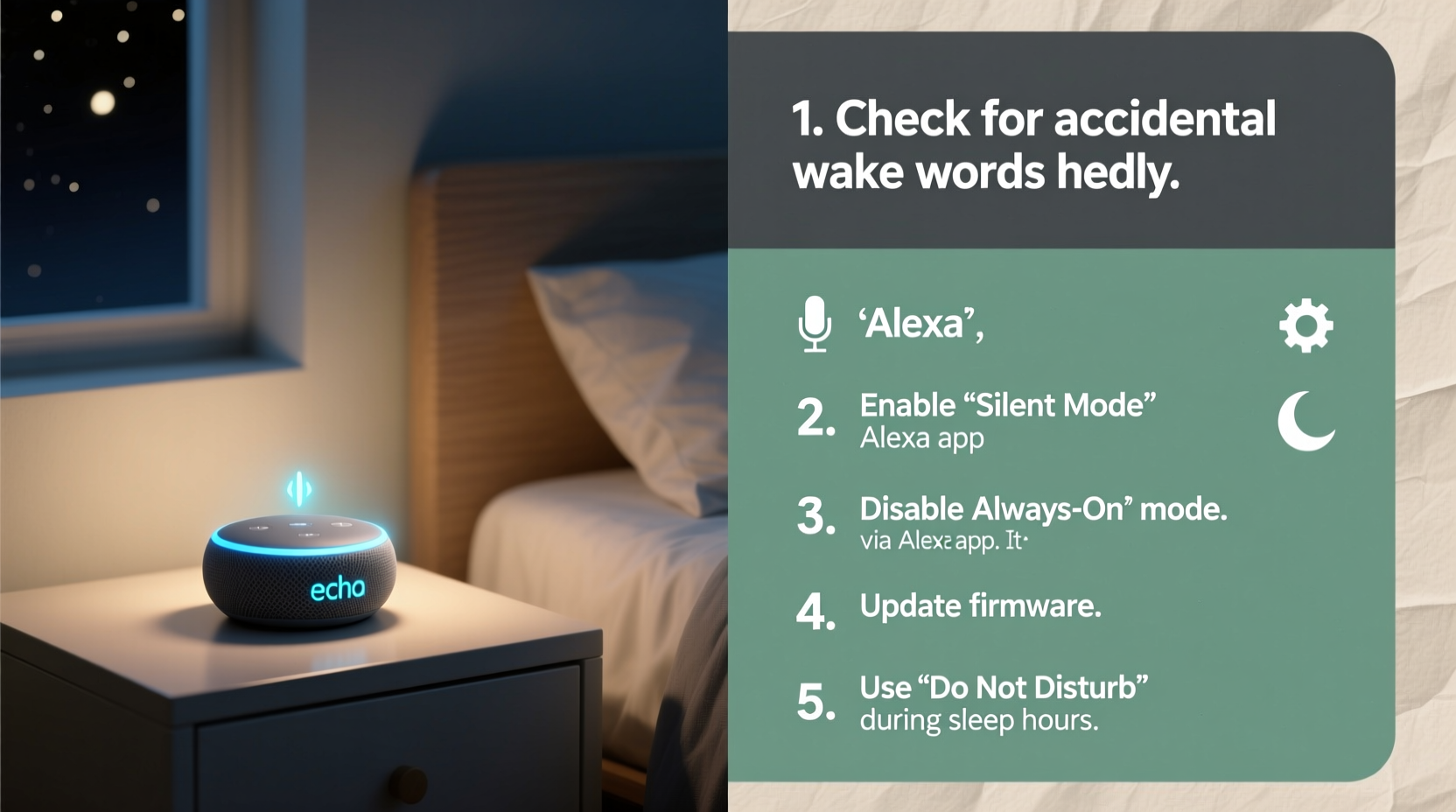
The Echo Dot relies on far-field microphones and voice recognition software to detect the wake word—usually “Alexa.” However, its sensitivity means it can misinterpret ambient sounds as commands. Several environmental and technical factors contribute to false triggers, particularly at night when background noise drops and subtle sounds become more noticeable.
- Background noise interference: Sounds like snoring, creaking floors, TV static, or even pet movements can resemble the wake word.
- Poor microphone calibration: Dust buildup or incorrect placement near reflective surfaces may cause erratic behavior.
- Firmware glitches: Outdated or buggy software updates sometimes lead to unintended responses.
- Connected smart home alerts: Notifications from routines, timers, or third-party apps may activate the device unexpectedly.
- Cross-talk with other Alexa devices: Multiple Echos in close proximity can trigger each other.
How to Diagnose Unwanted Activations
Before silencing your device completely, determine whether the activation was accidental or intentional. Alexa keeps a history of interactions through the Alexa app. Reviewing this log helps identify patterns and pinpoint sources of disturbance.
- Open the Alexa app on your smartphone or tablet.
- Navigate to Settings > Your Alexa Devices > select your Echo Dot.
- Tap Device Logs or go to Activity under the main menu.
- Check timestamps around the time of the incident to see what triggered the response.
If the log shows no recorded command but the light ring activated (blue or cyan), it could indicate a hardware glitch or electromagnetic interference. If a specific phrase appears, analyze whether household noise might have mimicked that input.
Real Example: The Midnight Weather Report
Sarah, a teacher from Portland, began waking up every few nights to Alexa announcing the weather forecast. She had set a morning routine but hadn’t noticed it was triggering prematurely. After checking her activity log, she discovered that her dog’s crate squeaking at 2:17 AM sounded similar enough to “Good morning, Alexa” to initiate the sequence. By adjusting the routine to require explicit activation and relocating the Echo Dot further from the pet area, the issue stopped within two days.
Step-by-Step Guide to Silence Your Echo Dot at Night
Complete silence isn't always necessary—many prefer partial muting or scheduled quiet periods. Follow this structured approach to customize your Echo Dot’s nighttime behavior effectively.
Step 1: Enable Do Not Disturb Mode
Amazon’s built-in Do Not Disturb (DND) feature suppresses notifications, calls, and alerts during specified hours without disabling core functionality.
- In the Alexa app, go to More > Settings > Do Not Disturb.
- Select your Echo Dot from the list.
- Toggle on DND and set a schedule (e.g., 10 PM to 7 AM).
With DND active, alarms will still sound unless manually disabled, ensuring you won’t oversleep while avoiding surprise chimes.
Step 2: Adjust Wake Word Sensitivity
Lowering sensitivity reduces false triggers without making the device unresponsive.
- Go to Settings > Your Alexa Devices > select your Echo Dot.
- Tap Wake Word Sensitivity.
- Choose “Low” or “Medium” based on room acoustics.
This setting works best after testing different levels during both day and night conditions.
Step 3: Mute the Microphone When Needed
For absolute silence, physically mute the device using the microphone off button (red line indicator). You can do this manually before bed or automate it.
Step 4: Automate Nightly Muting with Routines
Create a routine that mutes the speaker or disables responses automatically.
- In the Alexa app, tap Routines under Automations.
- Select Create Routine.
- Set the trigger to “Time” and choose your bedtime.
- Add action: Device Actions > Speak > “Goodnight” (optional).
- Add another action: Settings > Set Volume to 0%.
- (Optional) Add: Turn Off Microphone if supported by model.
- Save the routine.
To reverse the process in the morning, create a second routine at wake-up time to restore volume and re-enable listening.
Do’s and Don’ts: Managing Echo Dot Behavior
| Do | Don’t |
|---|---|
| Use Do Not Disturb mode nightly | Leave all notifications enabled indefinitely |
| Keep firmware updated | Ignore software update prompts |
| Position Echo Dot centrally, away from noise sources | Place it near TVs, fish tanks, or HVAC vents |
| Review Activity History weekly | Assume random behavior has no explanation |
| Test wake word sensitivity monthly | Set sensitivity to “High” in noisy environments |
Expert Insight: What Engineers Say About False Triggers
While Amazon doesn't publicly disclose exact audio pattern algorithms, former Alexa development team members have shared insights about edge cases in voice detection systems.
“Even with advanced machine learning, no system is immune to phonetic ambiguity. Words like ‘election,’ ‘alexia,’ or phrases ending in ‘-exa’ can occasionally fool the detector—especially in low signal-to-noise environments.” — Dr. Rajiv Mehta, Audio AI Researcher and ex-Senior Engineer at Amazon Lab126
This explains why certain music tracks, movie dialogues, or even names spoken nearby might inadvertently activate your device. It's not a flaw per se, but a limitation inherent in real-world speech recognition.
Alternative Solutions for Persistent Issues
If standard fixes don’t resolve the problem, consider these deeper interventions:
- Factory reset: Resetting the device clears corrupted settings. Go to Settings > Device Options > Reset to Factory Defaults.
- Replace aging units: Older Echo Dots (3rd gen or earlier) may develop microphone drift or circuit interference over time.
- Disable skills temporarily: Some third-party services send unsolicited push notifications. Review and disable unused skills under Skills & Games.
- Use a power switch: Plug the Echo Dot into a smart plug controlled by a routine that cuts power at night. Note: This disables all functions, including alarms.
Mini Case Study: The Phantom Alarm Caller
Mark in Austin experienced weekly late-night Alexa calls to non-existent contacts. He initially suspected hacking. After reviewing logs, he found no outgoing calls—but did notice recurring activations labeled “Calling Mom.” His wife’s sleep-talking included phrases like “call mom tomorrow,” which Alexa interpreted literally. They resolved it by enabling voice confirmation for calls (Settings > Communications > Require Voice Confirmation) and moving the Echo out of the bedroom.
FAQ: Common Questions About Echo Dot Noises at Night
Can someone hack my Echo Dot and make it talk at night?
It’s extremely unlikely. Amazon uses end-to-end encryption for voice recordings and requires authentication for remote access. Most apparent “hacking” incidents are misinterpreted environmental triggers or misunderstood features like Drop In or announcements. Always check your Activity Log first.
Why does my Echo Dot glow blue but say nothing?
A brief blue light usually indicates Alexa processing a detected sound. If no response follows, it likely determined the input wasn’t a valid command. Frequent glowing suggests high sensitivity or ambient noise issues. Try lowering wake word sensitivity or cleaning the mic ports gently with a dry brush.
Will turning off the microphone stop all sounds?
No. The microphone off button (red line) only disables listening—it doesn’t prevent pre-scheduled alarms, timers, or announcements already queued. To stop all audio output, lower volume to zero or use Do Not Disturb mode.
Final Checklist: Silence Your Echo Dot for Peaceful Nights
- ✅ Enable Do Not Disturb with a custom schedule.
- ✅ Lower wake word sensitivity to Medium or Low.
- ✅ Review recent Activity History for false triggers.
- ✅ Create a bedtime routine to mute volume or disable responses.
- ✅ Reposition the Echo Dot away from noise sources and reflective surfaces.
- ✅ Update device firmware via the Alexa app.
- ✅ Disable unnecessary skills and notifications.
- ✅ Consider a smart plug for full nighttime shutdown (if alarms aren’t needed).
Conclusion
Your Echo Dot should enhance your life—not disrupt your sleep. Random activations at night are rarely mysterious; they stem from identifiable combinations of environment, settings, and usage patterns. With careful diagnosis and strategic adjustments, you can maintain the benefits of voice assistance while eliminating unwanted disturbances. Take control tonight: review your settings, set up Do Not Disturb, and enjoy uninterrupted rest. A smarter home shouldn’t come at the cost of sound sleep.




 浙公网安备
33010002000092号
浙公网安备
33010002000092号 浙B2-20120091-4
Comments
No comments yet. Why don't you start the discussion?