
Email remains one of the most essential tools for personal and professional communication. Yet few things are more frustrating than waiting several seconds—or even minutes—for your inbox to appear. A slow-loading email disrupts workflow, delays responses, and can make you question whether your device or internet connection is failing. The truth is, email performance depends on a complex mix of factors, from your network quality to account settings and third-party integrations. Understanding these elements is the first step toward restoring speed and reliability.
Common Causes of Slow Email Loading
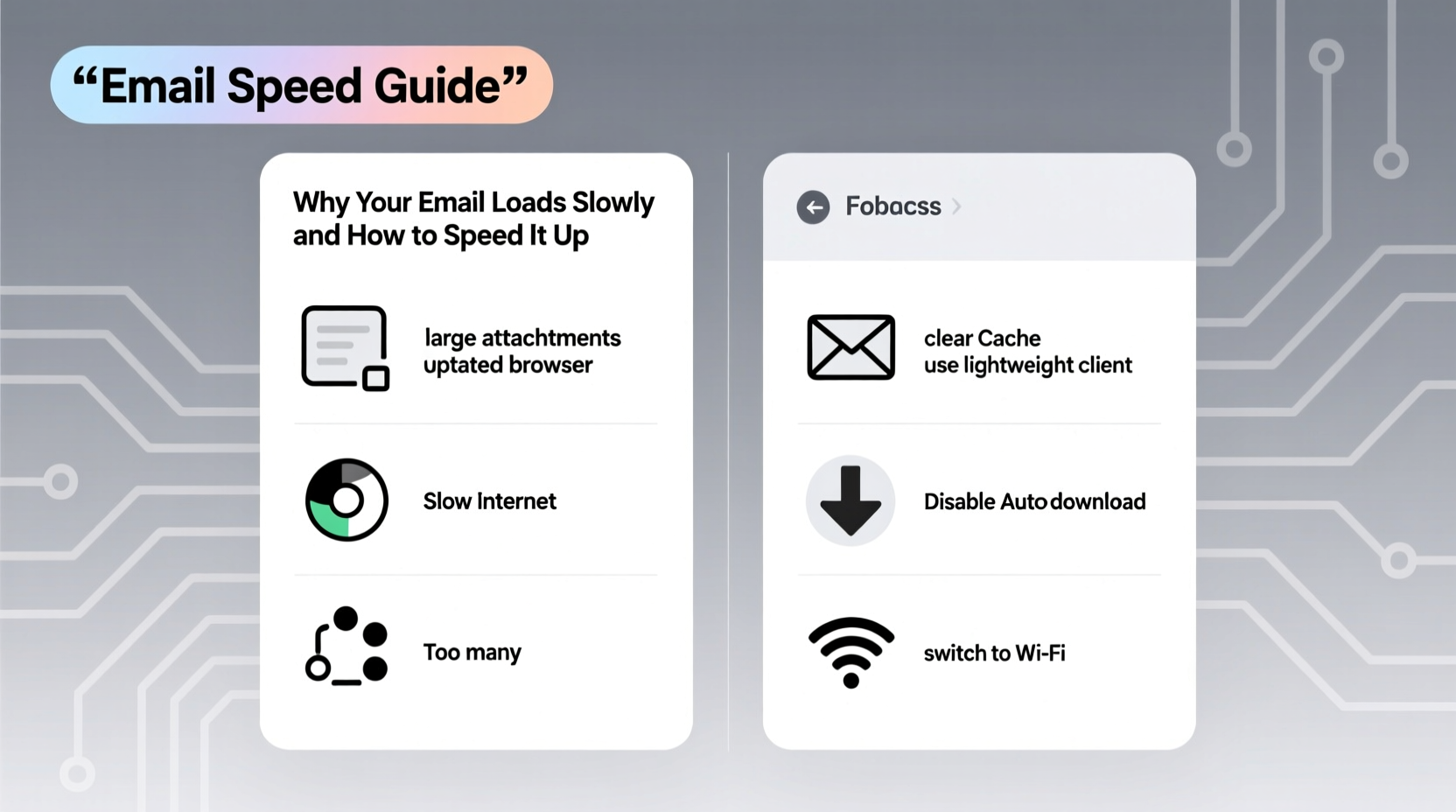
Email slowness rarely stems from a single issue. More often, it's the cumulative effect of multiple inefficiencies across devices, networks, and software configurations. Identifying the root cause requires examining both external and internal variables.
- Poor Internet Connection: Bandwidth limitations or unstable Wi-Fi can delay data transfer between your device and the email server.
- Large Inbox Size: Thousands of messages, especially with attachments, increase the time it takes to sync and render your inbox.
- Outdated Software: Older versions of email clients may lack optimization features found in newer updates.
- Too Many Connected Devices: Each connected device increases synchronization load on your email provider’s servers.
- Background Apps and Browser Extensions: Plugins like ad blockers, password managers, or CRM tools can interfere with page rendering.
- Server-Side Issues: Occasionally, the problem lies with the email service provider experiencing downtime or high traffic.
How Email Works: A Brief Technical Overview
To understand why loading times vary, it helps to know how email functions behind the scenes. When you open your inbox, your device sends a request to your email provider’s server (e.g., Gmail, Outlook). The server retrieves message headers, previews, and metadata—sometimes pulling hundreds or thousands of records. This data must then be rendered by your browser or app, which involves formatting text, loading images, and executing JavaScript.
The process uses one of two primary protocols: IMAP (Internet Message Access Protocol) or POP3 (Post Office Protocol). IMAP keeps emails synced across devices but increases server load. POP3 downloads messages locally, reducing server dependency but limiting accessibility.
Web-based clients (like Gmail in Chrome) rely heavily on JavaScript frameworks that enhance functionality but can become sluggish if overloaded. Mobile apps use native code, which tends to be faster—but only if optimized properly.
“Email performance isn’t just about speed—it’s about efficiency in data retrieval, processing, and presentation.” — Dr. Alan Reyes, Network Systems Engineer at MIT Lincoln Laboratory
Step-by-Step Guide to Speed Up Your Email
Improving email load time doesn't require technical expertise. Follow this structured approach to identify and resolve bottlenecks.
- Clear Your Browser Cache and Cookies
Over time, cached files accumulate and can conflict with updated web interfaces. In your browser settings, clear cache and cookies specifically for your email domain (e.g., mail.google.com). - Disable Unnecessary Browser Extensions
Some extensions inject scripts into every webpage, including your inbox. Temporarily disable all extensions, then re-enable them one by one to isolate the culprit. - Use the Desktop App Instead of Web Version
For services like Outlook or Gmail, dedicated desktop applications often perform better than browsers due to lower resource overhead. - Archive Old Emails Regularly
Keep your inbox lean. Archive messages older than six months to reduce sync load. Most providers allow searching archived mail just as easily. - Turn Off Preview Images and Rich Content
Automatic image loading slows rendering. Disable this feature in settings to improve initial load speed. - Limit Active Devices
Remove old phones, tablets, or computers from your account’s trusted device list. Fewer syncing endpoints mean less strain on the server. - Switch to a Lightweight Client
If you're using a bloated interface, consider switching to a minimalist client like Spark, Newton, or Thunderbird with performance-focused design.
Do’s and Don’ts: Email Optimization Table
| Do | Don’t |
|---|---|
| Use keyboard shortcuts to navigate quickly | Leave hundreds of unread emails piling up |
| Enable offline mode to reduce real-time syncing | Run multiple email tabs or windows simultaneously |
| Update your email app or browser regularly | Ignore software update notifications |
| Use filters and labels to auto-sort incoming mail | Allow auto-play videos or embedded media in emails |
| Check server status during outages (e.g., downdetector.com) | Assume the problem is always on your end without testing |
Mini Case Study: Fixing a Corporate Team’s Gmail Delays
A mid-sized marketing agency reported consistent delays in accessing Gmail across their team. Employees complained of 15–30 second load times, even on high-speed office Wi-Fi. Initial suspicion pointed to network issues, but after investigation, IT discovered several contributing factors:
- Team members averaged over 40,000 messages per inbox.
- All were using Chrome with 10+ active extensions (Grammarly, HubSpot, LastPass, etc.).
- Gmail’s “Priority Inbox” and “Smart Categories” were enabled, increasing processing load.
The solution involved three steps: implementing a company-wide archiving policy, recommending a switch to the Gmail desktop app, and creating a standardized Chrome profile with only essential extensions. Within a week, average load time dropped from 22 seconds to under 4 seconds. Productivity tracking showed a measurable improvement in response times and meeting punctuality.
Advanced Fixes for Persistent Performance Issues
When basic optimizations don’t yield results, deeper troubleshooting is necessary. These techniques target system-level inefficiencies.
Reset Sync Settings
If you're using IMAP, corrupted sync states can cause repeated data fetching. Remove the email account from your device and re-add it. This forces a fresh sync and often resolves lingering bugs.
Use a Faster DNS Server
Your Domain Name System (DNS) translates web addresses into IP numbers. Default ISP DNS servers are often slow. Switch to Google Public DNS (8.8.8.8 and 8.8.4.4) or Cloudflare (1.1.1.1) for faster resolution.
Reduce Folder and Label Count
Excessive folders or labels create indexing overhead. Consolidate categories and avoid nesting more than two levels deep. For example, instead of “Work > Clients > Q3 > Project Alpha > Invoices,” use “Clients/Alpha – Invoices.”
Disable Push Notifications on Multiple Devices
Push email constantly checks for new messages, consuming bandwidth and battery. Switch to “Fetch” mode (manual or hourly) on secondary devices like tablets or older phones.
“Every additional connected device adds latency. For optimal performance, limit active sync to two primary devices.” — Lena Patel, Senior UX Engineer at FastMail
Email Speed Checklist
Follow this checklist to systematically improve your email performance:
- ✅ Test internet speed; ensure minimum 10 Mbps download
- ✅ Clear browser cache and cookies for your email site
- ✅ Disable non-essential browser extensions
- ✅ Archive or delete old emails (especially large attachments)
- ✅ Update your email app or browser to the latest version
- ✅ Turn off automatic image loading and rich media
- ✅ Remove inactive devices from your account settings
- ✅ Consider switching to a lightweight email client
- ✅ Use search instead of scrolling through thousands of messages
- ✅ Monitor provider status during suspected outages
Frequently Asked Questions
Why does my email load slowly on Wi-Fi but fine on cellular data?
This often indicates a router or local network issue. Try restarting your router, forgetting and reconnecting to the Wi-Fi, or checking if other devices experience similar slowness. It could also be interference from nearby networks or outdated firmware.
Can too many email signatures or templates slow things down?
Yes. HTML-heavy signatures with images, fonts, or tracking pixels add rendering weight. Use plain text signatures when possible, or host images externally rather than embedding them directly.
Is it better to use an email app or a browser?
Generally, native apps (like Apple Mail, Outlook, or Gmail app) are faster and more efficient than web browsers because they’re optimized for specific operating systems and use fewer background processes. Browsers are convenient but carry extra overhead from tabs, extensions, and memory usage.
Conclusion
Email doesn’t have to be slow. With deliberate maintenance and smart configuration, you can transform a sluggish inbox into a responsive communication hub. The key is recognizing that performance depends not just on your internet speed, but on how you manage your account, devices, and software environment. Small changes—like cleaning up old messages, disabling unnecessary plugins, or switching to a better client—can lead to dramatic improvements.
Speed isn’t a luxury; it’s a productivity multiplier. By applying the strategies outlined here, you reclaim valuable seconds every day—seconds that add up to hours over time. Don’t tolerate lag any longer. Take action today, optimize your setup, and experience what truly fast, reliable email feels like.




 浙公网安备
33010002000092号
浙公网安备
33010002000092号 浙B2-20120091-4
Comments
No comments yet. Why don't you start the discussion?