
High-speed internet doesn’t guarantee smooth gaming. Many players experience frustrating lag despite paying for premium connections. The truth is, online gaming performance depends on more than just download speed. Latency, packet loss, background processes, and even in-game settings can disrupt your experience. Understanding the real causes behind lag—and how to fix them—can transform choppy sessions into seamless gameplay.
Understanding the Difference Between Speed and Latency
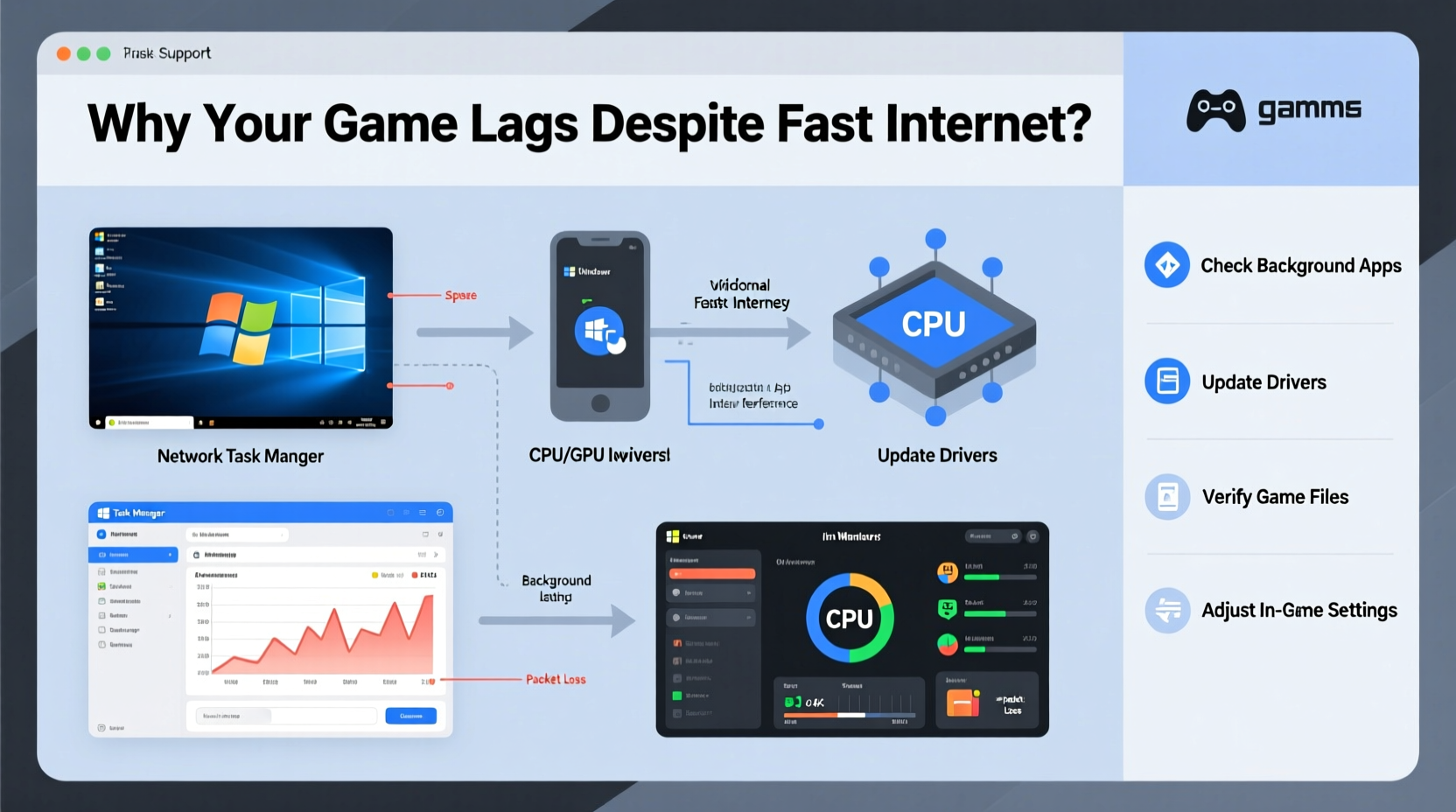
Internet speed and latency are often confused, but they measure different things. Download speed refers to how quickly data reaches your device—important for loading games or downloading updates. Latency, measured in milliseconds (ms), is the time it takes for a signal to travel from your device to the game server and back. This round-trip delay directly affects responsiveness in real-time games.
A connection with high speed but high latency may load textures quickly but still feel unresponsive during fast-paced action. For example, a 500 Mbps connection with 100 ms ping will perform worse in competitive shooters than a 100 Mbps connection with 20 ms ping.
“Low latency is far more critical than raw bandwidth for gaming. A 30 ms ping feels instant; 100 ms introduces noticeable delay.” — David Lin, Network Engineer at ProGamer Systems
Common Causes of Game Lag Beyond Internet Speed
Lag isn’t always about your ISP. Multiple factors contribute to poor gaming performance, even with a fast connection. Identifying these is the first step toward fixing them.
1. High Ping and Server Distance
The physical distance between you and the game server adds unavoidable latency. Playing a server hosted across the globe can add 100–200 ms of delay. Always select the closest regional server available in multiplayer lobbies.
2. Packet Loss and Jitter
Packet loss occurs when data sent from your device fails to reach the server. Jitter is the variation in latency over time. Both cause stuttering, rubberbanding, and sudden freezes. Common culprits include unstable Wi-Fi, congested networks, or ISP routing issues.
3. Background Bandwidth Usage
Other devices or applications using your network—like cloud backups, streaming services, or automatic updates—can consume bandwidth and increase latency. Even if your total bandwidth seems sufficient, network congestion spikes can degrade gaming performance.
4. Outdated Hardware or Drivers
An outdated router, old Wi-Fi adapter, or unoptimized GPU drivers can bottleneck your system. Modern games require consistent frame delivery, and driver bugs or thermal throttling can interrupt this flow.
5. Game and System Settings
Graphics-intensive settings like ultra shadows or ray tracing can overwhelm your CPU or GPU, causing internal lag. This is often mistaken for network issues. Reducing in-game settings can significantly improve frame pacing and responsiveness.
Step-by-Step Guide to Reduce Latency and Fix Game Lag
Follow this systematic approach to diagnose and eliminate sources of lag. Each step targets a specific layer of your setup—from network to software.
- Test Your Connection: Use tools like
ping,tracert(Windows), or websites like pingtest.net to measure latency and packet loss to the game server. - Switch to Ethernet: Disconnect from Wi-Fi and use a Cat 6 or higher cable to connect directly to your router.
- Restart Networking Equipment: Power cycle your modem and router. This clears temporary glitches and resets IP assignments.
- Close Background Applications: Shut down apps using bandwidth (e.g., Steam downloads, Discord screen sharing, OneDrive sync).
- Update Network Drivers: Visit your motherboard or laptop manufacturer’s website to install the latest LAN and Wi-Fi drivers.
- Enable QoS (Quality of Service): In your router settings, prioritize gaming traffic. Assign higher priority to your gaming PC or console.
- Change DNS Servers: Switch from default ISP DNS to faster alternatives like Google DNS (8.8.8.8) or Cloudflare (1.1.1.1).
- Lower In-Game Graphics Settings: Reduce render resolution, disable motion blur, and lower shadow quality to ease GPU load.
- Verify Game Files: Corrupted assets can cause stuttering. Use Steam’s “Verify Integrity of Game Files” or equivalent in other launchers.
- Monitor Frame Time Consistency: Use tools like MSI Afterburner to check for micro-stutters caused by inconsistent frame delivery.
Checklist: Quick Fixes for Immediate Lag Reduction
- ✅ Use an Ethernet cable instead of Wi-Fi
- ✅ Restart modem and router
- ✅ Close bandwidth-heavy apps (streaming, downloads)
- ✅ Select the nearest game server region
- ✅ Update graphics drivers and firmware
- ✅ Enable Game Mode in Windows Settings
- ✅ Disable fullscreen optimizations for the game executable
- ✅ Limit background processes via Task Manager
- ✅ Set power plan to “High Performance”
- ✅ Clear temporary files and defragment SSD/HDD if needed
Do’s and Don’ts: Network Optimization for Gamers
| Do | Don't |
|---|---|
| Use wired connections for critical gaming sessions | Rely solely on Wi-Fi for competitive play |
| Set up port forwarding for specific games (if supported) | Leave default router settings untouched |
| Regularly update firmware on routers and adapters | Ignore firmware update notifications |
| Run latency tests during peak and off-peak hours | Assume your ISP delivers consistent performance |
| Limit connected devices during gameplay | Allow multiple 4K streams while gaming online |
Real Example: Fixing Lag in Competitive Apex Legends
Jason, a semi-professional Apex Legends player in Chicago, experienced persistent lag despite having a 300 Mbps fiber connection. His ping to the East Coast server averaged 75 ms, but he frequently suffered from rubberbanding and input delay.
After testing, he discovered his Wi-Fi signal was fluctuating due to interference from neighboring networks. He switched to a direct Ethernet connection and updated his outdated Intel Wi-Fi driver—even though he wasn’t using wireless anymore, the driver affected overall network stack performance.
He then enabled QoS on his ASUS router, prioritizing his PC’s MAC address. He also disabled Windows auto-updates during matches and lowered his in-game render scale from 100% to 90%, reducing GPU strain without sacrificing visibility.
The result? Ping stabilized at 42 ms with zero packet loss. His kill-death ratio improved within two weeks, and he attributed much of his success to eliminating hidden latency sources.
“Fixing lag isn’t about one big change—it’s about stacking small optimizations until everything runs smoothly.” — Jason Tran, Competitive FPS Player
Advanced Fixes for Persistent Latency Issues
If basic troubleshooting doesn’t resolve the issue, consider deeper technical solutions.
Use a Gaming VPN (Carefully)
While most consumer VPNs increase latency, specialized gaming VPNs like ExitLag or WTFast route your traffic through optimized private servers. These services avoid congested public routes and reduce hops between you and the game server. However, they come at a cost and should be tested before subscription.
Upgrade Your Router
Older routers may lack modern QoS features, MU-MIMO support, or sufficient processing power. Consider upgrading to a gaming-focused model with:
- Dual-band or tri-band Wi-Fi 6 support
- Custom firmware compatibility (e.g., DD-WRT, OpenWRT)
- Adaptive QoS and traffic monitoring
Adjust TCP/IP Settings
Advanced users can tweak Windows network parameters to favor low-latency communication. Examples include:
- Disabling Large Send Offload (LSO)
- Enabling Network Throttling Functionality
- Reducing MTU size to minimize fragmentation
Frequently Asked Questions
Can RAM or CPU affect game lag?
Yes. Even with perfect internet, a slow CPU or insufficient RAM can cause internal lag, such as frame drops or delayed input processing. This is especially true in CPU-heavy games like MMOs or simulation titles. Monitor your system performance during gameplay using task manager or overlay tools.
Why does my ping spike randomly during gameplay?
Ping spikes are often caused by background processes consuming network or system resources. Common culprits include Windows updates, antivirus scans, or cloud sync tools. To prevent this, schedule updates outside gaming hours and exclude game folders from real-time scanning.
Does closing other browser tabs help reduce lag?
It can. Browser tabs running video, ads, or WebRTC applications (like Discord calls) consume bandwidth and CPU. Closing unused tabs frees up both network and processing power, leading to smoother gameplay.
Conclusion: Take Control of Your Gaming Experience
Lag doesn’t have to be inevitable. Fast internet is just one piece of the puzzle. By addressing latency at every level—network, hardware, software, and configuration—you can achieve responsive, fluid gameplay even in high-stakes environments. The fixes aren’t always obvious, but they’re within reach. Start with the basics: go wired, close background apps, and test your connection. Then move to advanced optimizations like QoS, driver updates, and server selection. Every millisecond saved adds up.




 浙公网安备
33010002000092号
浙公网安备
33010002000092号 浙B2-20120091-4
Comments
No comments yet. Why don't you start the discussion?