
Fast internet doesn’t always guarantee smooth gameplay. Gamers often report high ping, stuttering visuals, or disconnections—even when their broadband speeds test well above requirements. The culprit? Frequently, it’s not the internet speed itself but how that connection is managed by your router and network environment. While download and upload rates matter, latency, packet loss, and network congestion play a far more critical role in real-time gaming. Understanding these hidden factors and knowing how to adjust your router settings can make the difference between victory and constant frustration.
Why Fast Internet Isn't Enough for Smooth Gaming
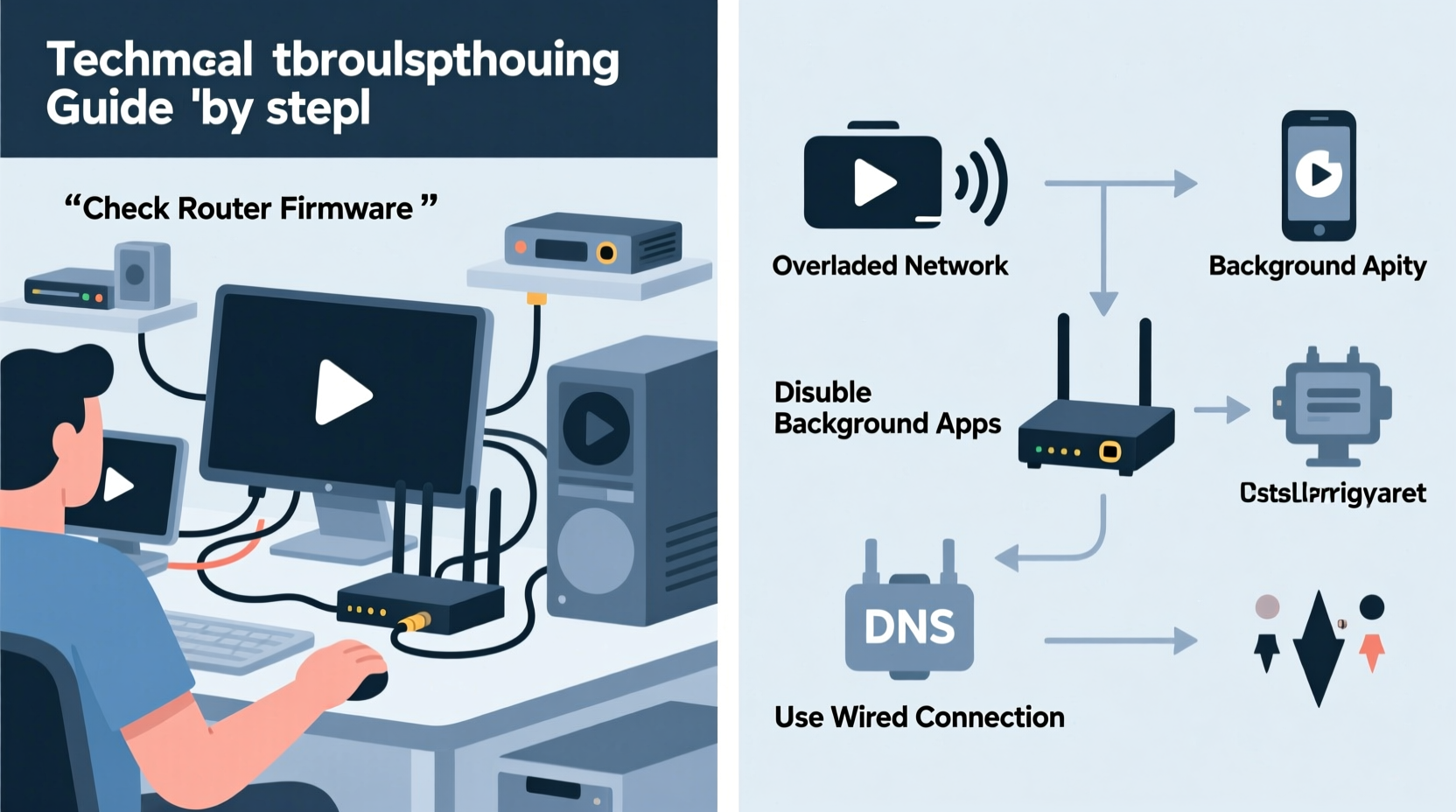
Internet speed is commonly misunderstood. A 300 Mbps connection sounds impressive, but if the signal is inconsistent or delayed, your game will still lag. Gaming relies heavily on three key metrics:
- Latency (Ping): The time it takes for data to travel from your device to the game server and back. Lower is better—ideally under 50 ms.
- Jitter: Variability in latency. High jitter causes unpredictable lag spikes.
- Packet Loss: When data fails to reach its destination. Even 1–2% packet loss can disrupt gameplay.
These issues often stem from network congestion, poor Wi-Fi signals, outdated hardware, or misconfigured routers—factors that speed tests don’t reveal. Your ISP may deliver promised bandwidth, but internal network inefficiencies can cripple performance.
“Bandwidth is like highway width; latency is about traffic flow. You can have ten lanes, but if cars keep stopping at toll booths, you’re not going anywhere fast.” — Dr. Lin Zhao, Network Performance Analyst at MIT Computer Science Lab
Common Router-Related Causes of Game Lag
Your router is the central hub of your home network. If it's underperforming, no amount of fiber-optic speed will help. Below are the most frequent router-related problems affecting gamers:
1. Outdated Firmware
Routers require regular firmware updates to fix bugs, improve security, and optimize performance. An outdated model may struggle with modern traffic management protocols essential for low-latency gaming.
2. Poor QoS (Quality of Service) Settings
Without proper QoS configuration, your router treats all data equally—streaming video, file downloads, and game packets compete for bandwidth. This leads to lag during peak usage times.
3. Overloaded Wi-Fi Channels
In dense living areas (apartments, urban homes), multiple nearby networks can interfere with your signal. Routers defaulting to crowded channels suffer from interference and reduced throughput.
4. Distance and Physical Obstructions
Even with strong internet, Wi-Fi signals degrade over distance and through walls, especially at 5 GHz frequencies. Gamers using wireless connections from another room often experience higher latency than expected.
5. NAT Type Restrictions
Some routers enforce strict NAT (Network Address Translation) types that hinder peer-to-peer connections in multiplayer games. Open NAT is ideal, while Type 3 or Strict NAT can cause matchmaking delays or disconnections.
Possible Router Fixes to Reduce Game Lag
Before upgrading hardware, try these proven fixes to optimize your existing setup:
Step 1: Update Router Firmware
Log into your router’s admin panel (usually accessible via 192.168.1.1 or 192.168.0.1). Check for firmware updates under the \"Administration\" or \"Maintenance\" tab. Install any available updates—this alone can resolve compatibility issues with newer games and devices.
Step 2: Enable Quality of Service (QoS)
QoS allows you to prioritize gaming traffic over other activities. In your router settings:
- Navigate to the QoS section.
- Select your gaming device (PC, console) or assign priority by port number (e.g., UDP 3074 for Xbox).
- Set it to highest priority.
This ensures that even during heavy downloads or streaming, your game retains sufficient bandwidth.
Step 3: Switch to Less Congested Wi-Fi Channels
Use a Wi-Fi analyzer app (like NetSpot or Wi-Fi Analyzer for Android) to scan nearby networks. Choose a less crowded channel manually in your router settings. For 2.4 GHz, stick to channels 1, 6, or 11. On 5 GHz, select non-overlapping channels like 36, 40, 149, or 161.
Step 4: Optimize DNS Settings
Default ISP DNS servers can be slow. Replace them with faster alternatives:
- Google DNS: 8.8.8.8 and 8.8.4.4
- Cloudflare DNS: 1.1.1.1 and 1.0.0.1
Changing DNS can reduce domain lookup times, improving initial connection speed to game servers.
Step 5: Reboot and Reset Strategically
Reboot your router weekly to clear memory leaks and refresh connections. If problems persist, perform a factory reset and reconfigure settings from scratch—this removes corrupted configurations without replacing hardware.
Router Hardware Upgrade Checklist
If software fixes don’t resolve the issue, consider upgrading your equipment. Not all routers are built for gaming. Use this checklist before purchasing:
| Feature | Recommended | Avoid |
|---|---|---|
| Wi-Fi Standard | Wi-Fi 6 (802.11ax) or Wi-Fi 6E | Wi-Fi 4 (802.11n) or older |
| Processor & RAM | Dual-core 1GHz+ CPU, 512MB+ RAM | Single-core, less than 128MB RAM |
| QoS Support | Advanced QoS with device prioritization | No QoS or basic throttling only |
| Ethernet Ports | Gigabit ports (10/100/1000 Mbps) | 10/100 Mbps only |
| Firmware Updates | Regular security and performance patches | No recent updates in 12+ months |
Real-World Example: Fixing Persistent Lag in a Shared Household
Jason, a competitive Fortnite player in Chicago, had 400 Mbps internet but experienced frequent lag spikes during ranked matches. His household included two siblings who streamed Netflix and TikTok simultaneously. Speed tests showed full bandwidth, yet his ping jumped from 40 ms to over 200 ms mid-match.
After troubleshooting, he discovered his router didn’t support QoS. He upgraded to an ASUS RT-AX86U, enabled Adaptive QoS, and assigned top priority to his PC. He also switched from Wi-Fi to a Cat 6 Ethernet cable. The result? Ping stabilized at 38–42 ms, even during peak evening usage. His kill-death ratio improved within a week—not due to skill alone, but consistent network performance.
Expert Insight: What Game Developers Say About Network Stability
Game developers design titles assuming a baseline of stable connectivity. However, many emphasize that end-user network configuration is beyond their control.
“We build games to handle minor latency, but we can’t compensate for home network bottlenecks. A well-configured router matters as much as a good GPU.” — Maya Tran, Lead Network Engineer at Respawn Entertainment
This highlights the importance of user-side optimization. No amount of server-side tuning can overcome a congested or poorly managed local network.
Step-by-Step Guide: Optimizing Your Router in 30 Minutes
Follow this timeline to significantly improve gaming performance today:
- 0–5 min: Reboot your router and modem. Unplug both, wait 30 seconds, then power them back on.
- 5–10 min: Connect to your router’s admin interface. Enter the IP address (e.g., 192.168.1.1) in a browser and log in with your credentials.
- 10–15 min: Check for firmware updates. Install if available and wait for reboot.
- 15–20 min: Navigate to QoS settings. Enable it and assign highest priority to your gaming device’s MAC or IP address.
- 20–25 min: Change your DNS to 1.1.1.1 and 8.8.8.8 under WAN or Internet settings.
- 25–30 min: Use a Wi-Fi analyzer to pick the least crowded channel. Apply changes and reconnect devices.
This routine takes half an hour but can yield immediate improvements in responsiveness and consistency.
FAQ: Common Questions About Gaming Lag and Routers
Does having more bandwidth eliminate lag?
No. Bandwidth affects how much data can be transferred, but lag is primarily caused by latency and packet loss. A 100 Mbps connection with low ping often performs better than a 1 Gbps line with high jitter.
Can a mesh Wi-Fi system help with gaming?
It depends. Mesh systems improve coverage but can introduce latency due to multi-hop routing. For gaming, use a single high-performance router or a mesh system with a dedicated backhaul band. Always prefer wired backhaul over wireless when possible.
Is port forwarding still necessary for gaming?
Less so than before. Most modern consoles and routers support UPnP (Universal Plug and Play) to auto-open ports. However, manually forwarding ports (e.g., TCP/UDP 3074 for Xbox, 3478–3480 for PlayStation) can resolve NAT issues and improve connection stability.
Conclusion: Take Control of Your Gaming Experience
Fast internet is just the starting point. True gaming performance comes from optimizing the entire chain—from your ISP to your router to your device. By understanding how routers influence latency and applying strategic fixes like QoS, firmware updates, and channel selection, you reclaim control over your online experience. Don’t accept lag as inevitable. With the right adjustments, even modest hardware can deliver tournament-level responsiveness. Evaluate your current setup, apply these solutions, and feel the difference in your next match.




 浙公网安备
33010002000092号
浙公网安备
33010002000092号 浙B2-20120091-4
Comments
No comments yet. Why don't you start the discussion?