
Having a high-speed internet connection doesn’t always guarantee smooth gameplay. Many gamers are frustrated when their favorite titles stutter, freeze, or suffer from unresponsive controls—despite paying for premium broadband. The truth is, network speed is only one piece of the puzzle. Latency, packet loss, hardware bottlenecks, background processes, and even server-side conditions can all contribute to lag. Understanding these underlying factors is essential for diagnosing and resolving performance issues that aren’t fixed by simply upgrading your plan.
This guide breaks down the real reasons behind in-game lag—even with fast internet—and provides actionable steps to optimize your setup for responsive, seamless gaming.
The Hidden Causes of Gaming Lag Beyond Internet Speed
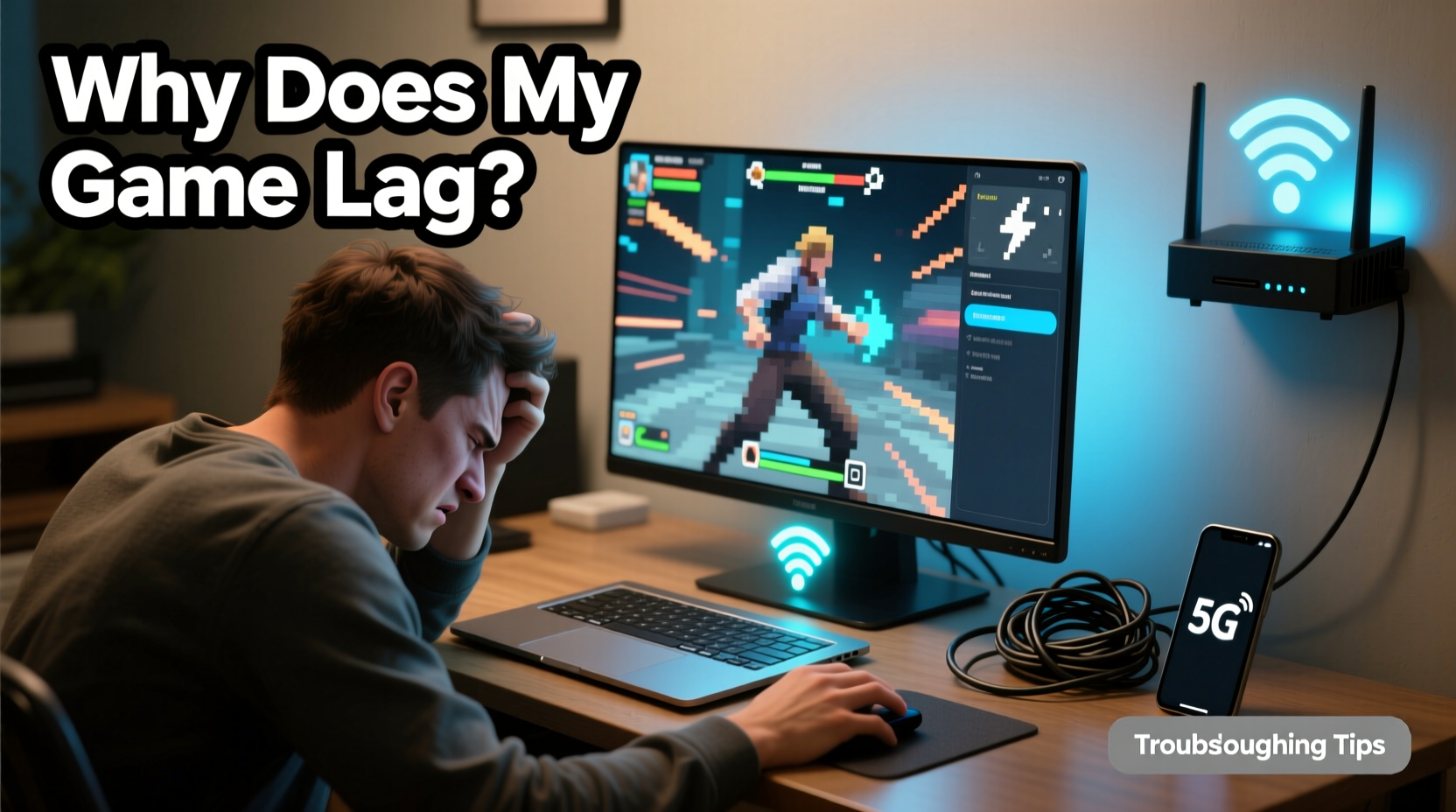
Internet speed, typically measured in Mbps (megabits per second), refers to how much data you can download or upload per second. While this matters for loading large files or streaming, it's not the most critical factor for real-time gaming. What truly affects gameplay is latency, also known as ping—the time it takes for data to travel from your device to the game server and back.
For example, two connections might both offer 300 Mbps, but one could have a ping of 20 ms while the other sits at 150 ms. The latter will feel sluggish during fast-paced games like first-person shooters or fighting games, even though the raw speed appears identical.
Other key contributors include:
- Packet loss: When data sent between your device and the server fails to arrive, causing stuttering or rubberbanding.
- Jitter: Inconsistent latency fluctuations that disrupt real-time communication.
- Network congestion: Too many devices using bandwidth simultaneously, even if total capacity seems sufficient.
- Wi-Fi interference: Physical obstacles, competing signals, or outdated wireless standards degrading connection stability.
- Hardware limitations: An underpowered GPU, CPU, or insufficient RAM can bottleneck performance regardless of internet quality.
Step-by-Step Guide to Diagnose and Fix Game Lag
Follow this structured approach to identify and eliminate the root cause of lag, even when your internet speed test looks perfect.
- Check your actual network performance
Run a comprehensive speed and latency test using tools like Ookla Speedtest, Fast.com, or pingplotter. Focus on:- Ping (aim for under 50 ms for competitive gaming)
- Download/upload speeds (ensure they meet advertised rates)
- Packet loss (should be 0%)
- Jitter (under 30 ms is acceptable)
- Test with a wired connection
Disconnect from Wi-Fi and plug your PC or console directly into the router via Ethernet. Re-run the same tests and compare results. If performance improves significantly, your wireless setup is likely the culprit. - Monitor background bandwidth usage
Check for automatic updates, cloud backups, streaming devices, or smart home gadgets consuming bandwidth. Pause or schedule these activities outside gaming hours. - Restart networking hardware
Power cycle your modem and router. Unplug them for 30 seconds, then reconnect. This clears temporary glitches and resets IP assignments. - Update firmware and drivers
Ensure your router’s firmware is up to date. Also, update your network adapter drivers on PC and check for system/console updates. - Change DNS servers
Default ISP DNS can be slow. Switch to faster alternatives like Google DNS (8.8.8.8, 8.8.4.4) or Cloudflare (1.1.1.1). - Enable Quality of Service (QoS) settings
Access your router’s admin panel and prioritize gaming traffic. Assign higher priority to your gaming device to ensure it gets bandwidth first.
Common Hardware Bottlenecks That Mimic Network Lag
Even with flawless internet, poor in-game performance may stem from internal system limitations. Symptoms like low frame rates, input delay, or screen tearing are often mistaken for network lag but originate within your own hardware or software environment.
| Component | Issue | Solution |
|---|---|---|
| GPU (Graphics Card) | Low FPS, stuttering visuals | Lower in-game graphics settings; ensure proper cooling and driver updates |
| CPU | Input lag, freezing during intense scenes | Close background apps; consider upgrade if consistently maxed out |
| RAM | Long load times, crashes | Upgrade to at least 16GB; check for memory leaks |
| Storage (HDD vs SSD) | Slow asset loading, texture pop-in | Install games on an SSD for faster read/write speeds |
| Thermal Throttling | Sudden drops in performance | Clean fans, reapply thermal paste, improve airflow |
“Many players blame their ISP when the issue lies in outdated hardware or improper configuration. A full system audit often reveals the real bottleneck.” — Daniel Reyes, Senior Systems Engineer at NexusTech Networks
Mini Case Study: Competitive Gamer Resolves Lag After Months of Frustration
Alex, a dedicated player in Valorant, experienced frequent deaths due to character teleportation and delayed gunfire—classic signs of lag. His internet plan was 500 Mbps fiber, and speed tests showed excellent results. Yet, his ping fluctuated between 60–140 ms during matches.
After ruling out server-side issues (other players reported no problems), he followed a diagnostic checklist. He discovered his router was located in the basement, far from his gaming PC, and connected via 2.4 GHz Wi-Fi. Despite strong signal bars, interference from neighboring networks caused consistent packet loss.
He moved the router closer, switched to a 5 GHz band, and eventually upgraded to a mesh network with a direct Ethernet link. Packet loss dropped to zero, and his average ping stabilized at 32 ms. The difference was immediate: smoother aiming, reliable ability casting, and a noticeable improvement in win rate.
This case highlights how environmental and network configuration factors can undermine even the fastest connections.
Troubleshooting Checklist: Eliminate Gaming Lag
✅ Actionable Checklist: Is Your Setup Optimized?
- ✔️ Connected via Ethernet, not Wi-Fi
- ✔️ Ran a ping and packet loss test to game server
- ✔️ Closed unnecessary background applications
- ✔️ Restarted modem and router recently
- ✔️ Updated network drivers and router firmware
- ✔️ Configured QoS to prioritize gaming device
- ✔️ Verified hardware meets game’s recommended specs
- ✔️ Monitored CPU/GPU usage during gameplay
- ✔️ Installed game on SSD, not HDD
- ✔️ Checked for overheating components
Frequently Asked Questions
Can a good internet connection still have high ping?
Yes. High bandwidth doesn't guarantee low latency. Ping depends on physical distance to the server, routing efficiency, and network congestion. For instance, playing a server located across the globe will naturally result in higher ping, even on fiber-optic lines.
Does uploading affect gaming performance?
Yes. While downloads get more attention, uploading is crucial for sending your actions (movement, shooting, etc.) to the server. If your upload speed is saturated by cloud backups or live streaming, your inputs may be delayed or dropped, leading to perceived lag.
Why does my game lag only during certain times of day?
This often indicates network congestion. During peak hours (evening and weekends), more users are online, increasing demand on both your local network and your ISP’s infrastructure. Try scheduling gameplay during off-peak hours or use QoS to maintain priority.
Expert Insight: The Role of Server Proximity and Routing
Not all lags are user-side. Game publishers host servers in specific geographic regions. If you're physically distant from those locations, your data must traverse multiple network nodes, increasing latency.
Some ISPs route traffic inefficiently, taking longer paths than necessary. This is known as “suboptimal routing.” Advanced users can detect this using traceroute tools and may benefit from switching to ISPs known for better peering with major gaming platforms.
In some cases, using a reputable gaming VPN optimized for low-latency routing (like ExitLag or WTFast) can actually reduce ping by providing a more direct path to the game server—though this should be used cautiously and never in competitive titles where such tools are prohibited.
“Gaming performance isn’t just about speed—it’s about consistency. A 100 Mbps connection with 20 ms ping and zero jitter will outperform a 1 Gbps line with unstable routing any day.” — Lisa Tran, Network Optimization Specialist, GameNet Labs
Conclusion: Take Control of Your Gaming Experience
Lag during gameplay doesn’t automatically mean your internet provider is at fault. Fast download speeds are just the beginning. True performance depends on a combination of low latency, stable connections, efficient hardware, and smart configuration. By systematically evaluating each potential bottleneck—from your router placement to your graphics card—you can uncover and resolve issues that degrade your experience.
Don’t accept lag as inevitable. Use the tools and strategies outlined here to diagnose, adjust, and optimize every layer of your gaming setup. Whether you’re climbing leaderboards or enjoying co-op adventures, a smooth, responsive connection makes all the difference.




 浙公网安备
33010002000092号
浙公网安备
33010002000092号 浙B2-20120091-4
Comments
No comments yet. Why don't you start the discussion?