
It’s frustrating when your internet speed tests show excellent results, yet your favorite online game stutters, freezes, or feels unresponsive. You’re not alone—many gamers assume lag is always tied to their ISP or network congestion, but the real culprit often lies much closer: your own hardware, software, or local network setup. A fast internet connection is just one piece of the puzzle. If your PC, router settings, background processes, or game configuration aren’t optimized, you’ll still experience poor performance. Understanding these local factors is essential for diagnosing and eliminating lag at its source.
Understanding the Difference Between Internet Speed and System Performance
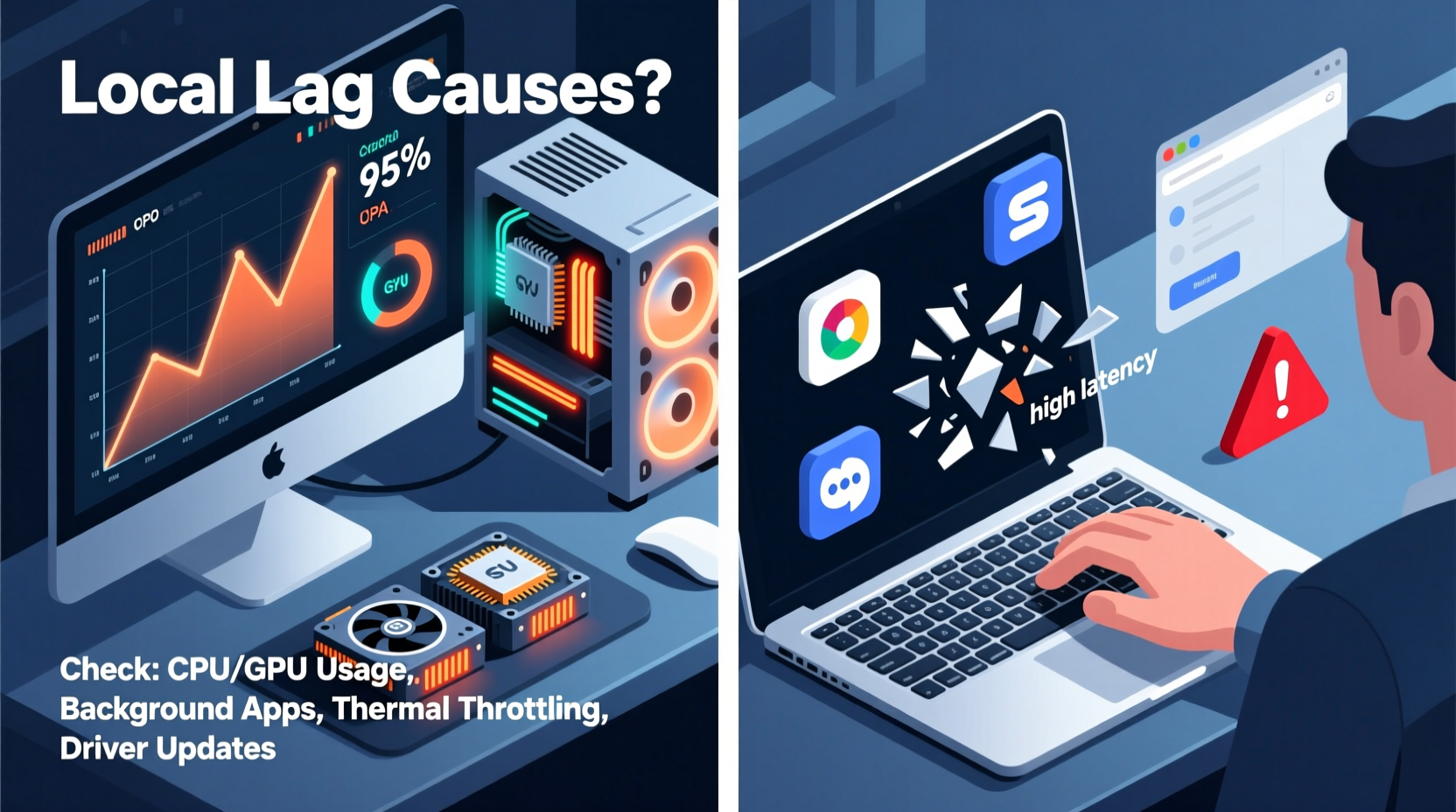
Before diving into troubleshooting, it's crucial to distinguish between network-related lag and system-induced performance issues. Internet speed affects data transfer—how quickly information travels between your device and the game server. But smooth gameplay also depends on your computer’s ability to process graphics, run the game engine, and manage input/output efficiently. Even with 500 Mbps fiber-optic internet, an underpowered GPU or a cluttered hard drive can cause frame drops, stuttering, and input delay that feel like “lag.”
Latency (ping) is another key factor. While download/upload speeds determine bandwidth, ping measures response time in milliseconds. High ping usually points to network distance or routing inefficiencies, but high latency experienced locally may stem from CPU bottlenecks or thermal throttling. Gamers often misattribute choppy gameplay to their internet when, in reality, their machine struggles to render frames fast enough to keep up.
“Internet stability is only half the equation. Local system health and optimization are equally critical for seamless gaming.” — Jordan Lee, Senior Network Engineer at GameStream Technologies
Common Local Causes of Gaming Lag
When your internet appears solid but gameplay remains sluggish, consider these internal and nearby-device contributors:
1. Insufficient Hardware Resources
Your computer must meet or exceed a game’s recommended specifications. Outdated CPUs, low RAM, or aging GPUs struggle with modern titles, leading to low frame rates and micro-stutters. Even if your internet is flawless, the game can't stream smoothly if your system can't decode and display frames rapidly.
2. Background Applications Consuming Resources
Applications running in the background—especially web browsers with multiple tabs, cloud sync tools, antivirus scans, or streaming software—can hog CPU, memory, and disk I/O. These processes compete directly with your game for resources, causing sudden dips in performance.
3. Overheating and Thermal Throttling
Extended gaming sessions generate heat. When components like the CPU or GPU overheat, they automatically reduce clock speeds to prevent damage—a process called thermal throttling. This leads to sudden performance drops, even if the system was running fine moments earlier.
4. Storage Bottlenecks
Loading textures, maps, and assets from slow storage creates delays. Traditional HDDs have significantly higher access times than SSDs. If your game is installed on a mechanical drive, you may experience hitching during scene transitions or world loading—even with perfect internet.
5. Wi-Fi Interference and Signal Degradation
Even if your internet plan is fast, wireless interference from neighboring networks, microwaves, or thick walls can degrade signal quality. Packet loss and inconsistent throughput mimic poor internet performance but originate within your home environment.
Step-by-Step Guide to Diagnose and Fix Local Lag
Follow this structured approach to isolate and resolve local causes of gaming lag:
- Monitor System Performance During Gameplay
Open Task Manager (Ctrl+Shift+Esc on Windows) while playing. Watch CPU, GPU, RAM, and disk usage. If any component consistently runs above 90%, it’s likely the bottleneck. - Check Temperatures
Use tools like HWMonitor, MSI Afterburner, or Core Temp to monitor component temperatures. Sustained CPU/GPU temps above 85°C indicate overheating. Clean dust from fans and ensure proper airflow. - Disable Background Processes
Shut down non-essential apps. Disable startup programs via Task Manager > Startup tab. Consider using \"Game Mode\" in Windows 10/11, which prioritizes system resources for active games. - Update Drivers and Firmware
Ensure your GPU drivers are up to date. Visit NVIDIA, AMD, or Intel’s website for the latest versions. Also update motherboard BIOS and network adapter drivers for optimal compatibility. - Switch to Wired Connection
Replace Wi-Fi with an Ethernet cable. Wired connections offer lower latency, reduced jitter, and no interference. This single change often eliminates perceived lag caused by unstable wireless signals. - Adjust In-Game Settings
Lower graphics settings such as shadows, anti-aliasing, and draw distance. Cap frame rate to match your monitor’s refresh rate to reduce strain. Enable V-Sync or G-Sync if screen tearing occurs. - Verify Game Files and Reinstall if Necessary
Corrupted game files can cause stuttering. Use Steam’s \"Verify Integrity of Game Files\" tool or reinstall the game entirely to rule out software corruption.
Do’s and Don’ts: Optimizing Your Setup
| Do | Don’t |
|---|---|
| Use an SSD for game installations | Run games off external HDDs with slow transfer speeds |
| Keep your PC well-ventilated and clean | Block air vents with books or fabric |
| Update all drivers regularly | Ignore outdated network or GPU drivers |
| Close bandwidth-heavy apps during gameplay | Leave video calls or downloads running in the background |
| Use Ethernet instead of Wi-Fi when possible | Rely on distant or congested Wi-Fi signals |
Real-World Example: Solving Persistent Lag in Valorant
A gamer named Marcus reported consistent lag in Valorant despite having a 300 Mbps fiber connection and a relatively new gaming rig. His ping hovered around 40 ms, yet he experienced frequent freezes during gunfights. Initial suspicion pointed to his ISP, but further investigation revealed otherwise.
Using Task Manager, Marcus noticed his CPU usage spiked to 98% during matches. He discovered that a cryptocurrency miner had been silently running in the background after installing a third-party game mod. Once removed, CPU usage dropped to 60%, and gameplay became smooth. Additionally, switching from Wi-Fi to Ethernet eliminated minor packet loss previously undetected. The issue wasn’t internet speed—it was compromised system resources and an unstable connection medium.
This case underscores the importance of monitoring both visible and hidden processes. Not all performance hogs are obvious; malware or poorly coded software can masquerade as legitimate applications.
Comprehensive Checklist: Eliminate Local Lag Sources
- ✅ Run a full virus/malware scan
- ✅ Update GPU, chipset, and network drivers
- ✅ Clean dust from fans and heatsinks
- ✅ Install games on an SSD, not an HDD
- ✅ Connect via Ethernet instead of Wi-Fi
- ✅ Close all non-essential background apps
- ✅ Monitor CPU/GPU temperatures during gameplay
- ✅ Adjust in-game graphics settings for better performance
- ✅ Disable fullscreen optimizations in game .exe properties
- ✅ Set power plan to \"High Performance\" in Windows
Frequently Asked Questions
Can RAM affect gaming lag?
Yes. Insufficient or slow RAM can cause stutters and long load times. Modern AAA games often require 16GB of DDR4 or DDR5 RAM for smooth performance. If your system uses less or runs in single-channel mode, upgrading can yield noticeable improvements.
Why does my game lag only during certain scenes?
This is typically due to asset streaming or texture loading. Open-world games load environments dynamically. If your storage drive is slow or nearly full, the game can’t retrieve data quickly enough, causing hitches. Defragment an HDD or upgrade to an NVMe SSD to mitigate this.
Does closing other browser tabs really help?
Absolutely. Modern browsers like Chrome can consume several gigabytes of RAM with dozens of tabs open, especially those with autoplay videos or ads. Closing unused tabs frees up memory and reduces CPU overhead, improving overall system responsiveness.
Conclusion: Take Control of Your Gaming Experience
Lag doesn’t always come from your internet provider. Often, the root cause is sitting right under your nose—in your PC, your router placement, or your software habits. By systematically evaluating your hardware, optimizing settings, and eliminating background interference, you can transform a choppy, frustrating session into a fluid, competitive experience. Don’t accept lag as inevitable. Diagnose, adjust, and reclaim the performance you deserve.




 浙公网安备
33010002000092号
浙公网安备
33010002000092号 浙B2-20120091-4
Comments
No comments yet. Why don't you start the discussion?