
Even with a high-speed internet connection, many gamers still experience frustrating lag during online sessions. This disconnect between fast broadband and choppy gameplay often leads to confusion. After all, if your speed test shows 200 Mbps, why is your character freezing mid-match? The truth is, internet speed is just one piece of the puzzle. Lag can stem from network latency, hardware bottlenecks, background processes, or misconfigured settings—none of which are resolved by simply upgrading your plan. Understanding the root causes behind this issue is essential for achieving smooth, responsive gaming.
Understanding the Difference Between Speed and Latency
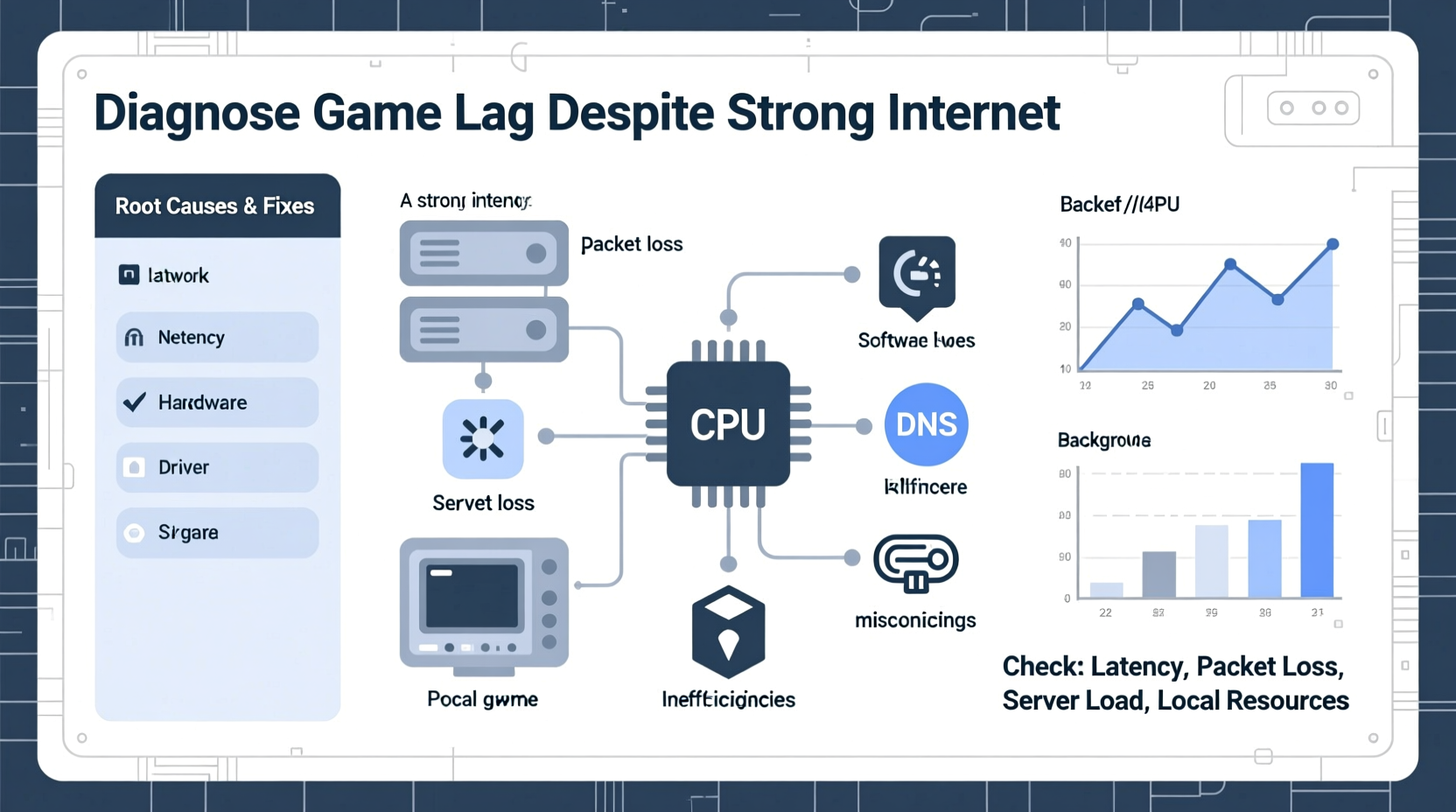
One of the most common misconceptions among frustrated gamers is equating \"internet speed\" with \"gaming performance.\" While download and upload speeds determine how quickly data moves to and from your device, they don’t tell the full story. For gaming, what matters more than raw bandwidth is **latency**, commonly known as ping.
Latency measures the time it takes for a data packet to travel from your computer to the game server and back. It’s expressed in milliseconds (ms). A low ping (under 50 ms) means near-instantaneous response; a high ping (over 100 ms) results in noticeable delays—your character might jump seconds after you press the button.
ping -t in Command Prompt or third-party apps such as PingPlotter.
High bandwidth doesn't guarantee low latency. You could have gigabit fiber but still suffer from poor routing, congested hops, or wireless interference that increases delay. In fact, a stable 25 Mbps connection with 30 ms ping will outperform an unstable 300 Mbps link with 150 ms ping when it comes to competitive gaming.
Common Causes of Gaming Lag Beyond Internet Speed
When your game stutters despite a strong signal, look beyond your ISP. Several internal and external factors contribute to lag:
- Wi-Fi Interference: Wireless signals degrade due to walls, appliances, and neighboring networks. Even if your router shows full bars, packet loss or jitter may occur.
- Background Applications: Cloud sync tools, software updates, streaming devices, and browser tabs consume bandwidth and CPU resources.
- Outdated Hardware: An aging GPU, insufficient RAM, or a slow HDD can bottleneck performance regardless of internet quality.
- Server Distance: Connecting to a geographically distant game server adds unavoidable latency due to physical distance.
- Router Limitations: Older routers lack Quality of Service (QoS) features or struggle under multiple connected devices.
- Packet Loss: Data packets failing to reach their destination cause stuttering, rubberbanding, or disconnections.
“Gamers often blame ISPs when the real culprit lies within their own network setup. Diagnosing local issues first saves time and money.” — David Lin, Network Engineer at GameNet Labs
Step-by-Step Guide to Diagnose and Fix Game Lag
Follow this systematic approach to identify and eliminate sources of lag—even when your internet appears strong.
- Test Your Connection Accurately
Use a wired Ethernet connection and close all unnecessary applications. Run a speed test on sites like Speedtest.net or Fast.com. Then, specifically check ping and jitter usingping google.com -n 20andping [game server IP]in Command Prompt (Windows) or Terminal (Mac/Linux). - Switch to Ethernet
Wi-Fi introduces variability. Plug directly into your router via an Ethernet cable. If that resolves the lag, consider upgrading to Wi-Fi 6 or installing a mesh system with a 5 GHz backhaul. - Enable QoS on Your Router
Log into your router settings (usually http://192.168.1.1) and enable Quality of Service. Prioritize your gaming device or assign higher priority to game traffic. This ensures bandwidth isn’t hijacked by Netflix or downloads. - Close Background Processes
Open Task Manager (Ctrl+Shift+Esc) and sort by “Network” and “CPU.” End tasks consuming excessive resources. Disable automatic updates for Windows, Steam, or other platforms during play sessions. - Update Drivers and Firmware
Outdated network adapter drivers can cause instability. Visit your motherboard or laptop manufacturer’s website to install the latest LAN/Wi-Fi drivers. Also update your router’s firmware through its admin panel. - Change DNS Servers
Default ISP DNS can be slow. Switch to faster alternatives like Google DNS (8.8.8.8, 8.8.4.4) or Cloudflare (1.1.1.1). This improves domain resolution speed and sometimes reduces routing delays. - Restart Networking Equipment
Power cycle your modem and router every few days. Overheating or memory leaks in these devices can degrade performance over time.
Hardware and System Optimization Checklist
Lag isn’t always network-related. Your PC or console might be struggling to keep up. Use this checklist to ensure your system supports smooth gameplay:
- ✅ Confirm your GPU meets minimum requirements for the game
- ✅ Upgrade to an SSD if still using an HDD
- ✅ Ensure at least 16GB of RAM for modern titles
- ✅ Monitor temperatures—overheating CPUs/GPUs throttle performance
- ✅ Set power plan to “High Performance” (Windows)
- ✅ Disable fullscreen optimizations for the game executable
- ✅ Run games in windowed borderless mode to reduce input lag
- ✅ Update graphics drivers regularly (NVIDIA GeForce Experience or AMD Adrenalin)
Real-World Example: Solving Persistent Lag in Apex Legends
Consider Mark, a competitive Apex Legends player with a 150 Mbps fiber connection. Despite excellent speeds, he experienced frequent freezes and teleportation during matches. Frustrated, he contacted his ISP, only to be told his line was fine.
Instead of accepting that answer, Mark ran diagnostics. He discovered:
- Ping to EA servers averaged 140 ms with spikes to 250 ms
- His router was five years old and lacked QoS
- His PS5 was connected via 2.4 GHz Wi-Fi while his roommate streamed 4K video
He took action: purchased a new Wi-Fi 6 router, set up QoS rules prioritizing his console, switched to 5 GHz band, and scheduled large downloads overnight. Within a week, his average ping dropped to 68 ms, and in-game lag vanished. His internet hadn’t changed—but how he used it did.
Do’s and Don’ts: Managing Your Home Network for Gaming
| Do | Don't |
|---|---|
| Use Ethernet for critical gaming sessions | Rely solely on long-range Wi-Fi without testing stability |
| Limit the number of active devices during gameplay | Run large downloads or cloud backups while gaming online |
| Choose game servers closest to your region | Select servers across the globe without checking ping |
| Regularly reboot your modem and router | Leave networking hardware running for months without maintenance |
| Monitor for packet loss using command-line tools | Assume full signal strength means perfect connectivity |
Frequently Asked Questions
Can too many devices on my network cause game lag?
Yes. Each connected device consumes bandwidth and processing power from your router. Streaming, video calls, smart home gadgets, and mobile phones add load. Even if individual devices aren’t actively transferring data, they maintain constant communication with the router. This congestion can increase latency and jitter. To minimize impact, use a dual-band router and reserve the 5 GHz band for gaming, or limit connections during peak playtimes.
Does closing background apps really help reduce lag?
Absolutely. Background applications like Dropbox, OneDrive, Spotify, or Chrome with multiple tabs can silently use significant CPU, RAM, and network resources. These compete with your game for system performance. On lower-end machines, this resource contention leads to frame drops and input delay. Closing unused programs frees up memory and processing cycles, resulting in smoother gameplay—even if your internet remains unchanged.
Is it worth investing in a gaming VPN?
In specific cases, yes. A gaming-focused VPN routes your traffic through optimized servers, potentially bypassing congested ISP paths or peering issues. Services like ExitLag or WTFast claim to reduce ping by 20–40% in some regions. However, they won’t help if your base latency is already low. They also add encryption overhead, so results vary. Test with a free trial before committing. Note: Most mainstream VPNs (like Nord or ExpressVPN) are not designed for gaming and may increase latency.
Final Thoughts and Action Plan
Strong internet doesn’t automatically mean lag-free gaming. True performance depends on a chain of components—all of which must function efficiently. From your PC’s hardware to your router’s configuration, every link affects responsiveness. The key is proactive optimization: diagnose with precision, prioritize gaming traffic, eliminate bottlenecks, and monitor changes over time.
You don’t need the fastest internet plan on the market—you need the most reliable and well-tuned setup. Start with simple steps: switch to Ethernet, restart your gear, close background apps, and test ping to actual game servers. Small adjustments often yield dramatic improvements.




 浙公网安备
33010002000092号
浙公网安备
33010002000092号 浙B2-20120091-4
Comments
No comments yet. Why don't you start the discussion?