
Gaming should be smooth, responsive, and immersive. Yet many players experience frustrating lag when using Wi-Fi, even though the same game runs flawlessly over an Ethernet connection. The difference isn’t in the game—it’s in how data travels from your router to your device. Understanding why this happens and what you can do about it is key to reclaiming a stable, low-latency gaming experience without being tethered by cables.
Wi-Fi introduces variables that Ethernet avoids: signal interference, bandwidth contention, latency spikes, and inconsistent speeds. While modern wireless networks are fast enough for most tasks, real-time gaming demands precision. Even small delays or packet loss can result in stuttering, rubberbanding, or missed shots. This article breaks down the technical and environmental reasons behind Wi-Fi lag in games and provides actionable solutions that anyone can implement—no networking degree required.
Why Wi-Fi Lags in Games (But Ethernet Doesn’t)
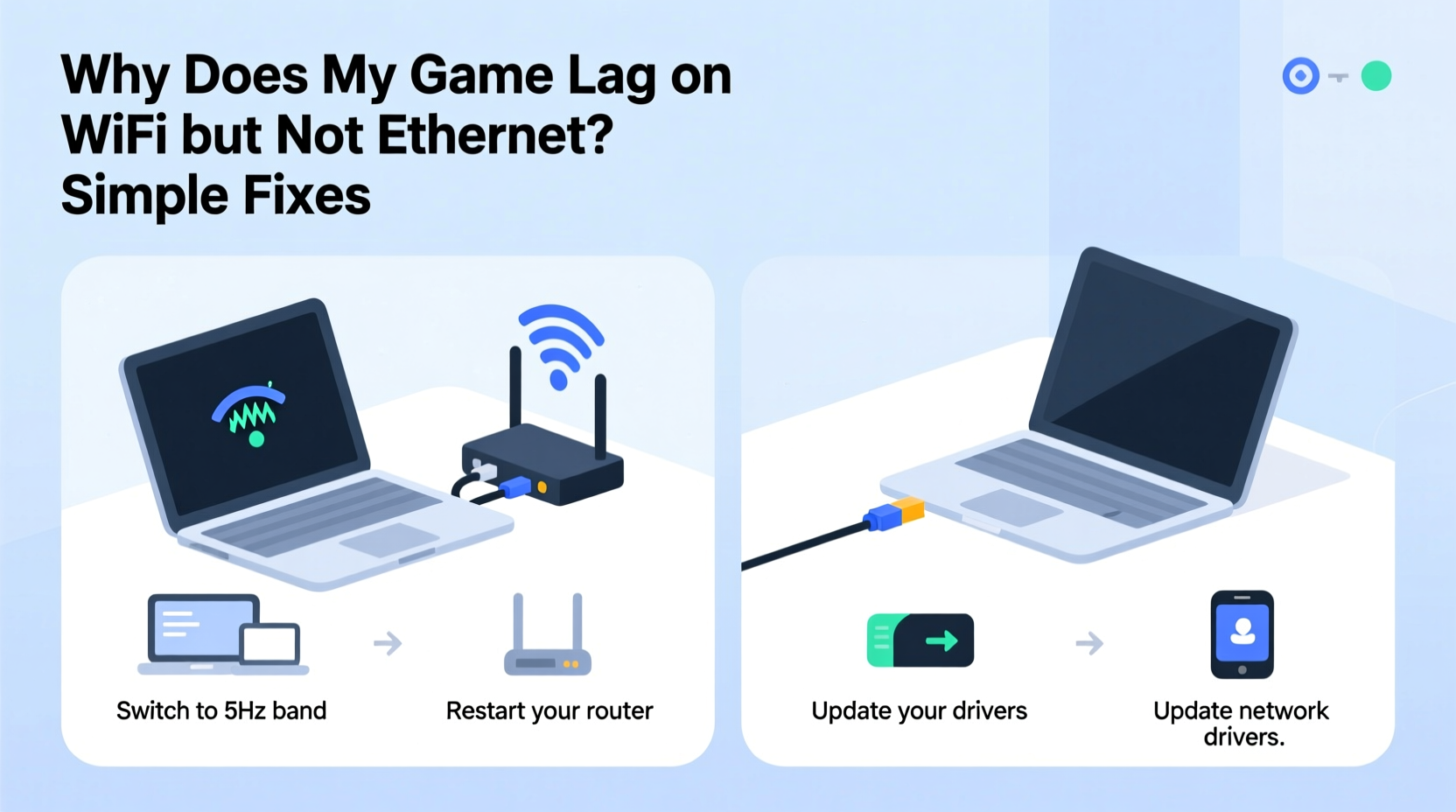
Ethernet provides a direct, wired pathway between your device and the router. Data travels through copper cables with minimal delay, consistent speed, and no interference. In contrast, Wi-Fi relies on radio waves, which are subject to obstacles, distance, competing signals, and shared bandwidth. These factors create instability that becomes glaringly obvious during online gaming.
Latency, or ping, measures how long it takes for data to travel from your device to the game server and back. On Ethernet, this is typically stable—often under 20ms. Over Wi-Fi, the same connection might fluctuate between 30ms and 150ms due to signal degradation or network congestion. These fluctuations cause lag spikes, making gameplay feel unresponsive.
Another critical factor is packet loss. When Wi-Fi signals weaken or face interference, some data packets fail to reach their destination. The game must re-request this data, causing delays. Ethernet connections rarely suffer from packet loss under normal conditions, which is why they deliver smoother performance.
“Wi-Fi is convenient, but for competitive gaming, it’s inherently less reliable than Ethernet due to its susceptibility to environmental factors.” — David Lin, Network Engineer at GameNet Solutions
Common Causes of Wi-Fi Lag in Gaming
Before applying fixes, it helps to understand what’s actually going wrong. Below are the most frequent culprits behind Wi-Fi lag in gaming scenarios:
- Distance from the router: The farther you are from your router, the weaker the signal, leading to slower speeds and higher latency.
- Physical obstructions: Walls, floors, metal furniture, and appliances absorb or reflect Wi-Fi signals, disrupting connectivity.
- Network congestion: Multiple devices streaming, downloading, or updating simultaneously consume bandwidth and increase latency.
- Interference from other electronics: Microwaves, cordless phones, baby monitors, and neighboring Wi-Fi networks operate on similar frequencies and can interfere with your signal.
- Outdated hardware: Older routers or gaming devices may only support legacy Wi-Fi standards (like 802.11n), limiting speed and reliability.
- Router placement: A router tucked behind a TV stand or inside a cabinet struggles to broadcast effectively.
- Incorrect frequency band: Many users stay on the crowded 2.4 GHz band instead of switching to the faster, less congested 5 GHz band.
Step-by-Step Guide to Fix Wi-Fi Game Lag
You don’t need expensive gear to improve your Wi-Fi gaming experience. Follow these steps in order—they build on each other for maximum impact.
- Move closer to the router or reposition it centrally. Place your router in an open, elevated location, away from walls and large metal objects. Ideally, it should be near the center of your home.
- Switch to the 5 GHz Wi-Fi band. If your router supports dual-band (2.4 GHz and 5 GHz), connect your gaming device to the 5 GHz network. It offers faster speeds and less interference, though with shorter range.
- Restart your router and modem. Power cycle both devices every few days. This clears memory leaks, resets connections, and often resolves temporary glitches.
- Limit background bandwidth usage. Pause cloud backups, software updates, and video streams on other devices while gaming.
- Enable Quality of Service (QoS) settings. Access your router’s admin panel and prioritize your gaming device. QoS ensures gaming traffic gets priority over less time-sensitive tasks like downloads.
- Update router firmware. Manufacturers release updates to fix bugs and improve performance. Check your router’s brand website or admin interface for available updates.
- Use a wired connection for non-gaming devices. Connect smart TVs, consoles not in use, and desktops via Ethernet to free up Wi-Fi capacity.
- Upgrade to a modern router if necessary. If your router is more than 3–4 years old, consider upgrading to a Wi-Fi 6 (802.11ax) model for better efficiency and handling of multiple devices.
Do’s and Don’ts: Wi-Fi Optimization Table
| Do | Don’t |
|---|---|
| Place the router in a central, open location | Hide the router in a closet or basement |
| Use 5 GHz for gaming (if within range) | Stick to 2.4 GHz for high-bandwidth activities |
| Enable QoS and prioritize your gaming device | Allow automatic updates during gameplay |
| Restart your router weekly | Ignore firmware update notifications |
| Limit the number of active connected devices | Stream 4K video on multiple devices while gaming |
Mini Case Study: Fixing Lag for Competitive FPS Player
Mark, a competitive Call of Duty player, experienced frequent lag spikes during ranked matches despite having a 200 Mbps internet plan. His console was in the bedroom, two floors away from the router, with thick concrete walls in between. He noticed no issues when he temporarily connected via Ethernet, confirming the problem was Wi-Fi related.
He applied several fixes: moved the router to a more central location, switched his console to the 5 GHz network, enabled QoS for his device, and paused his roommate’s Netflix stream during matches. Ping dropped from averaging 85ms with frequent spikes to a steady 32ms. His kill-death ratio improved noticeably within a week—not because he got better, but because his inputs registered instantly.
When minor lag returned after a few months, he upgraded to a mesh Wi-Fi system with a node near his bedroom. The result? Consistent sub-30ms ping, rivaling Ethernet performance.
Checklist: Quick Fixes for Immediate Improvement
Apply this checklist before your next gaming session:
- ✅ Confirm you’re connected to the 5 GHz network
- ✅ Move closer to the router or reduce physical barriers
- ✅ Restart your router and gaming device
- ✅ Pause downloads, streams, and updates on other devices
- ✅ Log out unused devices from Wi-Fi
- ✅ Enable QoS in your router settings
- ✅ Test your connection with a ping command (
ping google.com -t) to spot packet loss - ✅ Update router firmware if an update is available
Frequently Asked Questions
Can I game effectively on Wi-Fi if I can’t use Ethernet?
Yes, but success depends on your environment and setup. With a strong 5 GHz signal, minimal interference, and proper router configuration, many gamers achieve near-Ethernet performance. However, for competitive play, Ethernet remains the gold standard.
Does Wi-Fi 6 really make a difference for gaming?
Absolutely. Wi-Fi 6 improves efficiency, reduces latency in crowded networks, and handles multiple devices better. It also supports OFDMA and Target Wake Time, which help maintain consistent performance. If you have multiple smart devices or live in a dense apartment complex, Wi-Fi 6 is worth the investment.
Why does my ping spike even when no one else is using the internet?
Ping spikes can stem from internal network issues—router overheating, outdated firmware, or interference from nearby electronics. They can also originate from your ISP or the game server itself. Run a wired test to isolate whether the issue is local (your Wi-Fi) or external (server-side).
Expert Insight: The Hidden Cost of Convenience
Wireless technology prioritizes convenience over consistency. That trade-off is acceptable for browsing or streaming but problematic for real-time applications like gaming.
“Gamers often blame their ISP when the real bottleneck is the last 10 feet—the wireless hop from router to device. That final stretch is where most home networks fail under pressure.” — Sarah Kim, Senior Network Analyst at Latency Labs
This “last hop” problem is solvable. By treating your home network as a performance-critical system rather than a utility, you gain control over your gaming experience. Small changes yield dramatic results.
Conclusion: Take Control of Your Connection
The frustration of Wi-Fi lag during intense gaming moments is avoidable. While Ethernet offers unmatched stability, you don’t have to abandon wireless freedom to enjoy smooth gameplay. By understanding the limitations of Wi-Fi and applying targeted fixes—repositioning your router, using the right frequency band, managing bandwidth, and upgrading hardware when needed—you can significantly reduce or even eliminate lag.
Start with the simplest adjustments: switch to 5 GHz, restart your router, and minimize background activity. Then progress to advanced options like QoS and mesh networks if needed. Every improvement brings you closer to a seamless, responsive gaming experience.




 浙公网安备
33010002000092号
浙公网安备
33010002000092号 浙B2-20120091-4
Comments
No comments yet. Why don't you start the discussion?