
There’s nothing more frustrating than a game that runs smoothly in single-player mode but descends into stuttering chaos the moment you join an online match. You're not imagining it—this is a common issue affecting gamers across platforms, from PC to consoles. The root causes often lie not in your graphics card or CPU alone, but in how your system communicates with remote servers and other players in real time. Unlike offline play, online multiplayer demands constant data exchange, making network stability, latency, and background processes critical factors. This guide breaks down the technical realities behind this specific type of lag and provides proven strategies to reclaim smooth, responsive gameplay.
Understanding the Unique Demands of Online Multiplayer
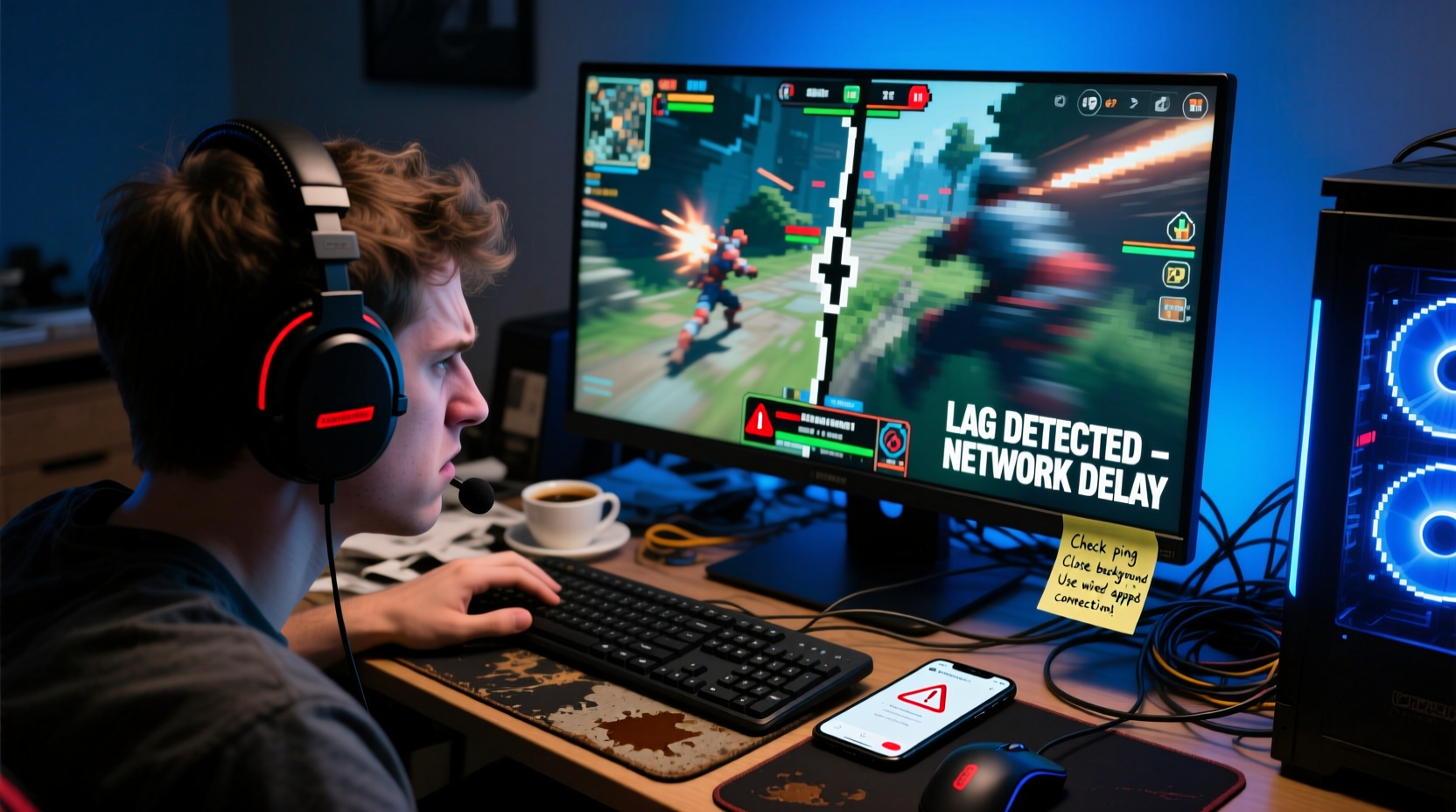
In single-player mode, your game runs locally. All processing—graphics, physics, AI behavior—happens on your machine. There’s no need to wait for external input, so performance depends almost entirely on your hardware and settings. But online multiplayer changes the equation completely. Your device must now synchronize with a server and potentially dozens of other players, exchanging data up to 60 times per second. Every action—movement, shooting, reloading—must be sent, processed, and confirmed. Even minor delays can result in rubberbanding, hit registration failures, or frozen frames.
This real-time dependency introduces several new failure points:
- Network latency (ping): Delay between your command and the server’s response.
- Packet loss: Data failing to reach its destination due to congestion or interference.
- Bandwidth competition: Other devices or apps consuming your internet bandwidth.
- Server-side issues: Overloaded or distant game servers degrading performance.
- Hardware bottlenecks under load: Systems struggling when handling both rendering and network tasks simultaneously.
Because these issues are network-centric, they don’t appear in offline modes—explaining why your game “feels fine” until you go online.
Step-by-Step Guide to Diagnose and Fix Online Lag
Follow this structured approach to isolate and resolve the cause of multiplayer lag. Skip steps only if you’ve already confirmed a setting or hardware configuration.
- Test your baseline connection speed. Use a tool like speedtest.net or fast.com to measure download, upload, and ping. For competitive gaming, aim for at least 15 Mbps download, 3 Mbps upload, and under 50 ms ping.
- Check for packet loss. Open Command Prompt (Windows) or Terminal (Mac), then run:
ping -t 8.8.8.8. Let it run for 60 seconds, then press Ctrl+C. If any packets are lost (e.g., \"Sent = 10, Received = 9\"), you have a connectivity issue. - Restart your router and modem. Unplug both for 30 seconds. This clears temporary glitches and resets IP assignments.
- Switch to a wired connection. If using Wi-Fi, connect via Ethernet. Wireless signals degrade with distance, walls, and interference from microwaves or Bluetooth devices.
- Close bandwidth-heavy background apps. Streaming services, cloud backups, downloads, and voice chat apps (like Discord) consume bandwidth. Shut them down before playing.
- Verify game server status. Visit the game’s official status page or community forums. Server outages or regional overloads can cause lag even with a perfect local connection.
- Update network drivers (PC). Outdated drivers can mismanage data flow. Go to your motherboard or network adapter manufacturer’s website to download the latest version.
- Enable Quality of Service (QoS) on your router. Prioritize your gaming device by assigning it higher bandwidth priority in router settings.
- Lower in-game network settings. Some games offer options like “Reduce Network Traffic” or “Optimize for Low Bandwidth.” Enable them.
- Monitor system performance. Use Task Manager (Ctrl+Shift+Esc) to check CPU, GPU, RAM, and disk usage. Spikes above 90% during multiplayer indicate a hardware bottleneck.
Common Causes and Fixes: A Comparison Table
| Cause | Symptoms | Solutions |
|---|---|---|
| Wi-Fi interference | High ping, sudden disconnects, inconsistent performance | Switch to Ethernet, reposition router, use 5 GHz band |
| Background bandwidth use | Lag spikes during uploads/downloads | Close streaming apps, pause updates, set QoS |
| Server distance | Consistently high ping (150+ ms) | Select regional servers manually, use a gaming VPN cautiously |
| Outdated network drivers | Packets dropped, slow response despite fast internet | Update drivers via manufacturer site |
| CPU bottleneck under network load | Stuttering during intense multiplayer moments | Lower CPU-intensive settings (shadows, draw distance), upgrade processor |
| Router bufferbloat | Lag increases with multiple devices active | Enable SQoS or FQ_Codel on router, limit connected devices |
Real Example: Solving Lag in Apex Legends
Take the case of Mark, a PC player who experienced severe lag in Apex Legends only during matches. His single-player benchmarks showed stable 100 FPS, but online he suffered from rubberbanding and missed shots despite good reflexes. He followed the diagnostic steps above and discovered his Wi-Fi signal was fluctuating due to a neighbor’s overlapping channel on the 2.4 GHz band. By switching to 5 GHz and connecting via Ethernet, his ping stabilized from 120–200 ms to a consistent 38 ms. He also found that Discord was uploading game clips in the background, consuming 2 Mbps. After disabling auto-upload, his packet loss dropped to 0%. The combination resolved 90% of his lag issues—proving that small, overlooked factors can have major impacts.
“Most online lag isn’t about raw speed—it’s about consistency. A 50 Mbps connection with zero packet loss will outperform a 300 Mbps one with jitter and drops.” — David Lin, Network Engineer & Competitive Gaming Consultant
Troubleshooting Checklist: Quick Action Plan
- ✔ Use Ethernet instead of Wi-Fi
- ✔ Restart router and modem
- ✔ Close streaming, downloads, and voice apps
- ✔ Test for packet loss with ping command
- ✔ Update network drivers and firmware
- ✔ Choose the closest game server region
- ✔ Lower CPU-heavy graphics settings (shadows, physics)
- ✔ Enable QoS on your router
- ✔ Monitor system resources during gameplay
- ✔ Check for game-specific network patches or updates
Frequently Asked Questions
Why does my game lag online even with a fast internet connection?
Speed isn’t everything. High download rates don’t guarantee low latency or stable connections. Issues like packet loss, jitter (inconsistent ping), or background processes can disrupt gameplay even on gigabit connections. Additionally, wireless interference or router inefficiencies may prevent you from utilizing your full bandwidth during peak loads.
Can my hardware cause lag only in multiplayer?
Yes. While single-player games rely heavily on GPU performance, multiplayer titles place greater demand on the CPU and RAM to process incoming network data, predict movements, and sync with servers. If your CPU is outdated or overheating, it may struggle under this dual workload, causing stutters that don’t appear offline.
Should I use a gaming VPN to reduce lag?
Not always. While some gaming VPNs claim to optimize routing, they add an extra hop to your connection, which can increase latency. They may help if your ISP has poor peering with the game server, but in most cases, a direct connection is faster. Only consider a gaming VPN after exhausting other fixes and testing performance with and without it.
Advanced Tips for Persistent Lag
If basic troubleshooting doesn’t resolve the issue, consider deeper optimizations:
- Flash your router with DD-WRT or OpenWRT. Custom firmware can enable advanced features like traffic shaping, better QoS, and bufferbloat protection (e.g., FQ_Codel).
- Upgrade your router. Older models may not handle modern traffic loads. Look for Wi-Fi 6 routers with MU-MIMO and strong QoS controls.
- Adjust power settings (PC). Set your power plan to “High Performance” to prevent CPU throttling during extended sessions.
- Limit background game services. Platforms like Steam, Epic, or Xbox Live run updates and social features that consume resources. Temporarily disable non-essential services.
- Check for thermal throttling. Use tools like HWMonitor to verify CPU/GPU temperatures. Overheating components reduce clock speeds, impacting both graphics and network processing.
One often-overlooked factor is DNS configuration. Default ISP DNS servers can be slow or unreliable. Switching to Google (8.8.8.8, 8.8.4.4) or Cloudflare (1.1.1.1) DNS can improve domain resolution speed and reduce initial connection delays.
Conclusion: Take Control of Your Online Experience
Multiplayer lag isn’t inevitable. While online gaming introduces complexity beyond local performance, most issues are diagnosable and fixable with the right approach. The key is understanding that lag isn’t just about internet speed or graphics settings—it’s about the entire chain from your device to the game server. By methodically testing each link, prioritizing stability over raw throughput, and optimizing both hardware and network configurations, you can achieve the smooth, responsive experience you expect. Don’t accept stuttering matches as normal. Apply these strategies, monitor the results, and refine your setup until your online gameplay feels as seamless as your solo sessions.




 浙公网安备
33010002000092号
浙公网安备
33010002000092号 浙B2-20120091-4
Comments
No comments yet. Why don't you start the discussion?