
Gaming performance hinges on more than just graphics settings and hardware. One of the most frustrating experiences for online gamers is sudden lag, rubberbanding, or disconnections—especially when it happens consistently during evening hours. If you’ve noticed that your game runs smoothly at noon but becomes unplayable by 7 PM, you're not imagining things. The issue lies in network congestion and bandwidth competition, both of which intensify during peak usage times. Understanding the root causes and applying targeted optimizations can transform a jittery session into a seamless one.
What Happens to Internet Networks During Peak Hours?
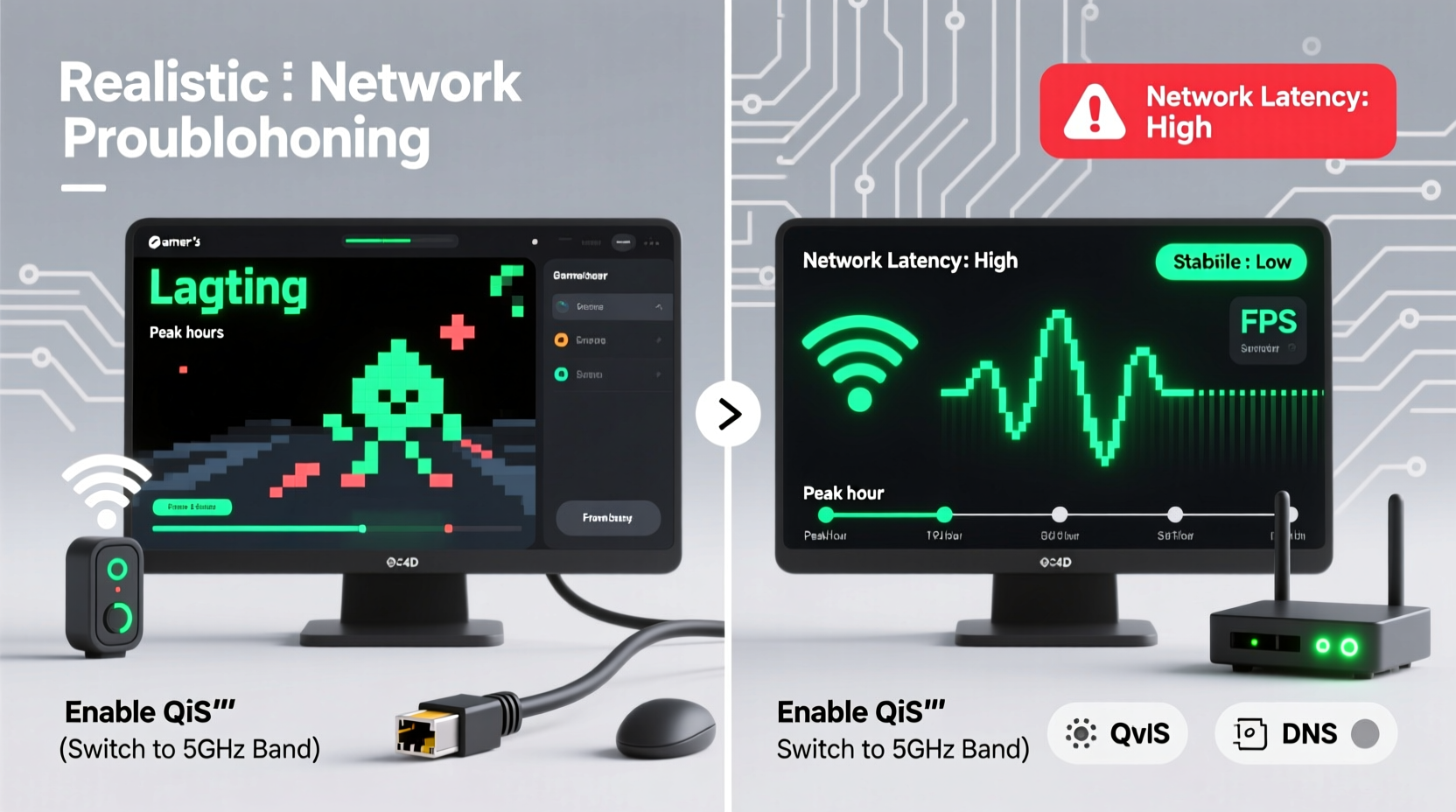
Peak hours typically occur between 6 PM and 10 PM, when most people return home and begin streaming videos, browsing social media, downloading files, and playing online games. This surge in demand places heavy strain on local networks, especially those managed by Internet Service Providers (ISPs) with limited infrastructure capacity.
During this time, your ISP may experience what’s known as “network congestion.” Think of it like rush-hour traffic: even if each car (data packet) is moving efficiently, too many vehicles on the road cause slowdowns. In networking terms, packets take longer to travel from your device to the game server and back, increasing latency (ping), jitter, and sometimes causing packet loss—all of which degrade gaming performance.
Additionally, some ISPs use a practice called \"traffic shaping\" or \"throttling,\" where they intentionally slow down certain types of data—like gaming or peer-to-peer traffic—when their network is under stress. While not always disclosed, this can significantly impact real-time applications such as online multiplayer games.
Key Factors That Worsen Gaming Lag at Night
- Shared Bandwidth: Most residential internet plans operate on shared lines within neighborhoods. When multiple users are online simultaneously, available bandwidth is divided, reducing speeds for everyone.
- Wi-Fi Interference: More devices connect wirelessly during evenings—phones, tablets, smart TVs—which increases interference on crowded 2.4 GHz bands.
- Home Network Overload: Family members streaming 4K video, downloading large files, or using cloud backups consume bandwidth needed for low-latency gaming.
- Server Distance: Even if your local network is fine, connecting to distant game servers adds inherent delay, which worsens when backbone networks are congested.
- Router Limitations: Older or low-end routers struggle to manage multiple high-demand connections efficiently, leading to queuing delays and dropped packets.
“Latency-sensitive applications like gaming suffer first during congestion because they rely on consistent round-trip timing, not just raw throughput.” — Dr. Lin Zhao, Network Performance Analyst at NetMetrics Lab
How to Optimize Your Connection for Better Gaming Performance
While you can’t control your ISP’s infrastructure, you *can* optimize your setup to minimize lag and maintain stability during peak periods. The following strategies address both external constraints and internal network inefficiencies.
1. Prioritize Your Gaming Device with QoS Settings
Quality of Service (QoS) is a router feature that allows you to assign priority to specific devices or applications. By marking your gaming console or PC as high-priority, the router ensures its data packets are processed first—even when other devices are consuming bandwidth.
To enable QoS:
- Log into your router’s admin panel (usually via 192.168.1.1 or similar).
- Navigate to Advanced Settings > QoS or Traffic Control.
- Add your gaming device by MAC address or IP.
- Set its priority to “High” or “Gaming.”
- Save and restart the router.
2. Switch to a Wired Ethernet Connection
Wi-Fi introduces variability due to signal interference, distance, and competing wireless networks. A wired Gigabit Ethernet connection eliminates these variables, offering lower latency, higher reliability, and consistent throughput.
If running a cable isn’t feasible, consider Powerline adapters or MoCA (Multimedia over Coax Alliance) solutions, which use existing electrical wiring or coaxial cables to deliver near-wired performance.
3. Upgrade Your Router Firmware and Hardware
Older routers lack modern features like MU-MIMO, beamforming, and advanced QoS algorithms. Upgrading to a Wi-Fi 6 (802.11ax) router improves efficiency in dense environments. Additionally, ensure your firmware is up to date—manufacturers often release performance patches and security fixes.
4. Change DNS Servers for Faster Lookups
Your default DNS (Domain Name System) server, provided by your ISP, may be slow or unreliable. Switching to a faster public DNS can reduce domain resolution time, improving initial connection speed to game servers.
Recommended DNS options:
- Google Public DNS: 8.8.8.8 and 8.8.4.4
- Cloudflare DNS: 1.1.1.1 and 1.0.0.1
- OpenDNS: 208.67.222.222 and 208.67.220.220
These can be set at the router level to apply across all devices.
Checklist: Steps to Reduce Gaming Lag During Peak Hours
Action Plan for Smoother Gameplay:
- ✅ Run a speed test during peak and off-peak hours to identify degradation.
- ✅ Connect your gaming device via Ethernet instead of Wi-Fi.
- ✅ Enable QoS on your router and prioritize your gaming machine.
- ✅ Update router firmware and replace outdated equipment if necessary.
- ✅ Switch to a faster DNS provider like Cloudflare or Google.
- ✅ Limit background downloads and streaming on other devices while gaming.
- ✅ Schedule large updates or cloud backups for off-peak times (e.g., overnight).
- ✅ Consider upgrading to a higher-tier internet plan with more bandwidth.
Real Example: How Alex Reduced His Ping by 60%
Alex, a competitive Call of Duty: Warzone player in suburban Chicago, struggled with frequent lag spikes every night between 7–9 PM. His ping would jump from 40 ms to over 180 ms, making precise aiming nearly impossible. He tested his connection and found his download speed dropped from 150 Mbps to 60 Mbps during peak hours.
After investigating, he discovered his younger brother was streaming 4K Netflix on two devices and downloading a Steam game simultaneously. Alex took action:
- He connected his gaming PC directly via Ethernet.
- Updated his aging router to an ASUS RT-AX86U (Wi-Fi 6).
- Enabled QoS and assigned top priority to his PC.
- Changed DNS to 1.1.1.1.
- Set parental controls to limit streaming quality after 6 PM.
The results were immediate. His average ping stabilized at 45 ms, jitter dropped from 30 ms to under 5 ms, and he no longer experienced disconnections. “I went from quitting matches in frustration to ranking up steadily,” Alex said. “It wasn’t my skill—it was my setup.”
Do’s and Don’ts: Managing Peak Hour Performance
| Do | Don’t |
|---|---|
| Use Ethernet for your primary gaming device | Rely solely on Wi-Fi, especially on 2.4 GHz |
| Enable QoS and prioritize gaming traffic | Leave all devices equal in network priority |
| Update router firmware monthly | Ignore firmware updates for years |
| Schedule large downloads for off-peak hours | Start massive updates during gameplay |
| Test your connection regularly with tools like PingPlotter or MTR | Assume your ISP is always delivering promised speeds |
Frequently Asked Questions
Why does my ping go up only at night?
Ping increases at night due to network congestion caused by high user activity in your area. Your ISP's local node becomes overloaded, and data takes longer to route. Additionally, in-home bandwidth competition from streaming, downloads, and other devices contributes to higher latency.
Can changing my router really make a difference?
Yes. Modern routers support technologies like QoS, MU-MIMO, beamforming, and better traffic management that directly improve gaming performance. Older models may bottleneck your connection regardless of your internet plan speed.
Is fiber internet worth it for gaming?
Fiber-optic connections offer symmetrical upload/download speeds, lower latency, and greater resistance to congestion compared to cable. If available in your area, fiber is ideal for online gaming, especially during peak hours when cable networks tend to slow down.
Final Steps to Take Right Now
Don’t wait for your next match to lag out before acting. Start tonight:
- Perform a baseline speed and ping test at 8 PM.
- Switch your gaming device to a wired connection.
- Log into your router and activate QoS.
- Change your DNS settings to 1.1.1.1.
- Ask household members to pause large downloads during gameplay.
- Re-test your connection and compare results.
Small changes yield measurable improvements. Consistency in network hygiene—like keeping firmware updated and managing bandwidth usage—builds a foundation for reliable performance, regardless of external conditions.
“The best gaming setup isn’t just about GPU power—it’s about minimizing every millisecond of delay in the data path.” — Rajiv Mehta, Lead Engineer at GameNet Solutions
Conclusion
Gaming lag during peak hours is a common but solvable problem. It stems from a mix of ISP-level congestion, in-home network inefficiencies, and suboptimal device configurations. While you can't control when others go online, you *can* optimize your environment to insulate your gameplay from disruption. From switching to Ethernet and enabling QoS to upgrading hardware and managing DNS, each step reduces latency and enhances stability.
Take ownership of your network. Implement the checklist, monitor your results, and adjust as needed. A smoother, more responsive gaming experience isn’t dependent on luck—it’s built through deliberate optimization. Start tonight, and play tomorrow like a pro.




 浙公网安备
33010002000092号
浙公网安备
33010002000092号 浙B2-20120091-4
Comments
No comments yet. Why don't you start the discussion?