
Gaming PCs are built to handle high-performance tasks, but even the most powerful rigs can stutter or freeze when pushed to their limits. If your system locks up specifically during graphically demanding moments—like a boss battle, open-world exploration, or large-scale multiplayer combat—it’s not just bad luck. These freezes point to underlying hardware, software, or configuration issues that only surface under stress. Understanding the root causes and applying targeted solutions can restore smooth gameplay and extend the life of your components.
Unlike random crashes or startup errors, freezing during intense scenes is typically a symptom of resource saturation. The GPU, CPU, RAM, or power supply may be reaching their thermal or performance thresholds. Identifying which component is the bottleneck requires methodical troubleshooting. This guide breaks down the most common causes, provides actionable diagnostics, and delivers long-term fixes to keep your gaming experience seamless.
Common Causes of Freezing Under Load
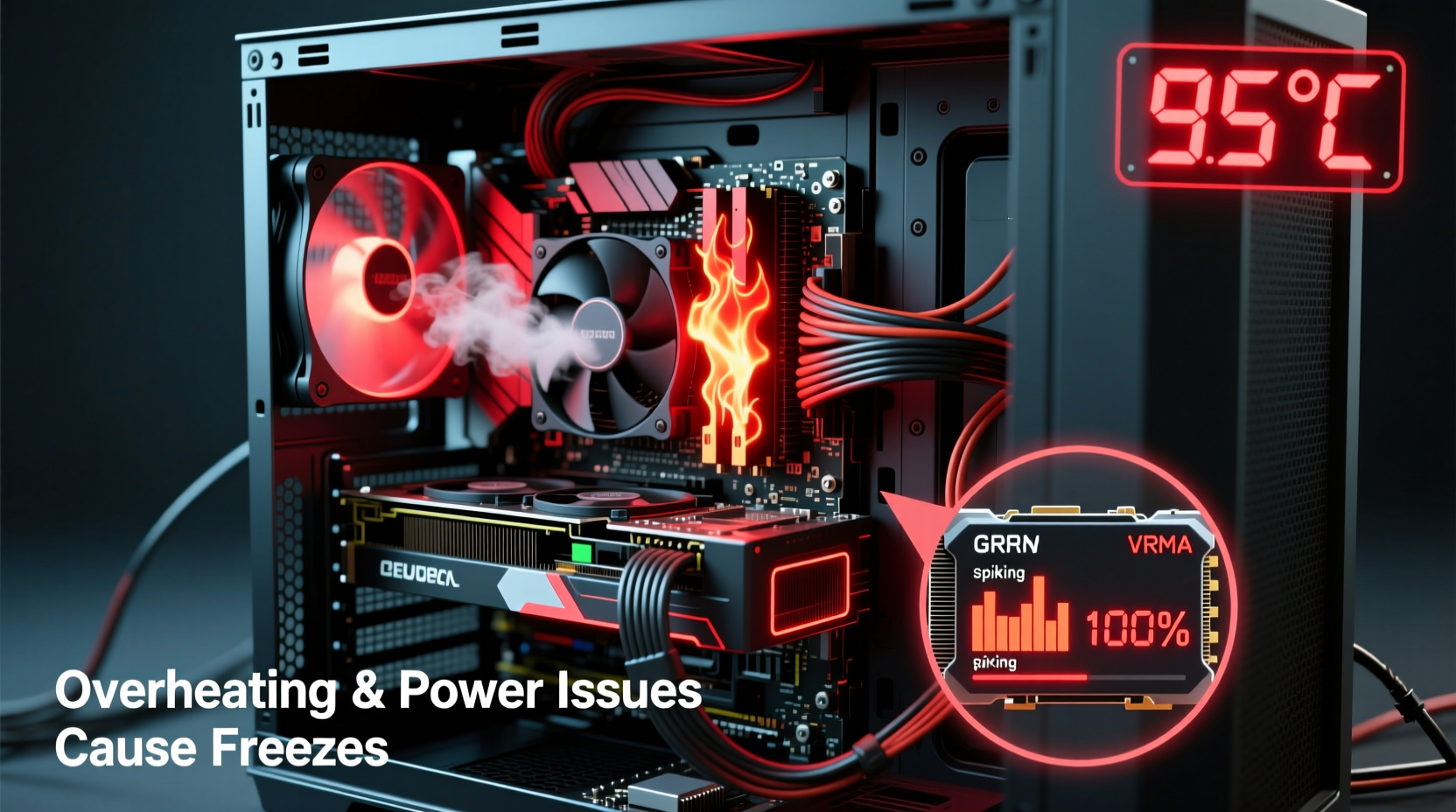
When a game demands maximum resources, multiple subsystems work in tandem. A failure in any one area can cause the entire system to hang. Here are the primary culprits:
- Overheating: High temperatures trigger thermal throttling or automatic shutdowns to protect components.
- Inadequate Power Delivery: A weak or failing PSU cannot sustain peak loads from GPU and CPU simultaneously.
- Outdated or Corrupted Drivers: Graphics drivers that aren’t optimized for newer games can cause instability.
- Insufficient RAM or Page File Issues: Running out of memory leads to system thrashing and unresponsiveness.
- CPU or GPU Bottlenecks: One component may be overtaxed while others sit idle, creating performance spikes.
- Background Processes: Applications like antivirus scanners or update services consume resources mid-game.
- Failing Hardware: Aging SSDs, faulty RAM sticks, or degraded capacitors contribute to instability.
“Under load, every weakness in a PC’s design becomes visible. Thermal management and clean power delivery are non-negotiable for stable gaming.” — David Lin, Senior Hardware Engineer at Overclockers UK
Step-by-Step Diagnosis and Fixes
Resolving freezing issues requires isolating variables. Follow this structured approach to identify and eliminate the cause.
1. Monitor System Temperatures in Real Time
Use tools like HWMonitor, MSI Afterburner, or Core Temp to track CPU and GPU temperatures while gaming. Normal operating ranges are:
| Component | Safe Idle Temp | Safe Load Temp | Danger Zone |
|---|---|---|---|
| CPU (Intel/AMD) | 30–45°C | 70–85°C | 90°C+ |
| GPU (NVIDIA/AMD) | 35–50°C | 75–85°C | 90°C+ |
If temperatures exceed 90°C under load, thermal throttling is likely causing the freeze. Dust buildup, dried thermal paste, or inadequate case airflow are common contributors.
2. Check Power Supply Adequacy
A PSU that barely meets your system’s wattage needs will struggle during sudden power draws. For example, a 550W unit may run fine in BIOS but fail when a modern GPU spikes to 300W+ under load.
To verify if your PSU is sufficient:
- List all components and their peak power draw (use online calculators like OuterVision).
- Add a 20% buffer for headroom.
- Ensure your PSU is 80 Plus certified and from a reputable brand (e.g., Corsair, Seasonic, EVGA).
If your PSU is underpowered, aged, or makes buzzing noises, upgrade immediately. A failing PSU can damage other components.
3. Update or Roll Back Graphics Drivers
Driver issues are among the most frequent causes of game freezes. While updates often bring performance improvements, some introduce bugs.
To manage drivers effectively:
- Visit NVIDIA, AMD, or Intel’s website to download the latest WHQL-certified driver.
- Use Display Driver Uninstaller (DDU) in Safe Mode to remove old drivers completely before reinstalling.
- If a recent update caused issues, roll back to a previous stable version via Device Manager.
Enable automatic updates selectively—opt-in only after community feedback confirms stability.
4. Test RAM for Errors
Memory corruption under load can freeze systems without crashing. Use Windows Memory Diagnostic or MemTest86 to scan for faults.
Steps:
- Download MemTest86 and create a bootable USB.
- Boot from the drive and let it run for at least four passes (can take hours).
- If errors appear, test each RAM stick individually to isolate the faulty module.
If you find defective RAM, replace it. Also ensure XMP/DOCP profiles are stable—if enabling them causes freezes, run memory at default speeds until resolved.
Hardware Optimization Strategies
Beyond troubleshooting, proactive optimization ensures your system handles future games reliably.
Improve Cooling Efficiency
Poor airflow is a silent killer. Even high-end components overheat in cramped, dust-clogged cases.
- Reposition intake and exhaust fans for positive pressure (more intake than exhaust).
- Install additional case fans if CPU/GPU temps remain high.
- Consider liquid cooling for CPUs generating over 95W TDP.
- Elevate laptops off surfaces; use cooling pads with adjustable fan speeds.
Upgrade Critical Components
Sometimes, the solution isn’t tuning—it’s upgrading. Consider:
- SSD: Replace aging HDDs or budget NVMe drives with faster PCIe Gen3/Gen4 models to reduce texture pop-in and loading hiccups.
- RAM: Upgrade to 16GB minimum (32GB recommended for modern AAA titles). Match speed and latency across modules.
- PSU: Invest in a fully modular, 80 Plus Gold-rated unit with enough wattage headroom.
Software and Settings Adjustments
Not all fixes require opening the case. Software-level changes can dramatically improve stability.
Adjust In-Game Graphics Settings
Max settings look stunning but strain hardware unnecessarily. Reduce these high-impact options first:
- Resolution scaling (try 75–90%)
- Shadow quality
- Anti-aliasing (use FXAA or TAA instead of MSAA)
- Ray tracing (if enabled)
- Texture filtering (anisotropic filtering above 16x has diminishing returns)
Monitor frame times using MSI Afterburner + RivaTuner. Consistent frame delivery reduces micro-stutters that feel like freezes.
Manage Background Processes
Close unnecessary applications before launching games:
- Discord overlays, GeForce Experience shadows, RGB control software
- Web browsers with multiple tabs
- Cloud storage sync tools (OneDrive, Dropbox)
- Antivirus real-time scanning (add game folders to exclusions)
Use Task Manager to sort by CPU, Memory, and Disk usage. Disable startup bloatware via Settings > Apps > Startup.
Real-World Example: Resolving a Persistent Freeze Issue
Mark, an enthusiast gamer, experienced frequent freezes in Cyberpunk 2077 during night-time city exploration. His rig included an RTX 3070, Ryzen 5 5600X, 16GB RAM, and a 600W OEM PSU. Initially, he assumed the game was poorly optimized.
After monitoring temps, he found his GPU hit 88°C and CPU 92°C before freezing. He cleaned dust from intakes and replaced dried thermal paste on the CPU. Temps dropped to 78°C and 82°C—but freezes persisted.
Next, he used DDU to reinstall GPU drivers. No improvement. Then, he ran MemTest86 and discovered single-bit errors on one RAM stick. Replacing the faulty 8GB module eliminated the issue entirely.
The root cause wasn't heat or drivers—it was failing RAM exposed only under sustained load. Mark’s experience underscores the importance of systematic testing rather than jumping to conclusions.
Preventive Maintenance Checklist
Stay ahead of performance issues with regular maintenance. Perform this checklist monthly or quarterly:
- ✅ Clean dust from fans, heatsinks, and vents using compressed air.
- ✅ Verify all fans are spinning and case airflow is balanced.
- ✅ Check for BIOS and driver updates (chipset, GPU, audio).
- ✅ Run disk cleanup and verify SSD health (via CrystalDiskInfo).
- ✅ Monitor temperatures during extended gaming sessions.
- ✅ Review background processes and disable unnecessary startup apps.
- ✅ Backup critical data and system images regularly.
Frequently Asked Questions
Can overclocking cause my PC to freeze during games?
Yes. Overclocking CPU, GPU, or RAM increases heat output and power demand. If cooling or voltage isn’t sufficient, instability occurs under load. If you’ve overclocked, revert to stock settings to test stability. Only re-overclock incrementally with thorough stress testing.
Why does my screen freeze but audio continue playing?
This usually indicates a GPU hang—where the graphics processor stops rendering frames but the system remains partially responsive. It’s often due to driver crashes, overheating, or insufficient VRAM. Updating drivers or lowering texture quality can resolve it.
Is it safe to keep playing if my PC freezes occasionally?
No. Frequent freezing stresses hardware and risks data corruption. Continued operation under high temps can permanently damage CPU or GPU. Address the issue promptly to avoid costly replacements.
Conclusion: Take Control of Your Gaming Experience
Freezing during intense gaming scenes isn’t inevitable—it’s a signal that something in your system needs attention. Whether it’s a dusty heatsink, outdated driver, or failing RAM stick, each potential cause is diagnosable and fixable. By combining real-time monitoring, smart settings adjustments, and preventive maintenance, you can achieve smooth, reliable performance even in the most demanding titles.
Don’t accept stuttering and lockups as the price of high-fidelity gaming. Equip yourself with the knowledge to diagnose, repair, and optimize your rig. Your next epic playthrough shouldn’t be interrupted by technical limitations.




 浙公网安备
33010002000092号
浙公网安备
33010002000092号 浙B2-20120091-4
Comments
No comments yet. Why don't you start the discussion?