
If you've ever been mid-compose, only for Gmail to suddenly log you out and demand your password again, you're not alone. This frustrating experience disrupts workflow, raises security concerns, and often leaves users wondering: Is it a bug? A setting I missed? Or something more serious? The truth is, Gmail logout issues are common but rarely random. They stem from specific technical, behavioral, or device-related causes—many of which are easy to fix once identified.
Whether you're using Gmail on a desktop browser, mobile app, or multiple devices simultaneously, understanding the root causes behind unexpected sign-outs is the first step toward a stable, uninterrupted email experience. More importantly, knowing how to maintain a persistent session without compromising your account's security gives you control over your digital communication flow.
Why Gmail Logs You Out: Common Causes
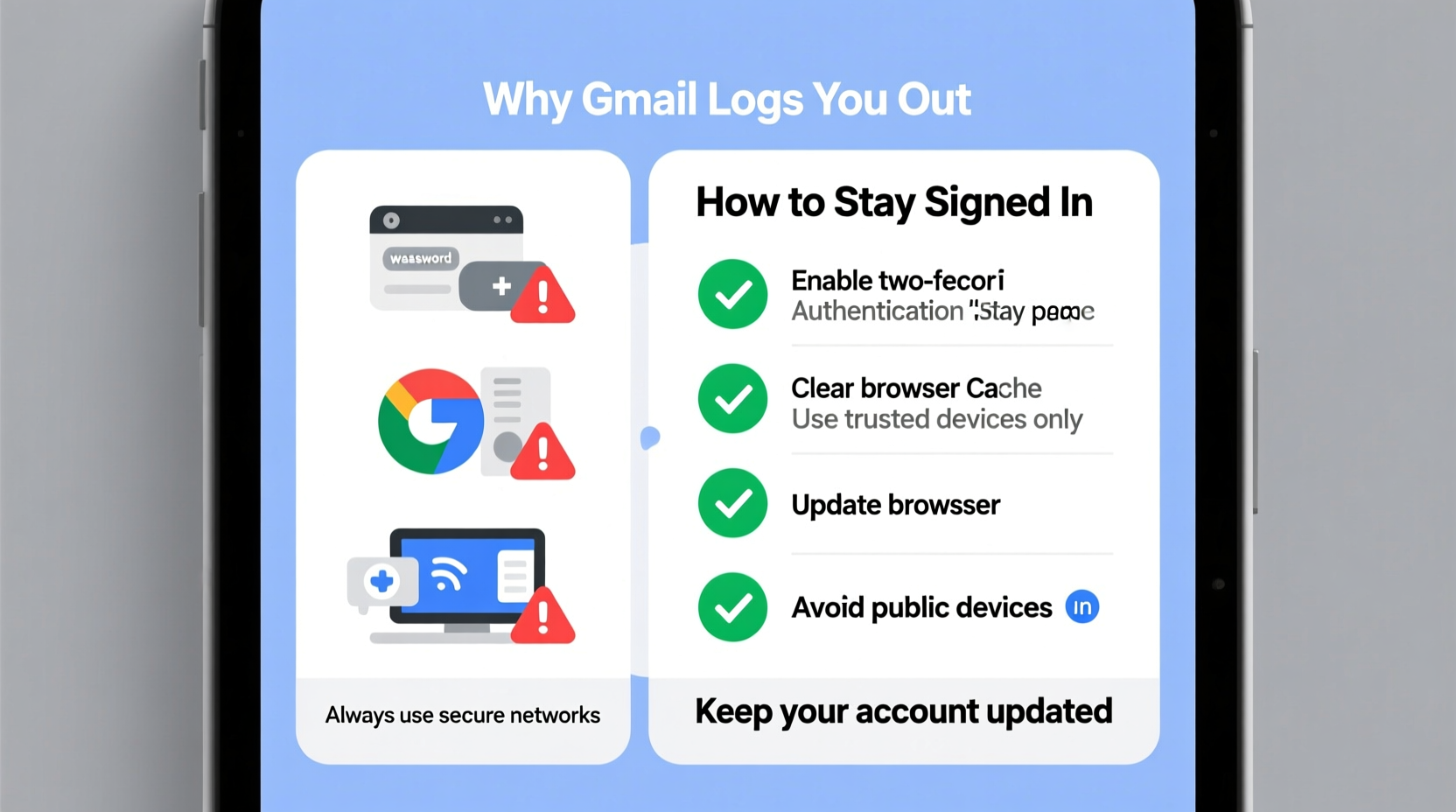
Gmail’s automatic sign-out behavior isn’t arbitrary. Google implements these mechanisms primarily for security and performance reasons. However, several factors can trigger frequent logouts:
- Inactivity timeout: After a period of inactivity (typically 2–4 hours), especially on public or shared computers, Gmail may end your session.
- Browser settings: Aggressive cookie clearing, private browsing modes, or third-party cookie blockers prevent Gmail from maintaining your login state.
- Multiple device access: Logging in from too many devices or locations in a short time can trigger Google’s automated security protocols.
- Outdated apps or browsers: Older versions may lack support for modern authentication tokens or encounter sync errors.
- Security events: Suspicious activity—like logins from unfamiliar locations—can prompt Google to invalidate active sessions.
- Two-factor authentication (2FA) misconfigurations: If app-specific passwords or backup methods aren't set up correctly, re-authentication loops occur.
Google’s system is designed to protect user accounts by invalidating sessions that appear risky. While this enhances security, it can be disruptive when legitimate usage gets flagged.
How to Stay Signed In: Practical Fixes
Maintaining a consistent Gmail session requires both proper configuration and awareness of how your devices and browsers handle authentication. Below are actionable steps to minimize unwanted logouts.
1. Ensure Cookies Are Enabled and Preserved
Gmail relies on cookies to remember your login status. If cookies are blocked or cleared frequently, you’ll be forced to log in repeatedly.
- Open your browser settings (Chrome, Firefox, Safari, etc.).
- Navigate to Privacy & Security > Cookies and Site Data.
- Ensure “Block third-party cookies” is not enabled globally—or add an exception for
google.comandmail.google.com. - Disable any extensions that automatically clear cookies on exit.
Additionally, avoid scheduling automatic cookie deletion unless absolutely necessary for privacy.
2. Use Trusted Devices and Browsers
Google treats each device-browser combination as a separate session. Logging in from new or untrusted environments increases the likelihood of forced re-authentication.
To mark a device as trusted:
- Log in normally and complete any 2FA prompts.
- Check \"Don’t ask again on this device\" when prompted during verification.
- Stay logged in and use the account regularly to reinforce trust signals.
Trusted devices receive longer-lived authentication tokens, reducing the frequency of logouts.
3. Update Your Apps and Browser
Using outdated software can lead to compatibility issues with Google’s authentication systems. For example:
- An old version of the Gmail app may fail to renew OAuth tokens properly.
- Legacy browsers might not support secure session storage features.
Always ensure you’re running the latest version of Chrome, Firefox, or the official Gmail app from your device’s app store.
4. Manage Multiple Accounts Carefully
Switching between multiple Google accounts—especially across tabs or windows—can confuse session management. The browser may overwrite one session with another, causing unexpected sign-outs.
Solution: Use separate browser profiles or dedicated incognito windows for different accounts. Alternatively, limit active accounts per browser to reduce conflicts.
Device-Specific Solutions
The way Gmail behaves varies significantly depending on platform. Here’s how to optimize sign-in persistence across major devices.
On Android Devices
The Gmail app on Android typically stays logged in unless manually removed or affected by system-level restrictions.
- Go to Settings > Apps > Gmail > Storage and ensure cache isn’t being cleared aggressively.
- Check that battery optimization isn’t killing background processes. Disable it for the Gmail app.
- Verify your Google Account is added under Settings > Accounts.
On iOS Devices
iOS enforces stricter background app management, which can interrupt syncing.
- Enable Background App Refresh for the Gmail app in Settings.
- Allow notifications so the app receives push signals to maintain connection.
- Reinstall the app if token corruption is suspected.
On Desktop Browsers
Browsers are the most common source of logout issues due to cookie handling and extension interference.
| Browser | Recommended Setting | Avoid |
|---|---|---|
| Google Chrome | Allow all cookies for google.com | Incognito mode without exceptions |
| Mozilla Firefox | Use “Custom” privacy settings; allow tracking protection for standard sites only | Strict Enhanced Tracking Protection |
| Safari | Disable “Prevent cross-site tracking” temporarily if issues persist | Private browsing for regular use |
“Persistent login issues are often rooted in cookie policies rather than account problems. Whitelisting Google domains resolves 70% of cases.” — David Lin, Senior Web Security Analyst at Cloudflare
Security vs. Convenience: Finding the Balance
It’s natural to want seamless access, but staying perpetually logged in carries risks—especially on shared or unsecured devices. The key is balancing convenience with smart security practices.
For personal devices used exclusively by you, enabling persistent sessions makes sense. But on public computers, libraries, or temporary setups, automatic logouts are a feature, not a flaw.
Best Practices for Secure, Stable Sessions
- Use strong, unique passwords and enable two-factor authentication (2FA).
- Review active sessions monthly via Google Account > Security > Your Devices.
- Sign out remotely from lost or compromised devices.
- Use passkeys or authenticator apps instead of SMS where possible—they’re more reliable and secure.
Google periodically rotates session tokens as part of its security protocol. This means even stable logins may require re-authentication every few weeks—a normal and expected behavior.
Mini Case Study: Sarah’s Work-from-Home Setup
Sarah, a freelance graphic designer, uses Gmail across her laptop, tablet, and phone. She noticed she was being logged out daily on her main laptop, despite using it constantly.
After investigation, she discovered she had enabled a browser extension that deleted all cookies upon closing the window. While intended for privacy, it disrupted her Gmail session. By adding mail.google.com to the extension’s whitelist, her login remained persistent—and her productivity improved immediately.
This real-world scenario highlights how well-intentioned privacy tools can inadvertently interfere with essential services.
Step-by-Step Guide to Prevent Future Logouts
Follow this checklist to stabilize your Gmail login across all platforms:
- Step 1: Open your primary browser and go to Gmail.
- Step 2: Log in and check “Stay signed in” if prompted.
- Step 3: Confirm cookies are enabled for
google.comandmail.google.com. - Step 4: Disable any cookie-cleaning extensions or configure them to preserve Google logins.
- Step 5: On mobile, open the Gmail app settings and ensure background refresh is on.
- Step 6: Visit myaccount.google.com, go to Security > Manage Devices, and remove any unknown or inactive sessions.
- Step 7: Enable 2FA using an authenticator app and generate app passwords for non-browser clients (e.g., Outlook, Thunderbird).
- Step 8: Test the setup by closing and reopening the browser or app after 10 minutes. You should remain logged in.
Repeat this process for each device you use regularly. Consistency across devices strengthens overall session stability.
Frequently Asked Questions
Does Google intentionally log me out for no reason?
No. Google logs you out based on detectable patterns such as inactivity, suspicious location changes, or device switches. It also rotates session tokens periodically for security. What seems like a random logout usually has a traceable cause related to behavior, settings, or environment.
I’m using the Gmail app and still get logged out—what could be wrong?
This often occurs due to aggressive battery-saving settings that kill background processes, corrupted app data, or outdated app versions. Try clearing the app cache (not data), disabling battery optimization for the app, or reinstalling the latest version from the App Store or Google Play.
Can I stay logged in forever without any risk?
Technically, yes—but not safely. Even if you disable all logout triggers, Google may still require periodic re-authentication for security. More importantly, staying logged in on unattended devices increases exposure to unauthorized access. Always assess the trade-off between convenience and context.
Conclusion: Take Control of Your Gmail Experience
Frequent Gmail logouts are more than just annoying—they disrupt communication, erode trust in digital tools, and waste valuable time. But with the right knowledge, most of these issues are preventable. From adjusting cookie settings to managing trusted devices and understanding Google’s security logic, small changes yield significant improvements in session reliability.
The goal isn’t to bypass security, but to work harmoniously within it. By aligning your habits with Google’s authentication framework, you gain both stability and safety.




 浙公网安备
33010002000092号
浙公网安备
33010002000092号 浙B2-20120091-4
Comments
No comments yet. Why don't you start the discussion?