
Gmail is one of the most widely used email platforms globally, known for its powerful spam detection and intuitive interface. Yet even with advanced algorithms, many users regularly find important messages—such as newsletters, work correspondence, or personal updates—ending up in the Spam folder. This misclassification can lead to missed opportunities, delayed responses, and unnecessary frustration. Understanding why Gmail makes these errors and knowing how to correct them isn’t just convenient—it’s essential for maintaining reliable communication.
The root causes vary: sometimes it's a sender’s technical setup, other times it's your own account behavior or outdated filtering rules. The good news is that most issues are fixable with the right approach. This guide breaks down the mechanics behind false spam flags, walks you through practical solutions, and provides long-term strategies to keep your inbox accurate and trustworthy.
How Gmail’s Spam Filter Works (And Why It Makes Mistakes)
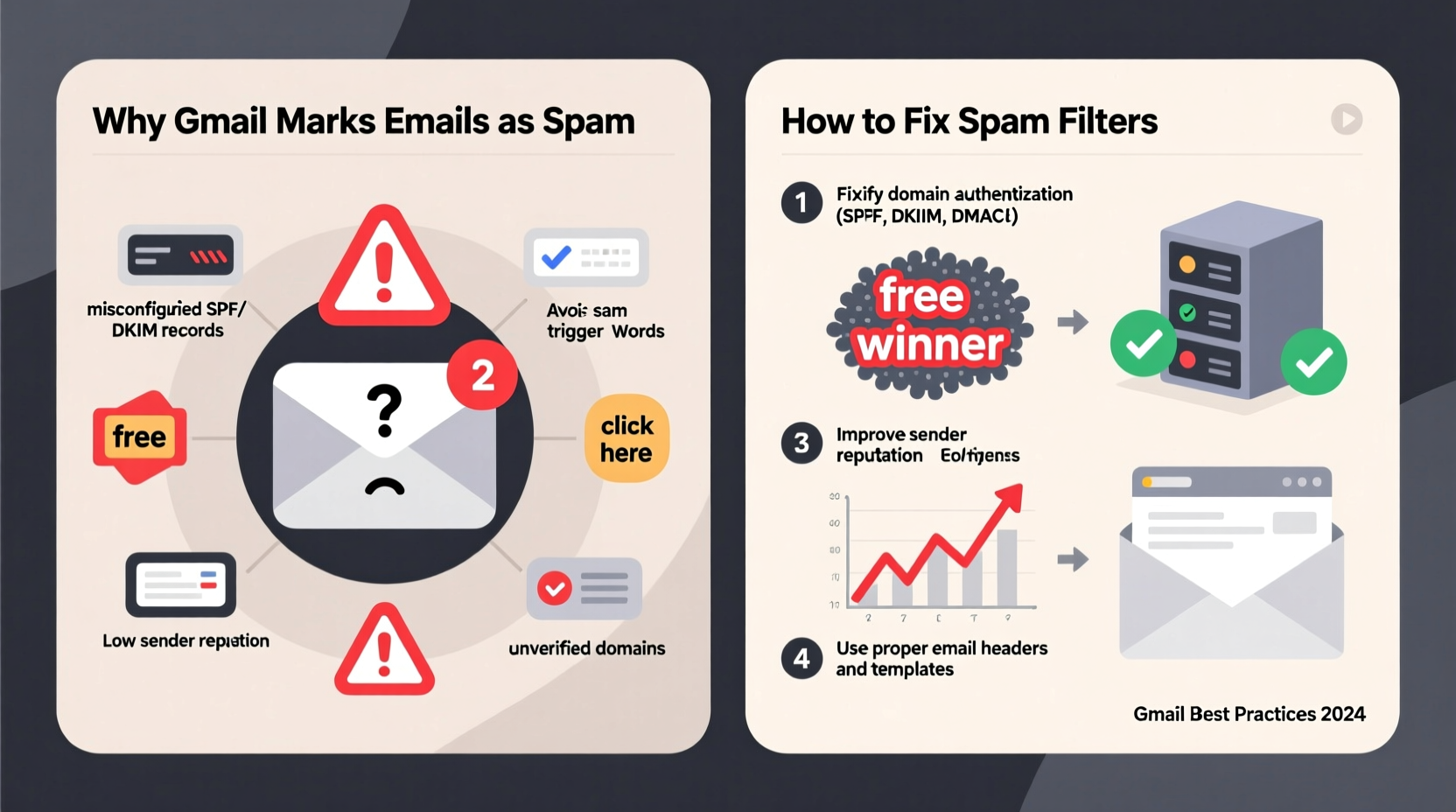
Gmail uses a combination of machine learning models, user behavior patterns, and real-time threat intelligence to assess incoming emails. Every message is analyzed based on dozens of signals, including sender reputation, content structure, links, attachments, and historical engagement. If an email matches too many characteristics associated with spam campaigns, it gets diverted automatically.
However, no system is perfect. Legitimate senders may trigger red flags by using marketing language (“Act now!”, “Limited time offer”), embedding too many images, or sending from domains with poor reputations—even if unintentionally. On the receiving end, if you’ve previously marked similar emails as spam or ignored certain senders, Gmail learns to treat them suspiciously going forward.
“Spam classification isn't binary. It's probabilistic. Gmail weighs hundreds of factors, and sometimes innocent traits get over-penalized.” — Dr. Lena Patel, Senior Researcher at Email Intelligence Lab
One common misconception is that spam filtering happens only once. In reality, Gmail continuously re-evaluates messages based on new data. A newsletter delivered safely last month might land in Spam today because of a slight template change or a spike in user complaints across Gmail’s network.
Step-by-Step Guide to Fix Incorrect Spam Filtering
If you're consistently missing important emails, follow this structured process to diagnose and resolve the issue:
- Check Your Spam Folder Regularly
Start by reviewing your Spam folder at least once a week. Look for any legitimate emails that were mistakenly filtered. Marking them as “Not Spam” trains Gmail’s algorithm over time. - Select and Report False Positives
Open each wrongly flagged email, click the “Not spam” button above the message, and wait for it to move back to your Primary tab. Do this for at least three recent examples from the same sender to strengthen the signal. - Add Trusted Senders to Contacts
Go to Google Contacts and add the sender’s email address. This simple step increases their credibility in Gmail’s eyes and reduces future filtering risks. - Create a Custom Inbox Filter
Navigate to Settings > See all settings > Filters and Blocked Addresses > Create a new filter. Enter the sender’s email or domain, then select “Never send it to Spam.” Save the filter. - Whitelist Domains via Forwarding or Apps Script (Advanced)
For business accounts or high-volume workflows, consider setting up automated whitelisting using Google Workspace Admin Console or Apps Script to enforce delivery rules.
Common Causes of False Spam Flags and How to Prevent Them
Understanding what triggers false positives allows you to take preventive action. Below are frequent culprits and corresponding fixes:
| Cause | Why It Triggers Spam | Solution |
|---|---|---|
| Overuse of promotional language | Words like \"free,\" \"guaranteed,\" or excessive exclamation points mimic spam tactics. | Edit subject lines and body text to be more conversational and less salesy. |
| Poor sender authentication (missing SPF/DKIM/DMARC) | Emails without proper verification appear untrustworthy. | Contact the sender or IT admin to ensure DNS records are configured correctly. |
| Sudden increase in sending volume | A small organization suddenly emailing thousands raises suspicion. | Warm up new domains gradually; use reputable email services like Mailchimp or SendGrid. |
| User-specific filtering history | If you previously marked similar emails as spam, Gmail assumes preference. | Manually correct past mistakes by marking current valid emails as “Not spam.” |
| Shared IP addresses with spammers | Some hosting providers have IPs blacklisted due to abuse. | Switch to dedicated or premium email delivery services with clean reputations. |
Mini Case Study: Recovering a Business Newsletter
Jessica runs a boutique digital marketing agency and sends a weekly newsletter to clients. Over two months, she noticed declining open rates. Upon investigation, several clients confirmed her emails were landing in Spam—even though they’d subscribed willingly.
She reviewed her email headers and discovered her domain lacked DKIM signing. After working with her web host to implement full SPF, DKIM, and DMARC records, deliverability improved within days. She also asked affected recipients to mark her latest email as “Not spam” and add her to their contacts. Within a week, inbox placement stabilized at 98%.
This case illustrates how technical oversights combine with user-level settings to create delivery problems—and how both must be addressed simultaneously.
Best Practices to Maintain Accurate Filtering Long-Term
Fixing a single incident is useful, but building resilience against future misclassifications requires ongoing maintenance. Implement these habits to protect your inbox integrity:
- Maintain a whitelist of critical contacts – Whether it’s your bank, accountant, or project manager, having key senders pre-approved prevents disruptions.
- Review filters monthly – Old or conflicting filters can override newer preferences. Go to Settings > Filters and Blocked Addresses to audit existing rules.
- Use labels instead of aggressive blocking – Rather than marking something as spam, create custom labels for low-priority mail to avoid training errors.
- Monitor subscription quality – Unsubscribe from low-engagement newsletters. High complaint rates from others can indirectly affect how similar emails are treated in your account.
- Enable 2FA and secure your account – Compromised accounts often exhibit erratic behavior that confuses spam models. Keep login security tight.
Checklist: Fix & Prevent Spam Misclassification
Follow this actionable checklist to regain control over your inbox:
- ✅ Reviewed Spam folder for legitimate emails in the last 7 days
- ✅ Marked at least 3 false positives as “Not spam”
- ✅ Added key senders to Google Contacts
- ✅ Created inbox filters for trusted domains (“Never send to Spam”)
- ✅ Verified SPF/DKIM/DMARC status for your own domain (if applicable)
- ✅ Deleted outdated or conflicting filters
- ✅ Reported persistent issues to sender or IT support
- ✅ Scheduled monthly filter audits
Frequently Asked Questions
Can I stop Gmail from ever marking a specific sender as spam?
Yes. By creating a filter for the sender’s email address and selecting “Never send it to Spam,” you can effectively whitelist them. Additionally, adding them to your Google Contacts reinforces delivery priority.
Why do some emails from known contacts still go to spam?
Even familiar senders can trigger spam filters if their account is compromised, their email service has poor reputation, or their message content changes significantly. Also, if you haven’t interacted with their emails recently, Gmail may deprioritize them. Regular engagement helps maintain inbox placement.
Does marking emails as spam harm the sender?
Individually, no—but collectively, yes. When many Gmail users mark messages from the same domain as spam, Google adjusts its global filtering rules. This can result in widespread deliverability issues for legitimate senders. Always double-check before reporting.
Conclusion: Take Control of Your Inbox Accuracy
Incorrect spam classification doesn’t have to be a recurring headache. With a clear understanding of how Gmail evaluates messages and a few proactive steps, you can dramatically improve email accuracy. The key lies not just in reacting to errors but in shaping Gmail’s perception through consistent feedback, smart filtering, and technical awareness.
Your inbox should reflect your priorities—not algorithmic assumptions. Start today by auditing your Spam folder, correcting misclassified emails, and setting up protective filters. These small actions compound into a more reliable, stress-free email experience.




 浙公网安备
33010002000092号
浙公网安备
33010002000092号 浙B2-20120091-4
Comments
No comments yet. Why don't you start the discussion?